




Need to type the cent symbol (¢) but can’t find it on your keyboard? You’re not alone. The cent sign isn’t printed on most keyboards, but there are easy ways to insert it—whether you’re using Windows, macOS, Chromebook, or a smartphone.
In this guide, we’ll show you step-by-step how to make a cent sign on your keyboard using shortcuts, Alt codes, Unicode, and character maps. These methods work in apps like Word, Excel, and even your browser.
Method 1: Make a Cent Sign on Windows
Windows users can use Alt codes or the Character Map tool to insert the cent symbol quickly.
Option 1: Using Alt Code
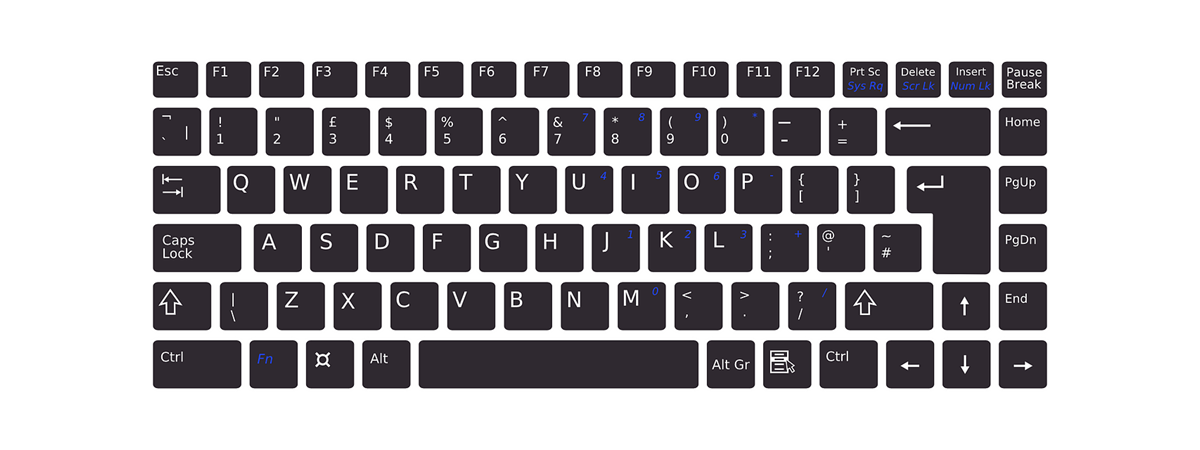
- Turn on Num Lock on your keyboard.
- Hold the Alt key.
- On the numeric keypad, type 0162.
- Release Alt, and the cent sign (¢) appears.
Tip: On Windows 11 or Windows 10 laptops without a number pad, use the on-screen keyboard or enable a virtual numeric keypad.

Option 2: Using Character Map
- Type Character Map in the Windows search bar and open it.
- Choose a font (like Arial).
- Scroll to find ¢ or type cent in the search box.
- Click Select → Copy, then paste it (Ctrl + V) into your document.
Method 2: Make a Cent Sign on Mac
- Place your cursor where you want the symbol.
- Press Option + 4 (⌥ + 4).
- The cent sign (¢) appears instantly.
Tip: This shortcut works in all Mac apps—Word, Pages, Safari, and Mail.

Method 3: Make a Cent Sign on Chromebook
- Press Ctrl + Shift + U simultaneously.
- Type 00A2.
- Press Enter, and the cent symbol (¢) appears.
Method 4: Make a Cent Sign on iPhone or iPad
- Open any app where you can type (Messages, Notes, Mail).
- Switch to the numeric keyboard.
- Press and hold the $ key.
- Slide your finger to select ¢ and release.
Method 5: Make a Cent Sign on Android
- Open a text field and tap to bring up the keyboard.
- Tap the ?123 key to open symbols.
- Press and hold $, then drag to ¢.
If you don’t see it, switch keyboard layouts or use Gboard → Settings → Languages → English (US).

Method 6: Copy and Paste the Cent Symbol
If you rarely use the symbol, just copy it: ¢
Paste it wherever needed using Ctrl + V (Windows) or Command + V (Mac).
Method 7: Create a Custom Shortcut
- Go to Insert → Symbol → More Symbols.
- Select ¢, click Shortcut Key.
- Enter your preferred shortcut (e.g., Alt + C).
- Click Assign.
Troubleshooting: When the Cent Sign Doesn’t Display
- Make sure the font supports special symbols (e.g., Arial, Calibri, or Times New Roman).
- Re-enable Unicode support or switch encoding to UTF-8.
- Check that your input field accepts special characters.
Conclusion
Typing the cent symbol doesn’t have to be a mystery. Windows users can use Alt + 0162; Mac users can press Option + 4; Chromebooks support Ctrl + Shift + U → 00A2; and mobile users can hold the $ key to reveal the cent sign. These shortcuts make it easy to add the cent (¢) sign anywhere—whether you’re writing prices, financial reports, or simple text messages.
Discussion (0)
Be the first to comment.