While using Windows 8.1's user interface might require some time to accommodate, the tasks of navigating through the operating system and its new apps can be simplified by using the keyboard shortcuts that Microsoft has made available. The shortcuts shared in this article were chosen by us while thinking what apps or settings you might access or use on a regular basis. They are simple enough to be easily grasped by anyone, and they will help you be more productive in your daily tasks.
Shortcuts for the Start Screen and the Desktop
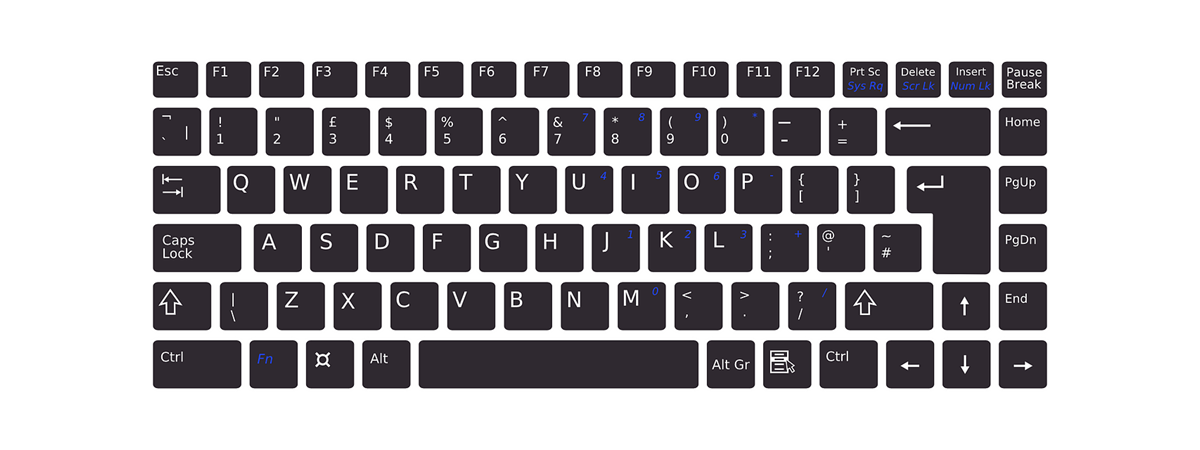
Keyboard, shortcuts, Windows 8.1
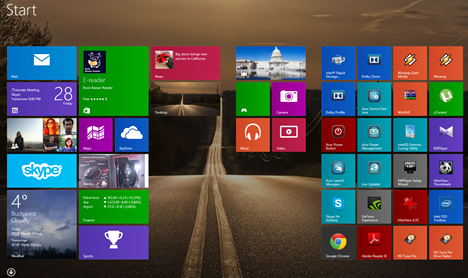
Windows Key = The action for this key depends on where you are when you press it. If you are on the Desktop when you touch it, it takes you to the Start screen. If you press it again, it takes you back to the Desktop. But, if you touch it while in a Windows 8.1 app, it takes you to the Start screen. Press it again, and it takes you back to the app.
Ctrl + Tab = When using it on the Start screen, it switches between the Start screen and the Apps view. On the Desktop it does nothing. However, some web browsers will have the same shortcut for switching between tabs (e.g. Firefox) or for creating new tabs (e.g. Internet Explorer 11).
Windows Key + type an app name = When using it on the Desktop, it takes you to the Start screen and searches for installed apps using the name you typed in. When you are on the Start screen, pressing the Windows Key takes you to the Desktop. There you should only type the name of the app you want to use.
Escape - When using it on the Start screen, it closes the Start screen and switches to Desktop. This shortcut does nothing when you are on the Desktop.
Windows Key + E = Launches File Explorer both from the Desktop and the Start screen.
Windows Key + R = Launches the Run dialog that you can use to run programs or commands.
Windows Key + X = Launches a hidden menu with many useful shortcuts. This menu is also named the WinX menu or the power user's Start Menu.
Windows Key + L = Locks your Windows 8.1 PC or device and takes you to the Lock screen.
Windows Key + P = Opens the Project sidebar for extending your image to a second screen. If you have multiple monitors or if you are using a video projector, this sidebar allows you to choose how the image should be displayed. You can keep the image on one screen, duplicate it, extend it to another screen or only display things on a secondary monitor.
Windows Key + F1 = Launches the Windows Help and Support documentation provided by Microsoft.
Shortcuts for the Windows 8.1 Charm Bar & Modern Apps
Keyboard, shortcuts, Windows 8.1
Windows Key + C - Displays the Charms bar. You can navigate through the charms with the arrow keys on your keyboard.
Windows Key + Q = Launches the General Search. You can use this to search for files and settings on your PC, the Internet, and OneDrive, as well as through installed apps and the Windows Store.
Windows Key + F = Launches the Files Search. You can use this to search for files on your PC and OneDrive.
Windows Key + W = Launches the Windows Settings Search. You can use this to search for specific operating system settings by typing in specific keywords.
Windows Key + I = Displays the Settings charm. When using it on the Desktop, you can use this charm to access the Control Panel, Personalization options, the System information section and the Windows Help and Support module. You also have access to the wi-fi settings, volume and brightness control, notifications, power buttons and keyboard settings. When using it from the Start screen, you can use this charm to access the Start screen personalization options, tiles settings and the online help version for the Start screen. You can also use it when working with Windows 8.1 apps to access their settings.
Windows Key + H = Launches the Share charm. When using it on the Desktop, you can use this charm to share a desktop screenshot through the Mail app or other social network apps that you have installed. When using it on the Start screen, you can use it to share a screenshot of the Start screen through the same channels. You can also use it to share data from Windows 8.1 apps that you are running.
Windows Key + K = Displays the Devices charm. Depending on the peripherals you have attached to your computer or Windows 8.1 device, you will have the option to play multimedia files, print information from modern apps or show the information on your screen on another display or video projector. This charm can only be used in modern Windows 8.1 apps.
Windows Key + Z = When using it on the Start screen, it displays the Start screen customization button at the bottom of the screen. When using it in modern apps, it displays different contextual options for each app.
Shortcuts for Switching Between Apps and Windows
Keyboard, shortcuts, Windows 8.1
Alt + Tab = Repeatedly pressing the Tab key while holding Alt pressed cycles through open windows and apps. Release the Tab key on the window or app that you want to open.
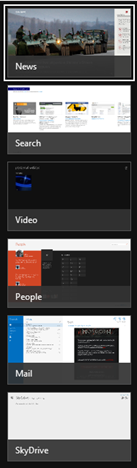
Windows Key + Tab = Repeatedly pressing the Tab key while holding the Windows Key pressed cycles through open modern apps while displaying them in a vertical sidebar at the left side of the screen. Release the Tab key on the app that you want to open.
Ctrl + Alt + Tab = When pressed together, this combination of keys displays the list of open windows and apps and keeps the list on screen even after you release the keys. You can then navigate through open windows and apps using the arrow keys.
Ctrl + Windows Key + Tab = When pressed together, this combination of keys displays the sidebar of open apps and keeps the sidebar on screen even after you release the keys. You can then navigate through open apps using the up/down arrow keys.
Shortcuts for Managing Desktop Windows
Keyboard, shortcuts, Windows 8.1
Windows Key + Arrow Up = When using it on the Desktop, it maximizes the current window across the screen. If the window is already maximized, it has no effect. Also, it doesn't work on the Start screen.
Windows Key + Arrow Down = When using it on the Desktop in a maximized window, it restores the current window's size. Pressing it again while the window is restored causes the window to be minimized to the taskbar. If the window is already minimized, it has no effect.
Windows Key + Shift Key + Arrow Up = When using it on the Desktop, it maximizes the current window vertically.
Windows Key + Shift Key + Arrow Left/Right = Moves the current window to the left or the right monitor. This works only when using multiple monitors.
Windows Key + Arrow Left/Right = When using it on the Desktop, it moves the current window to the left or right half of the screen. Pressing Windows Key + Arrow Left while the window is at the right of the screen, for example, restores the window. Pressing the combination again moves the window to the left half of the screen and vice versa. This can be used across multiple monitors.
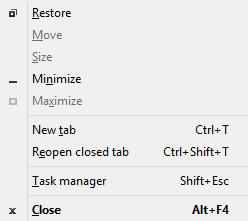
Alt + Space = When using it on the Desktop, it launches the title bar menu of the current window. You can also access this menu by right-clicking the title bar of the current window. The menu generally includes options to resize the window and other application specific options. Using this while on the Start screen has no effect.
F11 = When using it in desktop applications that are part of Windows 8.1, like File Explorer or Internet Explorer, it enables or disables the full-screen view for the current window. Some third-party applications might support while many do not.
Shortcuts for the Windows 8.1 Taskbar
Keyboard, shortcuts, Windows 8.1
Windows Key + T = When using it on the Desktop, it highlights the first application in the taskbar. You can use the arrow keys to cycle through the taskbar applications. The applications that are running also display a thumbnail above their icon when you select them.
Windows Key + B = This works both on the Desktop and the Start screen. If the Notification Area Icons are set to "Always show all icons and notifications on the taskbar", this keyboard shortcut highlights the first application in the system tray. You can use the arrow keys to cycle through all the applications found in the system tray. If the "Always show all icons and notifications on the taskbar" is disabled, this keyboard shortcut highlights the "Show hidden icons" arrow. You can then press Enter to display the hidden icons or use the arrow keys to cycle through the applications found in the system tray.
Shift + click on a taskbar application = Launches a new instance of the selected application. This works only with applications which support running in multiple instances, like Microsoft Office or Internet browsers.
Ctrl + Shift + click on a taskbar application = Launches a new instance of the selected application with administrator rights. This works only with applications which support running in multiple instances, like Microsoft Office or Internet browsers.
Shift + right-click on a taskbar application = Launches the contextual menu for that application instead of the list with recent items or pinned tasks or folders.
Windows Key + number keys 1 through 9 = Launches the taskbar application at the specified position. You can find more information about this in our dedicated article, Taskbar Productivity Tips & Shortcuts.
Conclusion
We tried to share a selection with the most useful keyboard shortcuts available in Windows 8.1. We didn't give you everything, only those that you are more likely to consider useful when using this operating system, its apps, and features.
Let us know if you enjoy our collection and if you would like to know the keyboard shortcuts for performing actions that were not presented in this guide.
Hi, can u tell me how to change between the current open tabs in an internet explorer 8.1.
hanif ·
thanks!! very useful
roja ·
thank you..
it’s very useful..
janemary ·
Hi, are you looking for a way to activate windows8.1, there are a lot activation code can be used for your reference:&&& windows 8.1 key sale &&& on bing.
Tom McLaughlin ·
Thank you!
janehuang ·
I got a good way for activating…I got a code and download link for my pc for a long time. Only need to search the @@ Windows 8.1 key Sale @@ from bing. Then click the first link to get a website…It will provide what you need.. Hope it works for you too!
Blanca D ·
Would like to know if there is a script or hot key to launch or automate connecting to a Microsoft wireless display adapter with one click. Currently the steps are win+k, select project, click on the device.











Discussion (9)
Thanks, that’s useful!
very very usefull…Thanks
Hi, can u tell me how to change between the current open tabs in an internet explorer 8.1.
thanks!! very useful
thank you..
it’s very useful..
Hi, are you looking for a way to activate windows8.1, there are a lot activation code can be used for your reference:&&& windows 8.1 key sale &&& on bing.
Thank you!
I got a good way for activating…I got a code and download link for my pc for a long time. Only need to search the @@ Windows 8.1 key Sale @@ from bing. Then click the first link to get a website…It will provide what you need.. Hope it works for you too!
Would like to know if there is a script or hot key to launch or automate connecting to a Microsoft wireless display adapter with one click. Currently the steps are win+k, select project, click on the device.
Any pointers would be appreciated.
Thank you.
Blanca