




If a transaction on your PayPal account doesn’t look right, you can dispute the charge and request a refund. PayPal’s Resolution Center gives you tools to report unauthorized activity, items not received, or items that arrive damaged or different from what a seller advertised. Acting quickly increases your chances of getting your money back, especially if the seller is unresponsive.
The steps below show how to dispute a PayPal charge on both desktop and mobile. You’ll learn how to collect evidence, contact the seller, open a dispute, escalate it to a claim, and track PayPal’s decision. These are standard, still-valid methods at the time of writing, and they work for most consumer PayPal accounts.
Gather Your Evidence
Clear proof supports your refund request. PayPal reviews everything you submit and makes decisions based on documentation.
- Save your transaction details, including the amount, date, merchant name, and transaction ID.
- Take screenshots of the seller’s listing, item description, or service details.
- Take photos or videos of what you received if it’s damaged or incorrect.
- Keep tracking numbers and delivery confirmations.
- Save messages or emails from the seller.
Contact The Seller
PayPal recommends reaching out before filing a dispute because many sellers resolve issues quickly when contacted.
- Open PayPal and locate the transaction.
- Use the seller’s contact information to send a polite message describing the issue.
- Include photos, screenshots, or descriptions of the problem.
- Ask for a refund or replacement with a reasonable response time.
- Save all communication in case you need it for PayPal.
File A Dispute On PayPal (Desktop)
If the seller doesn’t respond or refuses to help, you can open a dispute through PayPal’s Resolution Center.
- Visit PayPal.com and log in.
- Open the Resolution Center from the top menu.
- Select the transaction with the issue.
- Click Report a Problem.
- Choose the reason (Item Not Received, Significantly Not as Described, or Unauthorized).
- Write a detailed explanation and attach your evidence.
- Submit the dispute to notify the seller.
File A Dispute On PayPal App (Phone)
The mobile app uses the same dispute process but with a simplified layout.
- Open the PayPal app and sign in.

- Tap the Wallet or Activity tab.

- Select the transaction you want to dispute and scroll down.

- Tap Report a Problem.
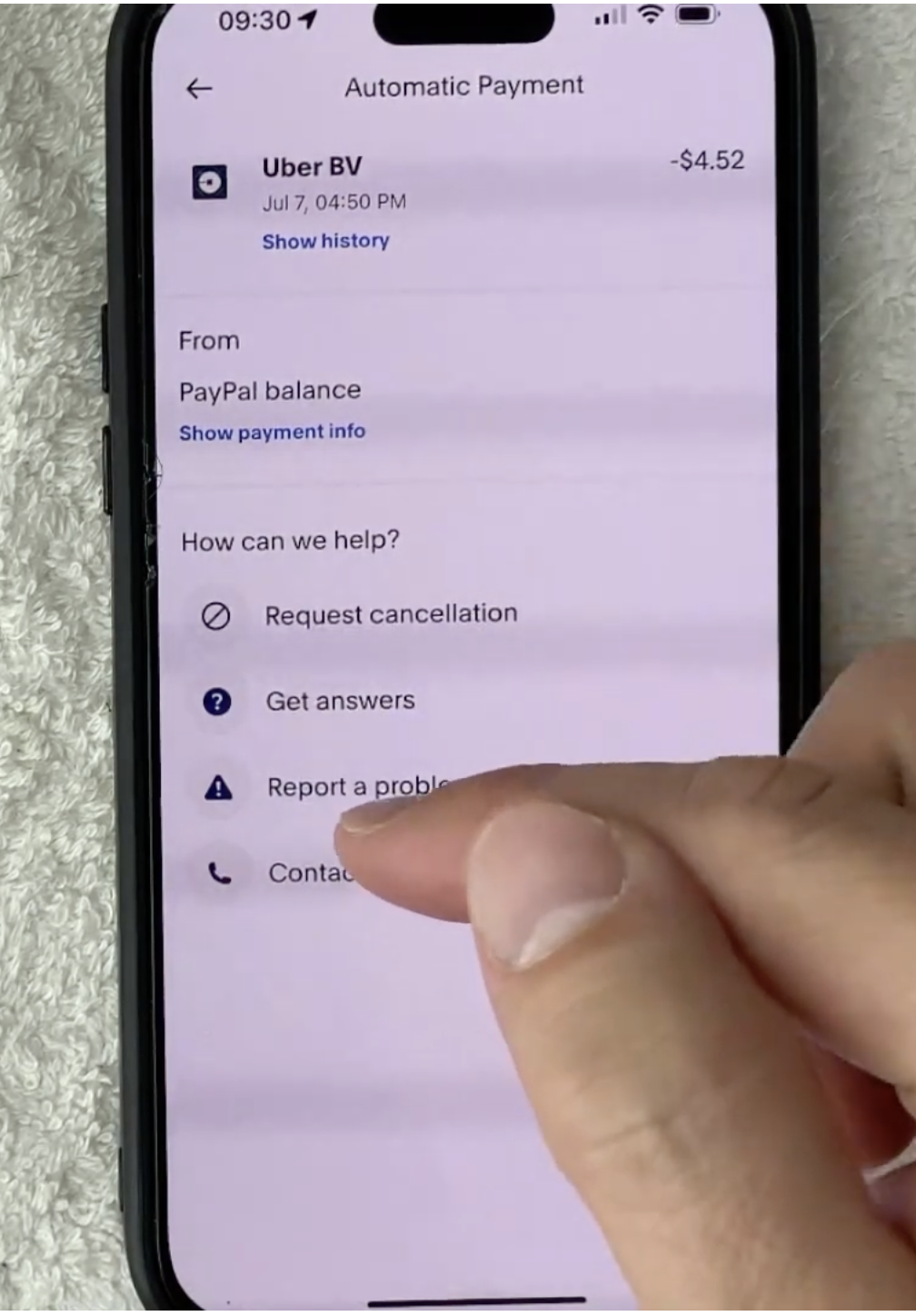
- Choose the type of issue.
- Describe the problem in detail and upload your screenshots or photos.
- Submit the dispute and wait for PayPal to notify the seller.
Escalate The Dispute To A Claim
If the seller ignores the dispute or denies your request, you can escalate it so PayPal reviews the case directly.
- Open the dispute inside the Resolution Center.
- Select Escalate to a Claim.
- Provide any missing information or extra evidence PayPal requests.
- Submit the claim before PayPal’s deadline to stay eligible for a refund.
Track PayPal’s Decision
PayPal reviews the full conversation, your evidence, and the seller’s response. Decisions vary based on the issue type and proof provided.
- Check email alerts for updates from PayPal.
- Monitor the Resolution Center for new messages.
- Respond quickly if PayPal requests more information.
- Wait for PayPal’s final ruling after evaluation.
Receive Your Refund
If PayPal rules in your favor, the platform sends the refund to your PayPal balance or your original payment method.
- Refunds to cards may take a few business days depending on your bank.
- Partial refunds may occur if PayPal determines shared responsibility or a compromise.
- Unauthorized charges typically qualify for full reimbursement under PayPal protection.
- Keep monitoring your account until the refund posts.
Troubleshooting Common Problems
- If you can’t find the dispute option, update your PayPal app or use the desktop site.
- If the transaction is too old, PayPal may not allow disputes, but customer support may still review it manually.
- Missing evidence weakens claims; add photos, tracking details, or screenshots whenever possible.
- If the seller responds aggressively or inconsistently, keep everything documented for PayPal.
Tips
- Dispute charges as soon as you notice them for the best outcome.
- Always communicate through PayPal to keep your messages recorded automatically.
- Check the seller’s reputation before buying to avoid future disputes.
- Use strong PayPal security settings to reduce unauthorized charges.
FAQ
How Long Do I Have To Dispute A PayPal Charge?
You usually have 180 days from the transaction date to open a dispute.
Can I Dispute Digital Goods Or Services?
Yes. PayPal allows disputes for digital items as long as you provide clear proof.
What Happens If The Seller Doesn’t Respond?
PayPal escalates the case and makes a decision based on your evidence.
Can PayPal Deny A Claim?
Yes. Claims can be denied if evidence is insufficient or the dispute falls outside PayPal’s protection policies.
Can I Appeal PayPal’s Decision?
You can request a review if new evidence becomes available.
Summary
- Gather evidence such as photos, messages, and order details.
- Contact the seller and attempt direct resolution.
- Open a dispute through PayPal on desktop or mobile.
- Escalate to a claim if the seller won’t help.
- Monitor PayPal’s updates and submit extra evidence when requested.
- Receive your refund once PayPal rules in your favor.
Conclusion
PayPal’s dispute tools give you a reliable way to challenge unauthorized, incorrect, or unsatisfactory transactions. When you collect strong evidence, communicate clearly, and follow PayPal’s steps on time, you significantly improve your chances of getting a refund. Whether you’re using PayPal on a computer or phone, the process remains straightforward and gives you control over resolving problematic charges.


Discussion (0)
Be the first to comment.