


 Modified on 09.08.2025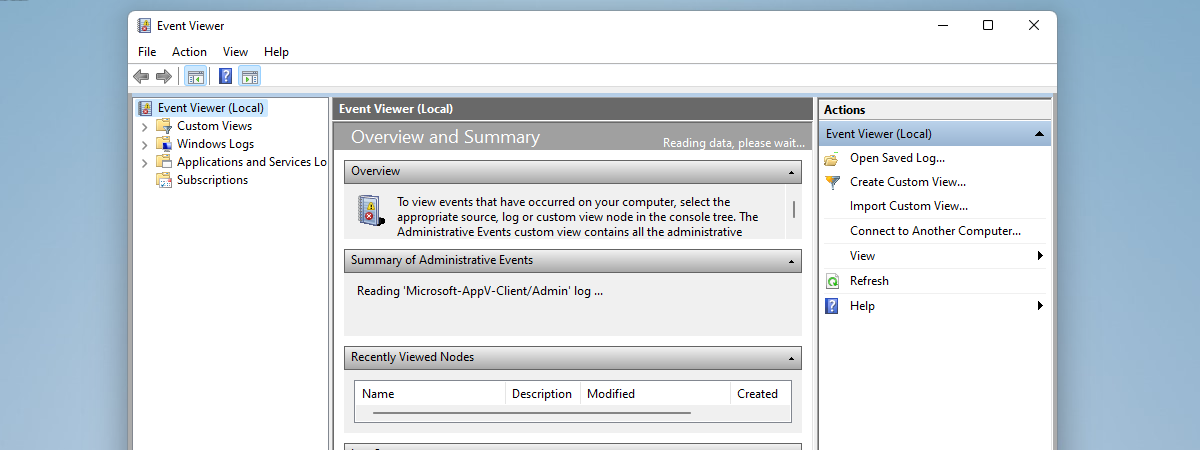
The Windows Event Viewer is a powerful tool that logs everything happening on your PC from the moment it starts up to shutdown. You can use it to see details about app errors, warnings generated by different system services, information about the state of drivers and services. That is why the Windows 11 and Windows 10 Event Viewer features are the go-to utilities when you need to identify or troubleshoot an issue on your computer or device. Read this guide to find out how to open the Event Viewer in Windows 10 and Windows 11 using eleven different methods:
 How to open Event Viewer using Search
TIP: If you want to learn more about using this powerful tool on your computer or device, read our guide on working with the Event Viewer in Windows.
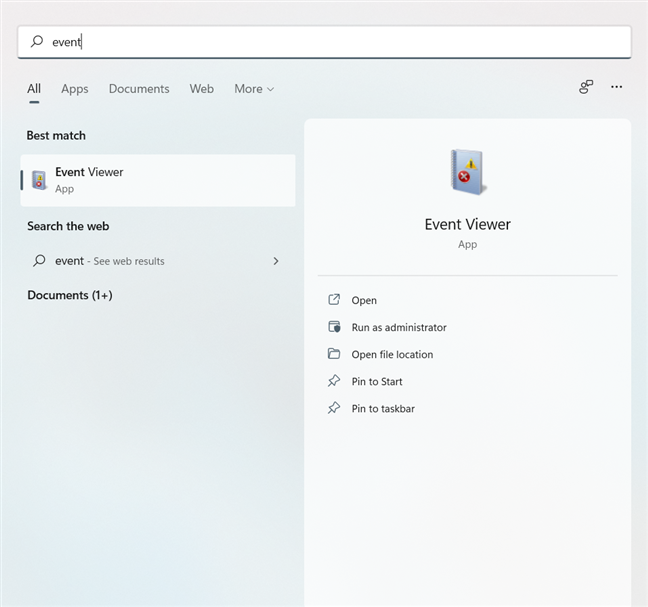
How to open Event Viewer using Search
TIP: If you want to learn more about using this powerful tool on your computer or device, read our guide on working with the Event Viewer in Windows.
 Access System and Security from the Control Panel in Windows 10 and Windows 11
In Windows 10, click or tap on the “View event logs” link under Administrative Tools.
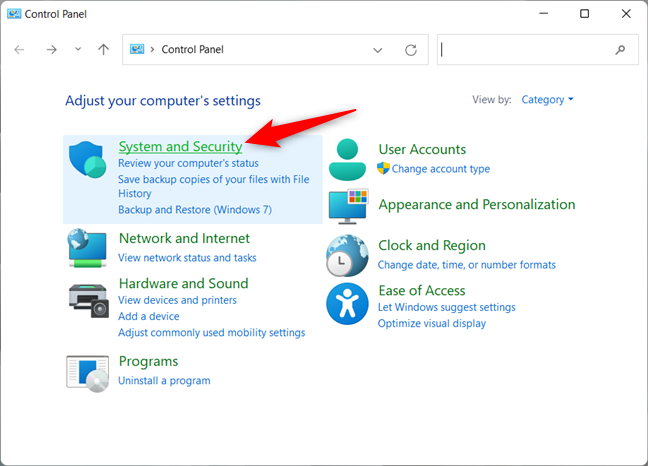
Access System and Security from the Control Panel in Windows 10 and Windows 11
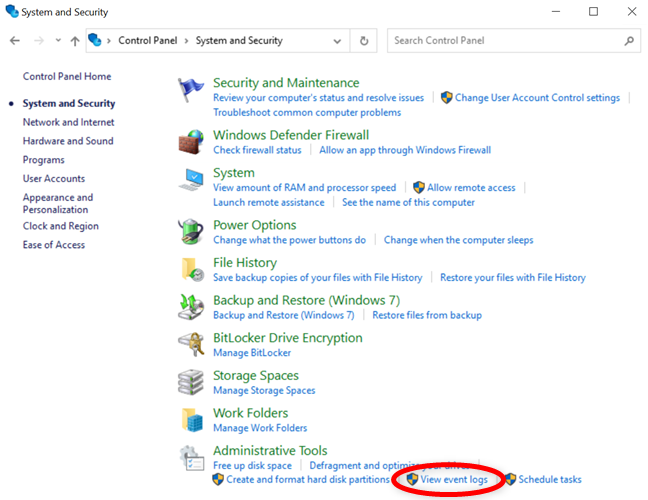
In Windows 10, click or tap on the “View event logs” link under Administrative Tools.
 View event logs to access the Event Viewer in Windows 10
If you’re using Windows 11, the “View event logs” option is still shown at the bottom, but the section it’s under has been renamed to Windows Tools. Click or tap on the link to open the Windows 11 Event Viewer.
View event logs to access the Event Viewer in Windows 10
If you’re using Windows 11, the “View event logs” option is still shown at the bottom, but the section it’s under has been renamed to Windows Tools. Click or tap on the link to open the Windows 11 Event Viewer.
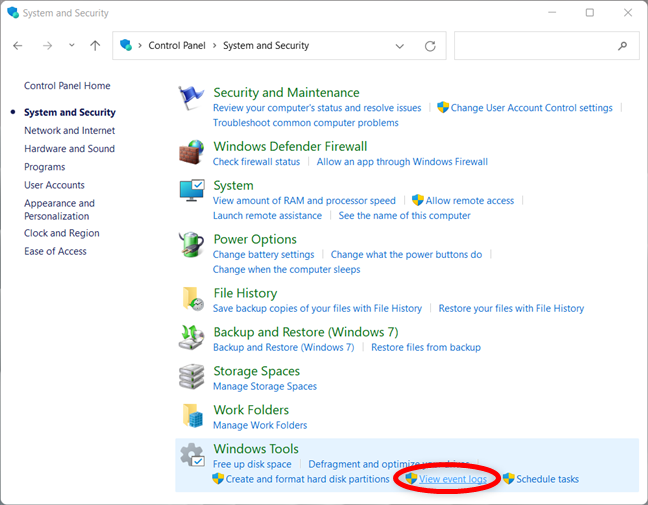
 Access the Event Viewer from the Control Panel in Windows 11
Alternatively, you can insert the word “event” in the Control Panel’s search field and click or tap on “View event logs” to launch the Windows Event Viewer utility, as seen below.
Access the Event Viewer from the Control Panel in Windows 11
Alternatively, you can insert the word “event” in the Control Panel’s search field and click or tap on “View event logs” to launch the Windows Event Viewer utility, as seen below.
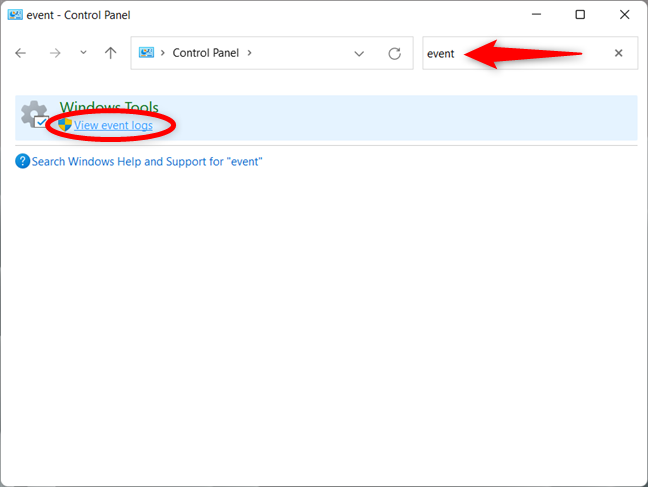
 Use Control Panel's search to open the Event Viewer
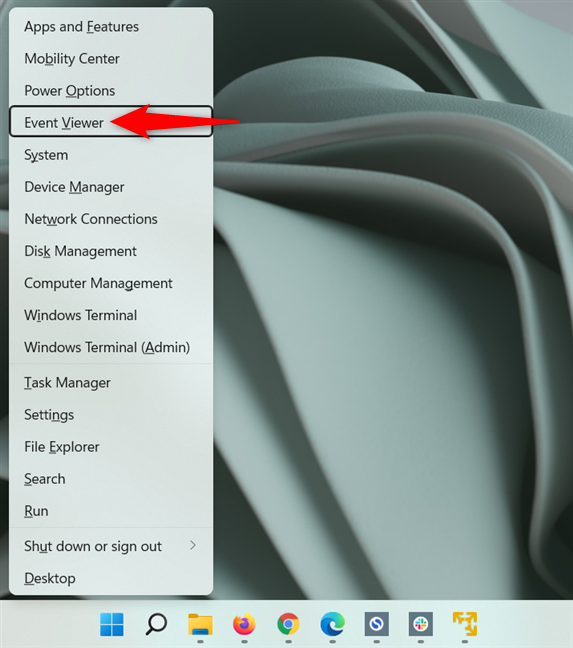
 Use the Event Viewer shortcut from the WinX menu
TIP: To filter the massive amounts of data provided by this utility, read our guide on working with custom views in Event Viewer.
Use the Event Viewer shortcut from the WinX menu
TIP: To filter the massive amounts of data provided by this utility, read our guide on working with custom views in Event Viewer.
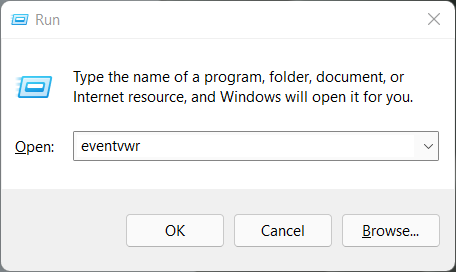
 Open the Event Viewer with a Run command
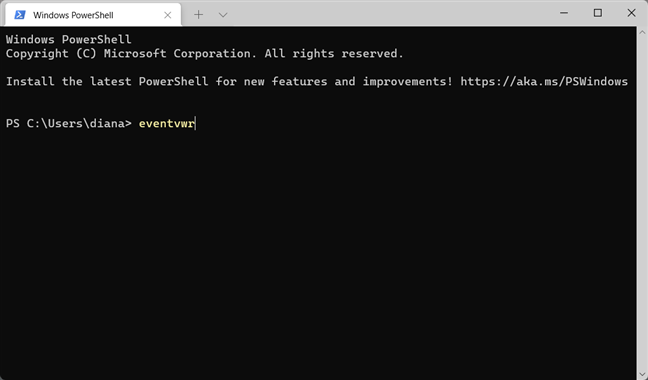
 Open the Event Viewer from CMD, Windows Terminal, or PowerShell
Don’t forget to press the Enter key, and the Event Viewer is launched at once.
Open the Event Viewer from CMD, Windows Terminal, or PowerShell
Don’t forget to press the Enter key, and the Event Viewer is launched at once.
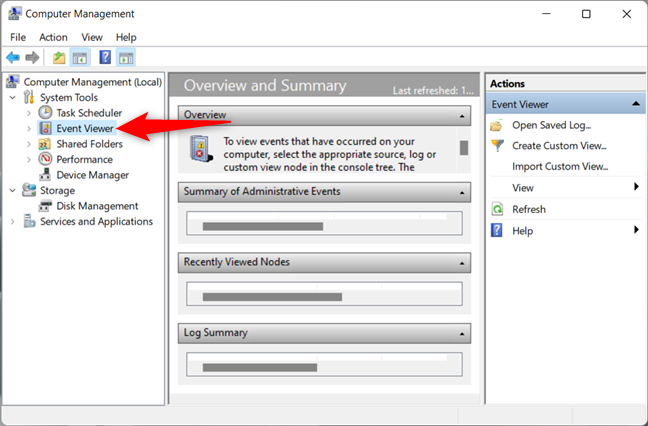
 Open the Windows Event Viewer using Computer Management
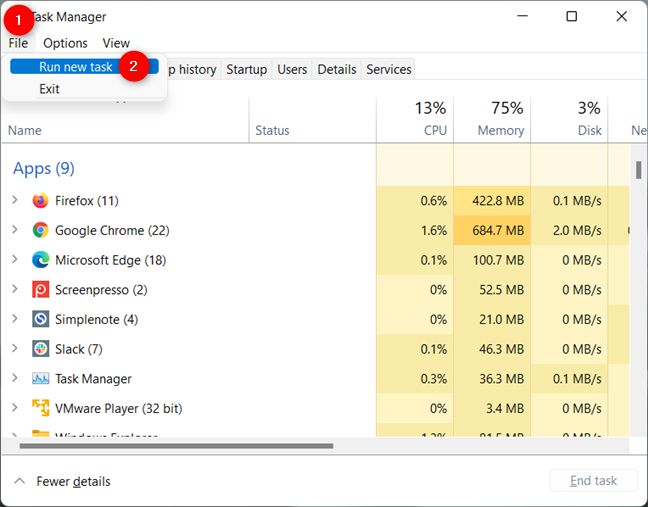
 Press on Run new task from the File menu
This opens the “Create new task” window. Type eventvwr in the Open field, and then click or tap OK or press Enter on your keyboard.
Press on Run new task from the File menu
This opens the “Create new task” window. Type eventvwr in the Open field, and then click or tap OK or press Enter on your keyboard.
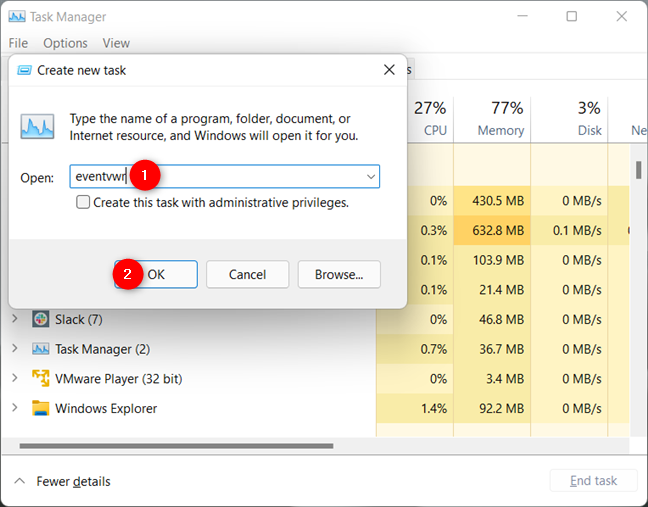 Use the Event Viewer command from the Task Manager in Windows 10 and Windows 11
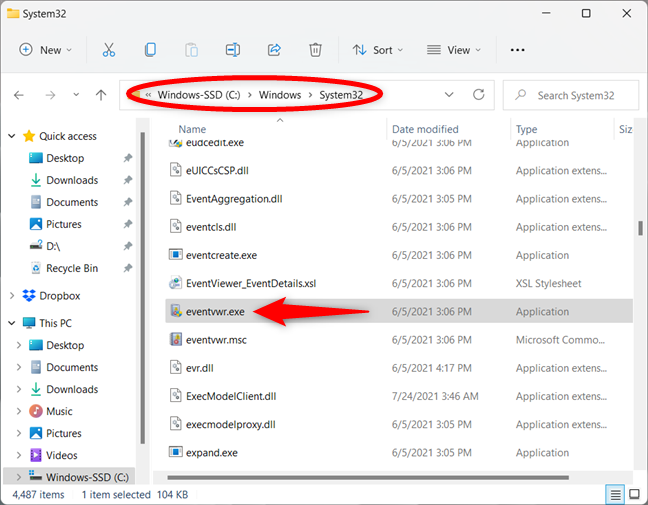 Use the eventvwr.exe file to start the Event Viewer in Windows 10 and Windows 11
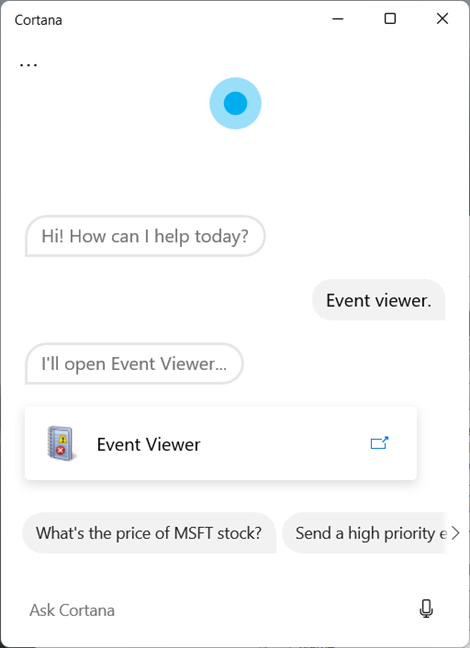
 Use Cortana to open Event Viewer in Windows 11
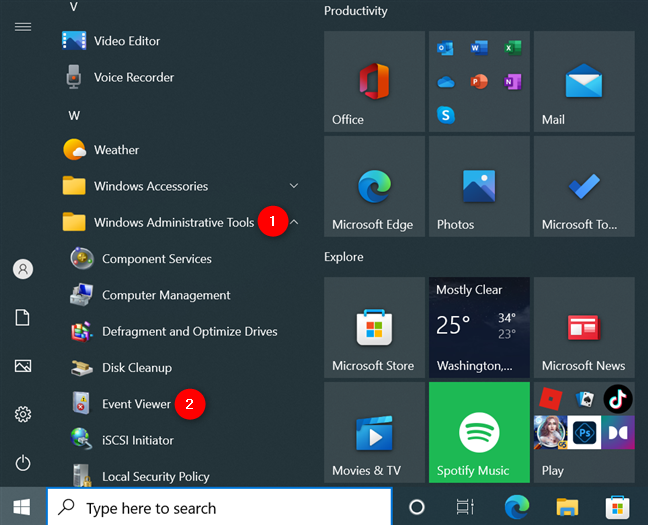
 Use the Start Menu shortcut to open Event Viewer
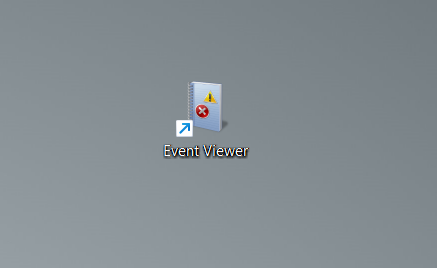
 The Event Viewer shortcut
NOTE: You can also create a shortcut to the file using the following path:
The Event Viewer shortcut
NOTE: You can also create a shortcut to the file using the following path:
1. How to open the Event Viewer in Windows 10 and Windows 11 using Search
One of the fastest methods of starting the Windows Event Viewer is to search for it. Regardless of whether you’re using the Windows 10 Search or the Search in Windows 11, type the word “event” in the appropriate field. Then, click or tap the Event Viewer result or Open from the pane on the right.2. Start the Windows Event Viewer from the Control Panel
The Control Panel is another popular way to open the Event Viewer in Windows 11 or Windows 10. First, launch the Control Panel and go to System and Security.3. How to launch the Windows 11 or Windows 10 Event Viewer from the WinX menu
You can also use the WinX menu to start the Event Viewer on your Windows computer or device. First, press the Windows + X keys simultaneously to open the menu. Then, click or tap on the Event Viewer link or press V on your keyboard to open the app.4. Use the Run window to access Event Viewer in Windows 11 and Windows 10
Another fast method is to launch the Run window (Windows + R) and type eventvwr in the Open field. Then, press Enter on your keyboard or click/tap OK to open the Windows 10 or Windows 11 Event Viewer.5. How to open the Event Viewer in Windows using Windows Terminal, Command Prompt, or Powershell
Some users start administrative tools like the Event Viewer using Windows Terminal, Command Prompt, or PowerShell. Open the Windows Terminal, CMD, or PowerShell and type the Event Viewer command:
eventvwr
6. Start the Windows 10 or Windows 11 Event Viewer using Computer Management
The Event Viewer is also found inside another Windows administrative tool, named Computer Management. Open Computer Management, and in the left pane, you can see the Event Viewer under System Tools.7. How to launch the Windows Event Viewer from the Task Manager
First, open the Task Manager using the keyboard shortcut Ctrl + Shift + Esc. If you get the compact view of the Task Manager, press on More details at the bottom of the window to expand it. Click or tap on File from the upper-left corner and, from the subsequent menu, select “Run new task.”8. Launch the Event Viewer from File Explorer
You can also use File Explorer to start the Event Viewer in Windows 10 and Windows 11. Open File Explorer and browse to C:\Windows\System32 or copy/paste the path into your address bar. Scroll to find the eventvwr.exe file, which launches the Event Viewer app.9. Tell Cortana to open the Event Viewer in Windows 10 and Windows 11
If you like Cortana, you can also ask her to open the Event Viewer for you in both Windows 10 and Windows 11. Make sure Cortana is listening and type or say “Event Viewer.” Cortana confirms hearing your command by saying and displaying “I’ll open Event Viewer...”.10. Use the Start Menu to open Event Viewer in Windows 10
Windows 10 also has an Event Viewer shortcut in the Start Menu. Open the Start Menu, and then scroll down to the list of apps that start with the letter W. There, open the Windows Administrative Tools folder and click or tap on the Event Viewer shortcut.11. Use the Event Viewer shortcut from our collection
We have created the most extensive collection of shortcuts for Windows. Download it and extract it to find the Event Viewer shortcut in the Administration Tools folder.C:\Windows\System32\eventvwr.exe
Discussion (2)
I have a question about event viewer or more precisely a problem. when i access event viewer I receive a he following message,”MMC could not create the snap-in. The snap-in may not have been installed correctly.” I have tried every conceivable way to re-install the snap-in(that I know of) and still get the same message. Have you heard of other instances of this problem? Also my troubleshooter no longer works. both of these problems showed up after i dumped windows 10 and went back to windows os 7-64. Thank you.
Something is corrupted on your Windows 7 installation. Some system files are not working well anymore. You should consider repairing your Windows 7 installation or reinstalling Windows 7. Or at least perform a check disc for corrupted files.