




Microsoft offers a version history service for OneDrive, OneDrive for Business, and SharePoint Server. How long older versions are stored, depends on whether you’re using a personal Microsoft 365 subscription or a business one. If you want to restore previous versions of your Excel, Word, or PowerPoint work files, as well as PDFs and other types of files, read this guide:
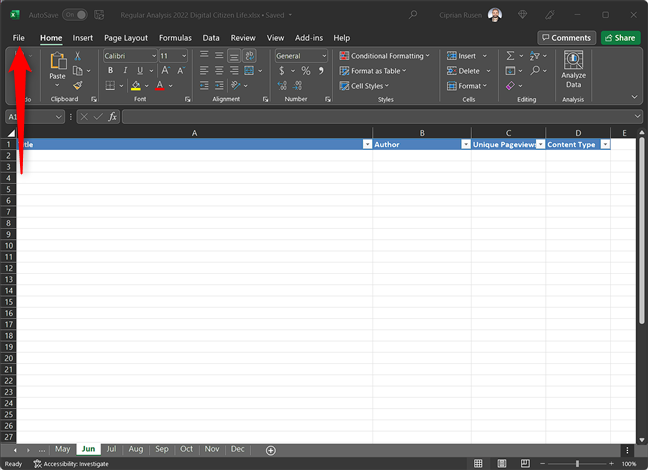
 In Microsoft Excel, click File
A new menu opens, similar to the screenshot below. Go to the Info tab on the left and then look for the Version History button. Click or tap on it.
Excel opens a panel on the right side of your workbook with the older versions of the same file. They are shown chronologically in descending order. For each version, you see who modified it and when. Then, you can click or tap the Open version option for the date and time you want, and Excel opens it in a new window.
In Microsoft Excel, click File
A new menu opens, similar to the screenshot below. Go to the Info tab on the left and then look for the Version History button. Click or tap on it.
Excel opens a panel on the right side of your workbook with the older versions of the same file. They are shown chronologically in descending order. For each version, you see who modified it and when. Then, you can click or tap the Open version option for the date and time you want, and Excel opens it in a new window.
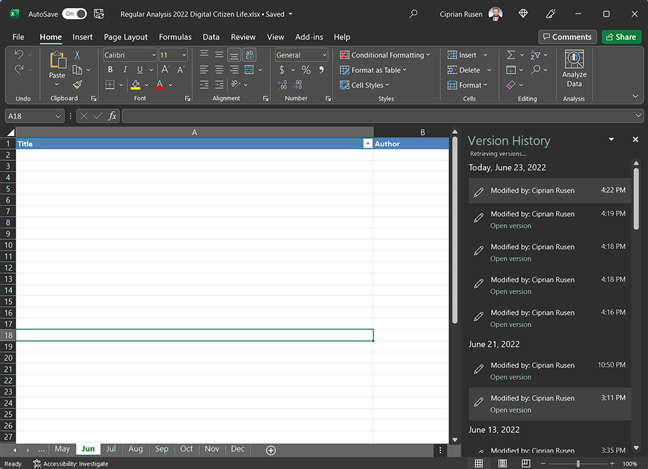
 Choose the older version from the list on the right
The older version is not editable: you’re only allowed to view its contents. You can copy and paste content from the older version to the latest one or to another Excel file, or you can click or tap the Restore button shown on the top side of the Excel window.
Choose the older version from the list on the right
The older version is not editable: you’re only allowed to view its contents. You can copy and paste content from the older version to the latest one or to another Excel file, or you can click or tap the Restore button shown on the top side of the Excel window.
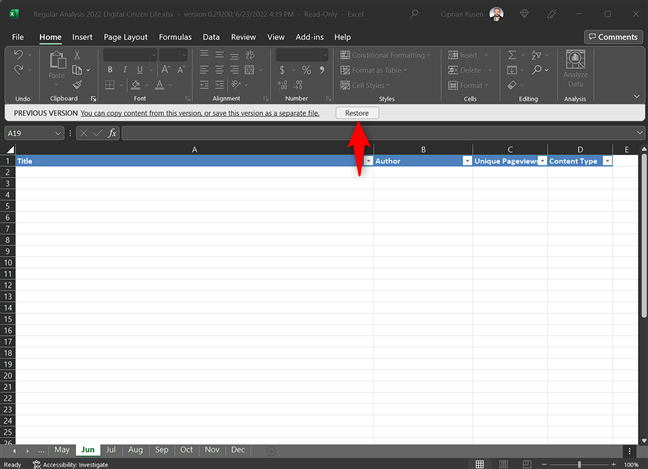 Restore the older version or copy and paste content from it
If you choose the Restore option, the older version replaces the latest one. It gets synchronized automatically with all your devices where you use the same OneDrive or Sharepoint account.
TIP: If you’re a regular Excel user, you might enjoy this article: How to delete values from cells but keep your formulas, in Microsoft Excel.
Restore the older version or copy and paste content from it
If you choose the Restore option, the older version replaces the latest one. It gets synchronized automatically with all your devices where you use the same OneDrive or Sharepoint account.
TIP: If you’re a regular Excel user, you might enjoy this article: How to delete values from cells but keep your formulas, in Microsoft Excel.
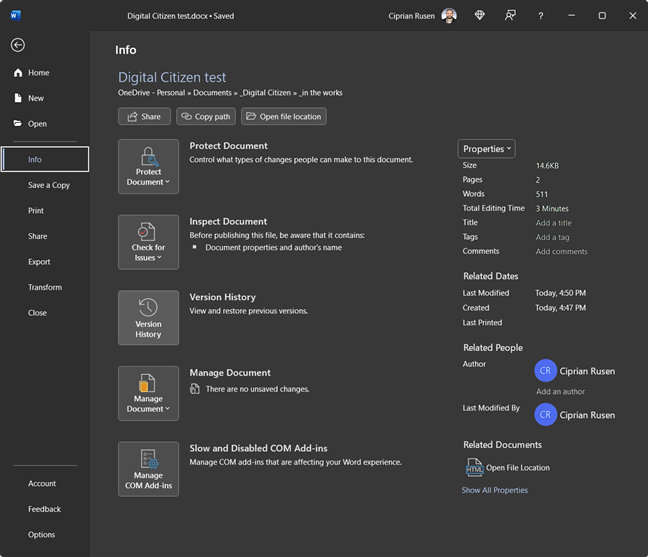
 In Word, go to File > Info > Version history
Word then displays the Version history panel on the right, with the same options found in Excel.
In Word, go to File > Info > Version history
Word then displays the Version history panel on the right, with the same options found in Excel.
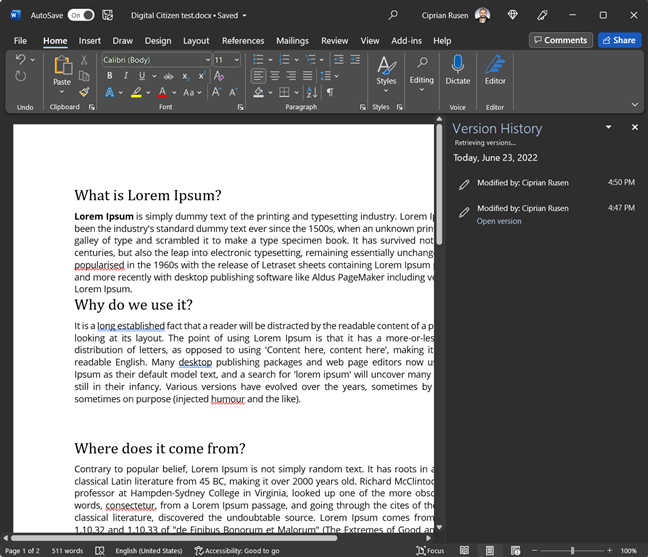 Choose the older version you want
PowerPoint does the same, and you get the same Version History panel on the right.
Choose the older version you want
PowerPoint does the same, and you get the same Version History panel on the right.
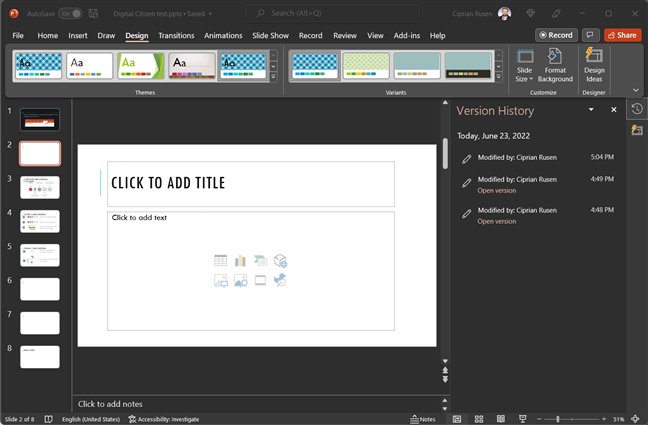
 Version History works the same in PowerPoint too
TIP: If you’re creating PowerPoint presentations on a regular basis, read: How to change the PowerPoint Slide Size: All you need to know.
Version History works the same in PowerPoint too
TIP: If you’re creating PowerPoint presentations on a regular basis, read: How to change the PowerPoint Slide Size: All you need to know.
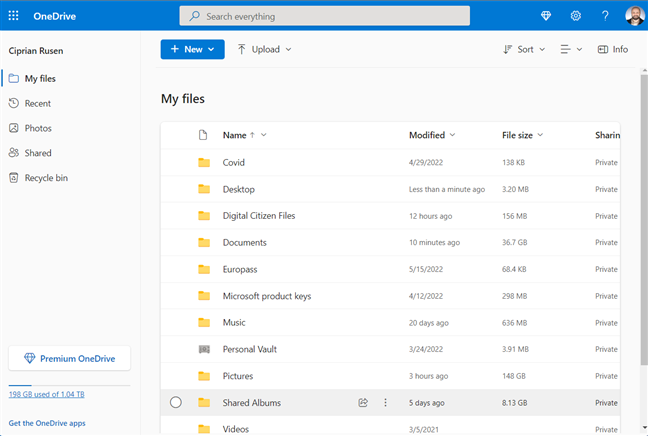
 Open the OneDrive website and go to My files
Select the file, and click or tap the three dots button on the top toolbar. In the menu, choose Version history.
Open the OneDrive website and go to My files
Select the file, and click or tap the three dots button on the top toolbar. In the menu, choose Version history.
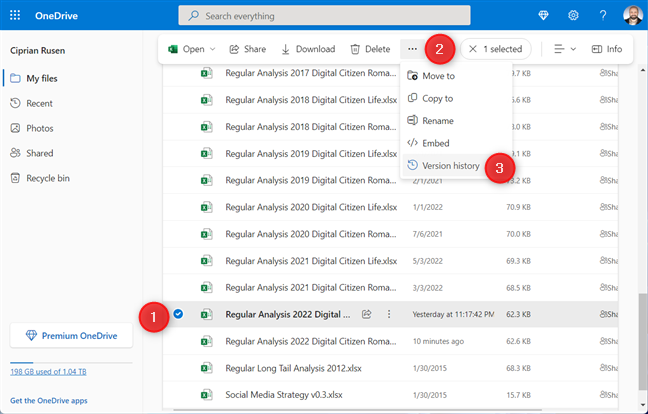
 Select the file and go to ... > Version history
If you have the browser window maximized, you may see the Version history option displayed on the top toolbar directly instead of being hidden in the menu shown earlier.
Select the file and go to ... > Version history
If you have the browser window maximized, you may see the Version history option displayed on the top toolbar directly instead of being hidden in the menu shown earlier.

 Check the top toolbar for the Version history option
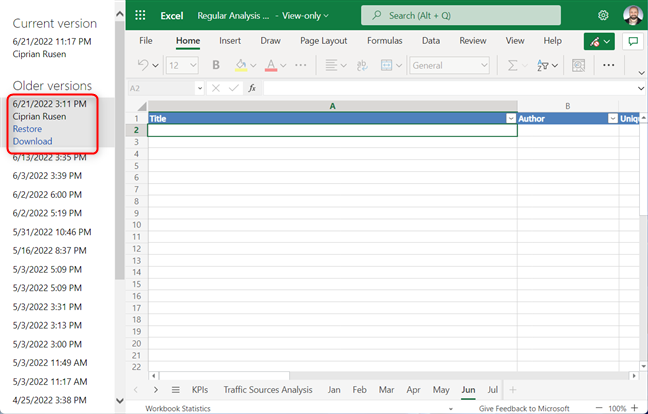
If you are opening a Microsoft 365 file made in Excel, Word, PowerPoint, or some other app, the web version of that app is loaded in a new tab. On the left, you see a sidebar with the older versions of that file. Click on the one you want to restore, and then choose between Restore and Download. The first option rewrites the latest version in OneDrive with the older version you restored, while the second obviously downloads the older version on your PC.
Check the top toolbar for the Version history option
If you are opening a Microsoft 365 file made in Excel, Word, PowerPoint, or some other app, the web version of that app is loaded in a new tab. On the left, you see a sidebar with the older versions of that file. Click on the one you want to restore, and then choose between Restore and Download. The first option rewrites the latest version in OneDrive with the older version you restored, while the second obviously downloads the older version on your PC.
 See all the older versions on the left
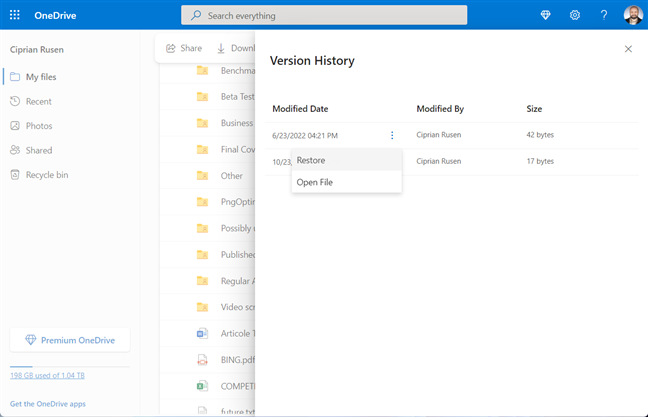
If you are working with a PDF, TXT, CAD file, or a picture or video, the file won’t open in a web app. Instead, you’ll see the Version History panel on the right. Click the three dots next to the version you want to recover, and choose between Restore and Open File.
See all the older versions on the left
If you are working with a PDF, TXT, CAD file, or a picture or video, the file won’t open in a web app. Instead, you’ll see the Version History panel on the right. Click the three dots next to the version you want to recover, and choose between Restore and Open File.
 Version History works for PDFs, TXT files, and more
As you can see, restoring older versions of files from OneDrive is relatively easy.
Version History works for PDFs, TXT files, and more
As you can see, restoring older versions of files from OneDrive is relatively easy.
 Right click and choose OneDrive > Version history
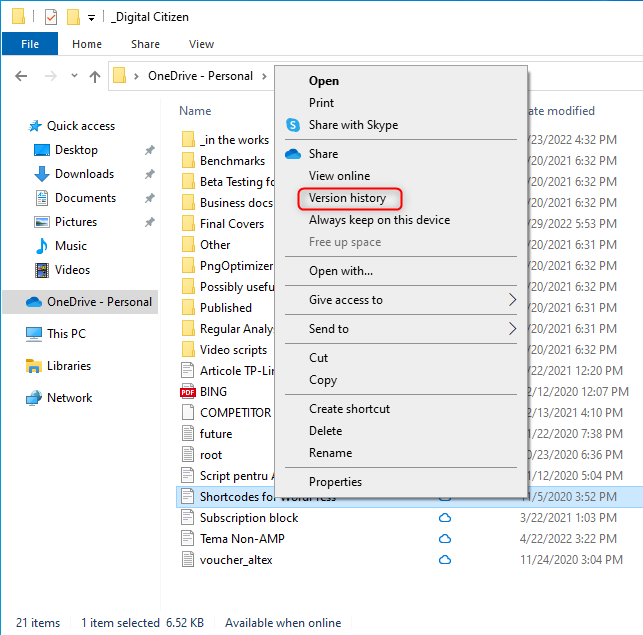
If you’re using Windows 10, the Version history option is one click away, instead of two.
Right click and choose OneDrive > Version history
If you’re using Windows 10, the Version history option is one click away, instead of two.
 In Windows 10, Version history is easier to access
You then see a small window with all the previous versions of that file. Choose the one you want, click or tap the vertical three dots next to it, and then click or tap Restore or Download, depending on what you want.
In Windows 10, Version history is easier to access
You then see a small window with all the previous versions of that file. Choose the one you want, click or tap the vertical three dots next to it, and then click or tap Restore or Download, depending on what you want.
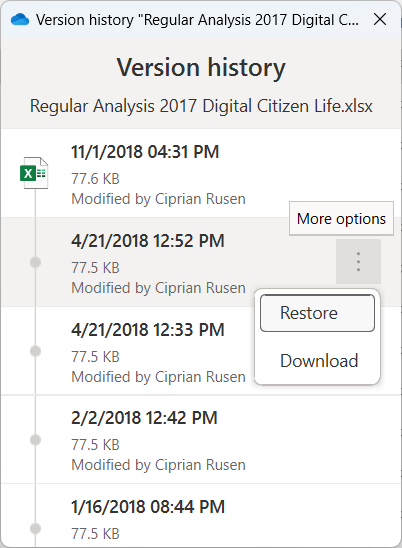
 Choose the version you want
If you choose Restore, the file’s version you selected becomes the current version, and the current version shown on the top becomes the previous version in the list.
Choose the version you want
If you choose Restore, the file’s version you selected becomes the current version, and the current version shown on the top becomes the previous version in the list.
How to use version history in Excel to recover previous versions of your files
If you use a modern version of Microsoft Excel on your Windows computer, your data might be stored on OneDrive, OneDrive for Business, or a SharePoint Server. In that case, you start by opening the XLS or XLSX file for which you want to recover the older version. Then, in Excel, click or tap File in the top-left corner.How to use version history in Word, PowerPoint, and other Microsoft 365 products
Word, PowerPoint, and other Microsoft 365 products have the same version history system, and the steps involved are identical to Excel. First, you open the file for which you want to recover an older version in the appropriate app. Then, click or tap File > Info > Version history.How to use version history on OneDrive’s website to recover older versions of your files
You can also use the OneDrive website to recover older versions of your files. First, open your favorite browser, navigate to Onedrive.com and sign in with your Microsoft or work account. In the My files section of OneDrive, navigate through your files and find the one you want to work with.How to use version history in File Explorer to recover older versions of your files
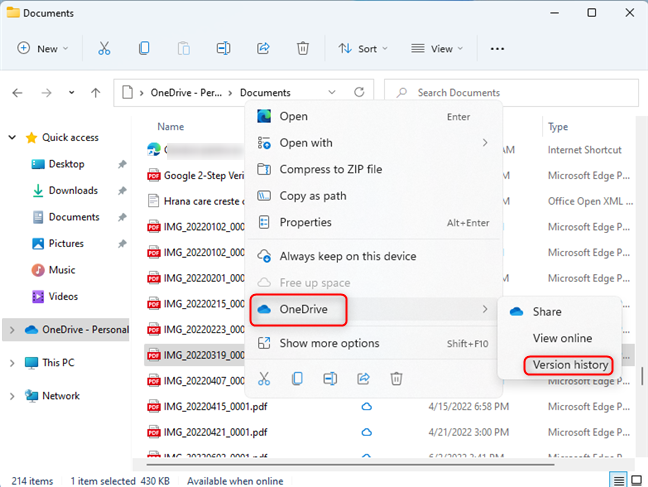
If OneDrive is synchronized with your Windows 10 or Windows 11 computer, you can recover old versions of your files straight from File Explorer. Fire up the File Explorer app, go to OneDrive and navigate to the file you want to revert to a previous version. Right-click or tap on hold on the file’s name. If you’re using Windows 11, in the menu, choose OneDrive and then Version history.
Discussion (25)
Those pictures are so small they are useless.
this saved my life , thank you!!
You are welcome. 😉
Fantastic! Thanks fo much 🙂
Thought I had lost all the work I did. You saved me. Great tutorial.
Happy to help! 😉
I wanted to say thanks for this help because I was writing a 2000 word essay for my AP Seminar class and lost half of it after my younger sibling got to my laptop and played around with it. I was panicking and believed my hard work was forever gone. So once again thank you.
I just wanted to say thank you very much, I am another of many who has been saved many hours of work from this tutorial. I had almost given up on recovering the file I needed but somehow I ended up here to read your solution.
Thanks again!
Perfect advise. Exactly what I needed to restore! Thanks!
I thought I was editing the final part of a very important document. It turned out I had actually gone back in the document and was deleting several hours’ worth of previous work. This tutorial just saved my life. Thank you!
Glad to help. 🙂
Thank you!
Thank you so much! You saved me!
thank you sooooo much!!! you saved my Life 🙂
I had worked all day yesterday with a report which was lost (and i dont know how), but thanks to your guide I found it again 🙂
Do you know if there is a way to recover versions that are not listed in the version history? I lost a paper last night that I have been working on for weeks and for some reasons the only versions available are those that are from when I first started and then from after the mistake. I appreciate any help you can give!! I was on word online, saving to one drive.
Thank you so much! I lost 2000 words of my novel because I didn’t understand the “keep my version” or “keep server version” choice when I opened my document. I was able to follow your very clear instructions and get my manuscript back. Thank you thank you!!
Say I upload a PDF file to OneDrive. Later, I want to upload a new revision of the PDF. How do I upload this new PFD “over” the previous one? Google drive has a nifty feature called “Manage Versions” that enables you to do the above. Does OneDrive also have something like this?
Did U tried uploading file with same name? May be as Ur computer One Drive will also ask to replace the files as the name and format is same. I’ve not tried it just telling U to try it.
Tried it, it does not work 🙁
sorry to hear that, then only option remains is first delete the old file and upload the new one.
Thank U so much, I was searching for same solution and I found this, Thank U Again! I’ll reshare it!
Thank you for a great tutorial! Just wondering if you know how/if “Version controlled restore” Works for multiple files as well. So far I havent found any sollutions. example: Lets say a user got Cryptovirus and got all his files encrypted and then synced before he was able to stop the process, It may be thousands of files. Do you know if there are any way of restoring an older Version of the complete backup?
I would like to thank you for this post. It saved my life…. I was panicking what happened to half of my master thesis..
Happy to help! Good luck with your master thesis.
My OneDrive for business did something much weirder. I’ve been working on a document on my iPad in Word since August (it’s now November), and the document just reverted to a version from September. I’ve made changes almost every day, but when I go to “manage: version history,” it only shows a save from September plus a save from when I opened it this week and discovered the problem. All other versions seem to have vanished. It happened right around the time that I downloaded iOS 8.1 on my iPad, if that helps.