



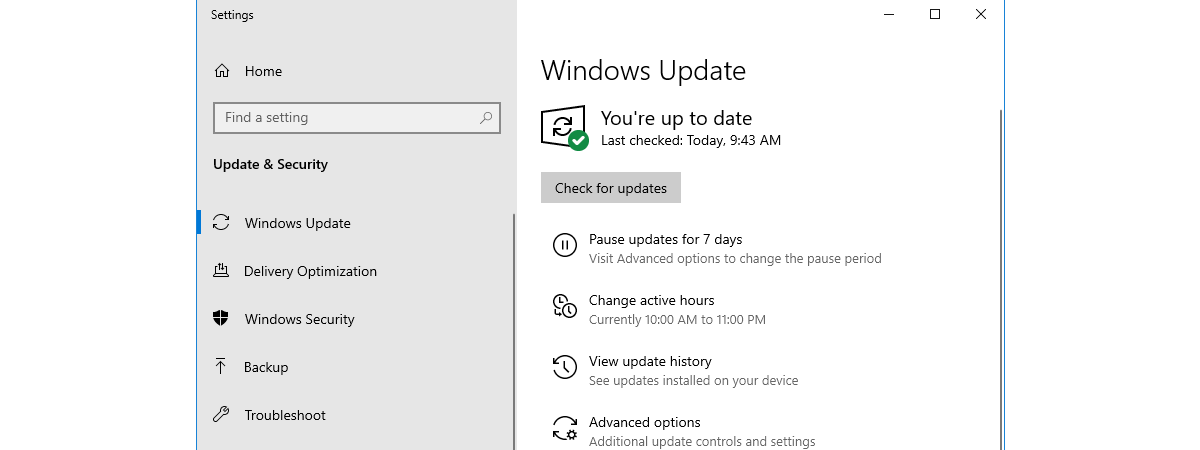
Knowing how to stop a Windows update can save you a lot of trouble if an automatic download causes system instability or crashes. In the past, Microsoft developed a tool called “Show or hide updates” that could fix existing issues caused by faulty updates or drivers and give users back control over what gets installed in Windows. Unfortunately, the company took it down from their website, but you can still get it from alternative download repositories on other websites. Then, there’s also the third-party open-source tool called Windows Update Manager, which is an excellent alternative to Windows Update, one that allows you to do much more than just download and install updates. If you’re searching for ways to block updates in Windows 11 or Windows 10, read on. We’ll show you how to do it using these two apps:
 The wushowhide tool (Show or hide updates)
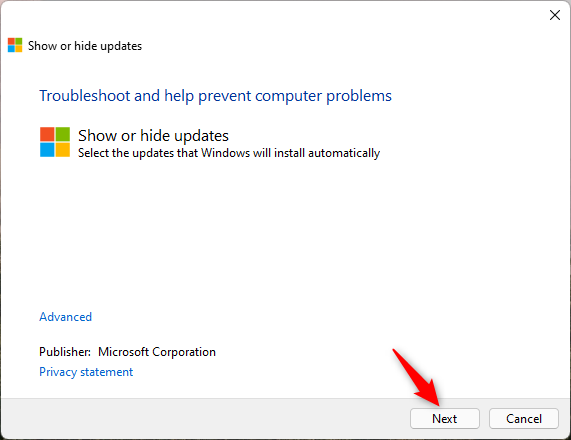
Opening the tool reveals the familiar Windows troubleshooter interface. To begin the process of hiding updates from your Windows PC or device, click or tap Next.
The wushowhide tool (Show or hide updates)
Opening the tool reveals the familiar Windows troubleshooter interface. To begin the process of hiding updates from your Windows PC or device, click or tap Next.
 Start the Show or hide updates wizard
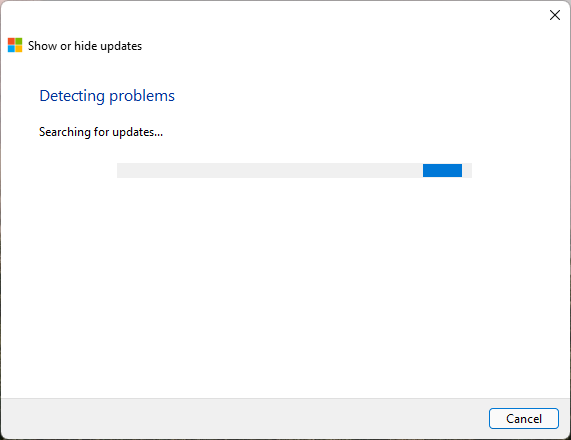
The utility starts checking for any available Windows updates, including security, app, and driver updates. Give it a moment to finish searching.
Start the Show or hide updates wizard
The utility starts checking for any available Windows updates, including security, app, and driver updates. Give it a moment to finish searching.
 Show or hide updates is searching for problems
When the tool finishes detecting problems, it reveals two available options: Hide updates and “Show hidden updates.”
To block one or more Windows, app, or driver updates from being installed in Windows, press Hide updates.
Show or hide updates is searching for problems
When the tool finishes detecting problems, it reveals two available options: Hide updates and “Show hidden updates.”
To block one or more Windows, app, or driver updates from being installed in Windows, press Hide updates.
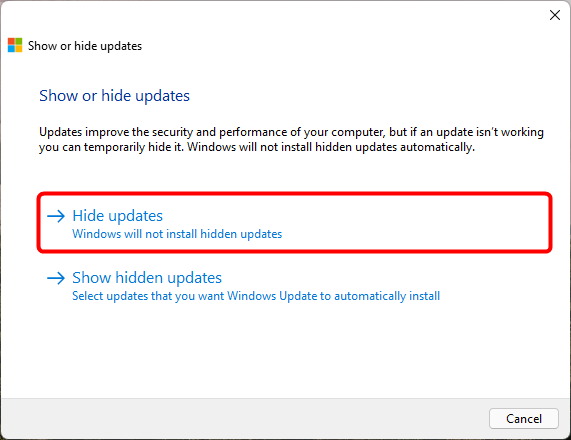 Choose Hide updates (Windows will not install hidden updates)
You can now see a list of all the updates that can be blocked. Click or tap to select any updates you want to hide. This prevents Windows from installing them automatically. When you are done, press Next.
Choose Hide updates (Windows will not install hidden updates)
You can now see a list of all the updates that can be blocked. Click or tap to select any updates you want to hide. This prevents Windows from installing them automatically. When you are done, press Next.
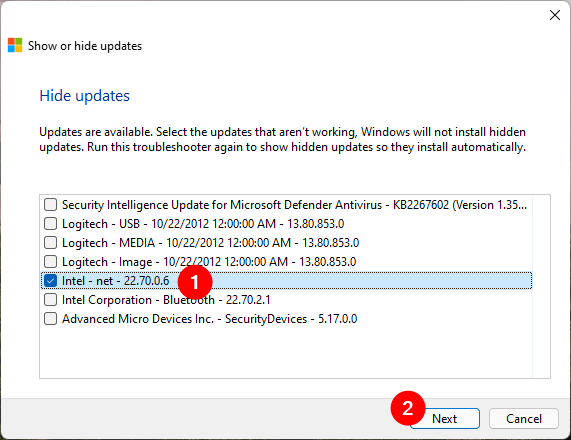 Choose the update(s) to block in Windows
The “Show or hide updates” tool needs a bit of time to mark the selected updates as hidden. As such, they are skipped from being installed on your Windows device. When it’s done, the troubleshooter lists the updates that were blocked, letting you know they were Fixed, as seen below.
Choose the update(s) to block in Windows
The “Show or hide updates” tool needs a bit of time to mark the selected updates as hidden. As such, they are skipped from being installed on your Windows device. When it’s done, the troubleshooter lists the updates that were blocked, letting you know they were Fixed, as seen below.
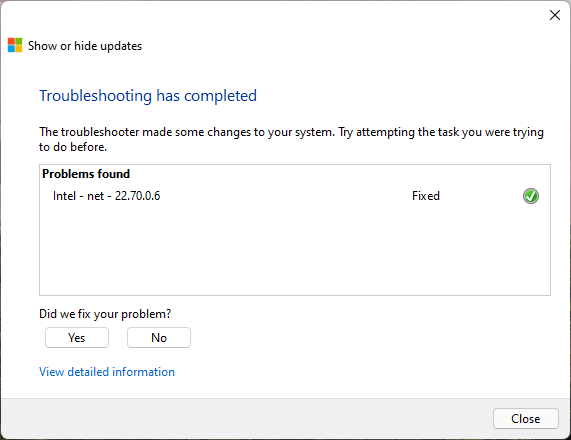 The selected updates have been blocked in Windows
That was it! If you want to see more details about the blocked updates, click or tap on the “View detailed information” link at the bottom. When you’re finished, close the troubleshooter. The selected updates you hid are now blocked from installing on your system, at least until Microsoft releases new versions for them.
NOTE: If you already blocked some Windows updates but, in the meantime, you changed your mind and want to install them, run wushowhide again, select “Show hidden updates” in the wizard, select the ones you want to unblock, and press Next. After a couple of moments, those updates are marked as available, and Windows will soon install them back.
The selected updates have been blocked in Windows
That was it! If you want to see more details about the blocked updates, click or tap on the “View detailed information” link at the bottom. When you’re finished, close the troubleshooter. The selected updates you hid are now blocked from installing on your system, at least until Microsoft releases new versions for them.
NOTE: If you already blocked some Windows updates but, in the meantime, you changed your mind and want to install them, run wushowhide again, select “Show hidden updates” in the wizard, select the ones you want to unblock, and press Next. After a couple of moments, those updates are marked as available, and Windows will soon install them back.
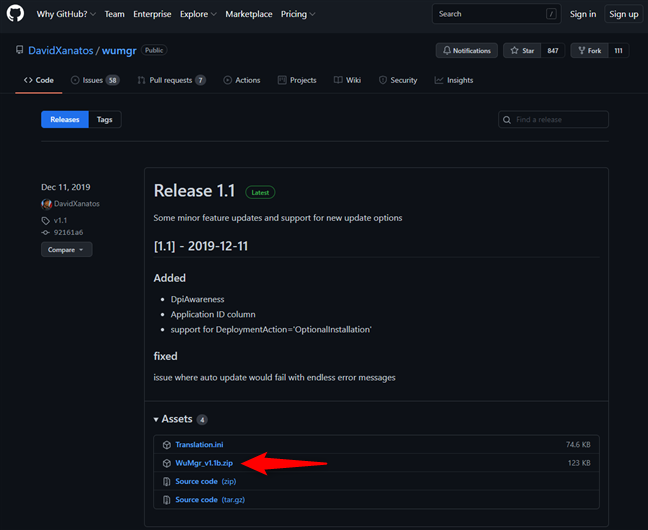
 Downloading Windows Update Manager
Save the WuMgr ZIP file somewhere on your PC, and then extract its contents. You’ll get a folder with a few files, among which one called wumgr.exe. Double-click (or double-tap) on it to launch it.
Downloading Windows Update Manager
Save the WuMgr ZIP file somewhere on your PC, and then extract its contents. You’ll get a folder with a few files, among which one called wumgr.exe. Double-click (or double-tap) on it to launch it.
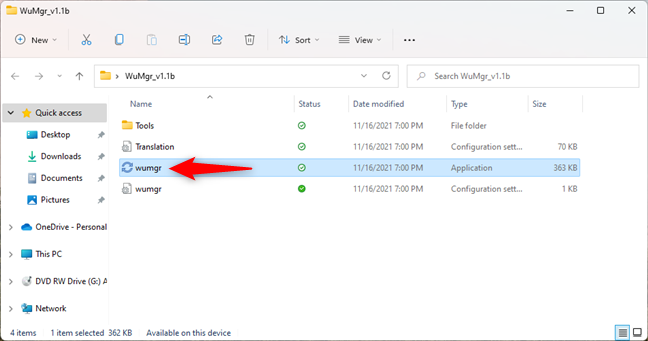
 Run the wumgr.exe application file
When the app is opened, you should see a window similar to the screenshot below. In it, press the Refresh button on the left to make sure that the lists of updates are, well, up to date. 🙂
Run the wumgr.exe application file
When the app is opened, you should see a window similar to the screenshot below. In it, press the Refresh button on the left to make sure that the lists of updates are, well, up to date. 🙂
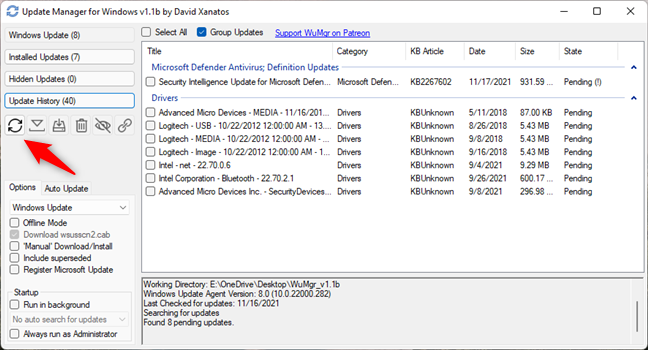
 Refresh the lists of updates
Next, click on Windows Update in the top-left corner of the window. Then, on the right side, select the update(s) that are causing you trouble and want to block.
Refresh the lists of updates
Next, click on Windows Update in the top-left corner of the window. Then, on the right side, select the update(s) that are causing you trouble and want to block.
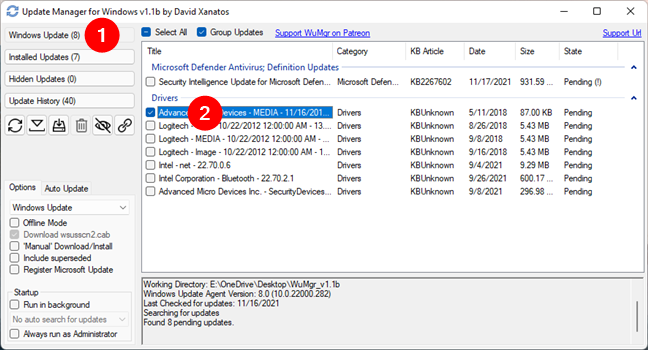 Select the updates to block in Windows
Finally, to block the selected update(s), click or tap the Hide button from the left of the Update Manager for Windows.
Select the updates to block in Windows
Finally, to block the selected update(s), click or tap the Hide button from the left of the Update Manager for Windows.
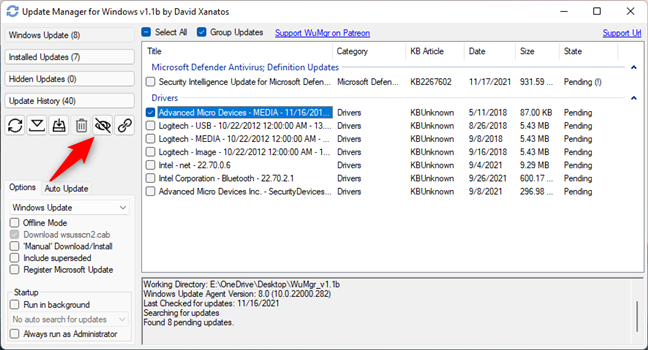 Hide (block) the selected updates in Windows
This instantly marks the selected update(s) as unwanted, so Windows will not install them. Of course, if you wish, you can always check which updates you’ve blocked by clicking or tapping on the Hidden Updates button.
Hide (block) the selected updates in Windows
This instantly marks the selected update(s) as unwanted, so Windows will not install them. Of course, if you wish, you can always check which updates you’ve blocked by clicking or tapping on the Hidden Updates button.
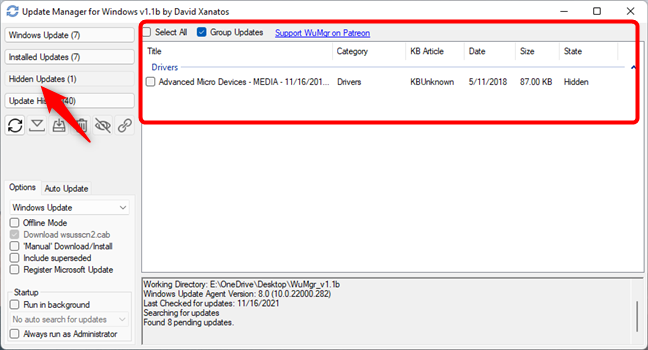 Check the updates that were blocked in Windows
NOTE: If you change your mind and want to allow the installation of one or more hidden updates, all you need to do is get back to the Windows Update Manager tool, refresh its lists, go to the Hidden Updates section and choose which ones you want to unblock (unhide).
Check the updates that were blocked in Windows
NOTE: If you change your mind and want to allow the installation of one or more hidden updates, all you need to do is get back to the Windows Update Manager tool, refresh its lists, go to the Hidden Updates section and choose which ones you want to unblock (unhide).
Should you stop a Windows update or driver?
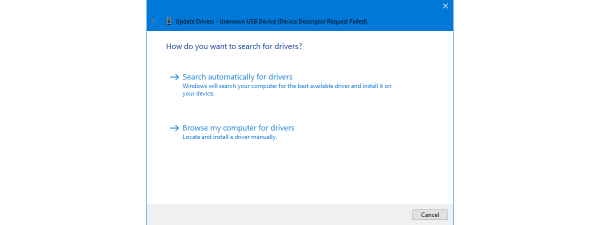
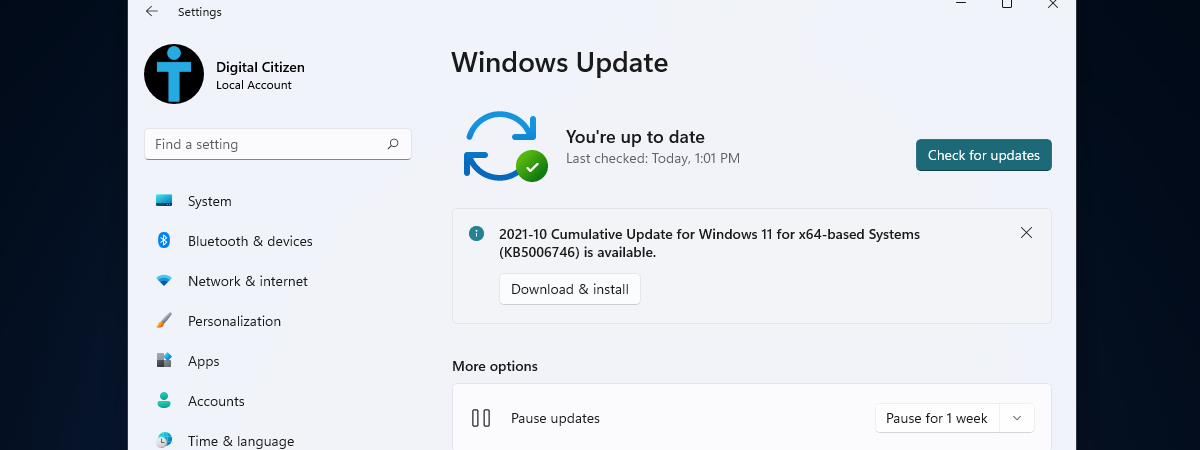
Microsoft’s approach is aggressive when it comes to the drivers, features, and security updates in Windows 11 and Windows 10. By default, the operating systems automatically download and install all updates, which, in theory, sounds like a great idea and should help everything run smoothly. However, each PC is different, and certain updates and drivers can interfere with it in unexpected ways, causing issues and crashes. While you always have the option to pause updates in Windows 11 or delay updates in Windows 10 built into both operating systems, it only helps block harmful and unwanted updates or drivers for a limited amount of time. So, using Microsoft’s “Show or hide updates” tool or the open-source Windows Update Manager can be considered more permanent solutions. Both allow you to uninstall problematic updates or buggy drivers from your PC. Furthermore, you can also use either of these tools to stop Windows from downloading and installing the problem makers all over again. Without further ado, let’s get into business:- Read the first method to find out how to get and use “Show or hide updates” on your Windows computer or device, or
- Read the second method from this guide to see where to get the Windows Update Manager and how to block updates with it in Windows 11 or Windows 10.
1. How to block Windows updates with the “Show or hide updates tool” (wushowhide)
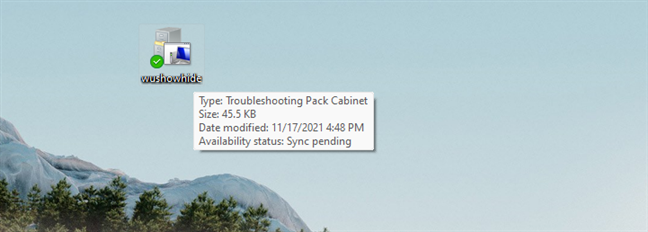
If you want to decide which drivers and updates get installed on your Windows computer or device, the first step is downloading the “Show or hide updates” tool. Click or tap here to get the “Show or hide updates” troubleshooter from Softpedia, one of the largest software repositories in the world. As seen below, the resulting wushowhide.diagcab tool is a small utility of only 45.5KB. When prompted, save the file to a safe location in case you need it again in the future. Double-clicking (or double-tapping) the wushowhide.diagcab launches the troubleshooter, and you can then use it to show or hide updates in Windows 10 or Windows 11.2. How to block Windows updates with the “Windows Update Manager” (WuMgr)
Some years back, an unknown developer made an alternative tool for Windows Update, called Windows Update MiniTool (WUMT). However, it didn’t get any new updates from 2016, its code is closed, and not much is really known about how it works. But a new similar program has surfaced on the web, developed by a programmer named David Xanatos. This one is called Windows Update Manager, it’s open-source (you can check its code on GitHub), and it’s free. Here’s how to get it and how to use it to block Windows updates: Use your favorite web browser to visit the wumgr Releases page on GitHub. Once it’s loaded, download the latest WuMgr_v[x].zip file available.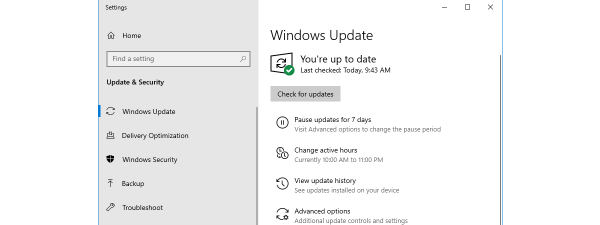
Discussion (11)
I’ve been a fan of MS from the 1980s. With the publish of Win 10, MS has been steadily losing. Especially with updates which I am sure serves only Big Business for which Win 10 was written. It seems that with each update the operation of Win 10 has gotten slower so that now my laptop takes a full two minutes to boot and each succeeding execution is preceded by a long pause. My GrandDaughter is using an Apple and has no complaints. As is the case with my old desktop running Windows 7. Unless MS makes a drastic change in the User’s favor, my next one will also be Apple. But only after I revert my present computers to Win 7. This is not sour grapes but is necessary since MS knows about our problems and refuses to correct them!
It didn’t work. Microsoft reinstalled the update anyway. I can’t print. Where’s the tool that removes Microsoft from the planet?
Windows update would delete usb drivers so no
memory stick would be identified
Thank you – downloaded wushowhide and it worked brilliantly. My laptop has Windows 10 v 1803 and Windows always wants to download the v 1809 updates. They always download OK but “fail to install”. Now I know how to stop the v 1809 updates and only download the v 1803.
Thanks a lot guys
With the sheer volume of crap that Microsoft sends out as updates, it’s hard to know what is good and what is bad. So which updates do I block? It’d be nice if Windows worked on making their security updates top-notch, and made others as optional. I hate having to adapt to changes that Microsoft foists on me whenever it pleases. Things are going along smoothly, along comes an update that I don’t need, and POW! My day is screwed, trying to talk to a robot that is next to worthless in solving my problem.
I will use it because I have apps that will not run and sometimes cannot drag from a dvd disk to a folder, lots of problems with ver 1803. hate it
thank you for this post!
You are welcome. 😉
thanks, this helped me out
It’s unfortunate that we have to go into all this process to make a thing so easily done in previous versions of Windows with just a click. It’s like you having to go outside your car and step over the hood to pull a lever to brake the car an then coming into it again instead of pressing the brake pedal inside. Or asking someone to help identify if you are you in front of a mirror.