It is usually a good idea to install all the Windows 10 updates that are available for your computers and devices. However, from time to time, some updates might cause problems or crashes. Those are the times when you probably want to uninstall those Windows 10 updates. How do you do that? How do you "delete a Windows 10 update" that was already downloaded and installed on your PC? There are a few different ways to tackle this issue, and we share them in this tutorial:
1. Uninstall Windows 10 updates from the Settings app
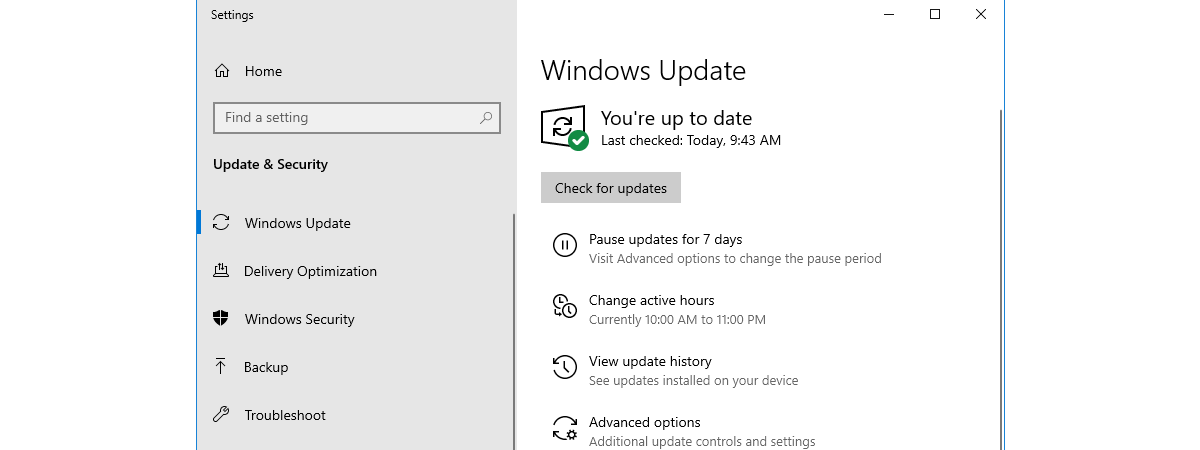
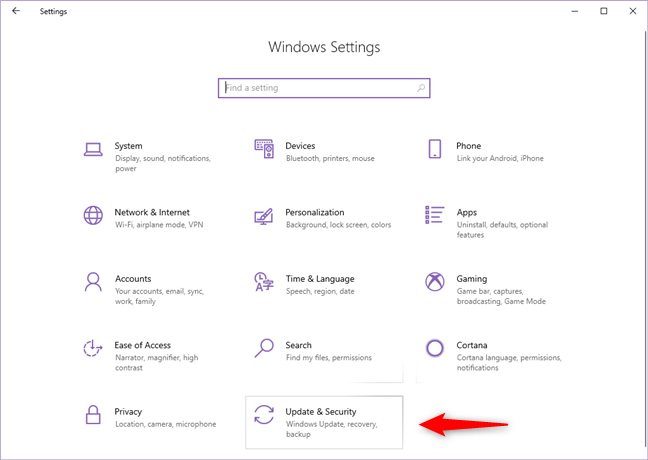
Start the Settings app by clicking or tapping on its button from the Start Menu. In the Settings app, go to Update & Security.
The Update & Security category from the Windows 10 Settings
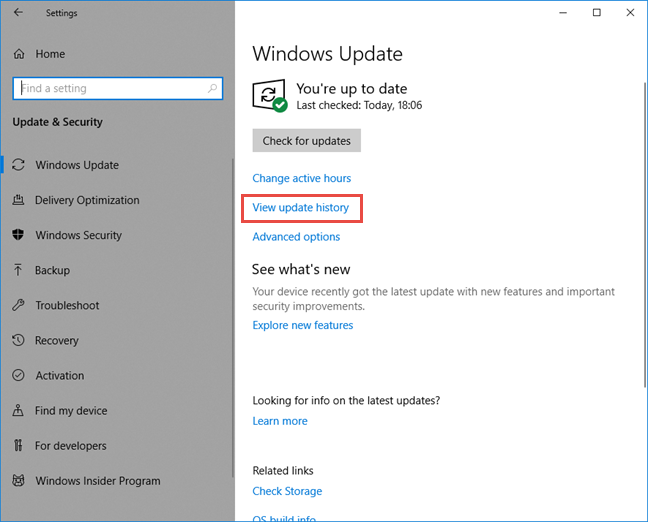
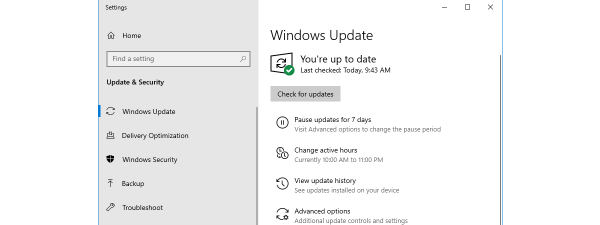
On the Windows Update page, click or tap "View update history."
View update history link in Windows Update settings
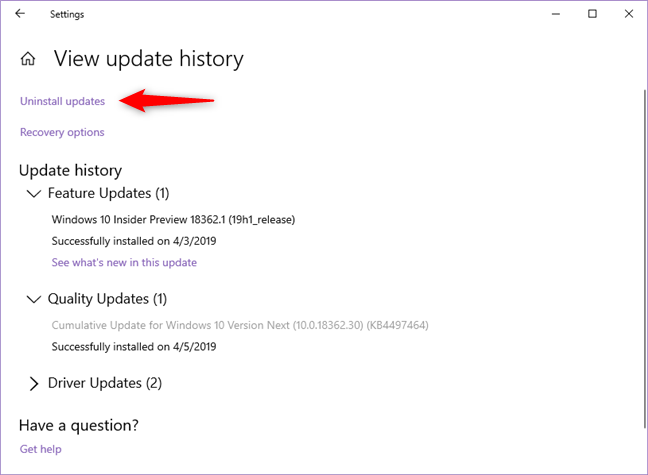
Now you see the "View update history" window. The first link on this page is called "Uninstall updates" - click or tap on it.
The Uninstall updates link
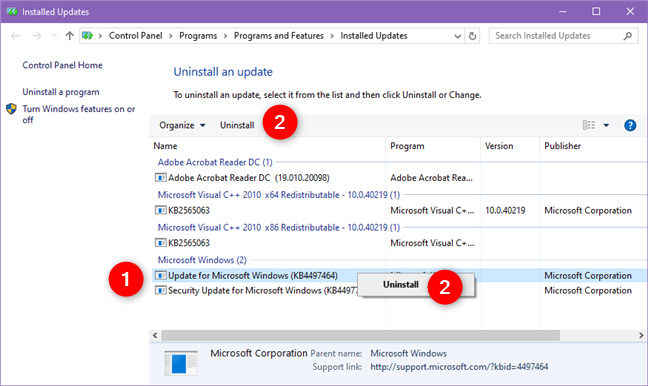
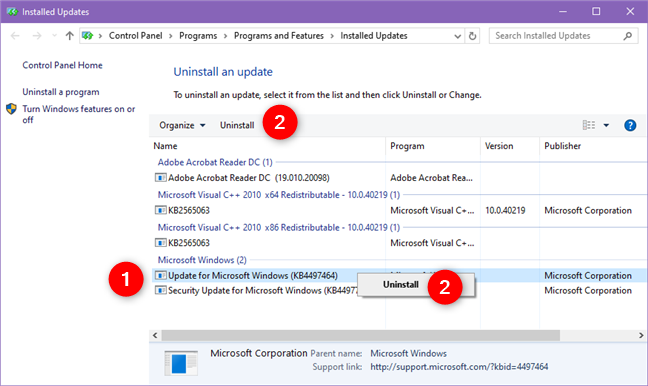
Windows 10 opens the Control Panel and shows you the list of "Installed Updates." The list includes updates for Windows 10 as well as for other software installed on your PC. Find the Microsoft Windows section and locate the update that you want to remove. Then, select it and press the Uninstall button from the header of the list, or right-click on the update and click/tap Uninstall in the contextual menu.
The Installed Updates page from the Control Panel
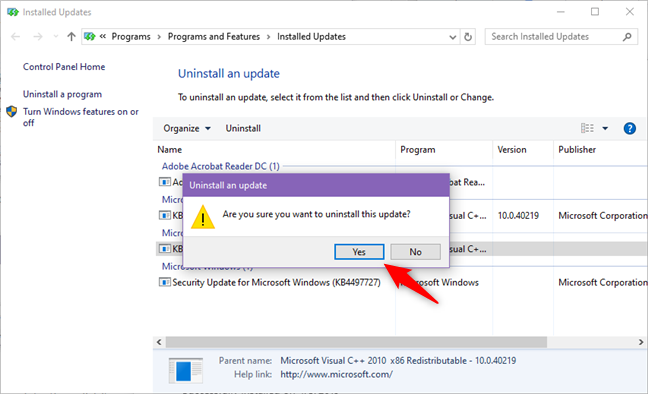
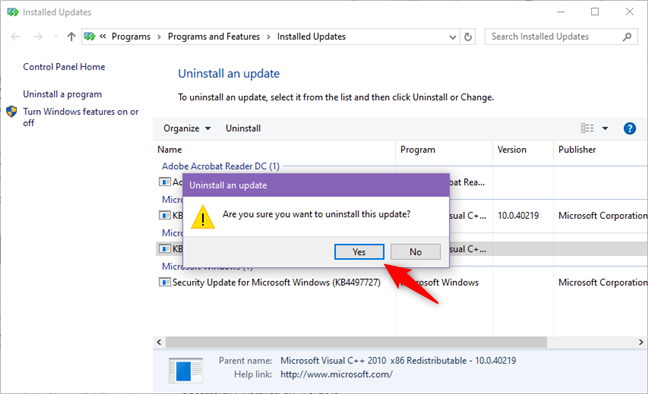
Windows 10 asks you to confirm that you want to uninstall that update. Answer Yes if you still do, or No if you have changed your mind.
Uninstalling an update from Windows 10
2. Uninstall Windows 10 updates from the Control Panel
You can also stick to using only the Control Panel if you want to uninstall updates from Windows 10.
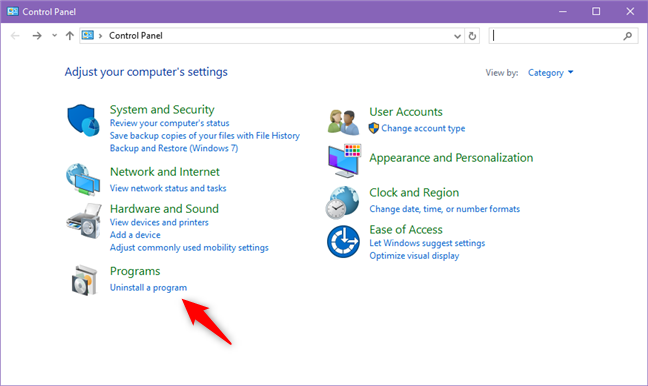
Open the Control Panel (a quick way to do it is to search for it) and click the "Uninstall a program" link from under Programs.
The Uninstall a program option from Control Panel
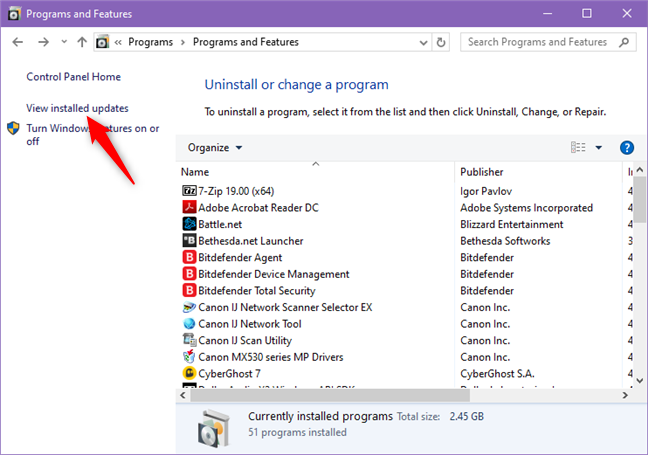
On the left side of the "Programs and Features" window, click "View installed updates."
The View installed updates option from Programs and Features
The Control Panel now opens the list of "Installed Updates." It includes updates for Windows 10 as well as for other software installed on your PC. Find the Microsoft Windows section and locate the update that you want to remove. Then, select it and press the Uninstall button from the header of the list, or right-click on the update and click/tap Uninstall in the contextual menu.
Choosing to uninstall an update from Windows 10
Windows 10 asks you to confirm that you want to uninstall the update. Click or tap Yes to go ahead.
Confirming the uninstallation
3. Uninstall Windows 10 updates from the Command Prompt or PowerShell
You can also uninstall Windows 10 updates with the help of the Command Prompt or PowerShell.
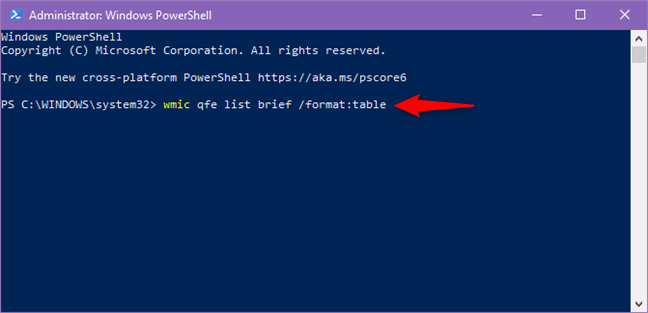
Start by launching the Command Prompt or Powershell as administrator. Then, type the following command: wmic qfe list brief /format:table.
wmic qfe list brief /format:table
The above command displays all the system updates installed for Windows 10. Identify the update that you want to remove, and then type the following command to uninstall it: wusa /uninstall /kb:HotFixID, where HotFixID is the identification number of that update.
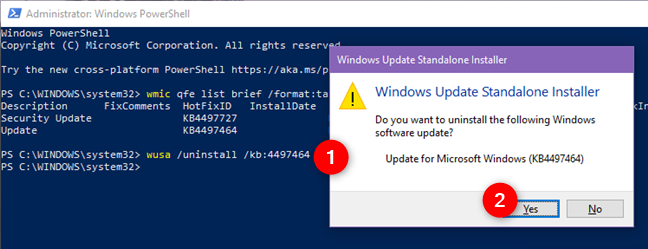
As an example, let's say that we want to uninstall the update KB4497464. To do that, we should type: wusa /uninstall /kb:4497464. Press Enter on your keyboard and Windows 10 loads a dialog window where it asks if you are sure that you want to uninstall that update. Click or tap Yes, or press the Y key on your keyboard, to confirm the action.
wusa /uninstall /kb:HotFixID
The update is now uninstalling and should be done in a couple of moments.
What is your favorite way to uninstall updates from Windows 10?
These are the methods we know for uninstalling updates from Windows 10. Which one do you like most? Do you know other methods? Also, if you have anything to add to this guide, do not hesitate to leave a comment below.
None of these methods work!!!! My laptop refuses to uninstall updates stating that these updates are required!!!!!!!!
Robin kot ·
the third option ( command prompt s) worked great until I entered the “wusa” command. It said it was not recognized
KJ ·
Can this be used in remote machines and if so, is there a parameter or switch that does a silent uninstall?
Sharon ·
None of these worked to allow uninstall if security update kb4560959
RICHARD HALL ·
NONE OF THEM WORKED. NO UNINSTALL NEXT TO ORGANISE IN METHOD 1 AND 2, METHOD 3 SAYS INVALID COMMAND EVEN THOUGH I COPIED AND PASTED
j m shack ·
The update keeps reinstalling itself – you forgot to mention that
UL ·
Re: File explorer in: Windows 10; Version 1909;
In the above “Search Tool Box” gone!! (Just Google: 1909 Search Tool Box)
Have come here for your excellent article on uninstall ..
(ten forum discusses a solution.. related to your article)
Larry Andrews ·
After you Uninstall an update and restart…it REinstalls it….????
Vic pogi ·
There is no uninstall on my control panel on the view windows updates, right click the kb######, no uninstall. These blogs are not applicable. Tried the other powers shell options does not work haha
Anonymous ·
What Windows do you use? And, is your PC on a corporate network, managed by the IT department?












Discussion (10)
None of these methods work!!!! My laptop refuses to uninstall updates stating that these updates are required!!!!!!!!
the third option ( command prompt s) worked great until I entered the “wusa” command. It said it was not recognized
Can this be used in remote machines and if so, is there a parameter or switch that does a silent uninstall?
None of these worked to allow uninstall if security update kb4560959
NONE OF THEM WORKED. NO UNINSTALL NEXT TO ORGANISE IN METHOD 1 AND 2, METHOD 3 SAYS INVALID COMMAND EVEN THOUGH I COPIED AND PASTED
The update keeps reinstalling itself – you forgot to mention that
Re: File explorer in: Windows 10; Version 1909;
In the above “Search Tool Box” gone!! (Just Google: 1909 Search Tool Box)
Have come here for your excellent article on uninstall ..
(ten forum discusses a solution.. related to your article)
After you Uninstall an update and restart…it REinstalls it….????
There is no uninstall on my control panel on the view windows updates, right click the kb######, no uninstall. These blogs are not applicable. Tried the other powers shell options does not work haha
What Windows do you use? And, is your PC on a corporate network, managed by the IT department?