UP

Entertainment

How to have fun using technology. We deal with tech that can be used for fun: to play games, watch movies, listen to music, and more. Product reviews, useful tech articles, product comparisons, and more.

review Trust GXT 252+ Emita Plus review: good value microphone for streaming

Trust GXT 252+ Emita Plus review: good value microphone for streaming

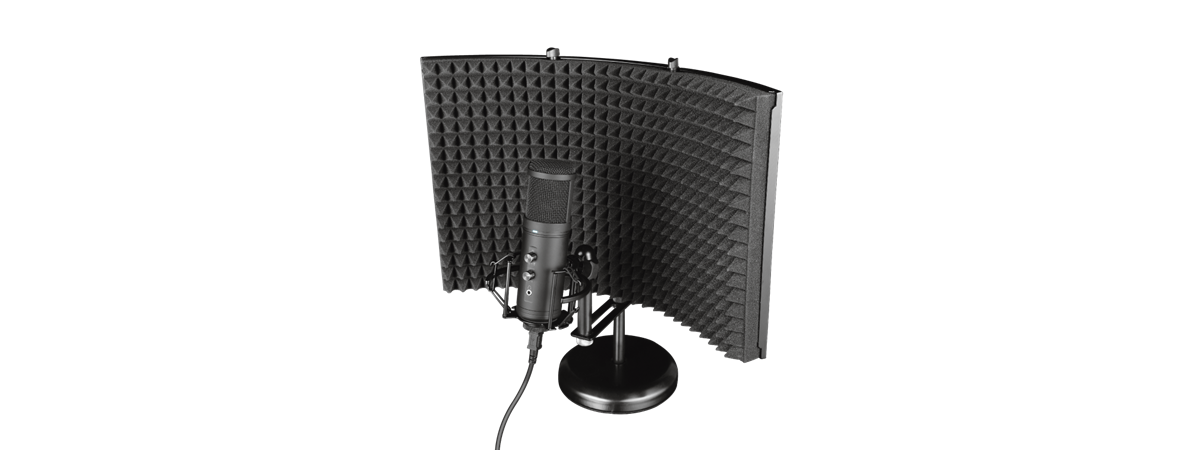
The competition in the midrange segment for streaming and vlogging microphones is very strong, but the Trust GXT 252+ Emita Plus stands out from the pack with its adjustable arm mount and excellent price. But is the sound quality any good? We decided to take a closer look at the GXT 252+, and we tested its features and usability for several weeks. Hopefully, by
tutorial The Windows 11 Volume Mixer: All you need to know!

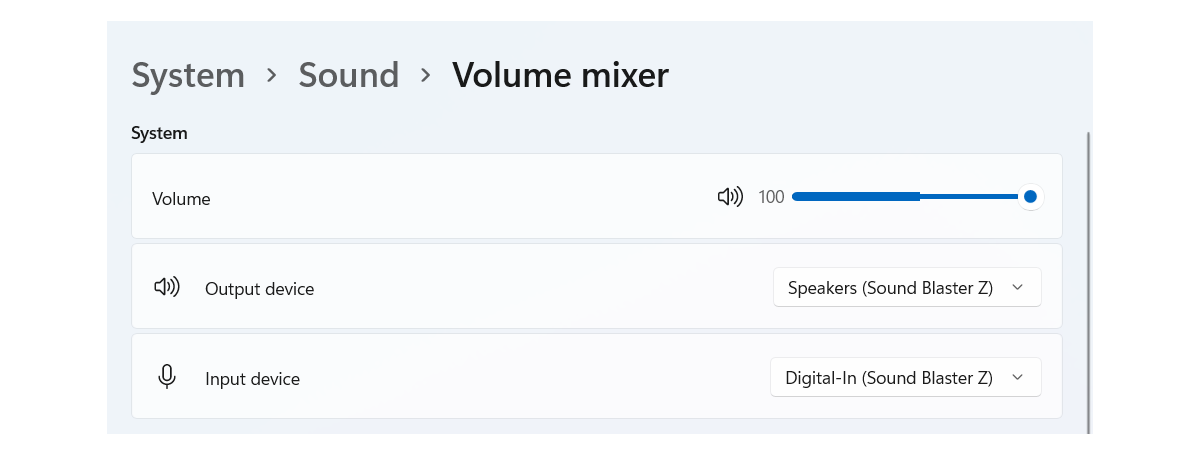
The Windows 11 Volume Mixer: All you need to know!

For some, the Volume Mixer was one of the most used features in Windows 10. It was a super fast way of adjusting the sound output volume for each application separately. But Windows 11 brings a substantial change in the way the Volume Mixer works and looks. In this article, we explore the new Windows 11 Volume Mixer, how to access it, its design
tutorial How to choose the default GPU for games or apps in Windows 11

How to choose the default GPU for games or apps in Windows 11

Many computers use processors with built-in integrated graphics that help them provide basic video features at low power consumption. However, some PCs also have dedicated video cards that are used for more demanding apps and games. Usually, Windows 11 automatically switches between graphics cards, depending on the apps you are using and the games you’re playing. However, sometimes, you might want to force a
tutorial What is Windows Game Mode? What does Game Mode do?

What is Windows Game Mode? What does Game Mode do?

Game Mode is available to all users of Windows 11 and Windows 10. It aims to make these operating systems the best ever for gamers, smoothing the gameplay experience across all types of computers and devices. It does not matter whether your PC is the most powerful in terms of hardware or if it is an older, slower PC. Game Mode prevents system background
tutorial What is the Xbox Game Bar? 6 things you can do with it

What is the Xbox Game Bar? 6 things you can do with it

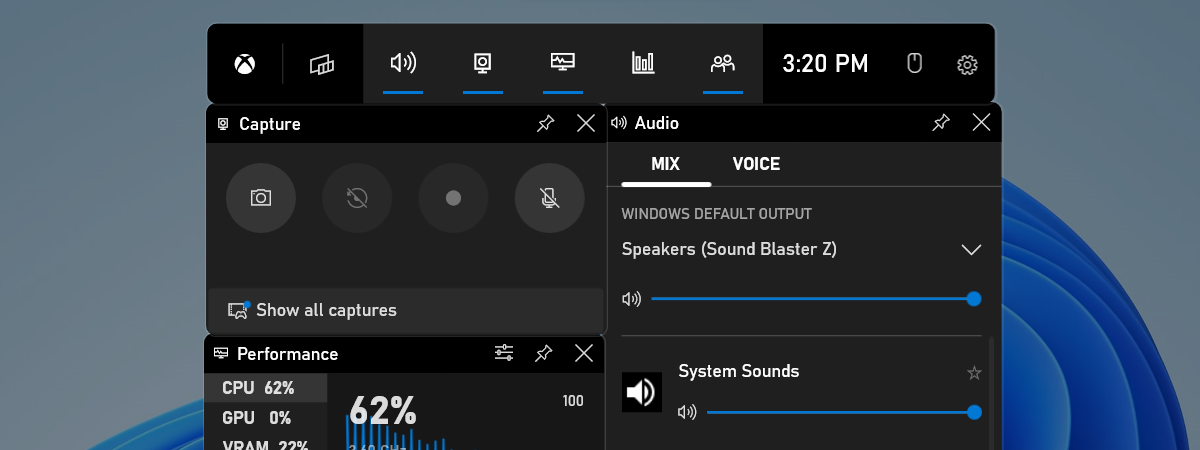
The Xbox Game Bar from Windows 11 and Windows 10 is probably the best thing Microsoft could have done for gamers. It allows you to easily access and control all kinds of useful things during gameplay, such as sound controls, performance statistics, or framerate. It can record all your gameplay, take screenshots, and it even lets you play your favorite music on Spotify without
review Trust GXT 259 Rudox review: Excellent microphone for solo recordings

Trust GXT 259 Rudox review: Excellent microphone for solo recordings

With more and more people creating and consuming content from their homes, the competition between streamers and content creators, in general, has increased during the last few years to the point that the audio and video quality can make a huge difference. Trust has several solid propositions for them, and one of their best is the Trust Rudox GXT 259 USB microphone. Actually, it’s
tutorial Xbox Game Bar is not working. 3 ways to fix it in Windows

Xbox Game Bar is not working. 3 ways to fix it in Windows

The Xbox Game Bar and the Game Mode found in Windows 11 and Windows 10 are helpful features Microsoft designed for gamers. However, it may happen that when you play your favorite game, and you press Windows + G on your keyboard, nothing happens. It’s like Windows + G simply is not working. The Xbox Game Bar is not opening, you can't enable the
tutorial 2 ways to change the default speakers in Windows 11

2 ways to change the default speakers in Windows 11

Many computers and laptops out there have not one but two or even more audio output devices. For example, some PCs can have a set of desk speakers connected to them while also having audio outputs to their monitors’ built-in speakers or even Bluetooth speakers scattered across the room. All that can become unnerving when someone or something changes the default speakers used by
review ASUS ROG Strix G17 G713 review: Good for gaming at an excellent price

ASUS ROG Strix G17 G713 review: Good for gaming at an excellent price

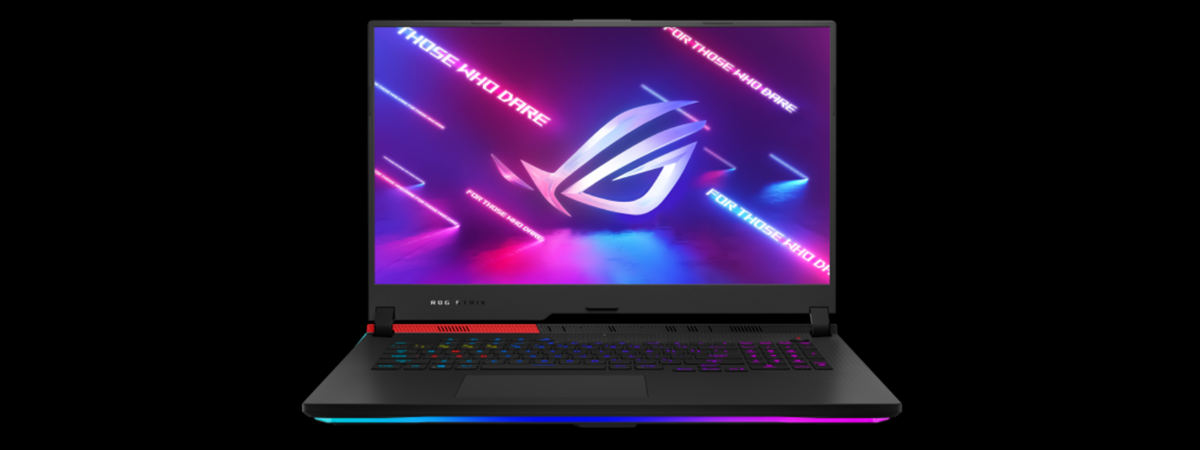
ASUS ROG Strix G17 G713 is an interesting lineup of gaming laptops that bundle the latest AMD Ryzen processors with powerful graphics cards from Nvidia, at an excellent price. This lineup includes several models at different price-points, including some that are surprisingly affordable. One of the best in terms of price per performance is the G713QC-HX008, a laptop that we tested and then bought
tutorial How to use Audacity to reverse audio in Windows

How to use Audacity to reverse audio in Windows

Did you ever wonder how to play a song backwards? Do you want to know how to reverse a song just to see what it would sound like? Perhaps you’re trying to play audio backwards to reveal messages hidden away in plain sight? Or maybe it’s time to check for yourself whether Paul from The Beatles is really dead? Whatever the reason, this tutorial
tutorial How to post pictures on Instagram from a PC

How to post pictures on Instagram from a PC

If you load the Instagram website on your laptop or desktop PC, you notice that you can’t post any pictures. Even if you install the Instagram app for Windows 10 on your computer, you still can’t use it to post pictures. Unfortunately, this happens because this social network has decided that you should use it only on smartphones, tablets, and other mobile devices. However,
review Samsung 27

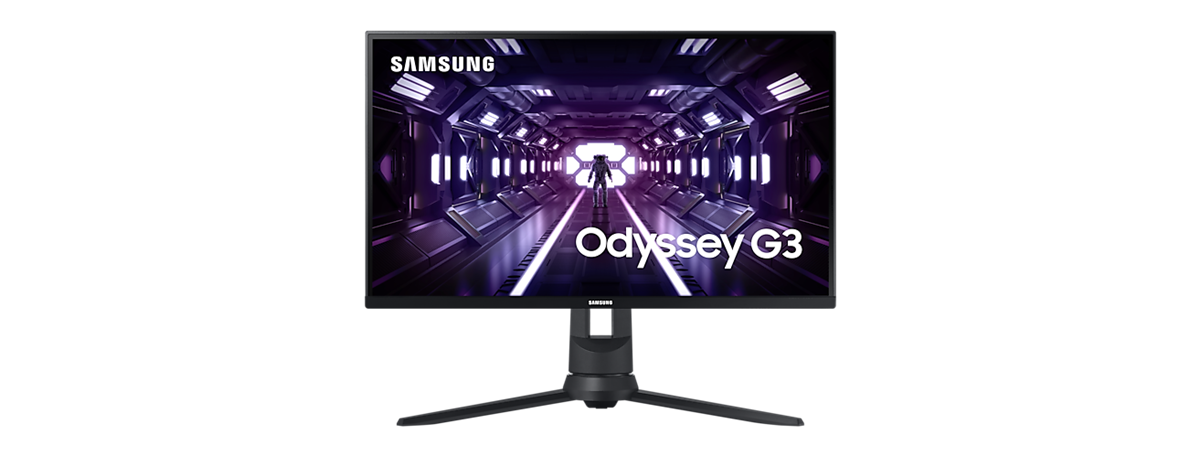
Samsung 27" G35TF Odyssey gaming monitor review

Samsung has launched a new series of Odyssey gaming monitors. Their most affordable model is the Samsung G3 Odyssey, available in 24” and 27” sizes. We received in testing the 27-inch variant, named Samsung 27" G35TF Odyssey. It is aimed at budget gamers and home users interested in running their games and apps in 1080p resolutions. If you want to know more about this
tutorial 5 ways to find your exact graphics card model without opening your PC

5 ways to find your exact graphics card model without opening your PC

Do you need to know the precise model of the GPU that’s found inside your Windows 10 PC, laptop, or tablet? Using the tools built into Windows 10, you get primarily generic information about the GPU. Names like NVIDIA GeForce 30 series, AMD Radeon RX 6000 series, or Intel HD Graphics might pop up. However, you may need to know the exact graphics card
tutorial How to disable the Radeon Software overlay (ALT+R)

How to disable the Radeon Software overlay (ALT+R)

Suppose you’re using a computer with an AMD Radeon graphics card, and you install the official Adrenalin drivers. In that case, you may encounter an annoying feature: when you’re playing games or using full-screen apps, you see a Radeon Software prompt in the corner of the screen, prompting you to press ALT+R to open. If you want to disable the Radeon Software overlay showing
tutorial How to customize the sound schemes for Windows 10

How to customize the sound schemes for Windows 10

The Windows sound schemes are collections of sounds that play automatically during certain system and app events, like errors, notifications, or reminders. If you find the current alerts annoying, you can customize the sound schemes for Windows 10 to play what you want in every situation. Furthermore, it only takes a few clicks or taps to mute your system entirely. This guide covers how
tutorial How to choose the default GPU for gaming or apps in Windows 10

How to choose the default GPU for gaming or apps in Windows 10

Many computers use processors with built-in integrated graphics that help them provide basic video features. However, some PCs also have dedicated video cards that are used for more demanding apps and games. Usually, Windows 10 automatically switches between graphics cards, depending on the apps you are using and the games you’re playing. However, sometimes, you might want to force a particular app or game