



Sometimes, you need to know exactly how many files or folders are stored inside a certain folder. Whether for work or your own statistics, if you have a Windows device, there are quite a few ways to find this information. So, if you’ve ever wondered how to count the number of files in a directory, read on. Here are four methods to count the items in a folder on Windows 11 or Windows 10, using File Explorer, PowerShell, and the Command Prompt:
NOTE: In this guide, I’m using Windows 11 to illustrate the methods for counting files, folders, and subfolders inside a directory. However, the methods work exactly the same in Windows 10 too.
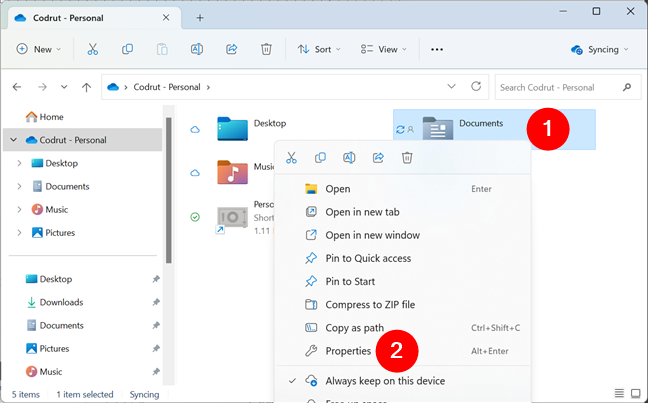
 Opening the Properties of a folder
When the Properties window opens, Windows automatically starts counting the files and folders inside the selected directory. You can see the number of files and folders displayed in the Contains field.
Opening the Properties of a folder
When the Properties window opens, Windows automatically starts counting the files and folders inside the selected directory. You can see the number of files and folders displayed in the Contains field.
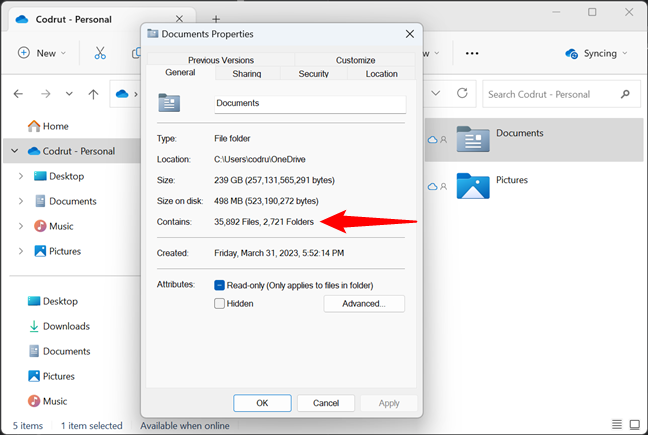
 The Properties window of a folder counts the files and subfolders
Next, let’s see how to use PowerShell to get the number of files in a folder:
The Properties window of a folder counts the files and subfolders
Next, let’s see how to use PowerShell to get the number of files in a folder:
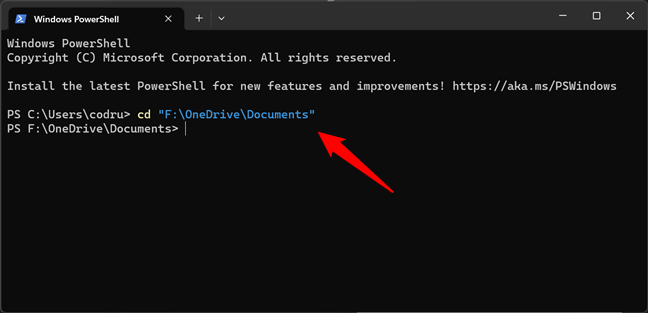
 Using Powershell to get to a folder
If you want to count the files and folders inside that directory, run this command:
Using Powershell to get to a folder
If you want to count the files and folders inside that directory, run this command:
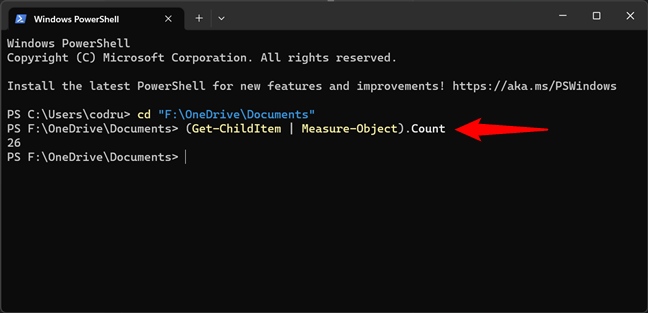 Using PowerShell to count the files and folders in a folder
If you want to count only the folders inside your parent folder, run this command:
Using PowerShell to count the files and folders in a folder
If you want to count only the folders inside your parent folder, run this command:
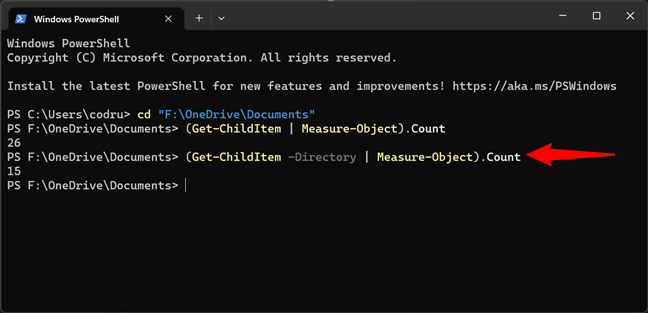 Using PowerShell to count the subfolders of a folder
If you want to count only the files in the folder, run this command:
Using PowerShell to count the subfolders of a folder
If you want to count only the files in the folder, run this command:
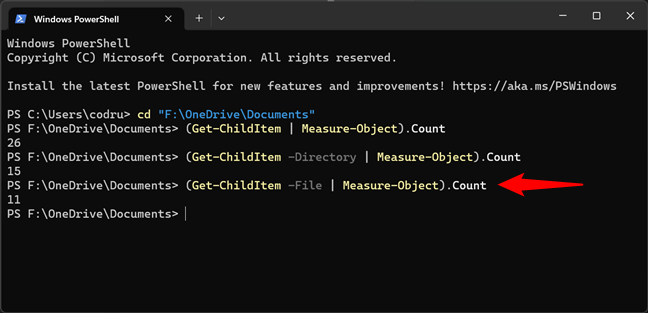 Using PowerShell to count the files in a folder
If you want to recursively count folders and/or files in your parent folder, add the Recurse parameter to any of the previous commands:
Using PowerShell to count the files in a folder
If you want to recursively count folders and/or files in your parent folder, add the Recurse parameter to any of the previous commands:
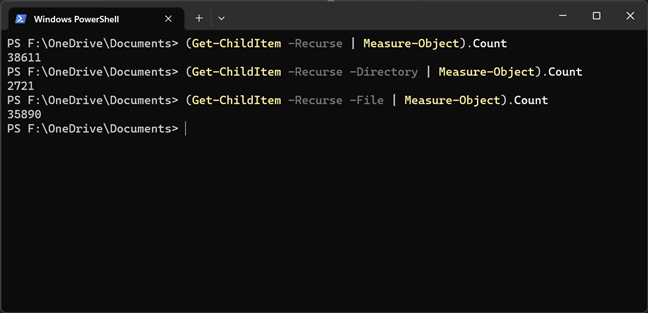 Using PowerShell to count all the files and folders in a folder, recursively
NOTE: Recursive counting means that you’re counting all the files and subfolders contained by a folder, not just the files and folders on the first level of the folder tree.
Using PowerShell to count all the files and folders in a folder, recursively
NOTE: Recursive counting means that you’re counting all the files and subfolders contained by a folder, not just the files and folders on the first level of the folder tree.
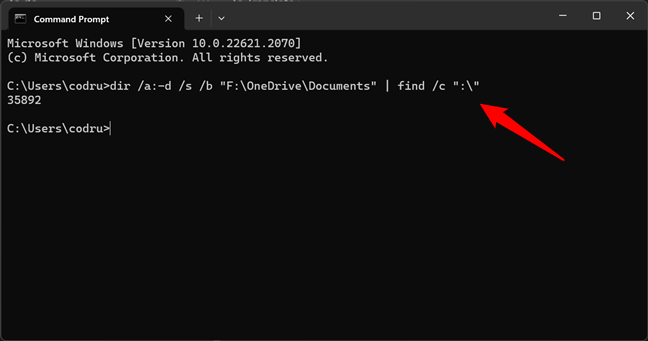
 Using Command Prompt (CMD) to count the files in a folder
If you want to count the subfolders in a folder, run this command:
Using Command Prompt (CMD) to count the files in a folder
If you want to count the subfolders in a folder, run this command:
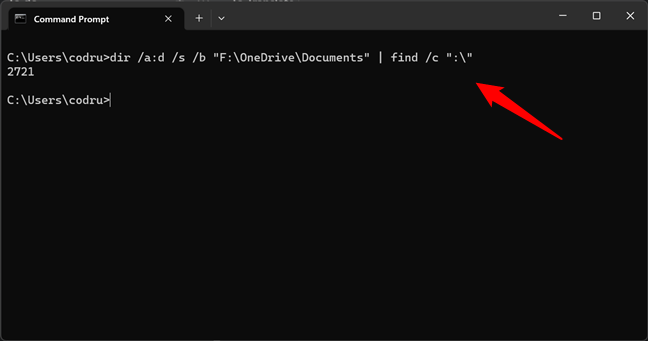 Using Command Prompt (CMD) to count the subfolders of a folder
NOTE: Instead of using the previous commands to count the items in a folder with CMD, you could also run the dir command just like that, without any parameters. However, that will output the entire list of items in Command Prompt, and the number of items only appears at the end. It works, but it’s too verbose and doesn’t give you the clean results you get when using the parameters presented earlier in this section.
Using Command Prompt (CMD) to count the subfolders of a folder
NOTE: Instead of using the previous commands to count the items in a folder with CMD, you could also run the dir command just like that, without any parameters. However, that will output the entire list of items in Command Prompt, and the number of items only appears at the end. It works, but it’s too verbose and doesn’t give you the clean results you get when using the parameters presented earlier in this section.
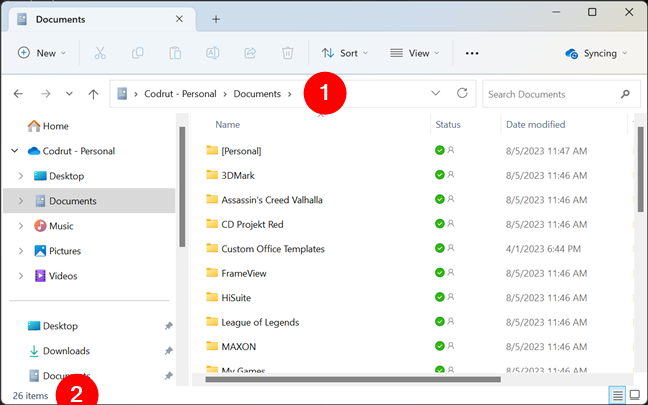
 Using File Explorer to count the files and subfolders in a folder
If you want to count only some of the files or folders stored inside your folder, select them and look at the bottom left side of the File Explorer interface. It should display the number of selected items.
Using File Explorer to count the files and subfolders in a folder
If you want to count only some of the files or folders stored inside your folder, select them and look at the bottom left side of the File Explorer interface. It should display the number of selected items.
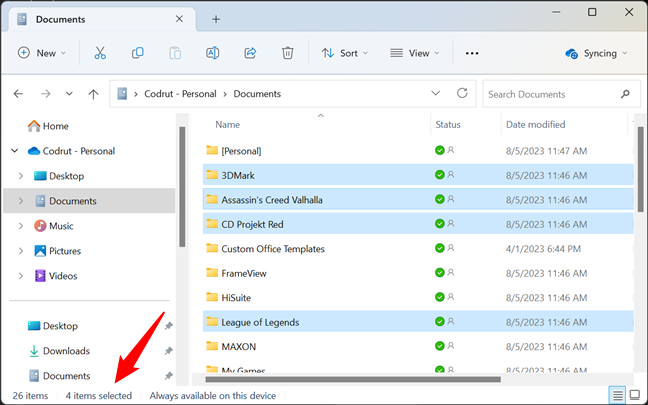 Using File Explorer to count the selected items in a folder
That’s it!
Using File Explorer to count the selected items in a folder
That’s it!
1. How to use File Explorer to get the number of files in a folder
Do you want to count all the folders and files stored inside a certain folder and all its subfolders? An easy method to find this information is to use the Properties window of the selected folder. Open File Explorer, browse to your folder, and right-click (or press and hold) on the folder’s icon. On the contextual menu, select Properties. Alternatively, select the folder and press the Alt + Enter keys on your keyboard.2. How to use PowerShell to count the files in a folder
PowerShell offers one of the best ways to count the files and subfolders stored inside a folder. Open PowerShell and head to the location of the folder. To do that, run the command:cd path
…where path is your folder’s path.
For example, I want to count the files and subfolders found in my Documents folder, located in "F:\OneDrive," so I need to run this command:
cd "F:\OneDrive\Documents"
(Get-ChildItem | Measure-Object).Count
Note that it does not work recursively; it only counts the first-level elements.
(Get-ChildItem -Directory | Measure-Object).Count
(Get-ChildItem -File | Measure-Object).Count
- To recursively count all files and subfolders in a folder with PowerShell, run: (Get-ChildItem -Recurse | Measure-Object).Count
- If you want to recursively count only the subfolders in a directory, run this command: (Get-ChildItem -Recurse -Directory | Measure-Object).Count
- And to recursively count only the files inside a folder, use this command: (Get-ChildItem -Recurse -File | Measure-Object).Count
3. How to use CMD to count the files in a folder
If you need to list the number of files in a directory, you can also use Command Prompt. Open Command Prompt and run the following command:dir /a:-d /s /b "Folder Path" | find /c ":\"
For example, to use CMD to count the files and subfolders in my "F:\OneDrive\Documents" folder, I need to run:
dir /a:-d /s /b "F:\OneDrive\Documents" | find /c ":\"
dir /a:d /s /b "Folder Path" | find /c ":\"
In my example, that would be:
dir /a:d /s /b "F:\OneDrive\Documents" | find /c ":\"
4. An alternative way to count the files in a folder with File Explorer
Just like the first method in this guide, this one also involves File Explorer. However, I left it until the end because it doesn’t work recursively. It counts only the files and folders on the first level of the folder tree, even if these folders contain other files and folders inside. Even so, it might be useful in certain situations. Open File Explorer (Win + E) and head to the folder where the items you want to count are stored. The total number of items (both files and folders) stored inside is displayed in the lower-left corner of File Explorer’s user interface.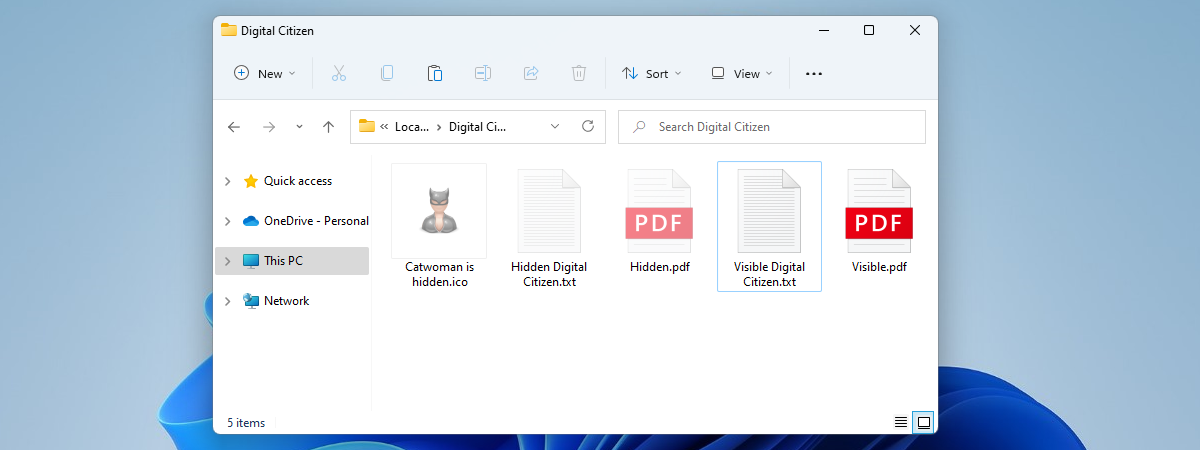
Discussion (15)
There’s a much simpler way to do this from a CMD prompt!
Current directory only, not including subdirectories: dir
Current directory AND subdirectories (no hidden/system): dir /s
Current directory AND subdirectories, only hidden/system: dir /s /ah
Just let it finish running through things, then at the very end will be the total files and directories (as well as their size.)
Hi, thank you for this article!
Is there a way to use the PowerShell or CMD recursively output file count by file extension? Like: 300 .html, 20 .css, 50 .pdf, etc.?
VBA – excel : fill in sheet1 # from e.g. folder = “Program Files”
‘ CountFiles Macro
”Module level variable
Dim iFilesCount As Integer
‘VBA Procedure to Count Files in Folder and Subfolders
Sub VBAF1_Count_Files_in_Folder_and_Subfolders()
‘Variable declaration
Dim sFldPath As String
‘Define Root Folder Path
sFldPath = “C:Program Files”
‘Çall SubProcedure
Call VBAF1_SubProcedure_To_Count_Files_in_Folder_and_Subfolders(sFldPath)
End Sub
‘VBA SubProcedure(Recursive Method) to Count Files in Folder and Subfolders
Sub VBAF1_SubProcedure_To_Count_Files_in_Folder_and_Subfolders(sFolderPath As String)
‘Variable declaration
Dim sFileName As String, oFile As Object
Dim oFolder As Object ‘Folder
Dim iFoldersCount As Integer, iFilesCnt As Integer
Dim iAddFilesCount As Integer
Dim iFilesCount As Long
‘Check for slash
If Right(sFolderPath, 1) <> “” Then sFolderPath = sFolderPath & “”
‘Create FSO Object
Set oFSO = CreateObject(“Scripting.FileSystemObject”)
Set oFolder = oFSO.GetFolder(sFolderPath)
‘Check Specified Folder exists or not
If oFSO.FolderExists(sFolderPath) Then
iFilesCnt = oFolder.Files.Count
iFilesCount = iFilesCount + iFilesCnt
End If
‘Loop through all subfolders
indexLine = 0
For Each oSubfolder In oFolder.SubFolders
‘Çheck available files count in a folder
‘ If no privileges skip
On Error Resume Next
iAddFilesCount = oSubfolder.Files.Count
‘Çheck available subfolders count in a folder
iFoldersCount = oSubfolder.SubFolders.Count
‘Recursive Method
‘Check if any other subfolders within subfolders
If iFoldersCount <> 0 Then
Call VBAF1_SubProcedure_To_Count_Files_in_Folder_and_Subfolders(sFolderPath & oSubfolder.Name)
indexLine = indexLine + 1
Worksheets(1).Range(“A” & indexLine) = oSubfolder
Worksheets(1).Range(“B” & indexLine) = iAddFilesCount
Else
‘Add files count
iFilesCount = iFilesCount + iAddFilesCount
‘If iAddFilesCount = 0 Then
indexLine = indexLine + 1
Worksheets(1).Range(“A” & indexLine) = oSubfolder
Worksheets(1).Range(“B” & indexLine) = iAddFilesCount
‘End If
End If
Next
End Sub
how do I enhance this CMD to include the Modified date
If you want to print the name of folder and number of files in it
for f in *; do var=`find “$f” | wc -l`; echo “$f: $var”; done
(gci -recurse -file | Measure-Object).count
my problem is, numbers don’t match. it says 10 files, but opening folder manually there are only 3. anyone?
Maybe you have hidden files inside that folder?
how about showing the number next to the file?
Hi there If I use the mthode with Powershell i get a different result as the one which is in the file properties… how is that?
Nice cover of the various tech to count files and folders.
But it looks like PowerShell get lower numbers than Windows Explorer and Windows Shell Dir. Have you compared the results in detail?
for /f “tokens=1 delims= ” %a in (‘dir C:test ^|findstr “File(s)”‘) do @echo %a
for /f “tokens=1 delims= ” %a in (‘dir C:Test ^|findstr “Folder(s)”‘) do @echo %a
Looking for a way to add a column to a multi-folder view which lists an item count for each folder in the view… so I don’t have to tediously use these methods on individual folders. I see there’s a column which can be added to File Explorer, called “File count”. After it’s added, it remains blank and I don’t know what its actual use is, or how to populate it if it indeed counts the contents of folders.
For example, in File Explorer, click Pictures… noting that there are several sub-folders listed, there is no column to show the number of items in each sub-folder shown… there is only the total number of items in Pictures (files and folders) shown in the lower left corner.
If you could suggest a method or a different file manager program that can show item counts of each folder in a multi-folder listing… that would be handy.
Thanks.
This batch file will help you get a list of the contents and number of files in pictures folder:
@echo off
call :EnumFolder %userprofile%pictures
goto End
:EnumFolder %1
echo %1
for /d %%d in (%1*.*) do call :EnumFolder %%d
for /f “tokens=1 delims= ” %%a in (‘dir “%1” ^|findstr “File(s)”‘) do @echo %1 : %%a
exit /b
:End
Thank’s for your help – though I ultimately I went with…
@(Get-ChildItem “C:”).count
Where using the @ forces the result into an array (for accurate counting) and can actually be written using any Get-ChildItem alias (dir, ls, gci) – so for files only (in chosen directory only)…
@(dir “C:*.*”).count
Or for files and folders (in chose directory only)
@(dir “C:*”).count
Or you can use any combination of the -Recurse -File -Directory you need as well..
@(dir “C:” -Recurse -File).count
Note that the -Recurse method seems to take a long time when it’s looking for a lot of files or subfolders so keep this in mind.