



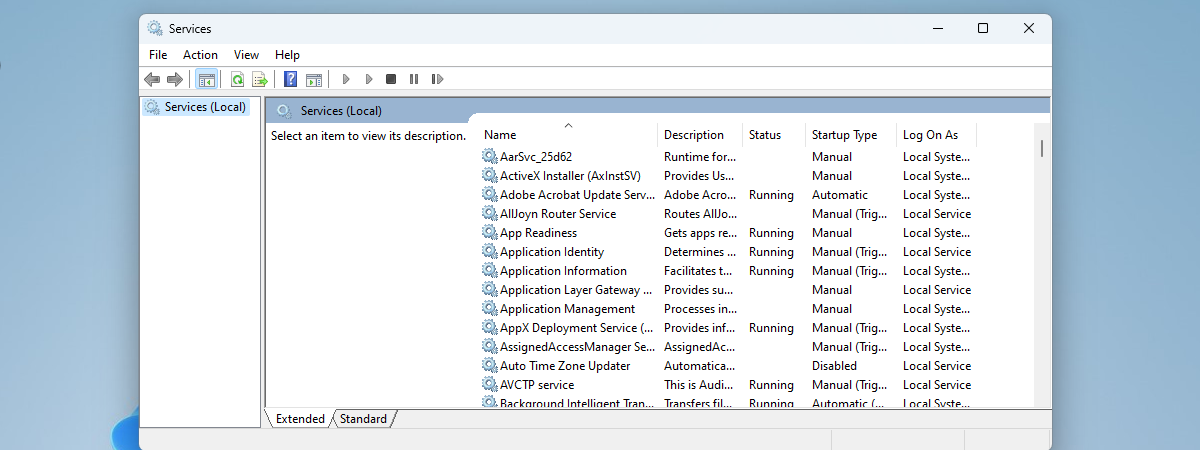
In Windows, services are the silent workers that keep the operating system running smoothly. They handle all kinds of essential tasks in the background, from managing your internet connection to ensuring timely updates. Most of the time, you don’t even notice them, but without these services, Windows simply wouldn’t function. What makes things more complex is that many services are connected to one another. Some can only run if others have already started, and this link is called a Windows service dependency. If one service fails, anything depending on it may also stop working. That’s why you need to be cautious whenever you decide to disable a service, delay its startup, or change the way it runs. In this guide, I’ll explain the definition of a Windows service dependency, show you how to check them in Windows, and walk you through the startup settings you can use.
NOTE: The steps in this tutorial apply to both Windows 11 and Windows 10, as the Services tool works the same way in both operating systems. For clarity and shortness, I used Windows 11 for all the screenshots you’ll see, but you can follow the same steps in Windows 10.
 How to open Services in Windows 11
If you want more methods, I’ve covered them in this tutorial: 9 ways to open Services in Windows.
How to open Services in Windows 11
If you want more methods, I’ve covered them in this tutorial: 9 ways to open Services in Windows.

 Choose Properties in the right-click menu of a service
Next, go to the Dependencies tab. This tab has two sections:
Choose Properties in the right-click menu of a service
Next, go to the Dependencies tab. This tab has two sections:

 The Dependencies tab in a service's Properties
TIP: Always check a service’s dependencies before changing its startup type. For safe recommendations, read my updated guide on which Windows 11 services you can disable.
The Dependencies tab in a service's Properties
TIP: Always check a service’s dependencies before changing its startup type. For safe recommendations, read my updated guide on which Windows 11 services you can disable.

 How to disable a service from starting
This prevents the service from starting, even if Windows or another program requests it. If you ever need it again, you must either start it manually or change its startup type back to Automatic.
While disabling services can sound like a way to speed up your computer, the reality is that performance improvements are usually minor. In fact, disabling the wrong service can cause system features to stop working. For example, if you disable Remote Procedure Call (RPC), which is one of the Windows Update service dependencies, the update process itself might fail, leaving your PC without important security patches.
How to disable a service from starting
This prevents the service from starting, even if Windows or another program requests it. If you ever need it again, you must either start it manually or change its startup type back to Automatic.
While disabling services can sound like a way to speed up your computer, the reality is that performance improvements are usually minor. In fact, disabling the wrong service can cause system features to stop working. For example, if you disable Remote Procedure Call (RPC), which is one of the Windows Update service dependencies, the update process itself might fail, leaving your PC without important security patches.
 Windows Update service dependencies
This is why I recommend setting services to Manual instead of disabling them completely.
Windows Update service dependencies
This is why I recommend setting services to Manual instead of disabling them completely.

 How to set a service to start manually
This option is safer than disabling services because it saves resources during startup without breaking functionality. To configure this, open the service’s Properties, go to the General tab, and choose Manual from the Startup type list.
How to set a service to start manually
This option is safer than disabling services because it saves resources during startup without breaking functionality. To configure this, open the service’s Properties, go to the General tab, and choose Manual from the Startup type list.

 How to delay the startup of a service
It’s a good choice for non-essential services you don’t need right away. By delaying them, you might slightly improve your PC’s boot times while still keeping everything functional.
How to delay the startup of a service
It’s a good choice for non-essential services you don’t need right away. By delaying them, you might slightly improve your PC’s boot times while still keeping everything functional.
How to access the Services from Windows
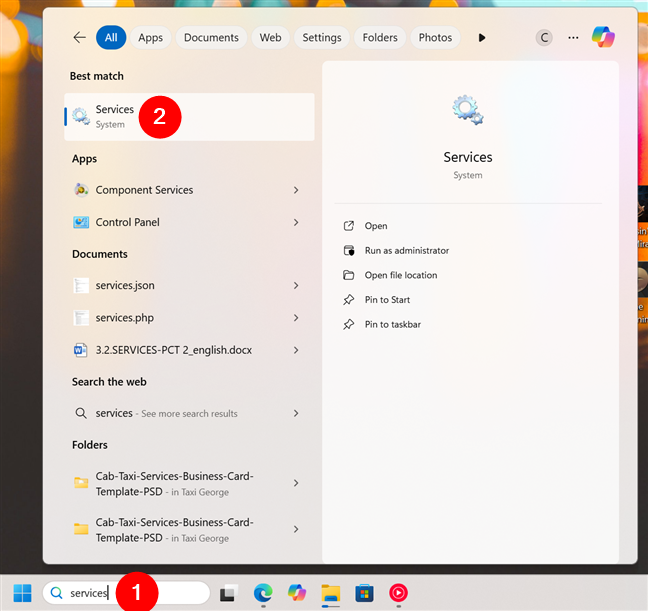
Before you can view service details or change their startup type, you first need to open the Services window. There are several ways to do this, but the fastest is through the search box on the taskbar: Click or tap the search box (or press Windows + S) and type services. Then, select Services from the list of results. This immediately opens the Services window, where you can see all the services installed on your system.How to view the dependencies of a Windows service
Many Windows services depend on other components to start. If a required service fails, the one depending on it won’t work either. This is why, when troubleshooting, it’s useful to check a service’s dependencies. To do that, double-click a service in the Services window to open its Properties. You can also right-click it and choose Properties from the menu.- The first one tells you which services this one depends on. If those aren’t running, your selected service won’t work.
- The second section lists the services that depend on the one you’ve selected. If you disable it, those services fail too.
How to disable a Windows service (and why you should be careful)
If you want to stop a service from ever running, you can set it to Disabled. Open its Properties, go to the General tab, and in the Startup type list, select Disabled.How to set a service to Manual
When you set a service to Manual, it won’t run at startup. However, if Windows or another program needs it, the service will start automatically.How to delay the start of a service
Another useful setting is Automatic (Delayed Start). This makes a service start automatically, but only after Windows has loaded all its critical services first.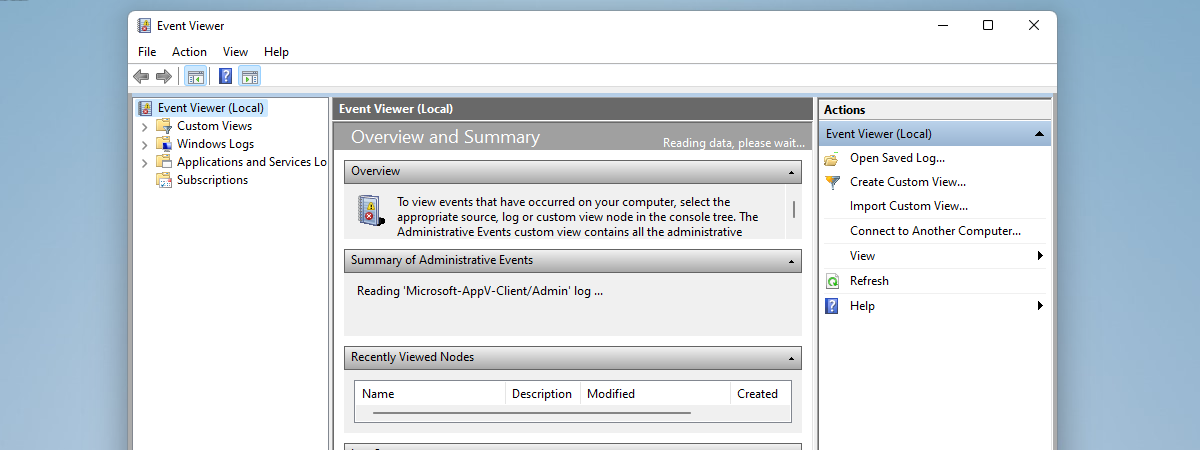
Discussion (6)
My problem is many programs either stop or take a long time to close and a lot of crashes on my computer and I had to reformat thinking that’ll fix the problem and it fixed a lot of it but it was still crashing as it is now and it’s getting worse please help I run Windows 7 on a Inspiron 620 Dell computer & core 3 (I’m assuming as it has an upside down Exclamation point next to the 3…. Thank you for any help you can give to me it’s greatly appreciated! Daniel
In windows – services – properties I see everything EXCEPT Dependencies. Running win 7 x64 Professional. I see General, Log on and Recovery only. What gives?
I don’t know. We tested this on Windows 7 x64 Ultimate and Home Premium. The Dependencies tab is always there, for each service.
Are you on a network domain, handled by a network admin? Maybe… there is a policy that forbids you from accessing all the information?
This can sometimes happen if the Windows Management Instrumentation service is not started. Did you check this? Go to Services, search this one and on Properties set the start mode to Automatic. If it works, let me know.
Don’t forget to restart the computer once you change the start mode for that service.
No sir this computer does not get on the internet only my small laptop does I don’t trust that damn internet for this computer as it’s running 7 Windows 7 which has no security ? updates