



Windows quality updates began expanding automatic memory-integrity protection to more eligible PCs in October 2026. If Windows Security shows the feature enabled after an update, that can be expected. Microsoft says the rollout respects existing user decisions and administrator policies, including a previous decision to disable it.
To check your PC, open Windows Security > Device security > Core isolation details and read the Memory integrity status. If a driver warning accompanies the change, identify the driver before deciding whether to change the security setting.
What does the update change?
Microsoft's rollout announcement says Windows checks hardware readiness, compatibility, and performance considerations before automatic enablement. Virtualization-based security, or VBS, can also be enabled where needed.
Memory integrity uses an isolated environment to help enforce trust checks for low-level Windows code. It is also called hypervisor-protected code integrity, or HVCI. The setting is about protecting the operating system, rather than cleaning RAM or adding memory capacity.
Our earlier coverage explained the rollout announcement. This guide focuses on checking the resulting state and investigating a driver warning on your own machine.
Check the state after restarting
- Complete any restart requested by Windows Update.
- Open Windows Security from Start.
- Select Device security > Core isolation details.
- Read the Memory integrity state and any message about a restart or incompatible drivers.
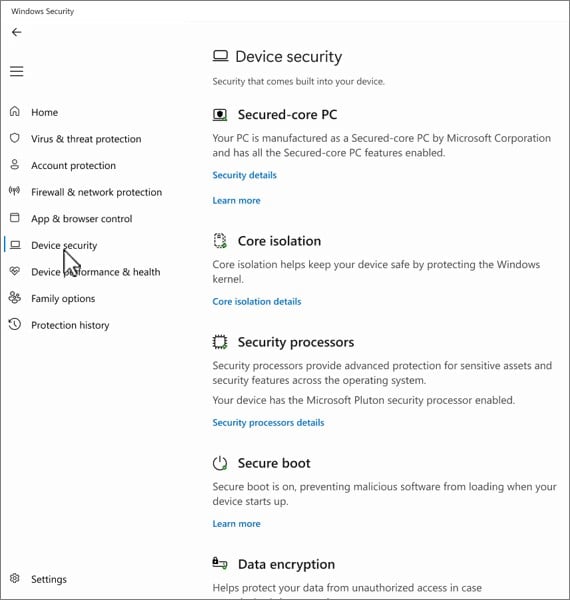
Microsoft's Device security documentation notes that available controls vary with Windows version and hardware. A missing switch needs an eligibility or configuration check. It does not prove that a particular monthly update failed.
If Windows names an incompatible driver
Write down the driver filename and publisher exactly as Windows displays them. Identify the related hardware or software, then look for a compatible update through Windows Update or the manufacturer's official support site.
Microsoft's driver-loading guidance recommends checking for an updated compatible driver first. Removing a driver without knowing what uses it can disable the associated device. Avoid deleting a .sys file simply because its name appears in the warning.
For example, if the warning belongs to an older accessory utility, check whether the accessory maker has replaced that utility or its driver. After installing the supported update, restart, return to Core isolation, and test both the setting and the accessory.
Should you turn memory integrity off?
Keep it enabled when the PC and devices work correctly. If an essential device has no compatible driver, contact its manufacturer and weigh a temporary compatibility workaround against losing this protection. Microsoft documents turning it off as an option when a compatible replacement is unavailable, but also explains that doing so reduces the device's security protections.
If you deliberately change the setting, restart when required and verify the result. On a managed computer, leave that decision to the administrator rather than attempting to override the policy.
Investigate performance changes with the same workload
The performance effect varies with processor capabilities and workload. Microsoft's memory-integrity documentation explains that older processors can rely on emulation with greater overhead. There is no single slowdown percentage that applies to every PC.
If a problem began after updating, record the Windows build, driver version, application, and a repeatable task. Compare the same task under similar conditions before attributing the change to memory integrity. Background downloads, application updates, and a replaced graphics driver can otherwise make the comparison misleading.
Once a driver problem is resolved, revisit Core isolation and confirm the protection you intended is active. Finish by testing the device or application that originally failed.


Discussion (0)
Comments are closed.