



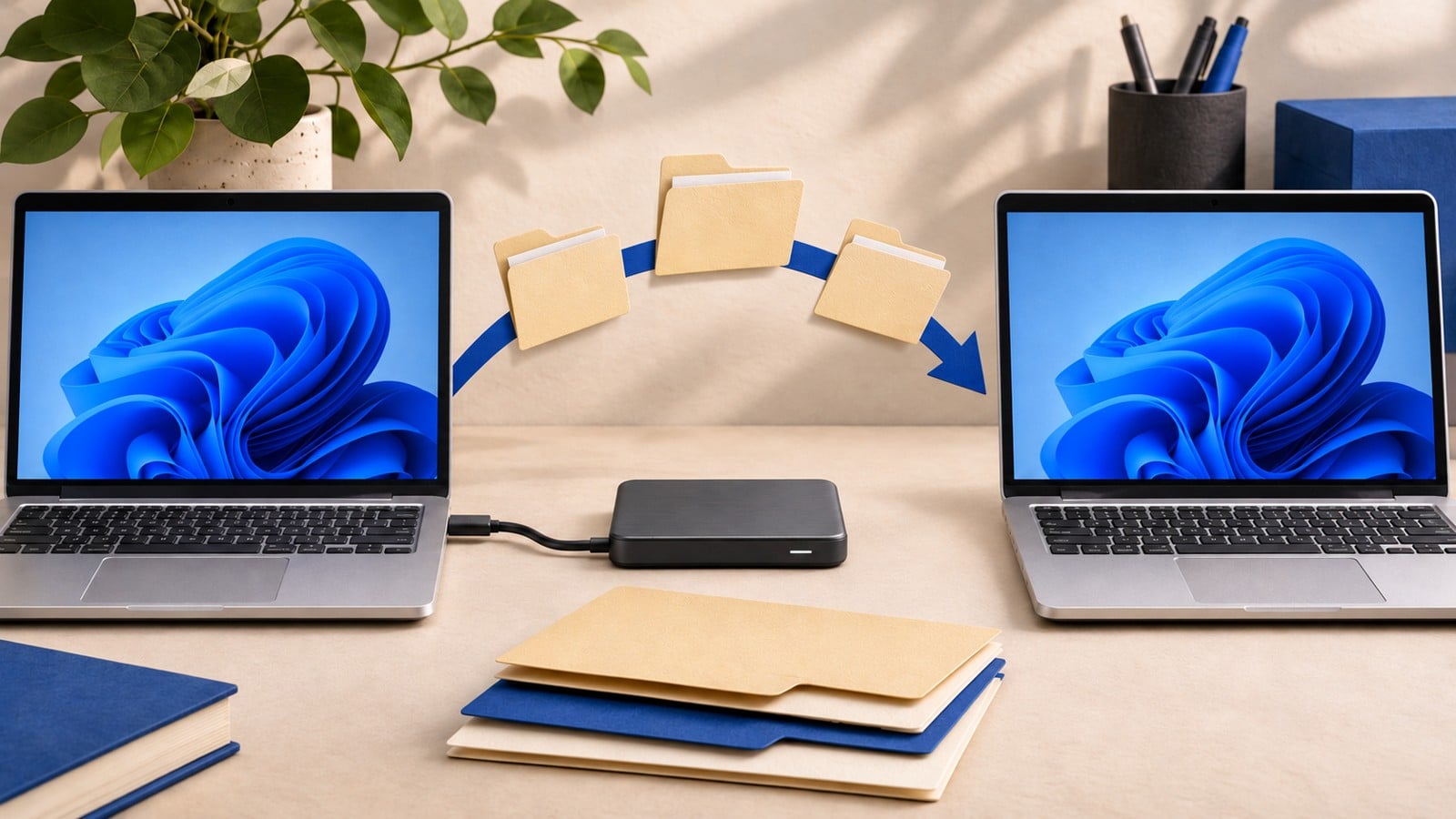
Microsoft has marked the Windows Backup PC-to-PC setup transfer as no longer available. That was the experience for pairing an old computer with a new one during setup and copying files and settings between them. You can still move files using external storage or supported Windows sharing features.
If you are replacing a PC, choose the method by what you need to move: a whole collection of personal folders, a few files, or supported settings and cloud-backed content. These methods do not all transfer the same things.
Which transfer feature was retired?
The notice appears at the top of Microsoft's PC-to-PC transfer guide, which points readers to Windows Backup and Restore instead. The older instructions below it describe pairing PCs during the new computer's setup.
Those remaining instructions should not be treated as evidence that the feature is still offered. The notice does not announce removal of ordinary File Explorer copying, USB storage, or Nearby sharing. It also does not establish an exact retirement date, so there is no reason to assume a particular Windows update broke your USB drive.
Choose a method for the files you have
| Your task | Useful method | Check before starting |
|---|---|---|
| Move a large set of personal folders offline | External SSD, hard drive, or USB drive | The external drive and new PC have enough free capacity. |
| Send a few files to a nearby PC | Nearby sharing | Both PCs support it and have sharing enabled. |
| Restore supported settings and cloud-backed files | Windows Backup and Restore | The correct account, completed backup, and enough cloud storage. |
| Move installed applications | Reinstall from the Store or the publisher | Licenses, installers, and any app-specific data export. |
Move personal folders with an external drive
Microsoft still documents external-storage transfers. Use copying, rather than cutting, so the old PC keeps its original files until you have verified the result.
- Connect the external drive to the old PC and open File Explorer.
- Copy the folders you need to the external drive. Check Documents, Desktop, Pictures, Videos, and Downloads, plus any folders you created elsewhere.
- Wait for copying to finish, then safely eject the drive.
- Connect it to the new PC and copy the files into the appropriate folders.
- Open a selection of documents, photos, and larger files on the new PC before removing anything from the old one.
If a folder contains online-only files, make sure their actual content is available before relying on an offline copy. Copying the Program Files folder is not a substitute for reinstalling applications; programs can also depend on installation records, services, and settings elsewhere.
Use Nearby sharing for a smaller transfer
On both computers, open Settings > System > Nearby sharing and choose the permitted devices. Select a file in File Explorer, use Share, and choose the receiving PC. Accept the transfer there and open the saved file.
Microsoft's Nearby sharing instructions describe Bluetooth and Wi-Fi transfers, including the network conditions for Wi-Fi. This is useful for selected documents; it is not a complete migration of apps and Windows settings.
Keep the old PC until you have checked the new one
Make a short list of what you use every day: documents, photo folders, browser access, email, and essential applications. Verify each on the new PC, including files that lived outside the standard folders. Only erase or give away the old computer after you have confirmed the transfer and kept a separate backup of important data.
Discussion (0)
Comments are closed.