




When your Windows 11 C: drive is almost full, start with Settings > System > Storage. Check which category is using the space, then review Cleanup recommendations. Avoid deleting unfamiliar folders from C: by hand: the largest folder is not necessarily safe to remove.
The best fix depends on the cause. Temporary files need a different response from a large game library, downloaded videos, or a folder that immediately fills again after cleanup.
1. Measure the space you need to recover
Open File Explorer > This PC and read the free-space figure beneath C:. Record it so you can compare after cleanup. If Windows Update is requesting a particular amount of space, use that requirement rather than an arbitrary cleanup target.
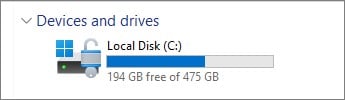
Next, open Storage in Settings and wait for the categories to finish calculating. If apps dominate, repeatedly clearing a small browser cache will make little difference. If personal files dominate, moving a few large folders may be more useful.
2. Review Cleanup recommendations
- Open Settings > System > Storage > Cleanup recommendations.
- Inspect the suggested temporary files, large or unused files, cloud-synced files, and unused apps.
- Select only items you recognize and no longer need.
- Use the cleanup control for that section, then check C:'s free space again.
Microsoft's drive-space guide explains these categories. Treat Downloads and the Recycle Bin as personal storage: they may contain the only copy of a file. Removing a previous Windows installation also removes the files used to return to that installation.
3. Match the next action to the biggest category
| What is taking the space? | A useful next action |
|---|---|
| Large apps or games | Uninstall software you no longer use through Settings or its launcher. Use a launcher's supported move option for games you want to keep. |
| Videos, pictures, or downloads | Copy selected files to another drive and open the copies before removing the originals. |
| Cloud files stored locally | Check that syncing is complete before choosing the provider's option to free local space. |
| System and reserved storage | Use Windows cleanup controls. Do not manually remove Windows, Program Files, or recovery partitions. |
For example, if an unused game occupies most of the space you need, uninstalling that game addresses the shortage directly. Deleting thousands of small documents you still use creates more work and may recover less capacity.
4. Configure Storage Sense deliberately
Open Settings > System > Storage > Storage Sense and review the schedule and retention settings. Microsoft documents that Storage Sense works on the system drive, normally C:. Settings apply to the current user, so another person's account can have different rules.
Leave automatic Downloads deletion disabled if you use that folder as a permanent filing system. Review cloud-content rules too: making a file online-only frees its local copy, and opening it later requires a connection. Files marked to remain on the device are treated differently. Our Storage Sense explanation covers the feature in more detail.
5. Check whether the space stays free
Restart if a cleanup or update requests it, then return to This PC. Repeat the task that failed, such as installing the update or saving a large file.
If C: fills up again immediately, identify the category that is growing before repeating deletion. Microsoft's guidance calls out Store-related temporary files as one possible cause. A cleanup that succeeds for a few minutes but leaves the same warning afterward needs investigation of the app or process creating those files.


Discussion (0)
Comments are closed.