




To check SSD health in Windows 11, open Settings > System > Storage > Advanced storage settings > Disks & volumes. Select the physical SSD and open Properties. On supported NVMe drives, Windows can show drive-health attributes and critical warnings.
The built-in health view does not monitor SATA SSDs or hard disk drives. If you cannot find the health section, check the drive type before treating the missing information as a fault—or assuming the drive is healthy.
Check the physical disk, then read its health information
- Open the Disks & volumes page using the path above.
- Identify the SSD by its model and capacity. A computer can contain more than one physical disk.
- Open the disk's Properties, rather than inspecting only a partition such as C:.
- Read any warning first, then look for Estimated remaining life, Available spare, and Temperature.
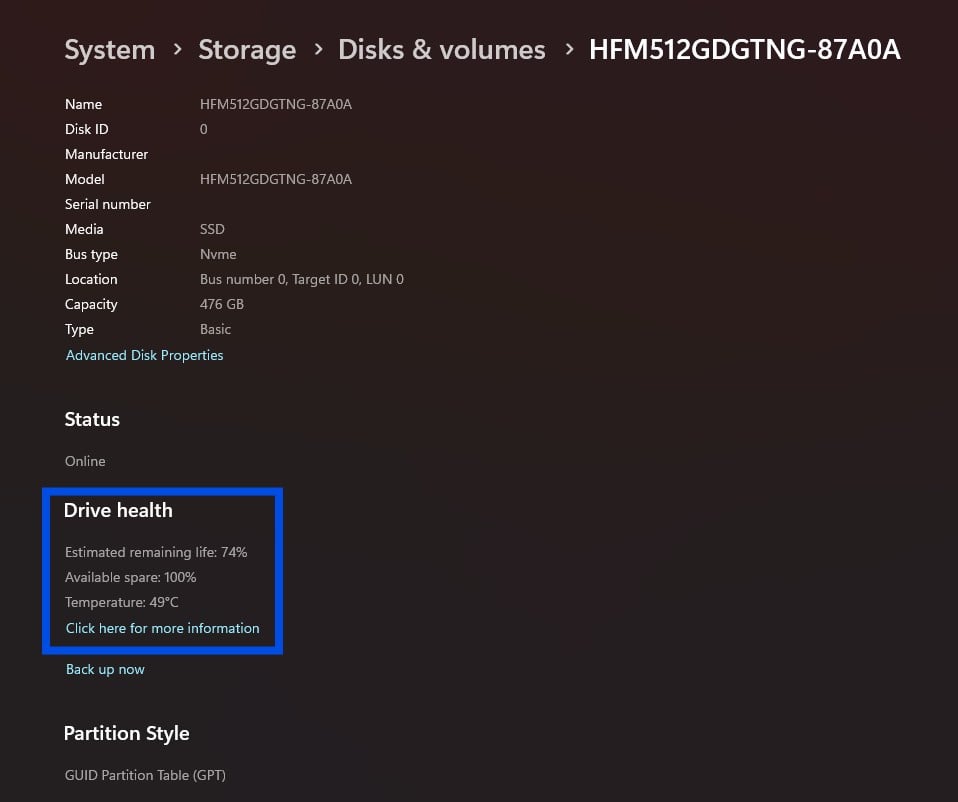
Microsoft's storage-warning documentation explains the three warning states: depleted spare capacity, degraded reliability, and read-only operation. Back up important files promptly if a critical warning appears.
Available spare refers to reserve capacity inside the SSD, rather than the free gigabytes shown in File Explorer. Estimated life is a wear estimate, not a calendar prediction. Temperature should be assessed against your model's specifications and workload rather than a universal limit.
If the health section is missing, identify the drive
You can use PowerShell for a second view of the physical storage devices. Open Terminal (Admin), choose a PowerShell tab, and run this read-only command:
Get-PhysicalDisk | Select-Object FriendlyName, MediaType, BusType, HealthStatus, OperationalStatusGet-PhysicalDisk lists disks exposed by Windows storage providers. Use the model and bus information to identify the device. Controller configurations and external enclosures can affect which details are exposed.
A general Healthy status is useful, but it is less detailed than the manufacturer's wear and diagnostic information. Keep the result together with the model number if you need to ask the manufacturer about a missing reading.
Read additional counters when the device supplies them
In PowerShell, this read-only command requests reliability counters for the detected physical disks:
Get-PhysicalDisk | Get-StorageReliabilityCounter | Format-ListMicrosoft documents counters for temperature, errors, wear, and operating time. Some devices or storage paths return incomplete information or an unsupported-operation error. A blank field should be treated as unavailable data, not as a measured zero.
For a SATA SSD or a drive with limited Windows reporting, use a compatible utility from the drive manufacturer. Digital Citizen's guide to HDD and SSD health tools also explains dedicated monitoring software. Check the utility's current support for your model before relying on its result.
What should you do with the result?
| Result | Next action |
|---|---|
| No warning and readable health data | Keep normal backups and record the readings if you want to compare them later. |
| No health data | Check the bus type, enclosure, and manufacturer tool. |
| Critical warning or a read-only drive | Copy irreplaceable files to separate storage and seek model-specific support. |
| Files disappear or fail to open despite a healthy summary | Protect the files and investigate the symptoms; do not dismiss them because of one status label. |
Once you have copied important files, open several from the backup destination. A health check helps you decide what to investigate; a verified backup is what gives you another copy if the drive fails.


Discussion (0)
Comments are closed.