



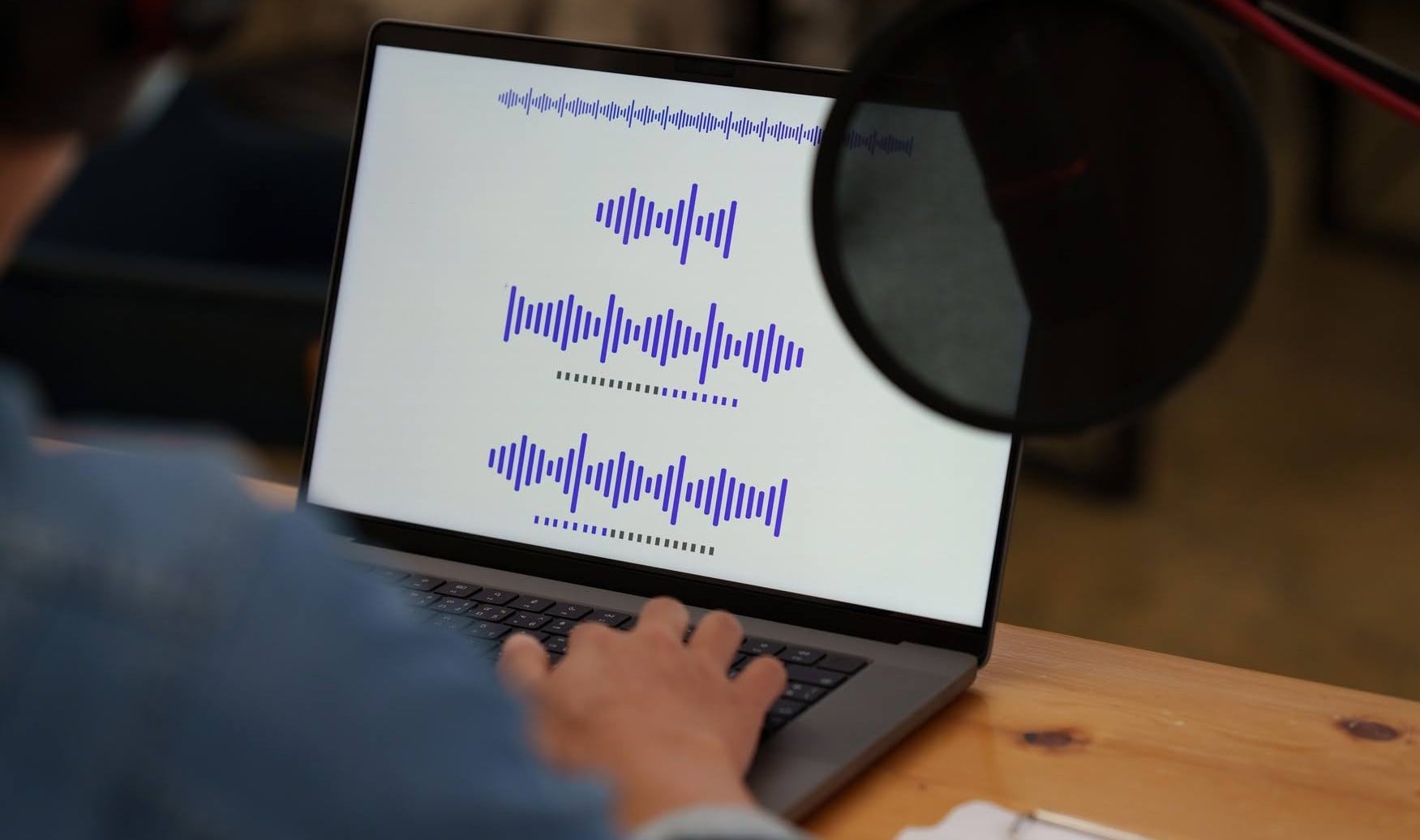
Audio is a notoriously difficult format to work with if you want to search it for specific information, make changes to the content or share it.
Whether you’re a creator who needs to pull quotes from an interview, a developer who’s looking to create searchable support documentation or an enterprise team that needs notes from your latest meeting, it can be helpful to use an MP3 to text converter. This turns your spoken-word content into something more easily manageable. For instance, ElevenLabs’ MP3 to text converter takes uploaded MP3 files and returns a transcription, including timestamps and speaker labels.
Prepare Audio For Accurate Transcription
Make sure that your MP3 plays correctly and that it’s the complete recording. Audio quality plays a key role in any transcription. The better the quality, the more information is available to the speech-to-text system. Wherever possible, try to limit background noise, keep your recording device close to you and ensure everyone is speaking at roughly the same volume.
Turn Long Recordings Into Searchable Text
When you’re ready to go ahead and convert your audio to text, you should be able to just upload it and get your transcription back. The language is detected automatically, even if speakers switch partway through. You can use it within an article, document or even import it into a system of your own. One of the biggest challenges faced by speech-to-text (or automatic speech recognition, as it’s also known) systems is recognising proper names, technical terminology and acronyms, as well as numbers, especially if your speakers are talking over each other or particularly fast.
A great example of this might be a podcast producer who’s transcribed an interview and is looking for a particular section about a specific topic. The producer can then go ahead and pull some quotes to use in the show notes. Another use case might be a product team that wants to scan transcripts from customer calls for recurring complaints to gauge what’s most important to their audience, with the option to return to the audio for a reality check before a quote is treated like gospel.
Check Accuracy Before Sharing
It’s important to remember that a transcript isn’t gospel! It’s very much a case of trusting but also verifying. Make sure that you listen back to anything that might be unclear and double-check proper names, dates, numbers, product names or specialist vocabulary to make sure they’re correct. Where appropriate, add punctuation for readability as well, but don’t try to change the meaning of what’s being said.
Will you require a verbatim or a cleaned-up version of your transcription? If you’re transcribing verbatim, you’ll get everything, including your ums and errs as well as any false starts, which may well be important in certain situations, such as when interviewing someone for an article or when doing qualitative research. On the other hand, a cleaned-up transcript may be better for things like meeting notes or subtitles, as it removes some clutter.
When dealing with multilingual content, check the sections where speakers switch languages, and any proper names that need to stay in their original script.
Connect Transcription with Other Audio Tools
At this point, your document will be ready to use. Of course, your text is only going to be truly valuable if you can then use it within your team’s existing ecosystem of tools. Depending on what you’ll be using it for, there are a variety of output options, such as .TXT and .DOCX, which may be good for editing and documentation, or SRT/VTT if you’re going to add captions to video. If you’re a developer, you might also consider structured output or ElevenLabs’ speech-to-text API so you can use the benefits of adding searchable transcripts to your application, call indexing or even creating live captioning experiences.
If you need to work with text as the conversation is happening, low latency is very important. Real-time speech-to-text transcription can enable live captioning or note-taking during meetings, or even voice agents that are able to interact while a person is speaking. This can be very powerful in a customer support context, for example, where a voice agent is able to process a request as it comes in and respond in a timely manner.
Make Recordings Easier to Use
One of the benefits of speech-to-text over simply playing back a voice recording is that you’re able to double-check the accuracy of the transcript. With a careful review process, recordings become easier to search, edit and use across different workflows.


Discussion (0)
Be the first to comment.