




To turn off Smart App Control in Windows 11, open Windows Security > App & browser control > Smart App Control settings, then select Off. This removes Smart App Control's blocking of untrusted apps, so first check whether the software publisher offers an updated, properly signed version of the app you need.
Older instructions often say the decision is irreversible without reinstalling Windows. Microsoft's current FAQ says recent updates let supported devices enable Smart App Control again without a clean installation. Check the controls and warning shown on your own PC before proceeding.
Open the correct setting
- Search Start for Windows Security and open the app.
- Select App & browser control.
- Under Smart App Control, select Smart App Control settings.
- Read the current state and any explanation before changing it.
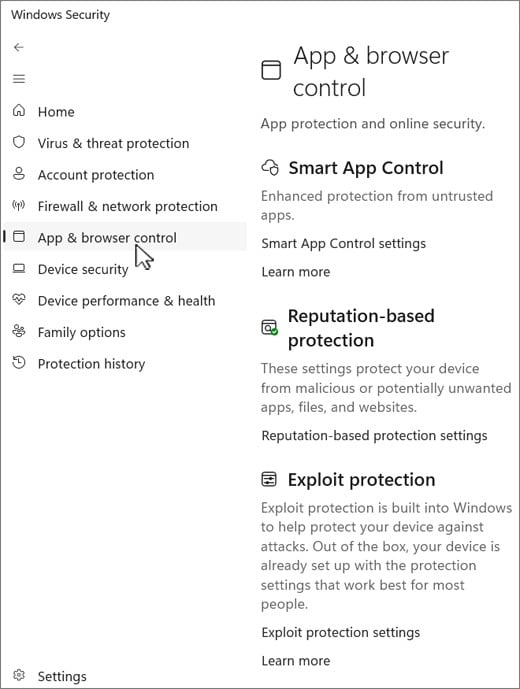
The page also contains other protections. Microsoft's App & browser control guide separates Smart App Control from reputation-based protection and exploit protection. Use the Smart App Control entry for this task; changing unrelated controls adds uncertainty about which protection affected an app.
Check why the app was blocked
Microsoft's Smart App Control FAQ explains that an app can be blocked because it is considered harmful or because its safety cannot be established and it lacks an acceptable signature. A block does not by itself tell you that every file from that publisher is malicious.
Download the app from its official publisher, check for a newer release, and ask the publisher about signing if necessary. Microsoft does not provide a per-app exception within Smart App Control. Switching the feature off therefore changes protection for more than the one app you are trying to open.
Turn Smart App Control off
On the Smart App Control settings page, select Off and complete any confirmation Windows displays. If the prompt says you cannot restore the setting without resetting or reinstalling Windows, stop and check your Windows update status before accepting that consequence.
Return to the page and confirm it shows Off. Then retry the app from its trusted source. If it still cannot run, record the new message: another protection, an organization policy, or an application problem may be involved. Do not keep disabling security features one after another without identifying the block.
Can you turn it back on?
Microsoft documented the ability to switch Smart App Control on and off without a clean installation in its March 2026 release notes, and its current FAQ repeats that guidance. The original preview update was superseded after an installation issue; use current Windows Update offerings rather than trying to install that old preview specifically.
When you want to restore protection, return to the same Smart App Control settings page and select On if available. Confirm the displayed state afterward. If On is unavailable, check the device's eligibility and management restrictions. A work or school device may require your administrator's help.
What about Evaluation mode?
Evaluation lets Windows assess whether Smart App Control is suitable for how you use the PC without blocking apps during that period. Being able to turn protection on again does not mean you can freely restart every part of the evaluation process. Follow the options actually offered by your installation.
For a single blocked program, the best lasting outcome is a supported release that works with protection enabled. After the publisher updates it, turn Smart App Control back on where supported and check that the app still opens.
Discussion (0)
Comments are closed.