




Spotify lets you stream millions of songs, but it does not provide a built-in option to export tracks as MP3 files. You can still create MP3 versions for offline personal use with the right tools and workflow. This guide details the steps you need to follow to download music as MP3 from Spotify and fix issues that you may encounter.
1) Download Spotify music as MP3 using desktop converters
Desktop tools offer the most stable conversions. They handle playlists, preserve metadata, and work faster than browser-based alternatives.
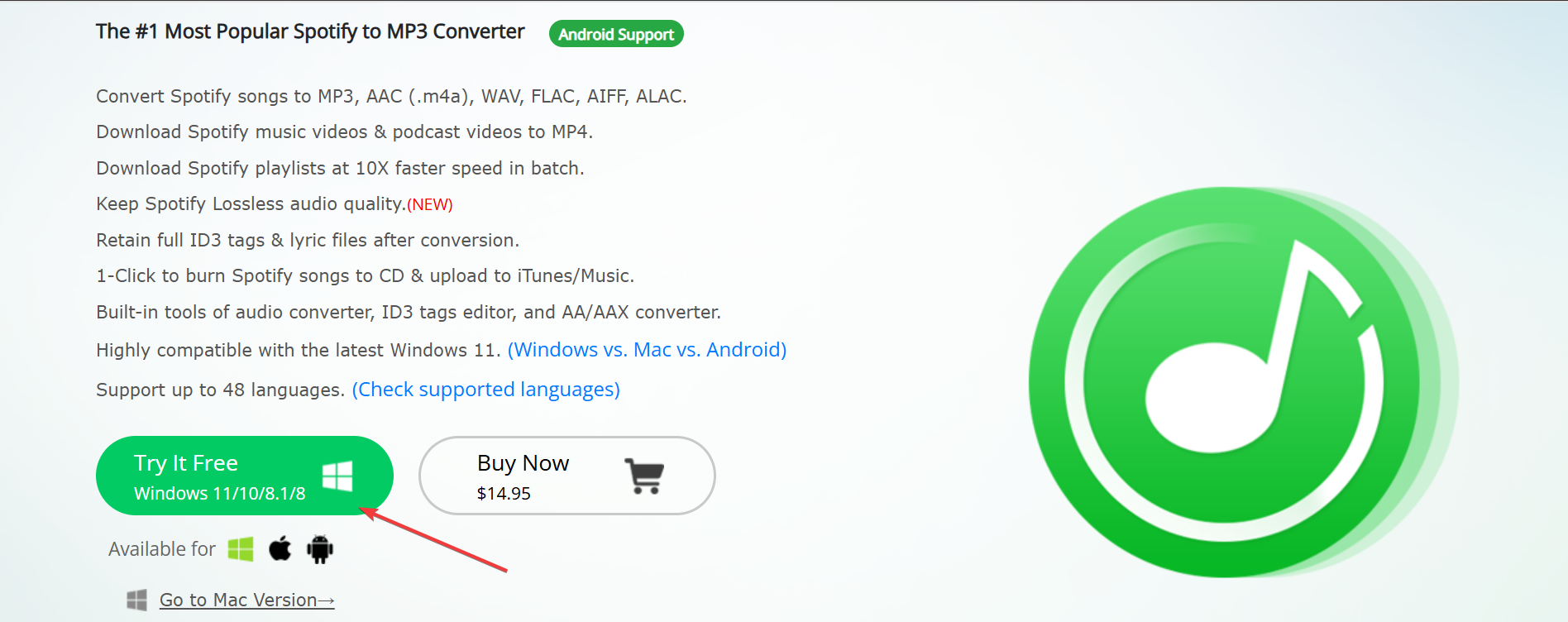
To use these tools, download a reliable converter and install it like you would any other app. Next, drag your Spotify playlist or paste the song link into the tool and select MP3 as the output format.
Now, choose a bitrate such as 320 kbps for better audio and click Convert to start processing. Lastly, open the output folder to access your MP3 files.
2) Download Spotify music as MP3 using online converters
Online converters work directly in your browser. They offer quick conversions without installing software. You only need to get the link to the Spotify music you want to download, paste it on the site, and click the Convert or Download button, depending on what is available.

The tool will either convert the music to MP3 or download it on your device.
It is important to note that most sites run slower with large playlists and may fail if Spotify changes its link structure. So, use an app wherever for possible for the best result.
3) Free and paid methods to convert Spotify to MP3
Free tools help you export smaller playlists without paying. Some include open-source converters with basic metadata support. Expect slower speeds and occasional errors due to limited server resources.
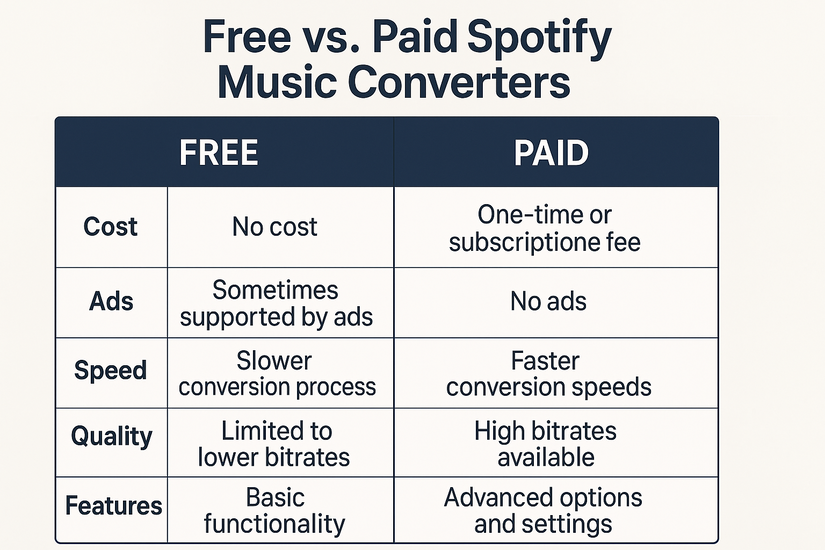
Paid converters, on the other hand, often export faster and support full playlist batching. They usually preserve ID3 tags, cover art, and higher bitrates. These tools suit users who handle frequent or large-scale conversions.
4) Legal considerations and what’s allowed
Spotify’s Terms of Service allow offline listening inside the app but do not allow exporting raw MP3 copies for distribution. You can convert music for your own personal offline use. This keeps you within safe and acceptable boundaries.
5) Troubleshooting common conversion issues
- Converter stuck at 0 percent: Restart the tool and check your internet connection. You can also refresh your Spotify session by signing out and back in.
- MP3 files missing or incomplete: Use a stable bitrate like 256 kbps. Slow storage drives or insufficient space can also cause partial files.
- Spotify links not recognized: Update the converter so it can read Spotify’s latest URL format. You can also copy links directly from Spotify’s Share menu to avoid formatting errors.
Tips to maintain audio quality when exporting as MP3
Your MP3 quality depends on the bitrate you choose. Options like 320 kbps deliver clearer sound and preserve more detail. Good converters also save track titles, album info, and artwork automatically.
FAQs
Can I download MP3 files with Spotify Premium? No. Premium only enables offline listening inside the Spotify app.
Does converting Spotify to MP3 lower audio quality? Yes. MP3 is a lossy format, but using 320 kbps keeps quality high.
Can I convert entire playlists at once? Most desktop tools support batch conversion.
Do MP3 conversions work on mobile phones? Most converters run on desktop, but you can transfer MP3 files to your phone afterward.
Summary
- Spotify stores songs in a protected format and does not offer MP3 exporting.
- You can convert Spotify tracks using desktop or online tools.
- Windows and macOS workflows follow similar steps.
- Free tools work for small tasks, while paid tools offer more stability.
- Troubleshooting ensures reliable conversions and full MP3 output.
Downloading Spotify music to your computer or phone in MP3 format takes the right tool and a clear process. Desktop converters offer the most dependable results, while online tools add convenience for small tasks. Choose a safe method, check your quality settings, and keep your files organized for smooth offline listening.


Discussion (0)
Be the first to comment.