Everybody likes to listen to their favorite music, and that includes gamers too. You might like to listen to your music even while playing games on your Windows 10 PC. However, we usually avoided doing so, because each time we wanted to skip or play a different song, we had to switch between the game and the media player, using the Alt + Tab keyboard shortcut. Fortunately, Microsoft changed all that by adding a Spotify widget to the Windows 10 Game bar. Once you connect it to your Spotify account, you can enjoy listening to your favorite music while playing your favorite game. Neat, right? Read this tutorial, and learn how to control music on Spotify when gaming, with the Xbox Game Bar:
1. Install the Spotify app from the Microsoft Store
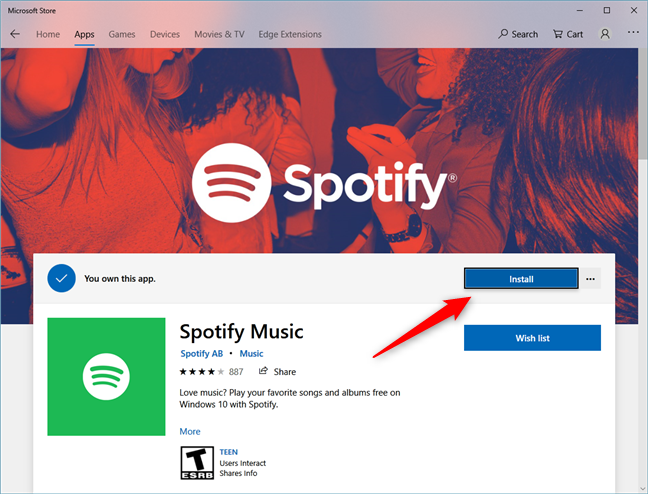
For the Xbox Game Bar to work with your Spotify account, you must have the Spotify desktop app installed on your Windows 10 PC. If you do not have it, open the Microsoft Store and search for Spotify. Alternatively, you can also use this direct link to the Spotify app. Click or tap Get or Install, and then wait for Spotify to download and install on your computer.
The Spotify app page from the Microsoft Store
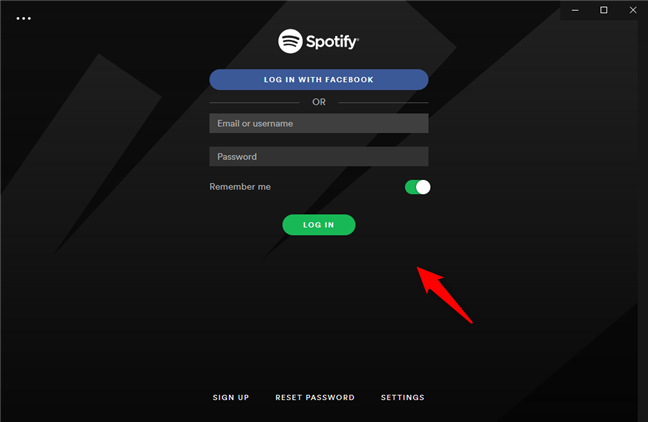
After the installation is done, open the Spotify app and connect to your Spotify account.
Logging into your Spotify account
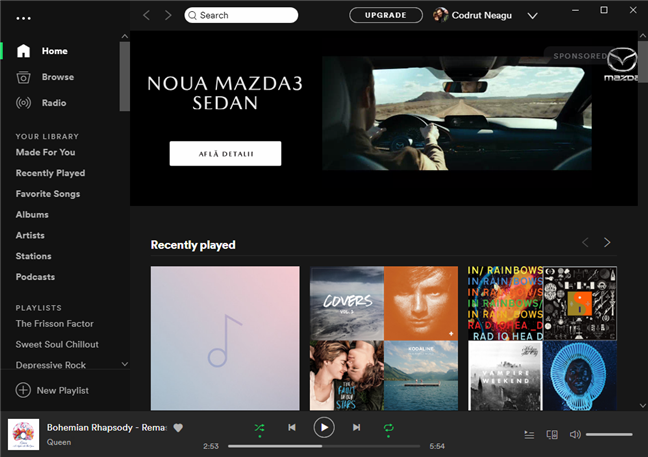
If you have successfully connected to your Spotify account, you should see your music library.
The Spotify app connected to your profile
2. Open the Xbox Game Bar and enable the Spotify widget
Next, open the Game bar by pressing the Windows + G keys on your keyboard. Note that you can launch the Game bar anywhere in Windows 10: you can do it on your desktop for instance. You do not have to do it while playing a game.
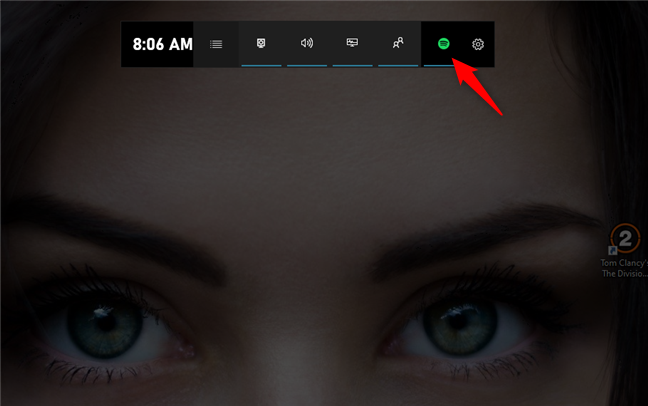
Once the Game bar overlay appears on your screen, click or tap the Spotify button.
The Spotify button from the Xbox Game Bar
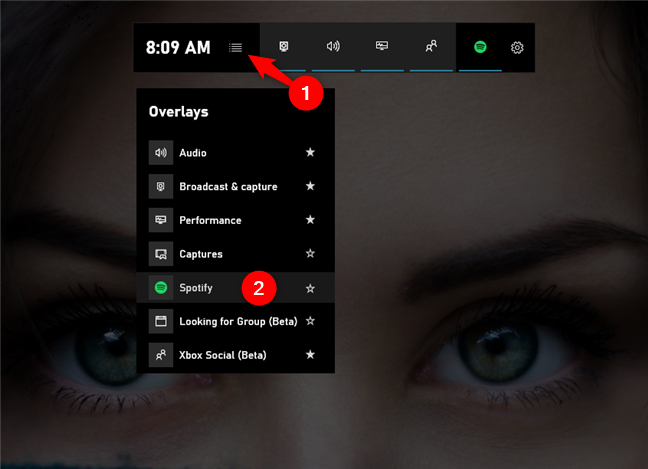
You can also press the Home button, and then choose Spotify from the list of overlays available.
The Spotify overlay from the Home menu of the Xbox Game Bar
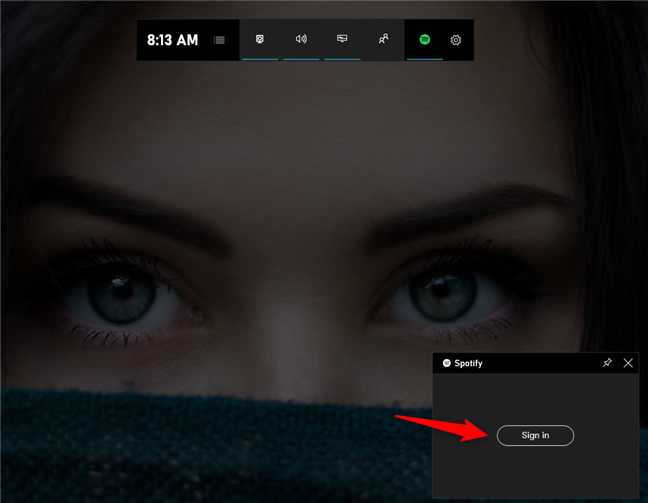
Either way, Windows 10 should display the Spotify widget on your screen. Its default position is on the bottom-right corner of the screen. Inside the Spotify widget, click or tap Sign in.
The Sign in button from the Spotify widget
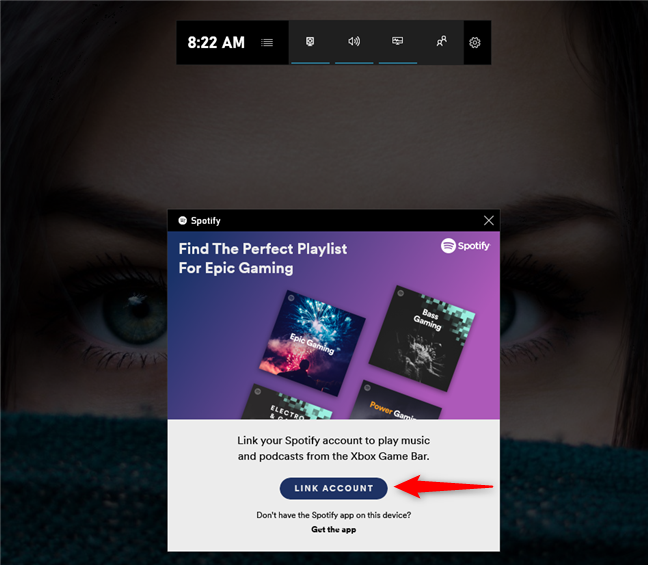
The Spotify widget then loads a new window, where you have to click or tap on Link Account.
Linking your Spotify account to the Xbox Game Bar
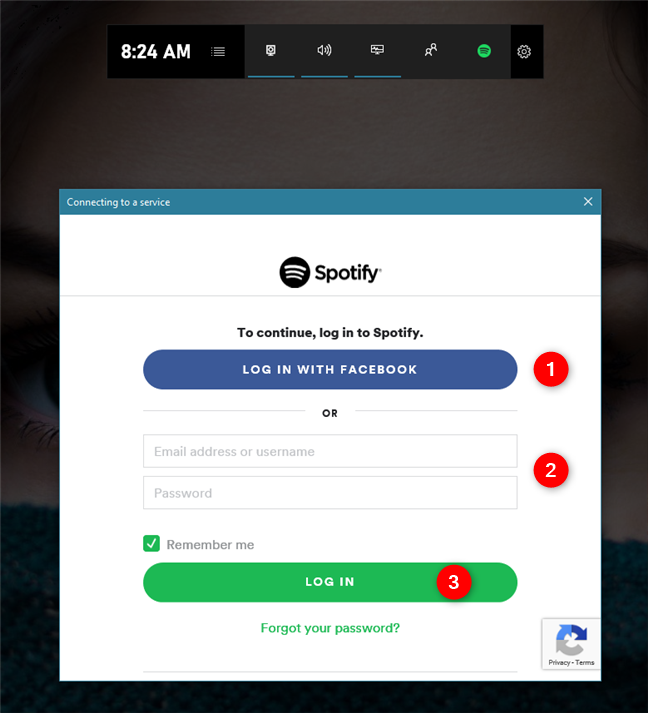
Yet another new window pops up: enter your Spotify credentials (2) or use your Facebook account (1) to log in (3).
Logging into your account in the Xbox Game Bar
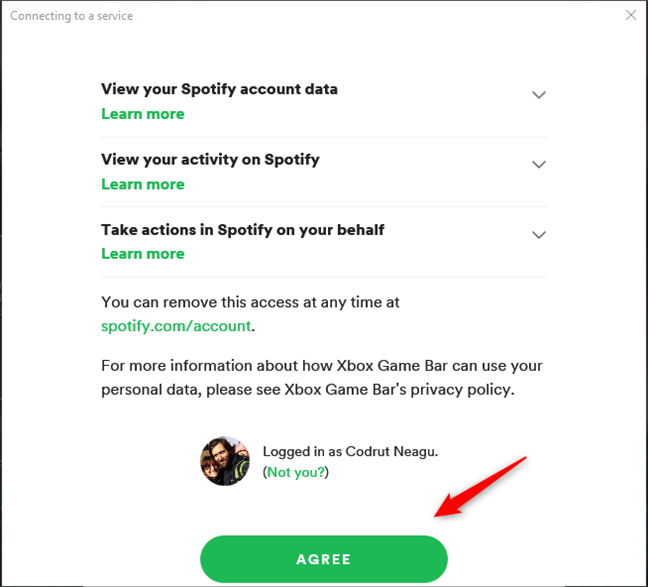
After you successfully authenticate, Xbox Game Bar asks permission to connect and use your Spotify account. If you want to use the Spotify widget to listen to music while playing games, you must Agree.
Give to the Xbox Game Bar the permission to connect to your Spotify account
3. Launch the Spotify app on your Windows 10 PC
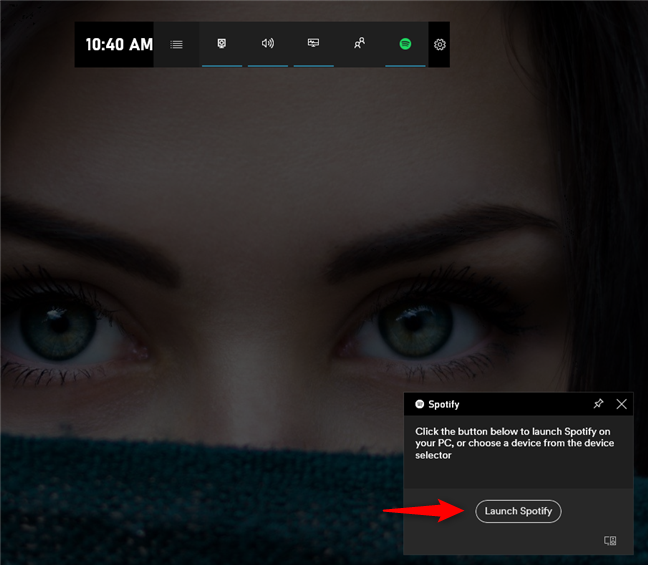
Once you have agreed to give Spotify the required permissions, the widget from the Xbox Game Bar changes and shows you only one button: Launch Spotify. Click or tap on it.
Alternatively, you can close the Xbox Game Bar and launch the Spotify app.
The Launch Spotify button from the Spotify widget
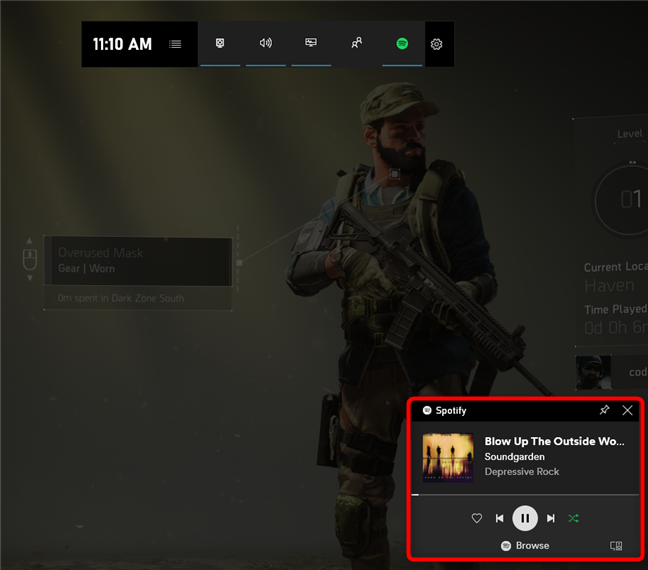
Once you have launched the Spotify app, the next time you open the Xbox Game Bar, the Spotify widget should show you the song currently playing, as well as a few basic media control buttons.
Xbox Game Bar has enabled the Spotify widget
4. Play and control your music when gaming, with the Spotify widget from the Xbox Game Bar
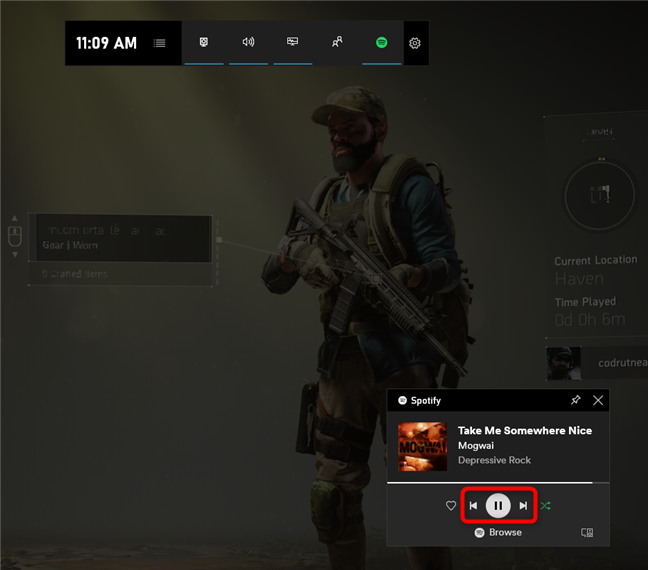
Now you can start your favorite game. If you want to listen to your music from Spotify, press Windows + G to display the Xbox Game Bar overlays. Then, use the Play, Next, or Previous buttons from the Spotify widget to play or skip the current song.
Media buttons on the Spotify widget
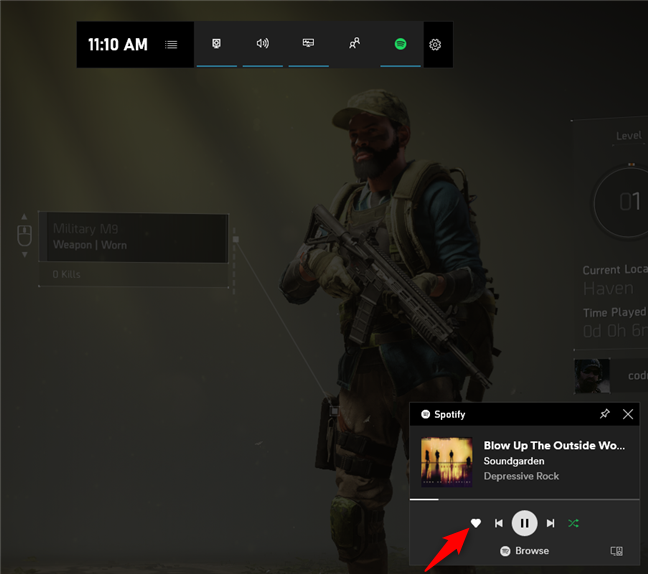
The Spotify widget also lets you mark the current song as one of your favorites. To do that, click or tap on the heart-shaped button.
Marking a song as your favorite in the Spotify widget
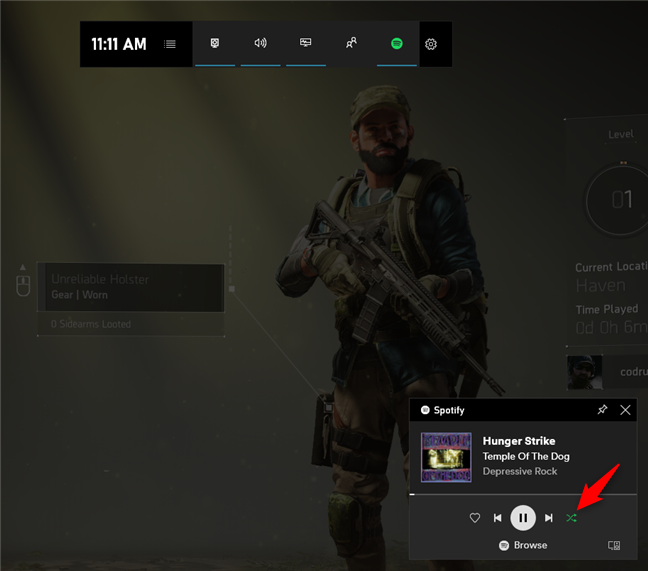
If you want, you can also play the songs in your playlist in shuffle mode. For that, press the Shuffle button from the right side of the Spotify widget.
Choosing to shuffle play music
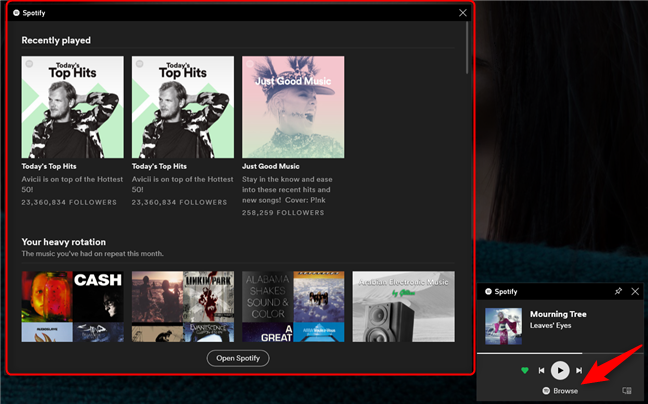
If you want to change the current playlist of songs that you're listening to, in the Spotify widget, click or tap the Browse button. This makes the Xbox Game Bar pop a new overlay, called Spotify, from where you can choose the music you want to play while gaming. However, you should know that you cannot use this overlay to search for songs, but only to select your favorite playlist.
The Browse button from the Spotify widget lets you choose the playlist to be played
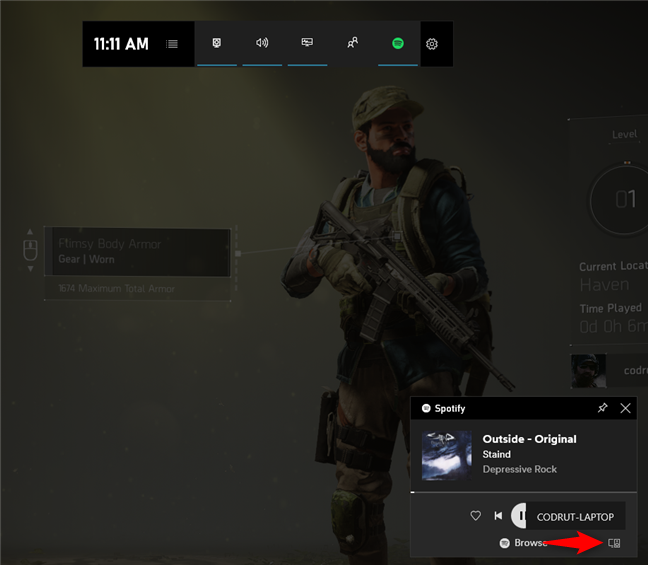
The last thing that the Spotify widget lets you do is select which of your connected devices you prefer to listen to Spotify on. Click or tap on the small Devices button from the bottom-right corner of the Spotify widget, and select the device you want.
Choosing the device on which Spotify plays your music
That was it! You can now enjoy your favorite music while playing any game, without having to switch between apps.
Do you like the new Spotify widget from the Xbox Game Bar?
We do, and we are sure that many gamers out there do too! Being able to listen to our favorite music without the need to press Alt + Tab and interrupt the gaming session so that skip to the next song in our playlist is great. Do you feel the same? What would you add to the Spotify widget from the Xbox Game Bar? Do not hesitate to comment below to share your opinions.



















Discussion (2)
I like the game bar, but I really wish it had a volume control so I could edit it while streaming.
That would be useful indeed.