




If your PC keeps running out of space, you might have seen a feature called Storage Sense in Windows. Storage Sense is a built-in tool that automatically frees up space by deleting unnecessary files.
It helps keep your system clean without you having to manually remove files.
What Is Storage Sense in Windows?
Storage Sense is a Windows feature that automatically manages storage by removing temporary and unused files.
It can delete:
- Temporary system files
- Recycle Bin files
- Old downloads (optional)
- Cached data
It runs in the background and helps maintain free space on your device.
How Storage Sense Works
Storage Sense works based on rules you set.
Here is what it does:
- Scans your system for unnecessary files
- Deletes temporary and unused data
- Frees up storage automatically
You can choose when and how often it runs.
Why Use Storage Sense?
Using Storage Sense has several benefits.
- Frees up disk space automatically
- Reduces manual cleanup effort
- Improves system performance
- Prevents storage from filling up
It is especially useful on laptops with limited storage.
How to Enable Storage Sense in Windows 11
Follow these steps to turn it on.
Step 1: Open Settings
- Press Windows + I
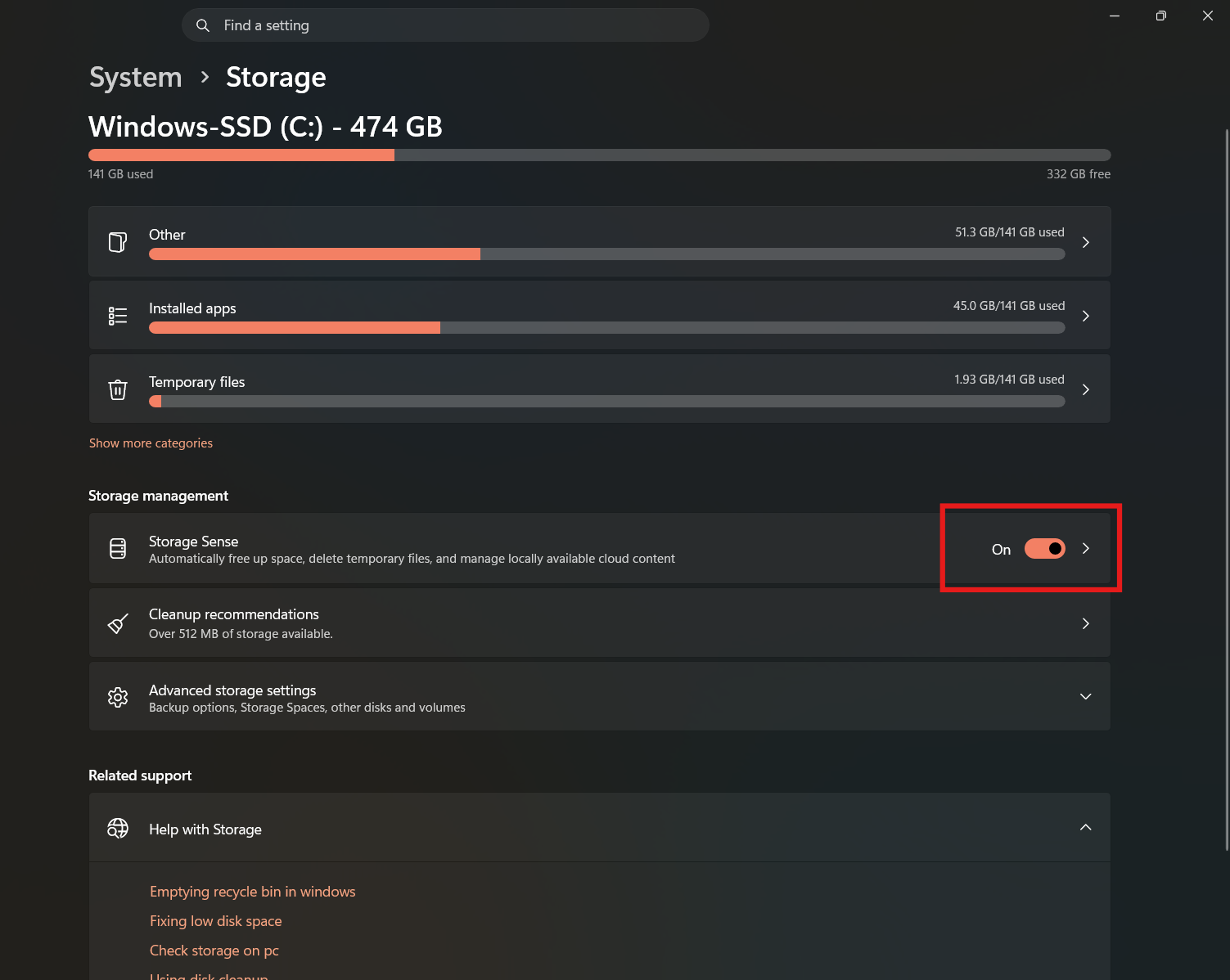
- Go to System > Storage
Step 2: Turn On Storage Sense
- Find Storage Sense
- Toggle it ON
How to Configure Storage Sense
You can customize how it works.
Steps:
- Click on Storage Sense
- Adjust settings like:
- Run frequency (daily, weekly, monthly)
- Delete files in Recycle Bin after X days
- Delete files in Downloads folder
Choose settings based on your preference.
Run Storage Sense Manually
You can also clean storage instantly.
Steps:
- Go to Storage Sense settings
- Click Run Storage Sense now
This will immediately remove unnecessary files.
When Should You Use Storage Sense?
Storage Sense is helpful when:
- Your storage is almost full
- You want automatic cleanup
- You do not want to delete files manually
It works best as a background maintenance tool.
Things to Be Careful About
- Files in Downloads may be deleted if enabled
- Deleted files cannot be recovered easily
- Check settings before enabling automatic cleanup
Always review your preferences.
Storage Sense vs Disk Cleanup
| Feature | Storage Sense | Disk Cleanup |
|---|---|---|
| Automation | Yes | No |
| Ease of use | Simple | Manual |
| Cleanup type | Ongoing | One-time |
| Best for | Regular maintenance | Deep cleaning |
Storage Sense is better for ongoing use.
Final Thoughts
Understanding what Storage Sense in Windows is can help you manage your storage more efficiently. It is a simple but powerful feature that keeps your system clean without effort.
Once enabled, it works quietly in the background and helps prevent storage issues.
FAQs
What does Storage Sense do?
It automatically deletes temporary and unused files.
Is Storage Sense safe?
Yes, but you should review settings to avoid deleting important files.
Does it delete personal files?
Only if configured (like Downloads folder).
Should I enable Storage Sense?
Yes, especially if you want automatic storage management.


Discussion (0)
Be the first to comment.