




Quick machine recovery lets a Windows 11 PC that cannot start look for a Microsoft-provided fix from the recovery environment. It is designed for known, widespread boot problems. When a matching fix exists, Windows can download it, apply it, and restart without resetting the PC.
Check the feature while your computer still works: open Settings > System > Recovery > Quick machine recovery. A working network connection and an available Microsoft remediation are essential; the feature cannot guarantee a fix for every startup failure.
How recovery works when Windows will not start
According to Microsoft's Quick machine recovery guide, repeated startup failures can take the PC into Windows Recovery Environment, often shortened to Windows RE. From there it can connect using Ethernet or supported WPA/WPA2 Wi-Fi and check for a solution.
The repair is delivered through Windows Update. If there is no matching solution, other recovery tools remain available. This makes the feature useful for a recognized problem affecting many devices, while an individual hardware fault may need a different diagnosis.
Enable it before you need it
- Open Settings with Windows + I.
- Select System > Recovery > Quick machine recovery.
- Turn Quick machine recovery on.
- Review any options for continuing the search and the retry or restart intervals.
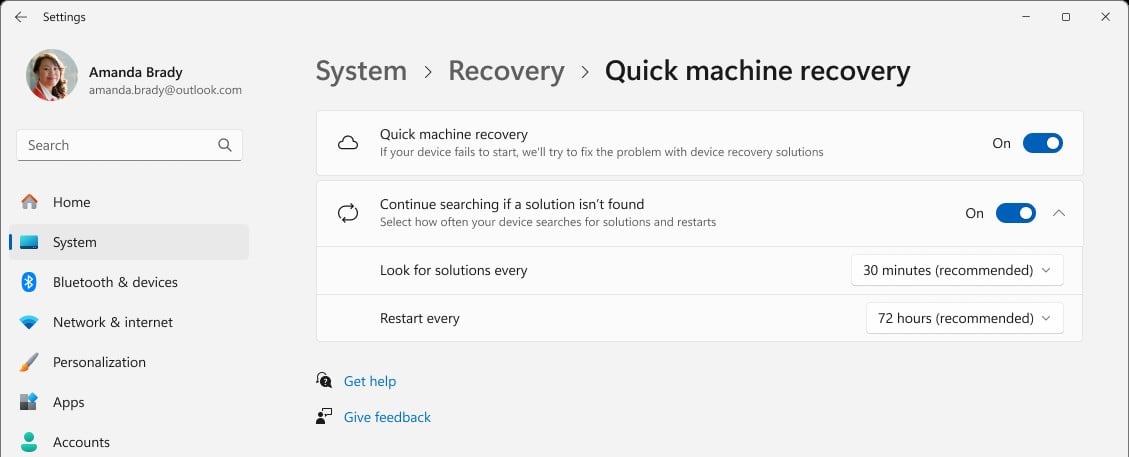
Microsoft lists availability on Windows 11 24H2 and later and says it is enabled by default on Home. Pro and Enterprise configurations can depend on administrator settings. If your work PC hides or locks a control, ask the administrator to check the policy.
Start it manually from Windows RE
If Windows is running, save your work and use Settings > System > Recovery > Advanced startup > Restart now to enter recovery. Before doing this on an encrypted device, make sure you can retrieve the BitLocker recovery key from another device if prompted.
In Windows RE, choose Troubleshoot > Advanced options > Quick machine recovery. Follow the network prompts and let Windows search for a solution.
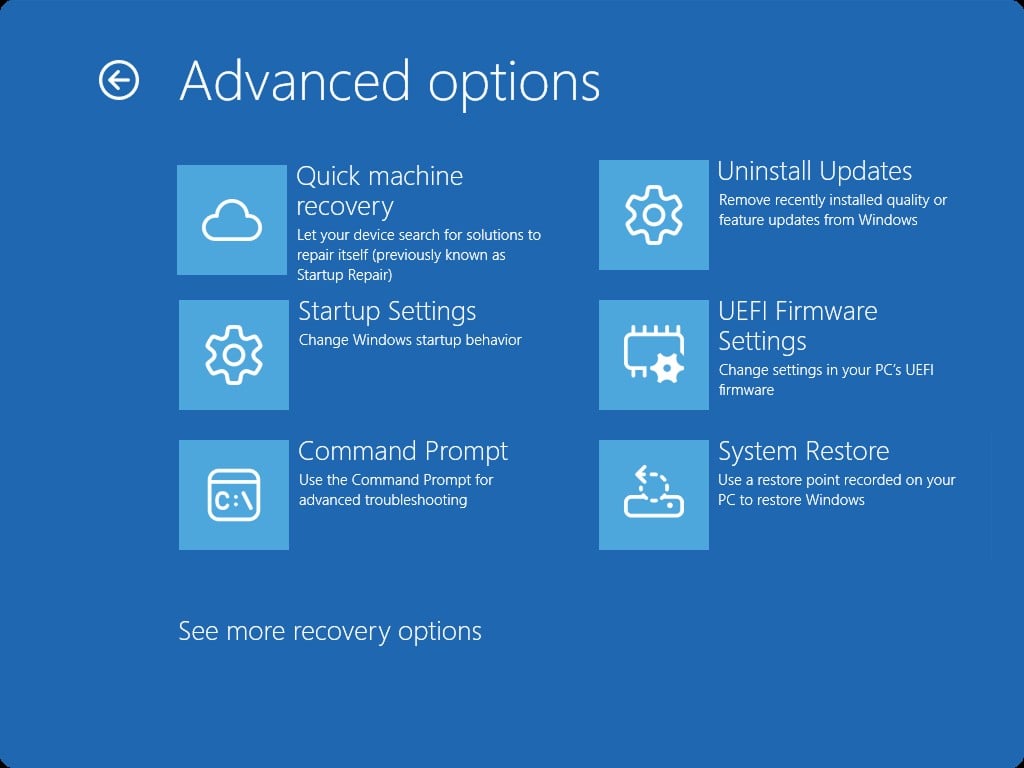
After a repair and restart, sign in and check that Windows reaches the desktop normally. Open an essential app and test the device that was affected. Repeatedly returning to the same recovery screen means the startup problem still needs attention.
Choose the next recovery tool by its effect on your data
The similar names in the recovery menu can hide very different consequences. Microsoft's recovery comparison distinguishes these options:
| Option | What it is for | Personal-file consequence |
|---|---|---|
| Quick machine recovery | Apply an available fix for a widespread startup problem. | Does not reset the PC or remove your files. |
| System Restore | Return system files and settings to an available restore point. | Personal files are kept; recent system changes can be reversed. |
| Reset this PC | Reinstall Windows with a choice about keeping personal files. | Read the selected option; apps and settings are removed. |
| Cloud rebuild | Rebuild the Windows installation. | Removes personal files, apps, and settings on the PC. |
Do not jump from an unsuccessful search for a fix straight to a destructive reinstall without checking your backups. Our Cloud rebuild coverage explains that separate option. If files are irreplaceable and the PC cannot start, protecting those files should come before experimenting with reset choices.



Discussion (0)
Comments are closed.