



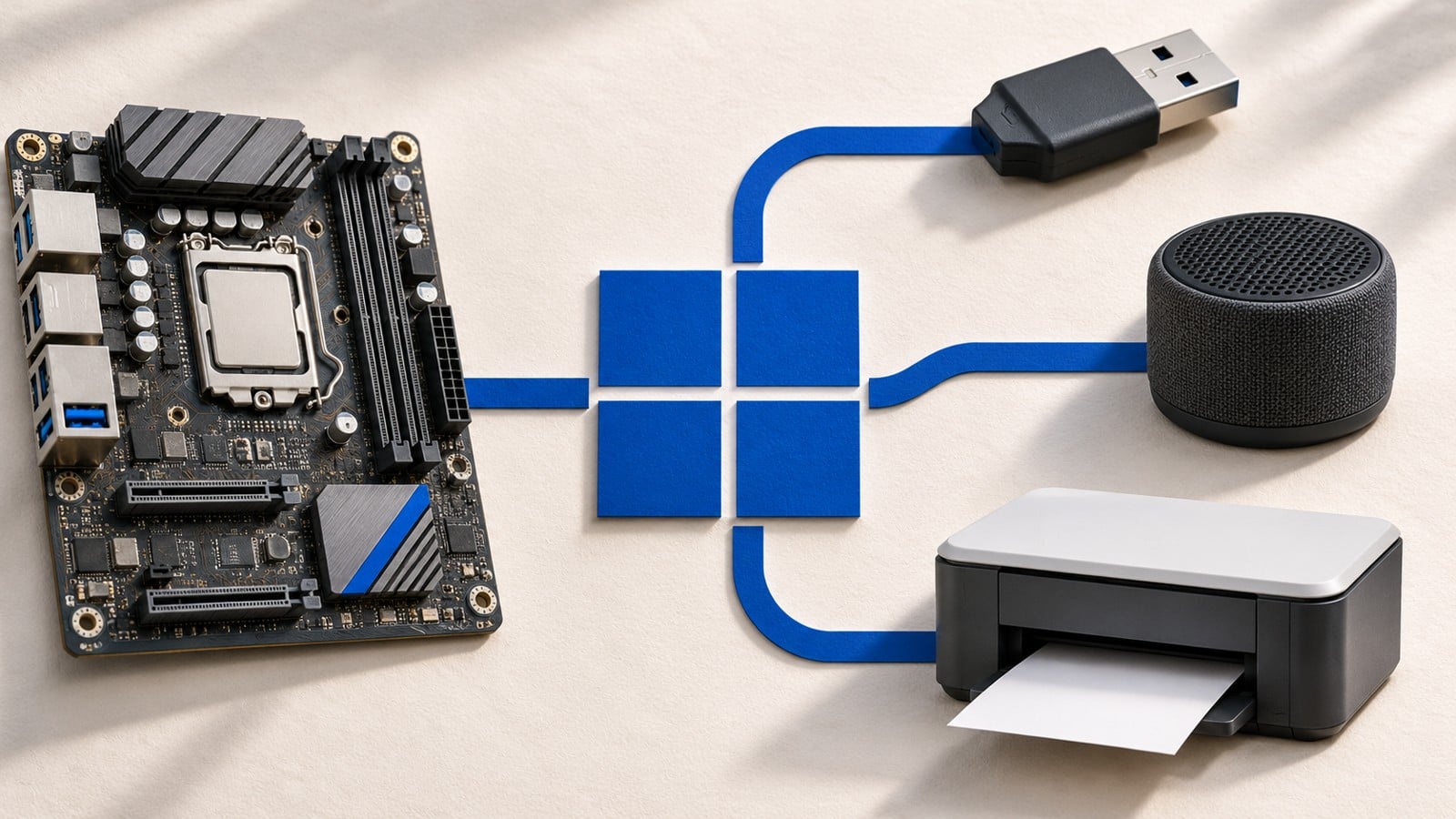
Microsoft is expanding its own Windows class drivers and encouraging hardware makers to reduce the amount of third-party code running deep inside Windows. This is part of the Driver Quality Initiative. It does not mean you should uninstall every manufacturer driver on your Windows 11 PC.
For an everyday PC owner, the useful questions are whether the hardware works, whether Windows has a compatible update, and what to do if an update causes a problem. The changes are being introduced across different hardware categories, with a separate, published timetable for printer drivers.
What is a Microsoft class driver?
A class driver supports devices that follow a common standard. Microsoft can supply shared support for that class instead of each manufacturer having to provide an entirely separate implementation of the same basic functions.
Microsoft's Driver Quality Initiative documentation names investments in audio, I3C, and USB Ethernet class drivers. It also describes moving suitable drivers into user mode and hardening those that remain in kernel mode. Kernel-mode code operates with deep system access, so a failure there can bring down Windows itself.
Digital Citizen covered the broader driver-quality plan when it was announced. For your own PC, this remains a compatibility-led transition rather than a reason to replace working drivers manually.
Printer drivers have a specific timetable
The printer-driver servicing plan sets out these milestones:
| Date | Change |
|---|---|
| January 15, 2026 | New printer drivers for Windows 11 and later generally stop being published to Windows Update, with specified exceptions and case-by-case approvals. |
| July 1, 2026 | Driver ranking favors the built-in Windows IPP class driver. |
| July 1, 2027 | Third-party printer-driver updates are restricted to security fixes under the plan. |
Microsoft still allows installation of existing third-party printer drivers and manufacturer-supplied installation packages. A printer that needs its vendor's package is therefore a different case from a compatible printer that works with the built-in IPP driver. Check the manufacturer's instructions for the exact model, especially when you need scanning, finishing, or other specialized functions.
What should you do on your PC?
If your devices work correctly, keep Windows updated. For a device with a problem, check Settings > Windows Update > Advanced options > Optional updates. Microsoft says recommended drivers can install automatically, while optional driver updates require your selection.
Choose a driver for the affected hardware rather than installing every optional item as a general performance upgrade. If Windows cannot supply a suitable driver, use the PC or device manufacturer's official support page and match the model and Windows architecture.
If an update broke a device, check rollback
- Right-click Start and open Device Manager.
- Expand the affected device category, right-click the device, and choose Properties.
- On the Driver tab, record the provider, date, and version.
- If available, choose Roll Back Driver, select the reason, and follow the prompts. Administrator permission is required.
- Restart if requested, then test the device's actual function.
This is Microsoft's documented rollback route. If the button is unavailable, obtain a compatible package from the manufacturer rather than deleting random driver files. For a printer, test printing and scanning separately; a successful test page only confirms the printing path.
Discussion (0)
Comments are closed.