



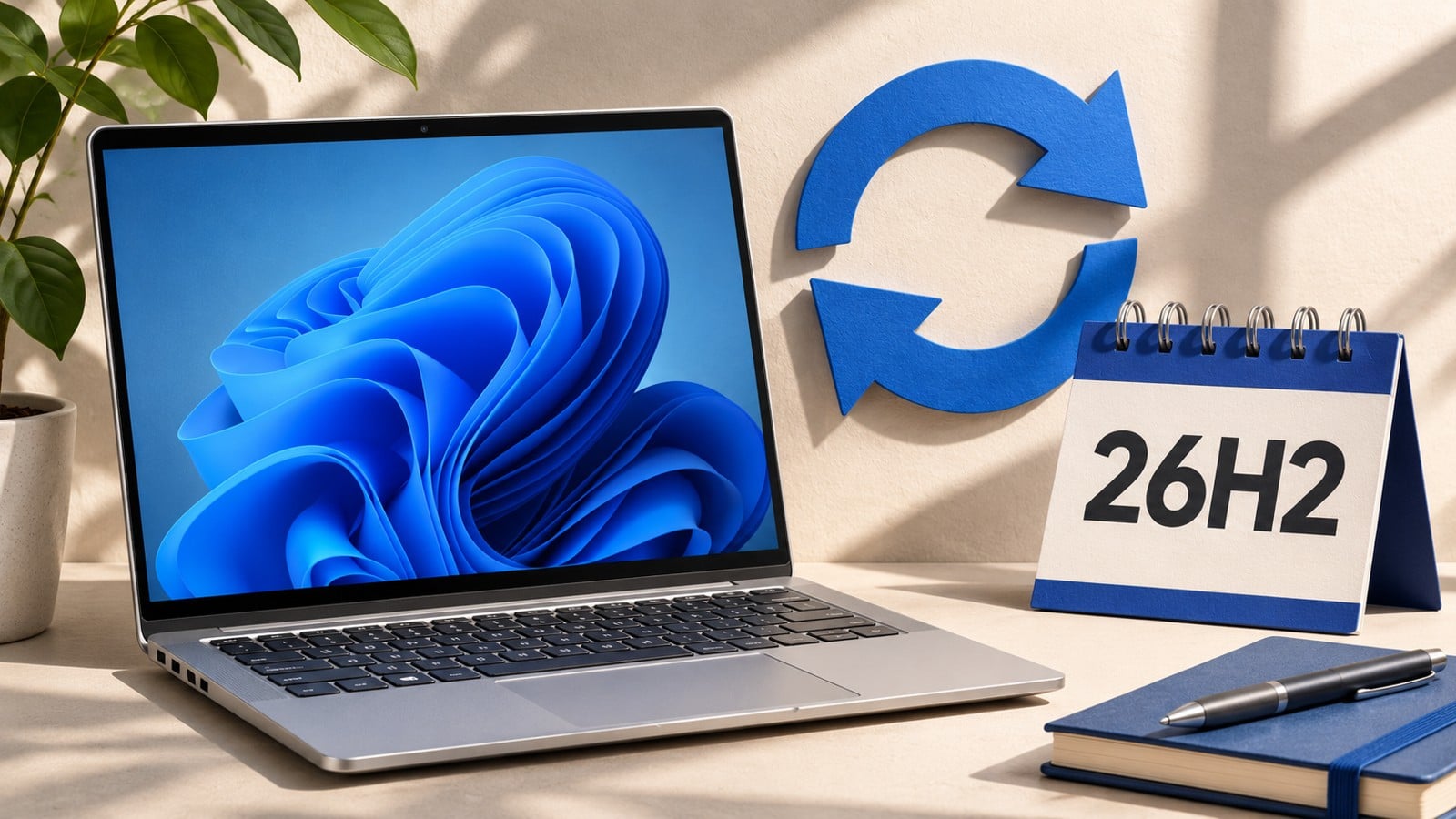
Windows 11 version 26H2 can now download and install automatically on eligible PCs. Microsoft began expanding automatic delivery on November 18, 2026, starting with unmanaged devices running Windows 11 24H2 and 25H2. If you see the update appear without clicking Download and install, that can be part of the rollout.
To see what is happening on your computer, open Settings > Windows Update. The next useful action depends on whether the update is being offered, downloading, waiting for a restart, or already installed. Here is how to tell those states apart and avoid an inconvenient restart.
Which PCs are getting 26H2 automatically?
Microsoft's 26H2 release-health notice describes a gradual expansion to personal PCs and business PCs that are not managed by an IT department. Delivery depends on Windows Update settings and device eligibility; the announcement does not promise that every computer will upgrade on the same day.
Digital Citizen previously covered 26H2 becoming available to eligible PCs. Automatic delivery is a later stage: a PC can receive the update without its owner starting a manual check. On a work or school computer, your organization's update policy can determine the timing.
Check the update's current state
- Press Windows + I to open Settings.
- Select Windows Update and read the update name and status.
- Look specifically for Windows 11, version 26H2. A monthly cumulative update and a feature-version upgrade are different entries.
| What you see | What to do next |
|---|---|
| 26H2 with Download and install | The upgrade is being offered. Start it when you have saved your work and can accommodate a restart. |
| Downloading or Installing | Keep the laptop connected to power and allow the operation to finish. Do not switch it off to interrupt installation. |
| Restart required | Save your work and use the restart-scheduling option if you cannot restart immediately. |
| No 26H2 entry | Check your installed version before assuming the upgrade is missing. |
Schedule the restart or pause updates temporarily
When Windows offers Schedule the restart, choose a time when you will not need the PC. You can also review Settings > Windows Update > Advanced options > Active hours so Windows knows when you usually use it.
If installation has not started and you need a short delay, use Pause updates on the Windows Update page. Microsoft explains the available controls in its Windows Update FAQ. A pause also delays other updates, and Windows requires you to catch up after the pause limit. It is a temporary scheduling option.
For example, if the screen already says Restart required, focus on scheduling that restart. Pausing future downloads does not undo the installation that is already waiting to finish.
Confirm that 26H2 installed
After restarting, press Windows + R, type winver, and press Enter. Read the Version field in About Windows. You can also review Windows Update > Update history for the installation record.
If the update is still absent, keep the current installation updated and check any compatibility message Windows displays. A safeguard hold can delay an upgrade when Microsoft has identified a problem for that device. Avoid forcing the upgrade past a stated hold just to match another PC's version number.

Discussion (0)
Comments are closed.