




Your computer depends on accurate audio input for video calls, gaming, streaming, and voice recordings. If your headset microphone stops working or sounds unclear, a quick Windows 10 mic test helps you diagnose the issue fast. Windows includes several built-in tools that let you test your microphone, adjust audio settings, and confirm whether your headset mic is being detected correctly.
This guide shows you how to run a microphone test on Windows 10, how to confirm your headset mic is selected as the input device, and how to fix common issues that affect clarity and volume. These steps work whether you use a USB headset, Bluetooth mic, or a wired 3.5 mm microphone.
Check And Set Your Microphone In Windows 10
Start your Windows 10 mic test by confirming Windows detects your device and uses it as the active input. This prevents most microphone problems before you begin recording or joining a call.
- Open Settings and select System.
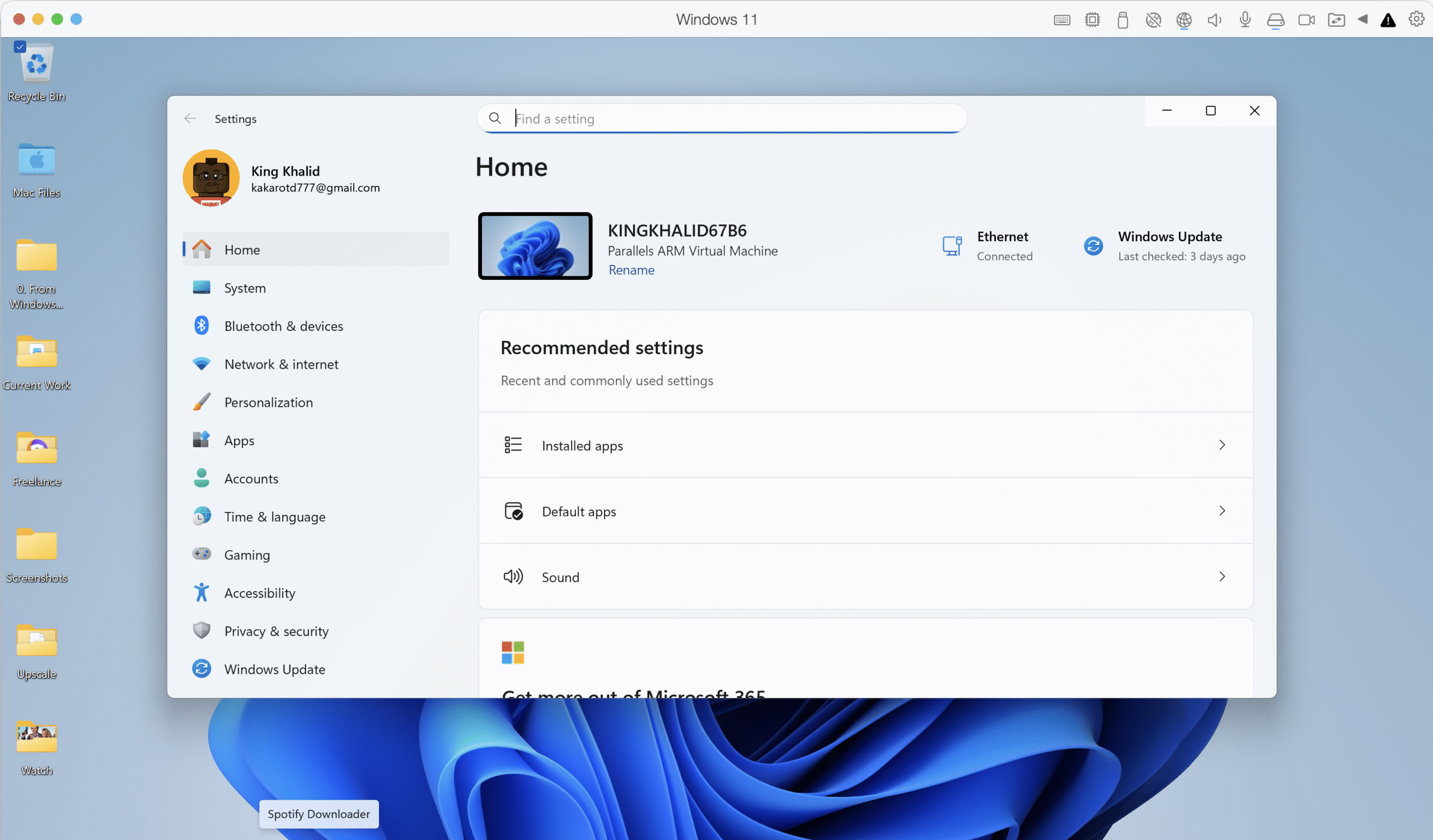
- Choose Sound.
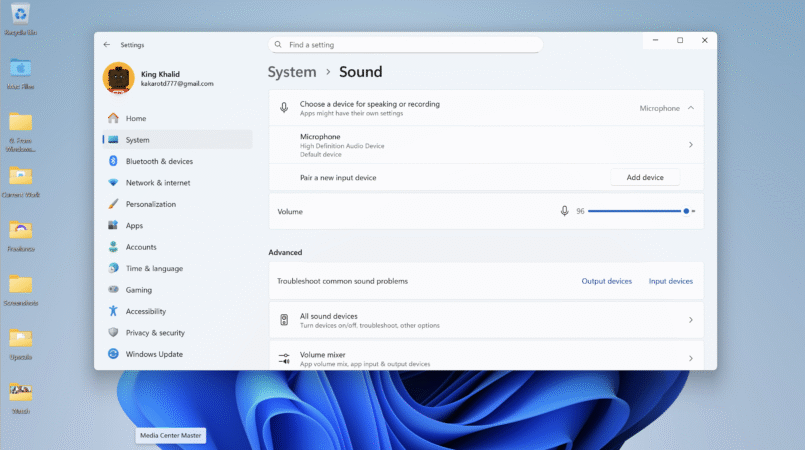
- Under Input, choose your headset microphone from the device list.

- Speak into the mic and check if the Input Level bar moves.
- Select Device properties to raise the volume slider if your voice sounds too quiet.
- Disable any audio enhancements if your microphone sounds distorted.
Run A Windows 10 Mic Test Using Built-In Tools
Windows offers two simple ways to test your headset mic without installing extra software. These tools help confirm whether Windows hears your voice clearly before you join a meeting or record audio.
- Open the Voice Recorder app from the Start Menu.
- Record a short clip while speaking into your headset microphone.
- Play the audio back to check clarity, background noise levels, and volume.
- If the recording is missing or muffled, repeat the test after adjusting input settings.
- Open Control Panel and choose Sound.
- Select the Recording tab and pick your headset microphone.
- Choose Listen and enable “Listen to this device.”
- Speak into the microphone to hear your own audio in real time.
- Use this to detect crackling, dropouts, or low volume.
Use Communication Apps For A Real-World Microphone Test
Most users discover mic issues inside applications such as Teams, Zoom, Discord, or gaming chat services. Running a test inside these apps confirms that your headset mic works beyond Windows settings.
- Join a test call or audio device check inside your communication app.
- Speak normally and watch the app’s input volume meter.
- Ask a friend to verify whether your voice sounds clear and consistent.
- If your mic works in Windows but fails inside the app, update the app’s audio settings.
Troubleshooting Common Problems
If your Windows 10 mic test still fails, try these common fixes to restore audio input and ensure your headset microphone works reliably.
- Check the microphone cable for damage or loose connections.
- Make sure your headset is not muted on the inline control or physical mute switch.
- Update audio drivers through Device Manager if Windows lists outdated drivers.
- Open Privacy settings and allow apps to access the microphone.
- Disable Exclusive Mode so one app does not block your microphone from others.
- Restart Windows to reload audio services after changing sound settings.
Tips
- Keep your microphone close to your mouth but not touching to avoid muffled audio.
- Test both USB and 3.5 mm ports if you have multiple input options available.
- Use wired headsets for the most stable microphone performance.
- Run a quick Windows 10 mic test before important meetings or recording sessions.
- Turn off loud fans or background noise to improve recording clarity.
FAQ
Why Is My Headset Mic Not Working On Windows 10? Windows may be using the wrong input device, privacy permissions may block access, or drivers may be outdated. Selecting the correct input and running a Windows 10 mic test usually fixes it.
How Do I Know If My Microphone Is Being Detected? Check the Input Level bar under Sound settings. If it moves when you speak, Windows recognizes your mic.
Why Does My Mic Sound Quiet? Your microphone gain may be too low, or the mic may sit too far from your mouth. Increase input volume under Device properties.
Can Windows 10 Test My Microphone Without Extra Software? Yes. Voice Recorder and the Sound control panel both let you run a quick microphone test.
Why Does My Mic Work In Windows But Not In Apps? The app may use a different input device. Update the app’s audio settings and allow microphone permissions.
Summary
- Choose your headset microphone as the input device in Windows 10 settings.
- Run a mic test using Voice Recorder or the Sound control panel.
- Test inside communication apps for real-world accuracy.
- Fix issues by adjusting privacy settings, drivers, and audio controls.
- Keep your setup simple and run regular tests to avoid surprises.
Conclusion
Running a Windows 10 mic test ensures your headset microphone works clearly and consistently for meetings, gaming, and recording. By checking audio settings, recording test samples, and troubleshooting common issues, you can restore full mic functionality in just a few minutes. With the right setup, Windows 10 provides everything you need to keep your microphone working reliably across apps and devices.

Discussion (0)
Be the first to comment.