




If you have home internet, you already rely on a WiFi gateway even if you do not know its name. A WiFi gateway is the box your provider installs that gets your home online and broadcasts wireless internet to your devices. At the time of writing, most US internet companies use a WiFi gateway device as an all-in-one modem router combo for home networks.
What A WiFi Gateway Does In Your Home
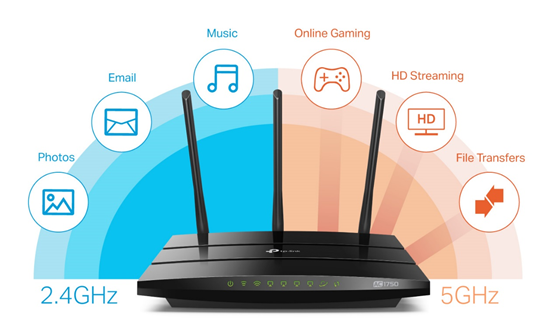
A WiFi gateway acts as the central hub that connects your home to the internet and your devices to each other. It usually combines a modem, router, and wireless access point inside one box. Many providers also call this hardware a residential gateway or wireless gateway.
- The modem side talks to your internet service provider over cable, fiber, or DSL.
- The router side manages traffic between your phones, laptops, and smart devices.
- The WiFi radio broadcasts a wireless network so devices can connect without cables.
- Built-in security features help block unwanted traffic from the outside.
How A WiFi Gateway Works

A WiFi gateway constantly moves data between the wider internet and your local devices. Understanding this flow helps when you troubleshoot speed or connection problems.
- Your ISP sends data to the gateway over the incoming line.
- The modem inside converts those signals into digital data your router can use.
- The router assigns local IP addresses and chooses where each data packet goes.
- The WiFi access point sends and receives that data over wireless bands like 2.4 GHz or 5 GHz.
- Network address translation lets many devices share one public IP address.
Gateway Vs Modem and Router
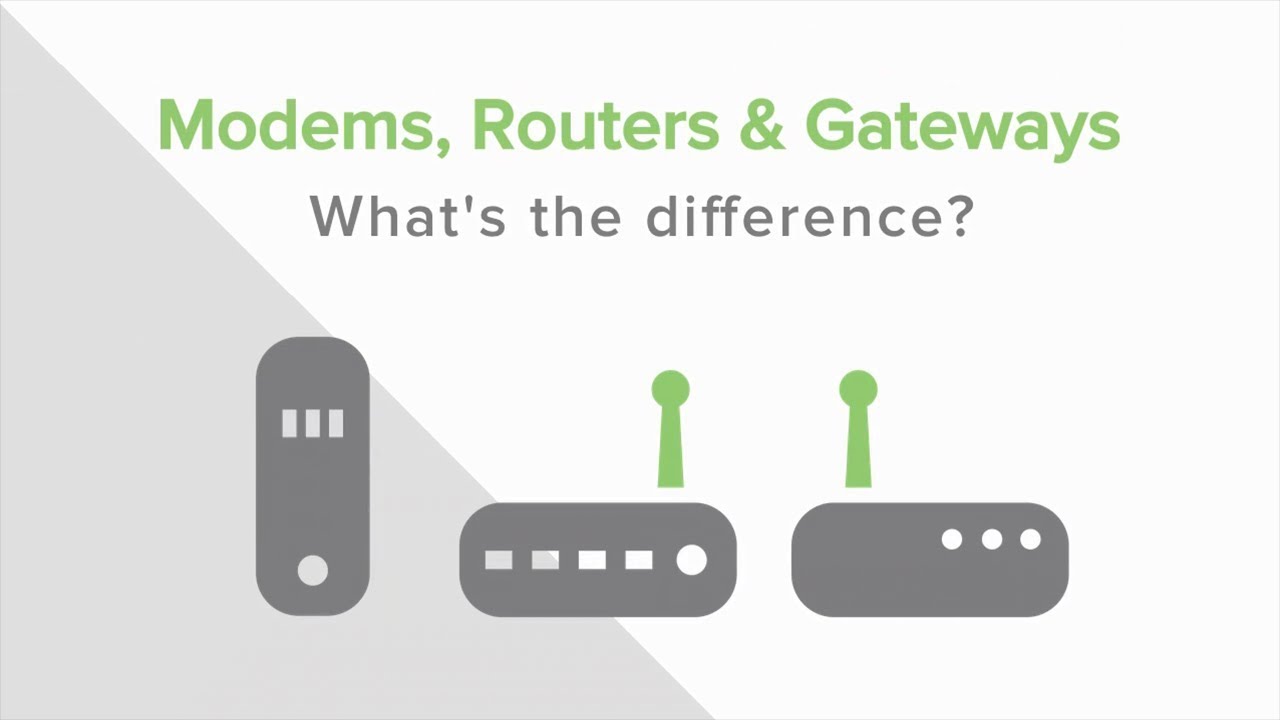
The main difference between a WiFi gateway and a separate modem plus router setup is consolidation. A gateway puts everything in one enclosure.
- A standalone modem only connects your home to your ISP.
- A standalone router creates the local network and WiFi, but needs a modem.
- A WiFi gateway combines both functions, so you only plug in and manage one device.
- Advanced users sometimes prefer separate devices for more control and easier upgrades.
Common Types Of WiFi Gateways
Not every WiFi gateway is the same. Newer models support faster WiFi standards and more devices, which matters for busy homes.
- Basic home WiFi gateways support older WiFi standards and suit small apartments.
- WiFi 5 and WiFi 6 gateways handle higher speeds and more simultaneous devices.
- Cable WiFi gateways combine a cable modem with dual-band or tri-band WiFi.
- Mesh WiFi gateway systems use a main unit plus satellites for large homes.
- Business or high-end internet gateways add stronger firewalls and more LAN ports.
How To Set Up A WiFi Gateway
Most home users receive a preconfigured WiFi gateway from their ISP, but you still need to place it correctly and join the network. These steps apply to most modern gateway devices.
- Pick a central, open spot in your home away from thick walls and metal objects.
- Connect the incoming internet line, such as coax or fiber, to the marked port.
- Plug the gateway into a power outlet and wait for the status lights to stabilize.
- Find the default WiFi name and password on the label or quick start card.
- On your phone or laptop, open WiFi settings and select the gateway’s network.
- Enter the default password to join the network and confirm internet access.
- Open the gateway’s admin page if you want to change the WiFi name and password.
When You Might Replace A WiFi Gateway
You can often upgrade or replace your WiFi gateway if it no longer meets your needs. This becomes important when you add more devices, switch to faster speeds, or need better coverage.
- Consider a newer WiFi 6 gateway if your current device is several generations old.
- Look at mesh WiFi gateway systems if certain rooms have weak or no signal.
- Ask your ISP whether you can use your own gateway modem router combo to reduce rental fees.
- Check that any new gateway supports your plan speed and connection type.
Troubleshooting Common Problems
Most WiFi gateway issues come down to signal, firmware, or congestion problems. These basic checks solve many everyday issues without a service call.
- Restart the WiFi gateway if your entire network suddenly loses internet access.
- Move the gateway higher and more central if some rooms have a weak signal.
- Update the gateway firmware through its admin page if available.
- Change the WiFi channel if you live in a crowded apartment building.
- Split the 2.4 GHz and 5 GHz networks if devices keep dropping from one band.
- Disconnect unused devices when everything feels slow at busy times of day.
Tips
- Write down your WiFi network name and password after you change them.
- Use a strong, unique admin password for your home WiFi gateway interface.
- Place the gateway in an open spot rather than inside a cabinet or closet.
- Use Ethernet cables for desktop PCs or game consoles that never move.
- Enable a guest network so visitors do not use your main WiFi password.
FAQ
Is A WiFi Gateway The Same As A Router?
No. A WiFi gateway usually includes both a modem and router, while a router alone does not connect directly to your ISP.
Do I Need A Separate Router If I Have A WiFi Gateway?
Most homes do not. The gateway already includes routing and WiFi, though you can add another router or mesh system for advanced setups.
Is It Better To Use My Own WiFi Gateway Or The One From My Provider?
Owning your own gateway can save rental fees and offer better performance, but you must confirm compatibility with your ISP.
Can A WiFi Gateway Handle Smart Home Devices?
Yes. A modern home WiFi gateway is designed for multiple phones, laptops, smart TVs, and smart home gadgets at the same time.
Summary
- A WiFi gateway is an all-in-one modem router that connects your home to the internet.
- It combines modem, router, and WiFi access point functions in one device.
- Different WiFi gateway types support different speeds, ranges, and home sizes.
- Simple placement and setup choices greatly affect WiFi performance.
- Basic troubleshooting and good security habits keep your home network stable.
Conclusion
Knowing what a WiFi gateway is makes it easier to manage and troubleshoot your home network. This single device acts as the front door between your home and the internet while also keeping your phones, laptops, and smart devices talking to each other. By choosing the right WiFi gateway and placing it well, you can improve speed, coverage, and security across your entire home.

Discussion (0)
Be the first to comment.