




Knowing how to find your Default Gateway IP Address is essential when you need to adjust router settings, fix connection problems, or improve home network performance. The Default Gateway directs traffic between your device and the internet, making it one of the most important details in your network setup.
This guide explains how to find the Default Gateway IP Address on Windows, Mac, Linux, Android, and iOS. The steps are updated and accurate at the time of writing, and they work with modern routers and operating systems. The keyword how to find Default Gateway IP Address appears naturally throughout the guide for better search visibility.
What Is A Default Gateway IP Address?
The Default Gateway IP Address is the internal address of your router or modem. When you load a website or connect to an online service, your device sends the request to this gateway, which forwards it to the internet. Common gateway addresses include 192.168.0.1, 192.168.1.1, and 10.0.0.1.
You often need the gateway address to log in to the router admin page, update Wi-Fi settings, fix DNS issues, manage connected devices, or diagnose network problems. Finding this address only takes a few steps regardless of the device you use.
Why You May Need To Find Your Default Gateway IP Address
Here are the most common reasons people look up their Default Gateway IP:
- Accessing router login settings for Wi-Fi configuration.
- Troubleshooting slow or unstable internet connections.
- Updating DNS servers to improve browsing performance.
- Checking connected devices on the network.
- Improving security by changing passwords or enabling encryption.
- Setting up port forwarding or parental controls.
The steps below show you exactly how to find your gateway IP on every major platform.
How To Find Default Gateway IP Address On Windows
You can find the Default Gateway using either Command Prompt or Windows network settings.
Using Command Prompt
- Press the Start button and search for “Command Prompt.”
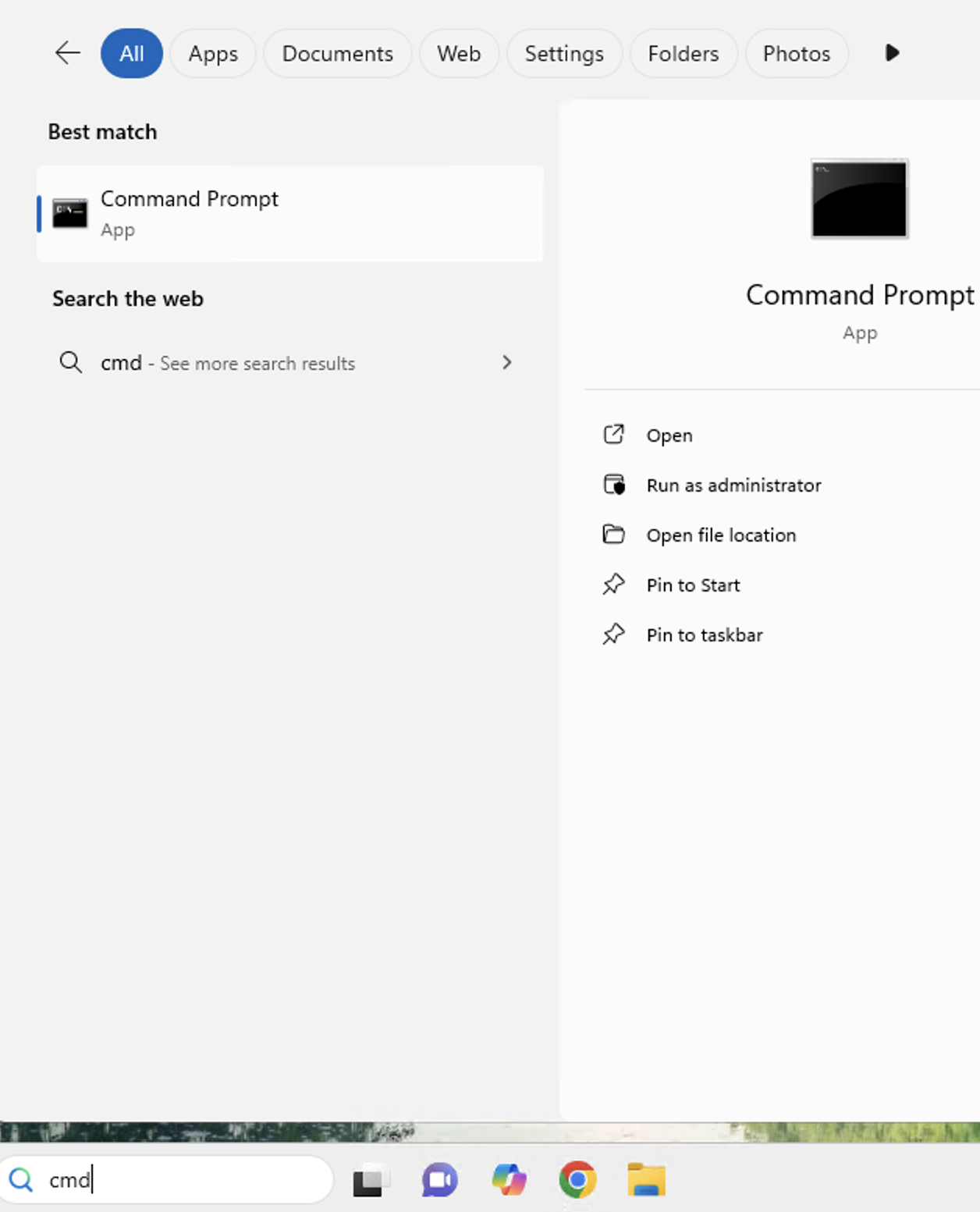
- You can also press the Windows + R keys. This will bring up the Run Menu. Type CMD and click OK.

- But if you prefer Command Popmt, open it and type
ipconfig.

- Press Enter to display your network details.
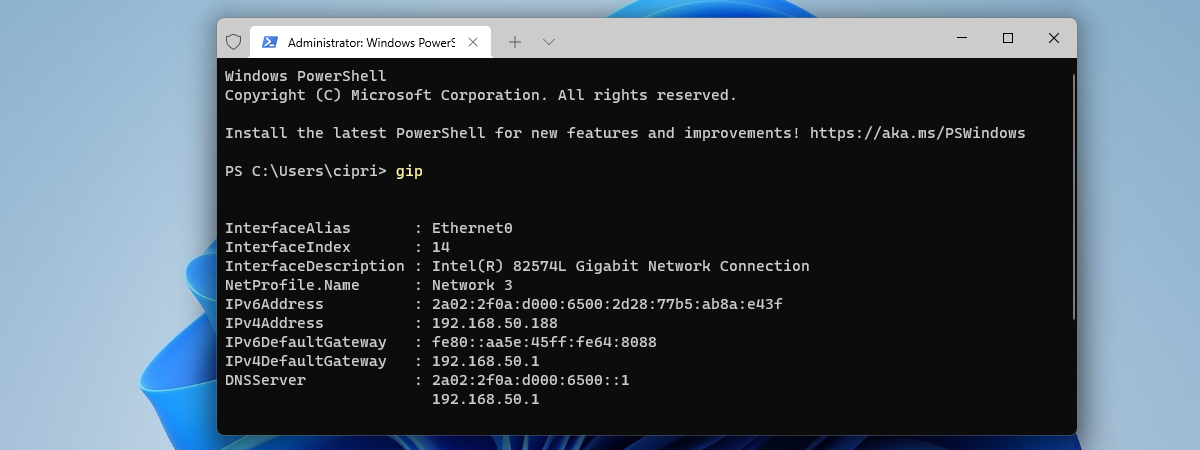
- Look for “Default Gateway” under your active network adapter.
Using Windows Settings
- Right-click the network icon in the taskbar.
- Select “Open Network & Internet Settings.”
- Click “Change Adapter Options.”
- Right-click your connection and choose “Status.”
- Select “Details.”
- Find the entry labeled “IPv4 Default Gateway.”
How To Find Default Gateway IP Address On Mac
Using System Preferences
- Open the Apple menu and select “System Settings” or “System Preferences.”
- Choose “Network.”
- Select your active Wi-Fi or Ethernet connection.
- Click “Details” or “Advanced.”
- Open the “TCP/IP” tab.
- Look for the Router field; this shows the Default Gateway IP.
Using Terminal
- Open Spotlight Search and type “Terminal.”
- Run the command
netstat -nr | grep default. - Look for the IP address listed next to “default.”
How To Find Default Gateway IP Address On Linux
Most Linux distributions provide quick commands for checking gateway details.
- Open a Terminal window.
- Type
ip route showand press Enter. - Look for the line beginning with “default via.”
- The IP after “via” is your Default Gateway.
If needed, you can also run route -n and look for the default entry.
How To Find Default Gateway IP Address On Android
Android devices display the gateway address inside Wi-Fi network details.
- Open Settings on your Android device.
- Tap “Network & Internet” or “Wi-Fi.”
- Select your connected Wi-Fi network.
- Tap “Advanced” or “Additional Settings.”
- Look for “Gateway” or “Router.”
Depending on the version, this may appear under “IP Settings.”
How To Find Default Gateway IP Address On iOS
iPhones and iPads keep gateway details inside the Wi-Fi connection menu.
- Open Settings on your iPhone or iPad.
- Tap “Wi-Fi.”
- Tap the “i” icon next to your connected network.
- Find the “Router” field; this shows the Default Gateway.
If you cannot find it there, check Settings > General > About for connection details.
Final Thoughts
Finding your Default Gateway IP Address is one of the most important steps in managing your home network. Whether you need to adjust Wi-Fi settings, improve security, update DNS, or troubleshoot slow connections, knowing how to find the router’s IP gives you complete control over your setup.
With these simple and updated steps for Windows, Mac, Linux, Android, and iOS, you can quickly access your router settings and resolve most network issues with confidence.
Discussion (0)
Be the first to comment.