




If your video calls freeze, games lag, or 4K streams buffer, your WiFi signal strength is probably the culprit. Understanding what is a good WiFi signal strength in dBm helps you decide whether to move your WiFi router, upgrade your gear, or call your ISP. Once you know your current WiFi signal quality, you can match it against what you actually do online and fix weak spots at home or in a small office.
WiFi signal strength tells you how strong the wireless signal from your router reaches a phone, laptop, TV, or game console. Most devices show this as bars, but the real measurement uses dBm values like -50 dBm or -70 dBm. The closer the number sits to zero, the stronger the WiFi signal and the better your WiFi performance for streaming, cloud backups, and gaming.
How WiFi Signal Strength Is Measured
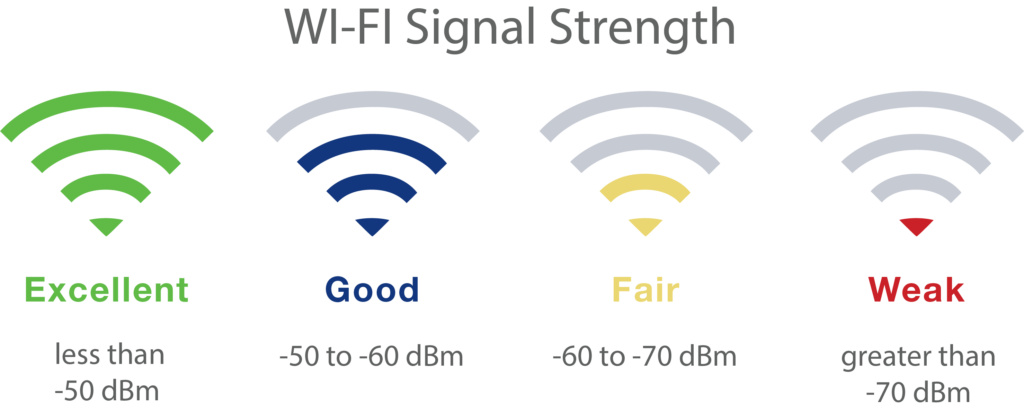
WiFi signal strength is measured with RSSI, short for Received Signal Strength Indicator. RSSI uses dBm values to describe how strong the signal looks at the device.
In practice, you usually see WiFi bars or a percentage in your system menu. Behind those icons, the device still uses RSSI in dBm to decide whether your WiFi connection feels excellent, fair, or poor. Because brands map bars differently, it is better to look at actual WiFi signal strength in dBm when you troubleshoot.
What Is A Good WiFi Signal Strength In dBm?

You can use rough WiFi signal ranges to judge whether your WiFi performance should feel smooth or flaky. These numbers help when you compare different rooms in your house or check if your router placement makes sense.
Here is a simple way to read your WiFi signal strength in dBm:
- Between -30 dBm and -50 dBm: Excellent WiFi signal strength for 4K streaming, online gaming, and large downloads.
- Between -51 dBm and -60 dBm: Good WiFi signal that works well for HD streaming, video calls, and most home use.
- Between -61 dBm and -70 dBm: Fair WiFi signal; basic browsing and email work, but streaming or gaming may stutter.
- Between -71 dBm and -80 dBm: Weak WiFi signal strength that often causes buffering, timeouts, and dropped calls.
- Below -80 dBm: Very weak WiFi; devices may disconnect or struggle to load basic pages.
For everyday use, aim for at least a “good” WiFi signal, around -60 dBm or better, in the rooms where you actually use your phone, tablet, smart TV, or work laptop. A strong WiFi signal in only one corner of the house will not help if your home office or living room stays in the “weak” zone.
Common Factors That Hurt WiFi Signal Strength
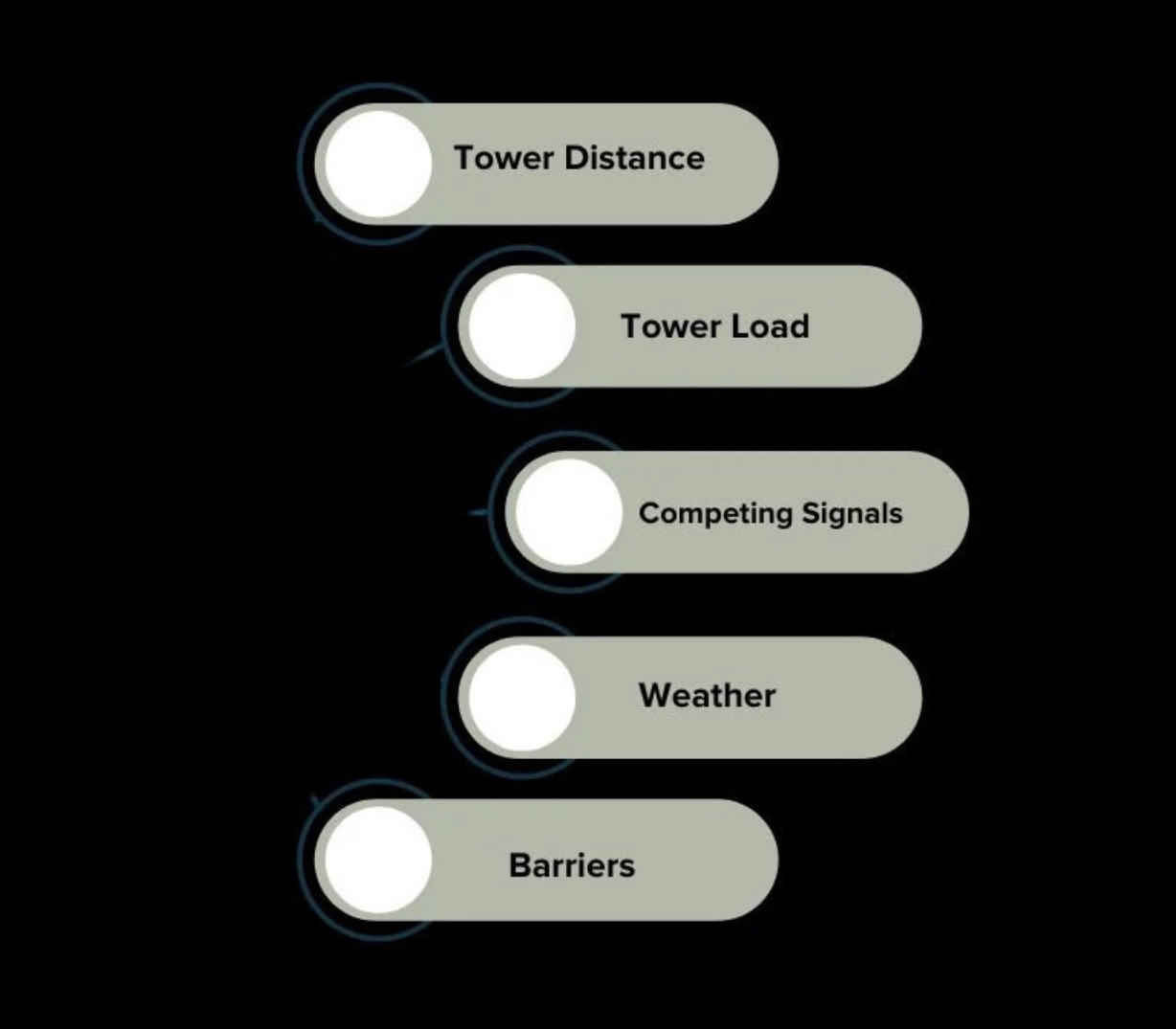
Before you adjust hardware, it helps to understand what usually causes poor WiFi signal strength at home. Most issues fall into a few simple categories.
- Distance from the router: The farther you move from the router, the weaker the WiFi signal gets, especially on the 5 GHz or 6 GHz bands.
- Walls and floors: Concrete, brick, metal, and even thick drywall or tile can absorb or reflect WiFi signals.
- Interference from other devices: Microwaves, baby monitors, cordless phones, Bluetooth speakers, and neighboring WiFi networks can all interfere with your WiFi channel.
- Old routers and devices: Older WiFi 4 (802.11n) routers and laptops often provide lower speeds and shorter range compared to modern WiFi 5 and WiFi 6 gear.
- Bad router placement: A router hidden in a closet, behind a TV, or under a desk usually gives worse WiFi signal strength than one placed in an open, central spot.
When you improve WiFi coverage, you often fix more than one problem at the same time. Moving the router to a better place or changing the WiFi channel can reduce interference and boost signal strength in one step.
How To Check WiFi Signal Strength On Your Devices
You can check your WiFi signal strength using built-in tools on Windows, macOS, Android, and iPhone. This helps you answer the core question of what is a good WiFi signal strength in the exact room and device you care about.
Check WiFi Signal Strength On Windows
Windows shows basic WiFi signal quality in the taskbar and lets you dig deeper with built-in tools or a WiFi analyzer app if you prefer more detail.
- Select the WiFi icon in the taskbar and look at the bars next to your network name.
- Hover over the network to see signal quality and connection speed.
- Walk to different rooms and repeat the check to see how WiFi signal strength changes.
For more precise readings in dBm, you can use a dedicated WiFi analyzer app on Windows, but most people can judge WiFi performance based on bars and real-world behavior like buffering.
Check WiFi Signal Strength On macOS
Mac laptops provide quick access to WiFi signal details through the WiFi status menu. This helps when you test whether router changes affect your WiFi signal strength in dBm.
- Hold the Option key and select the WiFi icon in the menu bar.
- Look for the RSSI value in the list for your connected network.
- Compare the RSSI reading in different rooms; aim for numbers closer to -60 dBm or better where you work or stream.
Check WiFi Signal Strength On Android
Most Android phones show WiFi signal strength in the status bar and settings, and many also support WiFi analyzer apps that graph your WiFi coverage by room.
- Open Settings and select Network & Internet or Connections.
- Tap Wi-Fi and select your network to view signal strength and link speed.
- Walk around your home while watching the signal indicator to spot weak WiFi zones.
Check WiFi Signal Strength On iPhone
iPhone shows WiFi signal strength with bars in the status area, but you can also use the WiFi settings screen to judge how stable your WiFi connection feels.
- Open Settings and tap Wi-Fi.
- Check the bars next to your network and see if they drop when you move away from the router.
- If you often see only one bar in key rooms, plan to improve WiFi coverage or router placement.
How To Improve Weak WiFi Signal Strength
If your WiFi signal strength sits in the weak or fair range, you can improve it with a few simple changes. You do not need to change your internet plan first; often, you just optimize the WiFi network itself.
- Move the router to a central location: Place it high on a shelf in the middle of your home, away from thick walls and metal surfaces.
- Reduce interference: Keep the router away from microwaves, cordless phones, baby monitors, and large speakers or TVs.
- Switch WiFi channels: Log in to the router’s admin page and choose a less crowded channel on the 2.4 GHz band or a cleaner 5 GHz channel.
- Use 5 GHz or WiFi 6 where possible: Modern devices often get better speed and less interference when they connect on 5 GHz or WiFi 6 bands, even though range can be shorter.
- Add WiFi extenders or a mesh system: Use a mesh WiFi kit or range extender to push strong WiFi signal into distant rooms or floors.
- Upgrade old hardware: Replace very old routers or WiFi adapters that cannot keep up with today’s speeds and security standards.
After each change, test your WiFi signal strength again on the devices you actually use. When you see your dBm readings improve and daily tasks feel smoother, you have found a good WiFi signal strength for your space.
Troubleshooting Common Problems
Even with decent WiFi signal strength, you may still see slow speeds or random disconnects. These quick checks help separate WiFi issues from general internet or device problems.
- Good signal, slow internet: Run a speed test while standing near the router. If speeds are low even with strong signal, the problem may be your internet plan or modem, not WiFi strength.
- WiFi drops in one room: Check for thick walls, mirrors, or appliances that could block the signal. Try moving furniture, relocating the router, or adding a mesh node closer to that area.
- Devices connect but pages hang: Restart the router and modem, then reboot the device. Old router uptime or firmware bugs can cause stalls even when WiFi signal strength looks good.
- Only one device has bad WiFi: Forget and reconnect the network on that device, update its WiFi drivers or OS, and test again near the router.
- WiFi drops when microwave runs: Move the router farther from the microwave or switch your network to a 5 GHz or 6 GHz band, which avoids that interference range.
If WiFi remains unstable after basic checks, consider a router firmware update or a replacement, especially if you still use an older single-band model.
Tips
These simple WiFi signal strength tips help keep your home network in the “good” or “excellent” range without constant tweaking.
- Place the router in the open, not inside cabinets or behind TVs.
- Angle external antennas, if present, so one points up and one sideways for better coverage.
- Use the 5 GHz band for gaming PCs, streaming boxes, and modern phones, and reserve 2.4 GHz for smart plugs and older gadgets.
- Set a strong, unique WiFi password so neighbors do not quietly use your bandwidth.
- Reboot the router occasionally if you notice slowdowns after long uptimes.
- Consider a mesh WiFi system for multi-floor homes or long ranch-style layouts.
FAQ
What is a good WiFi signal strength for streaming?
For smooth HD and 4K streaming, aim for WiFi signal strength around -60 dBm or better on the device. This usually keeps buffering and resolution drops to a minimum when your internet plan matches the stream quality.
What WiFi signal strength is good for gaming?
Online gaming tends to feel best at “excellent” WiFi levels between -30 dBm and -55 dBm. If you cannot reach those numbers, consider moving closer to the router or using Ethernet for your main gaming rig or console.
Why does my phone show full bars but internet feels slow?
WiFi bars only show signal strength, not the quality of your internet connection. Congested channels, a weak modem signal, or a crowded network can all cause slow speeds even when WiFi signal strength looks excellent.
Is 2.4 GHz or 5 GHz better for WiFi signal strength?
2.4 GHz usually travels farther and passes through walls more easily, so it can show better WiFi signal strength at long range. The 5 GHz band often delivers higher speeds and less interference at shorter distances, so many homes use both bands for different devices.
Do WiFi extenders reduce WiFi speed?
Many basic WiFi extenders share a single band to talk to the router and your device, which can cut available speed in half. Mesh WiFi systems or wired access points usually offer better performance while still boosting WiFi signal strength in hard-to-reach rooms.
Summary
- A good WiFi signal strength usually means an RSSI around -60 dBm or better on your devices.
- Distance, walls, interference, and old hardware are the main reasons WiFi signal strength feels weak.
- You can check WiFi signal bars or detailed dBm values on Windows, macOS, Android, and iPhone.
- Router placement, channel changes, and modern hardware often give the biggest WiFi improvements.
- Mesh systems or extenders help when a single router cannot cover your entire home with strong WiFi.
Conclusion
A strong WiFi signal does more than make speed tests look good. When you understand what is a good WiFi signal strength and how to measure it on your own devices, you can fix dead zones, cut down on buffering, and make remote work or school feel more stable. Start by checking your current WiFi signal, then adjust router placement and hardware until your everyday rooms hit the “good” or “excellent” range.

Discussion (0)
Be the first to comment.