




Hide Alerts is an iPhone feature that silences notifications from a specific conversation without blocking messages. You still receive every message, but your iPhone stops interrupting you with sounds, vibrations, banners, or lock screen alerts from that chat.
This option helps when a conversation becomes noisy, but you still want access to it later.
Table of contents
What Hide Alerts actually does on iPhone
Hide Alerts works at the conversation level, not system-wide. It affects only the chat where you enable it.
Notifications you stop receiving
When Hide Alerts is on, your iPhone stops playing sounds and vibrations for that conversation. It also prevents banners and lock screen notifications from appearing.

What still works normally
Messages continue to arrive in real time inside the app. You can open the conversation at any moment and read everything you missed.
How to turn Hide Alerts on or off
You can manage Hide Alerts in seconds directly from the Messages app.
Enable Hide Alerts for a conversation
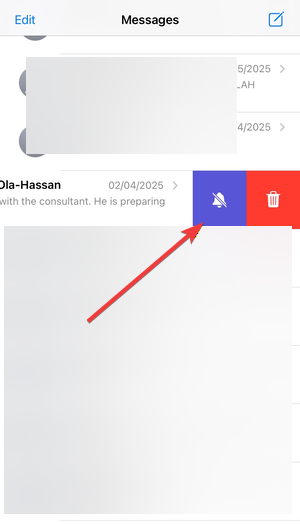
Open Messages and locate the conversation you want to mute. Swipe left on it, tap the bell icon, and confirm Hide Alerts is active.
Disable Hide Alerts later
Swipe left on the same conversation again and tap the crossed-out bell icon. Alerts start working immediately.
How Hide Alerts is different from muting or Focus modes
Many users confuse Hide Alerts with other silence options. Each feature solves a different problem.
Hide Alerts vs Do Not Disturb
Hide Alerts silences one conversation only. Do Not Disturb affects all notifications across your iPhone until you turn it off and can be used to stop incoming calls without blocking.

Hide Alerts vs Focus modes
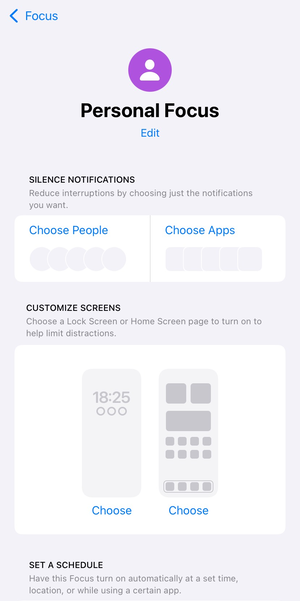
Focus modes filter notifications based on apps, people, or schedules. Hide Alerts stays manual and applies to one specific chat.
Hide Alerts vs Silent mode
Silent mode relies on the hardware switch or volume settings. Hide Alerts works even when your phone stays fully audible.
When Hide Alerts is the best option
Hide Alerts shines in situations where you want control without cutting communication.
Group chats and noisy threads
Busy group chats can flood your phone with alerts. Hide Alerts keeps you in the group while protecting your focus.
Temporary muting without blocking
Use Hide Alerts when you need quiet for a few hours or days. You avoid awkward blocking or leaving conversations.
Common questions users have about Hide Alerts
These quick answers clear up the most common doubts.
Can the other person see that Hide Alerts is on?
No. The other person receives no notification or signal when you enable Hide Alerts.
Do important messages bypass Hide Alerts?
Hide Alerts silences standard alerts, but messages still arrive normally. Mentions and replies do not override it.
Does Hide Alerts work for third-party apps?
Hide Alerts applies to Apple’s Messages app. Other apps offer similar mute options, but behavior varies by app.
How to know Hide Alerts is enabled
iOS shows clear visual cues when Hide Alerts is active. A crossed-out bell icon appears next to the conversation. This icon confirms alerts stay muted for that chat.
Summary
- Hide Alerts silences notifications from one conversation without blocking messages.
- Messages still arrive and remain visible inside the app.
- The feature differs from Do Not Disturb, Focus, and Silent mode.
- A crossed-out bell icon confirms Hide Alerts is active.
Hide Alerts gives you precise control over noisy conversations without cutting anyone off. Use it when a single chat disrupts your focus, and switch it off anytime to restore alerts instantly.


Discussion (0)
Be the first to comment.