




If you want to stop incoming calls without blocking people, your phone already includes the right tools. Features like Do Not Disturb, Focus modes, and silence unknown callers mute calls while keeping contacts unblocked and call history intact.
This approach works best when you need temporary silence, scheduled quiet hours, or fewer interruptions without cutting people off completely.
Table of contents
- Why you might want to stop calls without blocking
- Fastest ways to stop incoming calls without blocking
- Stop incoming calls on iPhone without blocking
- Stop incoming calls on Android without blocking
- What callers experience when you silence calls
- Best method based on your situation
- Tips for silencing calls without missing emergencies
- FAQs
- Summary
Why you might want to stop calls without blocking
Blocking works only when you never want to hear from someone again. In many situations, you simply want silence for a while, such as during work, sleep, or meetings.
Silencing calls keeps voicemail active, preserves call logs, and avoids confusion later. You stay reachable without constant interruptions.
Fastest ways to stop incoming calls without blocking
These options work immediately and require minimal setup.
Use Do Not Disturb or Focus modes
Do Not Disturb and Focus mute all incoming calls by default. You can allow calls from specific contacts, recent callers, or repeat calls.

This method suits short-term needs and quick toggling. Just go to Settings on your device and search for do not disturb or Focus and follow the onscreen steps to set it up.
Turn on scheduled quiet hours
Scheduled silence activates automatically at set times. You can use it for sleep, work hours, or daily routines.
Once configured, the phone handles call muting without manual input.
Stop incoming calls on iPhone without blocking
iPhones offer several built-in tools that silence calls without blocking numbers.
Use Focus mode to silence calls
Focus lets you silence all calls or allow only selected contacts. You can create different Focus profiles for work, sleep, or personal time. Just go to Settings > Focus, and you will have a lot of options to limit notifications from incoming calls.

Each Focus mode supports schedules, location triggers, and app-based filters.
Enable Silence Unknown Callers
Silence Unknown Callers sends calls from numbers not in your contacts straight to voicemail. Known contacts and recent outgoing calls still ring. You can set this up by going to your device settings, searching for unknown callers, and selecting the Silence Unknown Callers option.

Finally, on the page, toggle the switch for Silence Unknown Callers forward to enable it. This option reduces spam without blocking unknown numbers permanently.
Allow important calls with emergency bypass
Emergency Bypass lets specific contacts ring even when Focus or Do Not Disturb is active. This ensures critical calls always get through.
You can enable it inside the Contacts app by tapping the contact you want to give access to. Next, tap Edit in the top right corner and select the Ringtone option on the next page. Finally, toggle the switch for Emergency Bypass.
Stop incoming calls on Android without blocking
Android provides flexible call-silencing options, though menus may vary by brand.
Use Do Not Disturb with call exceptions
Do Not Disturb on Android mutes calls system-wide. You can allow calls from starred contacts, repeat callers, or specific contact groups.
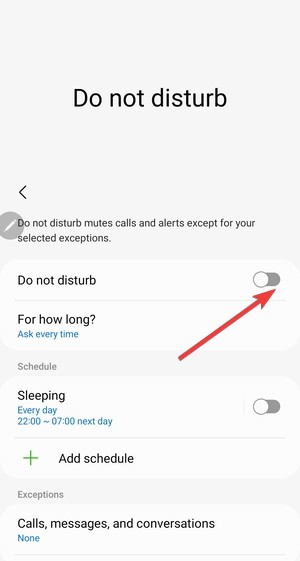
To set this up, open Settings on your Android, search for Do Not Disturb, and select the option. Now, activate it and make changes to the schedule or add a new one.
Silence calls using contact rules
Many Android phones allow calls only from saved contacts. Unknown numbers stay silent while contacts still ring.
This option works well for reducing spam calls.
Schedule call silence automatically
Android supports scheduled Do Not Disturb. You can define start and end times and choose allowed exceptions.
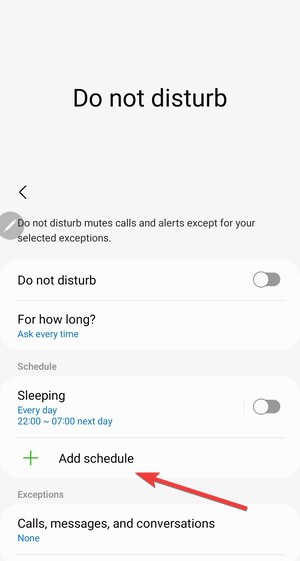
Once scheduled, the phone handles call muting automatically.
What callers experience when you silence calls
Understanding caller behavior helps you choose the right method.
Does the phone ring or go straight to voicemail?
Most silencing methods send callers directly to voicemail without audible ringing. Some may hear a single ring depending on carrier's behavior.
Blocking behaves differently and often prevents voicemail access.
Will missed calls still appear?
Silenced calls still appear in your call log while blocking hides interaction and prevents call history.
Silencing keeps records visible for later review.
Best method based on your situation
Choose the approach that fits your needs.
Silence all calls temporarily
Use Focus or Do Not Disturb when you need complete silence for a short time.
Stop spam and unknown calls only
Enable Silence Unknown Callers on iPhone or contact-based rules on Android.
Keep family and work contacts ringing
Allow exceptions for important contacts or enable emergency bypass.
Tips for silencing calls without missing emergencies
- Allow repeated calls to bypass silence
- Star critical contacts
- Test your setup before relying on it
- Combine schedules with contact exceptions
FAQs
Can I stop incoming calls without blocking on both Android and iPhone?
Yes. Both platforms support Do Not Disturb, Focus modes, and contact-based call exceptions.
Will silenced callers know I muted calls?
No. Callers usually hear normal ringing or go straight to voicemail.
Do silenced calls still show in call history?
Yes. Silenced calls appear in your call log, unlike blocked calls.
Can emergency calls still reach me?
Yes, if you enable emergency bypass or repeated call exceptions.
Summary
- Use Do Not Disturb or Focus to stop incoming calls without blocking.
- Allow exceptions for important contacts or emergencies.
- Schedule silence for predictable routines.
- Silence unknown callers instead of blocking them permanently.
Stopping incoming calls without blocking gives you control without cutting people off. Use Focus or Do Not Disturb for full silence, fine-tune exceptions for emergencies, and rely on schedules to avoid constant toggling. Once set up, your phone stays quiet when you need it and reachable when it matters.



Discussion (0)
Be the first to comment.