




Call forwarding on iPhone lets you redirect incoming calls to another number when you cannot answer. This feature proves useful during travel, meetings, poor network coverage, or when you want fewer interruptions without blocking callers.
At the time of writing, Apple supports call forwarding through iOS settings, while carriers enable advanced options using dial codes or supported apps. Below, you’ll find the most reliable ways to forward calls on an iPhone.
How To Forward Calls On iPhone Using Settings
This method forwards all incoming calls to a single number and works on most carrier plans for iPhone.
- Open the Settings app.
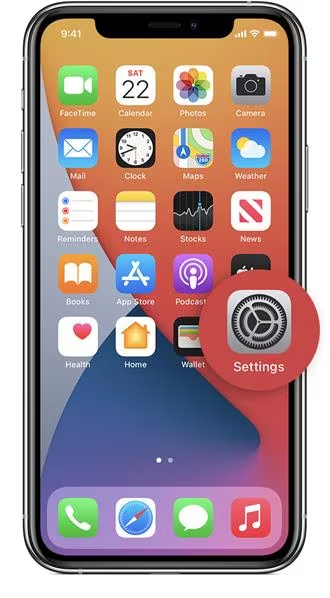
- Scroll down and tap Phone.
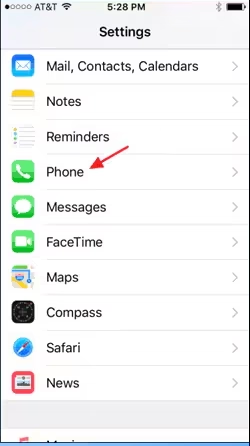
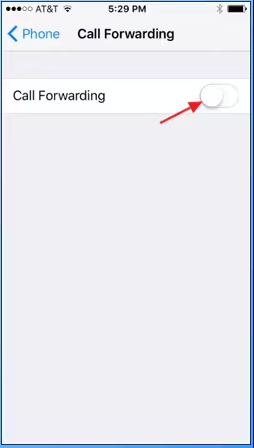
- Select Call Forwarding.
- Turn on the Call Forwarding toggle.
- Tap Forward To and enter the destination phone number.
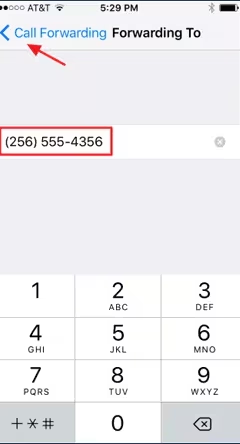
Once enabled, your iPhone immediately redirects incoming calls to the selected number.
How To Forward Calls On iPhone Using Carrier Codes
Carrier USSD codes allow more control, such as forwarding calls only when busy or unanswered. Availability depends on your mobile carrier.
- Open the Phone app.
- Go to the Keypad.
- Enter the appropriate code followed by the destination number.
- Tap the Call button.
Common forwarding codes include forwarding all calls, forwarding when busy, unanswered, or unreachable.
How To Forward Calls On iPhone Using Third-Party Apps
Some apps simplify carrier-based call forwarding by generating the correct dial codes for you.
- Open the App Store.
- Search for a call forwarding or call diversion app.
- Install and open the app.
- Select the forwarding condition and enter the target number.
- Confirm by dialing the generated code.
These apps do not replace carrier services but act as shortcuts for managing call forwarding options.
How To Disable Call Forwarding On iPhone
If you no longer want calls redirected, you can turn off call forwarding in seconds.
- Open Settings.
- Tap Phone.
- Select Call Forwarding.
- Turn the toggle off.
If you used carrier codes, disable forwarding by dialing the appropriate deactivation code.
Troubleshooting Common Problems
If call forwarding does not work, confirm that your carrier supports the feature and that your plan includes it. Weak network signals or incorrect dial codes can also prevent activation.
Restarting the device or resetting network settings may resolve temporary issues.
Tips
- Use call forwarding when traveling to avoid roaming charges.
- Test forwarding after setup to confirm it works.
- Disable forwarding when not needed to avoid missed calls.
- Check carrier restrictions before relying on advanced options.
FAQ
Can I forward calls on iPhone to an Android phone or landline? Yes, call forwarding works with any valid phone number.
Does call forwarding work when my iPhone is turned off? Yes, forwarding occurs at the network level.
Why is call forwarding missing from Settings? Some carriers hide this option. Contact your provider for support.
Will forwarded calls show my number or the caller’s number? This depends on carrier settings.
Summary
- iPhone supports call forwarding through Settings and carrier services.
- Carrier codes offer advanced forwarding conditions.
- Third-party apps simplify setup but rely on carrier features.
- Disabling call forwarding restores normal call behavior.
Conclusion
Call forwarding on iPhone gives you flexibility and control over incoming calls without blocking contacts. Whether you need a temporary redirect or a long-term solution, iOS and carrier tools make the process simple and reliable.

Discussion (0)
Be the first to comment.