




Using the correct iPhone wallpaper size makes a visible difference. A wallpaper with the wrong resolution can look blurry, stretched, or awkwardly cropped, especially on newer models with notches or Dynamic Island.
iPhones come in multiple screen sizes, which means there is no single wallpaper size that works for every model. Knowing your exact iPhone model helps you choose the right wallpaper dimensions for a sharp, clean fit.
How iPhone Wallpaper Size Works
An iPhone wallpaper uses the same resolution as your screen. When the image resolution matches or exceeds your display resolution, iOS scales it cleanly without losing quality.
If the image resolution is lower than your screen resolution, iOS stretches it, which often causes pixelation or blur. This applies to both the Lock Screen and Home Screen.
How To Find The Correct iPhone Wallpaper Size
The easiest way to get the right iPhone wallpaper size is to identify your exact iPhone model, then match it with the correct screen resolution. This ensures your wallpaper fits properly without unwanted cropping.
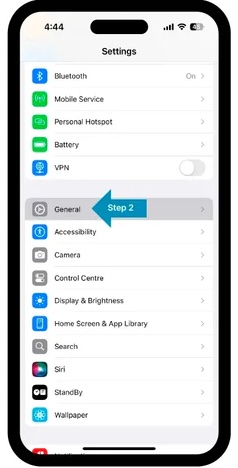
- Open Settings on your iPhone.

- Go to General.
- Tap About.
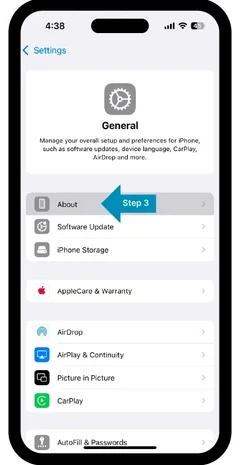
- Check the Model Name listed at the top.
Once you know your model, download wallpapers that match your screen resolution or are slightly higher. Higher resolution images scale down cleanly, while smaller images do not scale up well.
Recommended iPhone Wallpaper Resolution
As a general rule, always choose a wallpaper with the same resolution as your iPhone display or higher. Portrait-oriented images work best because iPhones use a tall aspect ratio.
If you cannot find an exact match, select a wallpaper with a higher resolution and similar aspect ratio. iOS will resize it automatically while preserving image quality.
Troubleshooting Common Problems
If your wallpaper does not look right, the issue is usually related to resolution, cropping, or display effects.
- Disable perspective zoom if the wallpaper appears cropped.
- Use higher resolution images to avoid pixelation.
- Make sure the image is portrait, not landscape.
- Check that wallpaper blur is turned off on the Home Screen.
Tips
- Use PNG or high-quality JPG files for best results.
- Choose wallpapers with extra space near the top for the clock.
- Avoid screenshots as wallpapers due to low resolution.
- Test wallpapers on the Lock Screen before applying permanently.
FAQ
Do the Lock Screen and Home Screen use different wallpaper sizes?
Both screens use the same resolution, but the Lock Screen may crop images differently due to widgets and depth effects.
Why does my iPhone wallpaper look blurry?
This usually happens when the image resolution is lower than your screen resolution or when blur effects are enabled.
What is the best file format for iPhone wallpapers?
PNG and high-quality JPG files provide the best balance between quality and file size.
Can I use square or landscape images as wallpapers?
Yes, but iOS will crop them to fit the screen, which may cut off important parts of the image.
Summary
- iPhone wallpaper size depends on your exact model.
- Using the wrong resolution causes blur or cropping.
- Always match or exceed your screen resolution.
- Portrait images provide the best visual results.
Conclusion
Choosing the correct iPhone wallpaper size ensures your screen looks sharp and polished. By matching your wallpaper resolution to your iPhone model, you avoid common display issues and get a clean, professional look every time.
Discussion (0)
Be the first to comment.