UP

Tutorials

Tutorials and how to guides about using gadgets, hardware, and software. Our tutorials cover all major operating systems: Windows, Android, iOS and others.

10 Features that Make Windows 8 the Most Secure Windows Yet

It will be quite obvious to any first-time user that Windows 8 is very different from previous versions. While the obvious interface changes will be the most talked about, the addition of a number of great security features is really worth getting excited over. Combine new features like early launch anti-malware with oldies like the Windows Firewall and you have an operating system that you can feel secure using. [DC-SUMMARY-BREAK]
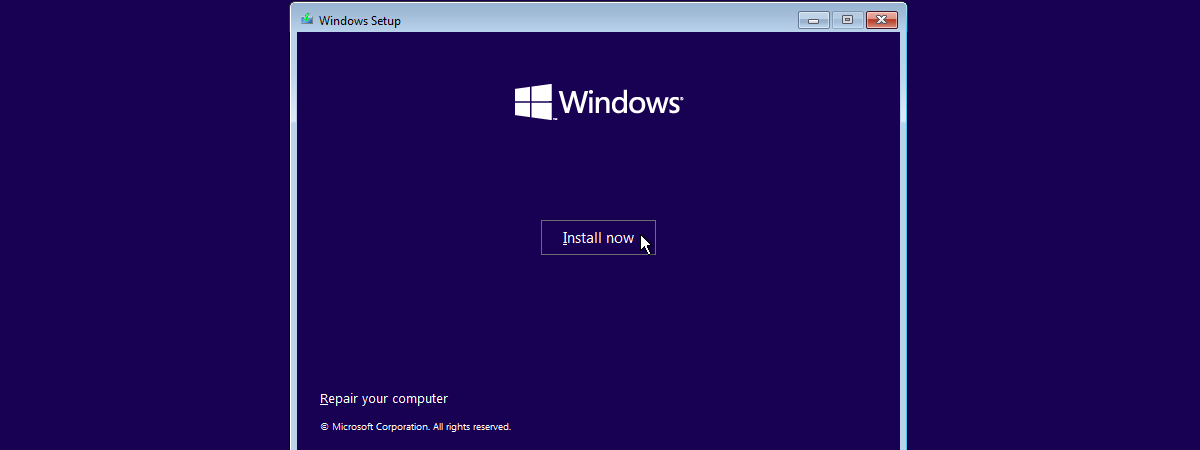
tutorial How to Install Any Version of Windows from Other Network Computers

How to Install Any Version of Windows from Other Network Computers

Talk about a complex thing to do: installing Windows over the network. Even installing it via a USB drive is simpler. However, this doesn't mean it cannot be done. Using a free tool named Serva and a bit of time and attention, anyone can set up his/her network environment so that Windows installations are performed with ease, from one network computer. Here's how the

How to Use Special Characters in Windows with Character Map

What do you do when you have to insert special characters that can't be found on your keyboard? You use the Character Map tool found both in Windows 7 and Windows 8. It allows you to insert scientific notations, mathematical operators, currency symbols and characters from languages like Japanese Hiragana , Katakana, Korean Hanji and others. In this tutorial, I will show how to find the Character Map, share a

How to Restore Windows 8 to Its Initial Clean State Using Reset

In previous versions of Windows, the only tools available for restoring Windows to a previous state were System Restore and Windows Backup. Even though they are useful tools, you cannot use them to restore Windows to its initial, clean state. You have to perform a manual reinstallation of the operating system. And that is a bit of a pain. Windows 8 introduces a great new feature named Restore. With the

What is the Public Folder & How to Use it?

The Public folder was first introduced in Windows Vista and it has appeared in every version of Windows since. It is not much of a feature - just a folder with a slightly special setup that can be useful in certain scenarios. To help you understand what the Public folder is, how to use it, and when it is useful to use it, we created this guide which explains the

What to do When Windows 8 Says Your Genuine Product Key is Not Valid?

If you installed Windows 8 on a computer and you then changed its hardware configuration (e.g. upgraded the processor, memory or other important components), it can happen that Windows 8 no longer accepts the product key bundled with your original installation disc. This happens also when you buy a new computer and you install the Windows 8 edition you purchased and stop using the old computer. What can you do

How to Add a Clock Showing the Time on the Windows 8 Start Screen

One of the things I do not like about the Start screen in Windows 8 is the fact that it doesn't show the time and date, as the taskbar does on the Desktop. I wish Microsoft had provided an easy way to add a clock in a live tile. Luckily there are quite a few apps available to fill this gap. The better ones cost money but there are also

How to Schedule a Virus Scan with Windows 8's Built-In Antivirus

If you've spent any time looking at Windows 8's Defender interface, you've likely noticed that it doesn't include any options for scheduling a scan. While Windows Defender provides most of it's protection in real-time, if you're like us, you'll want a back-up scan occurring regularly. Though the user interface does in fact omit a simple way to schedule a scan, this option exists within the Windows 8 Task Scheduler. Read

Introducing Windows 8: The Complete Guide to the Messaging App

Chatting has become a very large part daily computer usage for many people. Whether messaging on Facebook or with a chat client, you've likely spent a significant amount of time messaging with friends back and forth. Using separate clients to chat with contacts can get annoying, so Windows 8 has taken a step to try and make it easier. The Messaging app allows you to aggregate your contacts from both

Introducing Windows 8: How to Add or Remove Devices from PC Settings

Did you know that Windows 8 also offers a new way to add and remove devices connected to your computer? On top of the tools that exist in Windows 7 and earlier versions of Windows, now there is also a Devices section in PC Settings that makes it real easy to add and remove devices. In this tutorial you will learn how it works. [DC-SUMMARY-BREAK] How to Open the Devices

How to Use File History with Network Drives & Locations to Backup Data

File History can work both with local drives plugged into your computer and drives connected to other computers on the network or to the network itself. How does this work and what is the best way to set things up? Learn this and more from this article. [DC-SUMMARY-BREAK] Connect an External Drive to a Computer & Recommend it to the Homegroup One way to use the same drive to backup

Introducing Windows 8: How to Manage Your Mail App's Inbox & Messages

While we've already covered the basics of configuring and using the Windows 8 Mail app in quite a few guides, there's more to it. Once you've got your accounts set up and you're receiving emails you may want to dig into the intricacies of this useful app. At first glance you may think there isn't much more to the Mail app than folders and inboxes. This is a simple mistake
tutorial Introducing Windows 8: How to Configure Mail App Accounts

Introducing Windows 8: How to Configure Mail App Accounts

When adding accounts to the Windows 8 Mail app, most of the account settings are configured automatically. For most providers all you'll need to do is enter your email address and password to get the account configured, synced and functional. While this is preferable to many users, some would rather take a firmer hand with their account configurations. If you fall into this group,

The Complete Guide to Pinning Everything to the Windows 8 Start Screen

The new Start screen is by far the most controversial feature in Windows 8. Personally, I view it as a glorified full-screen app launcher, which makes it easy to start any app you want. But, until you see things my way, you will need to learn how it works, experiment and work with it for a while. To help you become productive, I would like to show how to pin

The Windows 8 Customization Guide for the Traditional PC User

Even though Windows 8 is hybrid in nature, it doesn't mean you cannot use iton traditional desktops and laptops. It works just fine and, most times, faster than Windows 7. But Windows 8 does things quite differently from what you may have been used to in previous versions of Windows. You will need to experiment, and you will probably want to do more customization than you have been accustomed to

How to Use the Action Center in Windows 8 to Keep the PC Running Smooth

In a previous article we talked about Action Center in Windows 8, its general features and improvements and we also covered the Security checks made by it to keep Windows 8 secure. Today we will take a detailed look at the Maintenance role of the tool and all its new elements and features in this area. [DC-SUMMARY-BREAK] Which Maintenance Aspects are Monitored by Windows 8? First, let's see what kind

The Desktop Tile Missing from the Start Screen? How to Add it Back

It can happen that your Desktop tile is gone missing from the Start screen. Accidents happen and you will want to have it back. Fortunately, Windows 8 makes it easy to add its tile back to the Start screen. Here's how: [DC-SUMMARY-BREAK] How to Add the Desktop Tile to the Windows 8 Start Screen The Desktop tile shows your current wallpaper and, by default is found on the Start screen,

Introducing Windows 8: The Complete Guide on How to Use the People App

Most of our web savvy readers likely have more than one contact list. One for each email account, one for each social networking account and maybe even more. While that may seem like an accomplishment in this digital age, isn't it really annoying? If you have ever tried to email a person only to find that their address is stored in a contact list you don't have access to, then

How to Sort & Manage Contacts in the Windows 8 People App

After you've added your email and social networking accounts to the People app, you may find that your list of contacts is getting a bit unruly. Even sorted by name and including pictures may not be enough to help you find the person you need quickly. Luckily, the Windows 8 People app has a number of built-in ways to help filter, sort and search through your list which makes finding