The Public folder was first introduced in Windows Vista and it has appeared in every version of Windows since. It is not much of a feature - just a folder with a slightly special setup that can be useful in certain scenarios. To help you understand what the Public folder is, how to use it, and when it is useful to use it, we created this guide which explains the important bits you need to know.
What is the Public Folder in Windows?
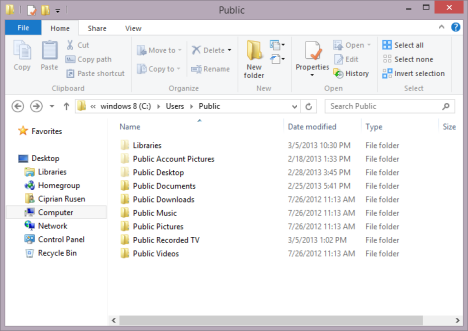
The Public folder is located in "C:\Users\Public", in all Windows versions. All user accounts registered in Windows have access to it. That's why it is named Public. Any file and folder found in "C:\Users\Public" is completely accessible to all users.
Depending on your network sharing settings, this folder and its content can also be accessed by all other computers and devices that are part of the same network.
What Is Inside the Public Folder?
By default, the Public folder contains the following subfolders: Public Documents, Public Downloads, Public Music, Public Pictures, and Public Videos. Depending on the version of Windows you are using, these folders may contain sample files such as music, pictures, and videos. This is the case for Windows 7 but, in Windows 8, all these folders are empty.
The Public Folder in Windows and how to use it for sharing
The Public folder also contains a series of hidden folders: Favorites (existing only in Windows 7), Libraries, Public Account Pictures (existing only in Windows 8) and Public Desktop. By default, these folders are empty in all versions of Windows.
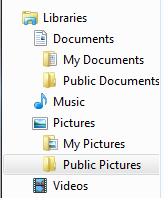
Public Documents, Public Music, Public Pictures and Public Videos are also part of the standard libraries found in Windows. Therefore, anything you place inside them is easily accessible and indexed by Windows in order to allow fast file searching.
The Public Folder in Windows and how to use it for sharing
The main use for this folder is to quickly share files and folders between user accounts on the same computer or with other computers and devices on the network.
Using the Public folder is a matter of choice and personal style. I prefer not to use it but this doesn't mean it cannot come in handy. For example, if you have multiple people using the same computer, each person with his own user account, you can use the Public folder to share files between all these user accounts. Everything you place inside this folder will be accessible to all the other user accounts. Each of you can make edits to any file and, once saved, they are available to all other user accounts.
The Public folder can also be used for sharing files with other computers on your network. If you choose to share this folder, other computers can access its contents. This can be useful especially when sharing files with non-Microsoft operating systems. Since you cannot have them join the Homegroup, for easy sharing, the Public folder works quickly and without any special setup.
How to Share/Unshare the Public Folder
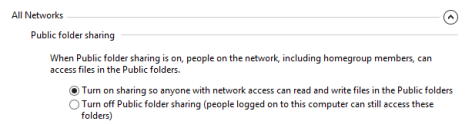
To enable or disable the sharing of this folder, you need to open the "Advanced sharing settings" panel.
The Public Folder in Windows and how to use it for sharing
Then, make the settings you want in the Public folder sharing section.
Conclusion
Many people ignore the Public folder including myself. But that's due to the fact that I am not sharing my work computer with others and I don't really need to use it. On your family's desktop computer or on a work computer, this folder can be quite handy. Therefore, don't hesitate to use it, if there is any benefit in productivity to be gained from it.
Recently installed a program, has a free trial(have this on laptop, it’s safe, good), but noticed it loaded in a public folder. Could I move that folder & contents into my regular user file before or after the trial?
I noticed another program update is in a public folder, I am the sole user of my computers (laptop & tablet), I don’t have a “network”, no one else uses them.
Fitzcarraldo ·
This article is a good introduction to the Public folder and its subfolders. I had wanted to reference a decent, concise article on the Windows Public folder in my blog post about SMB networking, and this is by far the best I came across. I could not find anything by Microsoft itself, which is surprising.
Ciprian Adrian Rusen ·
I'm happy that we managed to provide useful content for you.
Jason ·
Anyone having issues with public folder not being accessible on a local network since Windows 10 Anniversary Update that rolled out this month – August 2016? Any solutions for that?
Jason ·
Never mind. I just had to go into advance sharing settings and change some settings there.
tabitha ·
How can I access these folders from my phone?
Fitzcarraldo ·
See the article ‘How to Access Shared Windows Folders on Android, iPad, and iPhone’ on the How-To Geek Web site. I use ES File Explorer on my Android tablet and smartphone to access the Public folders on my computers.
Harry Forder ·
I may be missing the point entirely, but HOW do I place a folder in the ‘Public Documents’ part of the ‘Documents library’?
Using the ‘Include in Library function always places the folder in the C/users/(my name) part of the library.
amco2000 ·
Can I just delete all public folders in Win 7, they just clutter up my file trees and cause confusion !?!
Ciprian Adrian Rusen ·
Just remove them from the standard libraries. Not sure if deleting them won’t cause any issues.
starzzguitar ·
They should have just called the “Public” folder “Shared on Network” to avoid all the time I spent trying to share an item on my home network and not knowing how to do it. I have no use for Libraries either.







Discussion (11)
Recently installed a program, has a free trial(have this on laptop, it’s safe, good), but noticed it loaded in a public folder. Could I move that folder & contents into my regular user file before or after the trial?
I noticed another program update is in a public folder, I am the sole user of my computers (laptop & tablet), I don’t have a “network”, no one else uses them.
This article is a good introduction to the Public folder and its subfolders. I had wanted to reference a decent, concise article on the Windows Public folder in my blog post about SMB networking, and this is by far the best I came across. I could not find anything by Microsoft itself, which is surprising.
I'm happy that we managed to provide useful content for you.
Anyone having issues with public folder not being accessible on a local network since Windows 10 Anniversary Update that rolled out this month – August 2016? Any solutions for that?
Never mind. I just had to go into advance sharing settings and change some settings there.
How can I access these folders from my phone?
See the article ‘How to Access Shared Windows Folders on Android, iPad, and iPhone’ on the How-To Geek Web site. I use ES File Explorer on my Android tablet and smartphone to access the Public folders on my computers.
I may be missing the point entirely, but HOW do I place a folder in the ‘Public Documents’ part of the ‘Documents library’?
Using the ‘Include in Library function always places the folder in the C/users/(my name) part of the library.
Can I just delete all public folders in Win 7, they just clutter up my file trees and cause confusion !?!
Just remove them from the standard libraries. Not sure if deleting them won’t cause any issues.
They should have just called the “Public” folder “Shared on Network” to avoid all the time I spent trying to share an item on my home network and not knowing how to do it. I have no use for Libraries either.