The new Start screen is by far the most controversial feature in Windows 8. Personally, I view it as a glorified full-screen app launcher, which makes it easy to start any app you want. But, until you see things my way, you will need to learn how it works, experiment and work with it for a while. To help you become productive, I would like to show how to pin to the Start screen everything you need: Windows 8 apps, desktop applications, folders, libraries, network locations, websites, control panel items, etc.
NOTE: The article has been update to show how to pin Control Panel items to the Start screen.
How to pin Windows 8 apps
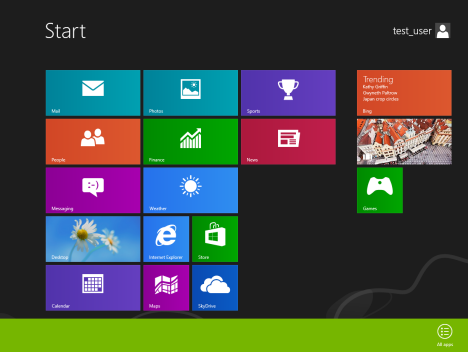
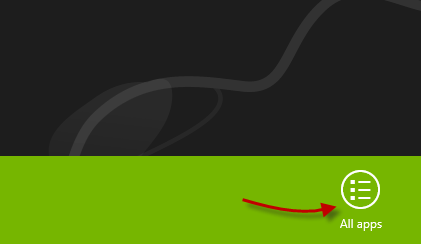
This is a rather simple task to perform. First, locate the app you want to pin. To do this, right click on an unused spot anywhere on the Start screen. A bar will appear on the bottom of the screen.
Windows 8 - All Apps
Now click or tap on All apps.
Windows 8 - All Apps
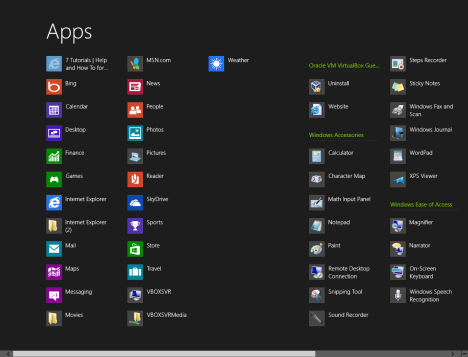
This will display all the available apps on your computer.
Windows 8 - All Apps
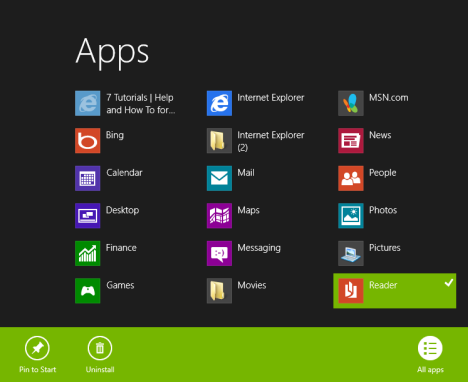
Choose the app you want pinned, by right clicking on it. On a screen with touch, just press and hold, while slightly dragging downwards. The options available for that particular app are displayed in the bottom bar.
Windows 8 - All Apps
One of those options is Pin to Start or Unpin to Start, depending on its current state.
Windows 8 - Pin Apps
Click or tap on Pin to Start and the selected app will be pinned to the Start screen. Unpin to Start will unpin the app if it is already on the Start screen.
Windows 8 - Pin Apps
Very simple task indeed.
How to pin Desktop applications
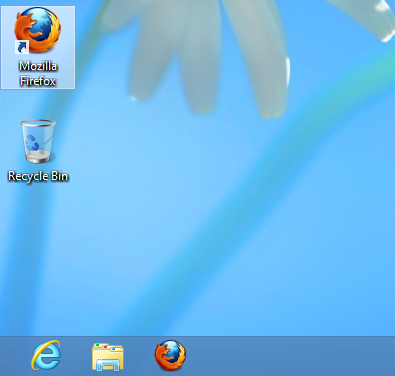
Again, you have to locate the program you want to pin on the Start screen. You can do that by selecting a shortcut to the program (i.e. a shortcut found on the Desktop).
Windows 8 - Pin Apps
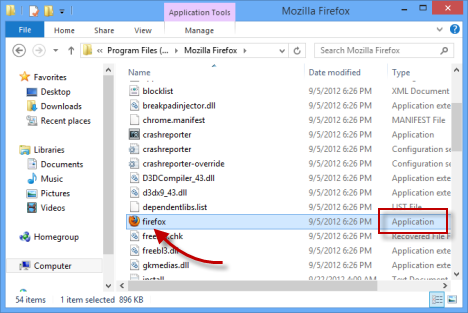
Or you can browse your computer to find the location where the program is installed. Then, select the main executable file.
Windows 8 - Pin Apps
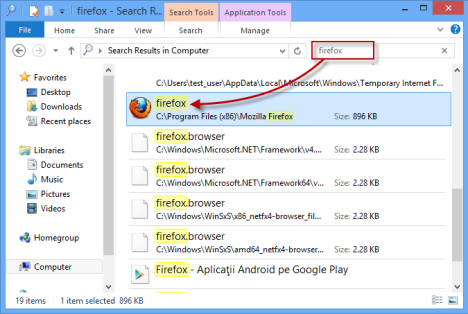
Of course, another option would be to just search the application you want, using the search box in File Explorer.
Windows 8 - Pin Apps
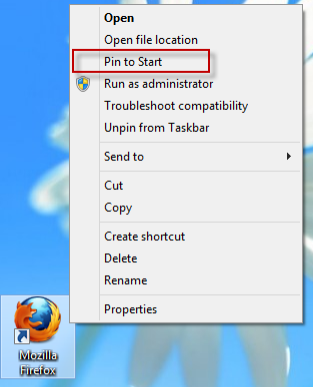
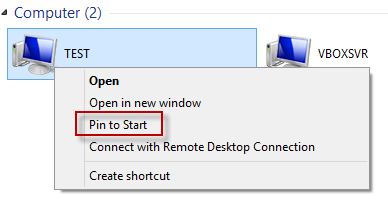
After you've located the Desktop application, right click on it or press and hold. In the contextual menu, click or tap Pin to Start.
Windows 8 - Pin Apps
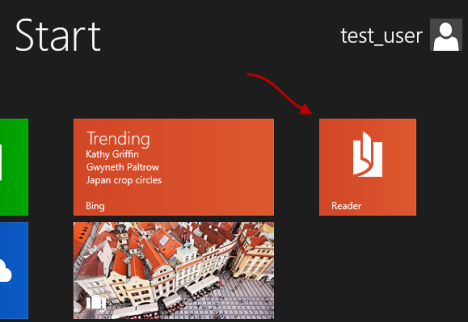
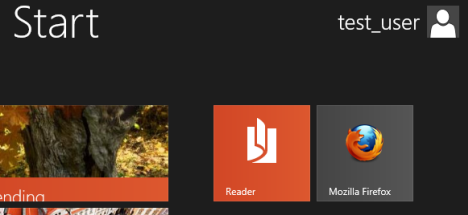
Now you can jump to the Start screen, where you will see that the program you chose is now displayed as a pinned application.
Windows 8 - Pin Apps
How to pin folders & libraries
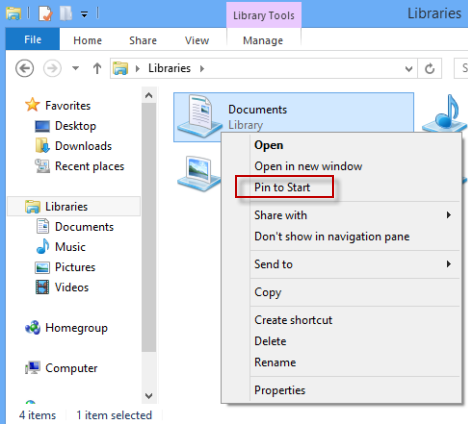
Pinning folders or libraries to the Start screen is similar to the way you pin Desktop applications. Simply select the folder or library you want pinned, right click or press and hold on it and select Pin to Start.
Windows 8 - Pin Apps
It will now be displayed on the Start screen, just like any other Windows 8 app or Desktop program.
How to pin network locations
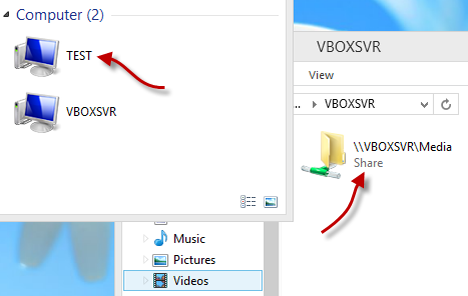
Pinning a network location works the same way as pinning folders or libraries. You have to follow almost the same steps. Locate the network location you want, by using File Explorer. The network location can be an actual computer or a shared folder.
Windows 8 - Pin Folders
Then, right click on the network location and select Pin to Start from the contextual menu.
Windows 8 - Pin Folders
One thing to remember though: even if that network location is no longer available, the tile you've created will still be displayed on the Start screen.
How to pin your favorite websites
An interesting option in Windows 8 is the possibility to pin sites to the Start screen. However, at this moment, this works only if you use Internet Explorer. The nice thing is that it doesn't matter if you prefer the Desktop version or the full-screen Windows 8 app version.
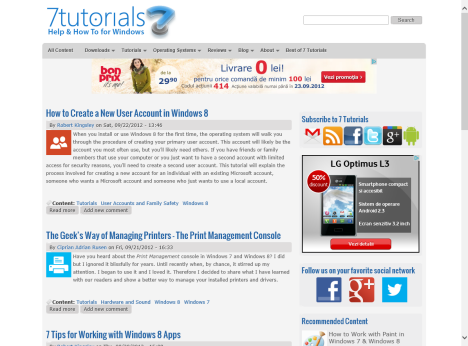
Let's see how to do it when you are using the app version of Internet Explorer. The first step is to actually surf to the site you want to pin.
Windows 8 - Pin Websites
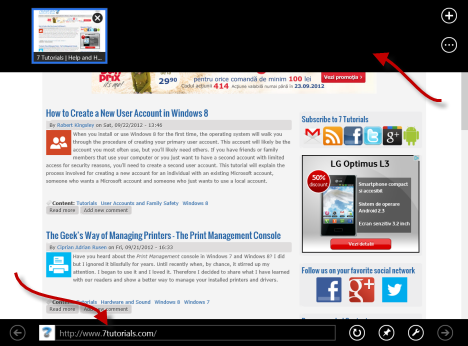
Then, right click anywhere on the screen where there are no page elements (or swipe from the bottom or top edge). This will bring up two bars: one at the top and one at the bottom of the screen.
Windows 8 - Pin Websites
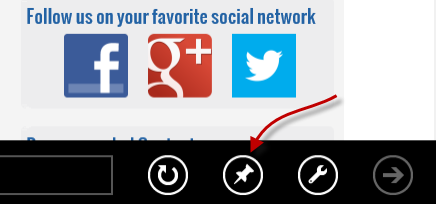
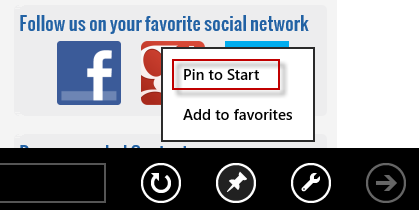
Use the one on the bottom. On the right side you will see a small icon representing a pin.
Windows 8 - Pin Websites
Click or tap on it. A small contextual menu will be displayed, showing two options: Pin to Start and Add to favorites. Click or tap Pin to Start.
Windows 8 - Pin Websites
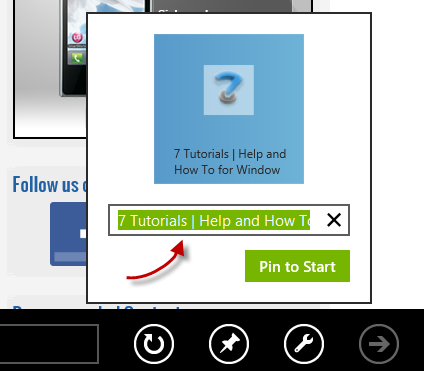
When you click the Pin to Start option, a small window is displayed where you have the option to change the name for the site, if you don't like the default one. After you've done that, click again on Pin to Start.
Windows 8 - Pin Websites
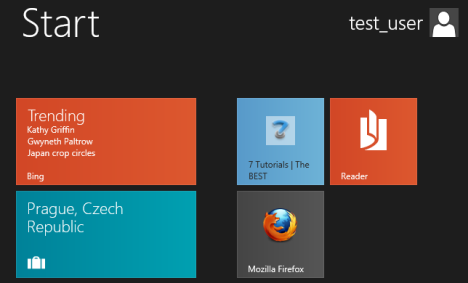
Now your favorite site has been pinned to the Start screen, using the name you provided.
Windows 8 - Pin Websites
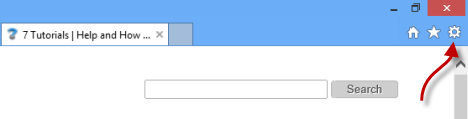
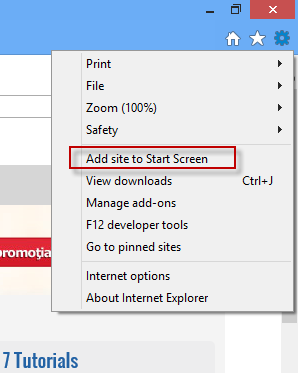
If you prefer to use the Desktop version of Internet Explorer, things are again quite simple. After you finish loading your favorite site, look at the top right of the browser. You will see a few icons there. The last one is the shortcut to the Tools menu.
Windows 8 - Pin Websites
Click or tap on it and the Tools menu shows up. Click or tap Add site to Start Screen.
Windows 8 - Pin Websites
NOTE: You can also use the keyboard shortcut Alt+X to bring up the same menu.
After you click or tap on it, a new tile will available on the Start screen.
How to pin Control Panel Items
When trying to pin items from the Control Panel, my first approach was to search for them on the Start screen, right click (or press and hold) and then find the option to Pin to Start. Unfortunately this approach doesn't work.
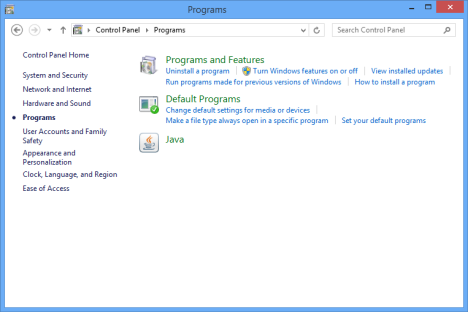
The only way to pin such items is to open the Control Panel, browse to the location when the item is found. For example, I wanted to pin Programs and Features. So I went to the Programs section.
Windows 8 - Pin Websites
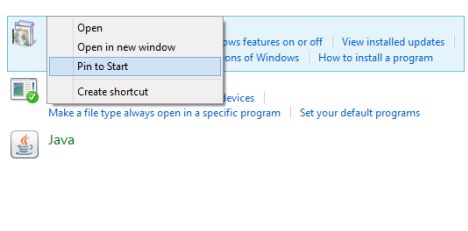
Then, right click on it and select Pin to Start.
Windows 8 - Pin Websites
The Control Panel item is now pinned to the Start screen.
Conclusions
As you have seen in this tutorial, pinning stuff to the Start screen is a simple task that anyone can do. Don't hesitate to experiment and create your own setup. Also, don't forget to read our recommendations below, for other cool tips about working with the new Start screen.
How can I pin 4 apps lined up rather than 3 in one go?
Thganks
Anonymous ·
If you want to pin other browsers shortcuts to the start menu, then go to “C:Users”your username”AppDataRoamingMicrosoftWindowsStart MenuPrograms”and put the shortcut in there. It will be in the all apps page and you can pin it from there.
Kathy ·
I figured it out. My tile wasn’t on the app page until I selected in the upper left corner apps -then drop down menu -by most used. If you play around with -by date- most used -date installed- etc… you get more or less app tile selections.
Kathy ·
I may be having the same difficulty as Gordon. I’ve installed Microsoft Office 2010 to my new computer -I’ve only had it two days. I was using Vista and my new computer has windows 8.
I’d like to launch Excel and Word from my Start UI screen. I’m having a difficult time putting a shortcut (tile?) on the Start screen. I can’t figure out how to do it. I’ve created excel and word shortcuts to appear on my desktop. When I right click on them it only gives me the option to pin to desktop which is where I’m right clicking the icon from. No option to pin to start is offered. Can you step by step walk me through this?
Gordon Gnome ·
I am using win 8,1 and no matter which way I try I cant pin any programs to the start menu old or new IE. Outlook 2013, Date Wiz, Desktop sidebar, not the windows one..
thanks
Codrut Neagu ·
I’m not sure I follow you…. You’re trying to say that you cannot pin anything to the Start screen?
Gordon Gnome ·
Sorry I cant pin anything to start-up so it opens when I open the computer.
Thanks..
kiana ·
What about pinning an app, like a gadget, to the desktop not the start menu? For instance, to have an open instance of my calendar always running on the desktop like an interactive icon (gadget)?
Codrut Neagu ·
Unfortunately no, you can’t pin modern apps to the desktop. You can, however, snap them to the left or right side of the screen.
adamescu ·
Looks quite nice, but still there’s something I cannot pin to start. I created the .rdp (Remote Desktop) file linking to certain PC, and I have it on the Desktop. The question is how to pin it up to start?
williamwclee ·
how about create a shortcut of anything else and then replace the target from the properties of that shortcut with the target *.rdp?
williamwclee ·
one more thing missing … how to pin a doc to the modern start screen?
right now i use an alternative method but that has its shortcoming.
i create a shortcut of the client application and add to its target property with the string
“{the path of the doc}”. Since it is still an application shortcut, “pin to start” option is still available on the right click context menu.
the shortcoming is whenever the client application is upgraded with a different executable or the application is moved the other location, the shortcut will become ineffective.
Ciprian Adrian Rusen ·
I don’t think there are simpler ways to do this. Or at least I could not figure them out.
Ciprian Adrian Rusen ·
What about pinning the folder/library containing the documents you want fast access to? That works without any workarounds.
When a user “pins to start” in windows 8 – the operating system creates a shortcut in the following path/folder %APPDATA%MicrosoftWindowsStart MenuPrograms – is there anyway to change this path to somewhere else? The reason is I want to keep that folder free for use in the old style windows using Start8 from Stardock.
SteveM ·
Can we have an tutorial that tells us how easy it is (or not) to run in offline mode where you don’t tell it your email address and MS login. Remove everything from the start page except the desktop icon/tile. Then set up a desktop with icons??? Basically is it possible to completely ignore Metro/Win8 GUI without installing any third party menu programs? Just strip metro out and ignore it? Is Metro ever present?
Ciprian Adrian Rusen ·
We plan to publish guides that answer many of these questions. So… stay tuned. Gradually, we will show everything you need to know.
azziz07 ·
this guide will be very handy once i go to windows 8, thanks.





























Discussion (20)
Thanks for your well documented article,
How can I pin 4 apps lined up rather than 3 in one go?
Thganks
If you want to pin other browsers shortcuts to the start menu, then go to “C:Users”your username”AppDataRoamingMicrosoftWindowsStart MenuPrograms”and put the shortcut in there. It will be in the all apps page and you can pin it from there.
I figured it out. My tile wasn’t on the app page until I selected in the upper left corner apps -then drop down menu -by most used. If you play around with -by date- most used -date installed- etc… you get more or less app tile selections.
I may be having the same difficulty as Gordon. I’ve installed Microsoft Office 2010 to my new computer -I’ve only had it two days. I was using Vista and my new computer has windows 8.
I’d like to launch Excel and Word from my Start UI screen. I’m having a difficult time putting a shortcut (tile?) on the Start screen. I can’t figure out how to do it. I’ve created excel and word shortcuts to appear on my desktop. When I right click on them it only gives me the option to pin to desktop which is where I’m right clicking the icon from. No option to pin to start is offered. Can you step by step walk me through this?
I am using win 8,1 and no matter which way I try I cant pin any programs to the start menu old or new IE. Outlook 2013, Date Wiz, Desktop sidebar, not the windows one..
thanks
I’m not sure I follow you…. You’re trying to say that you cannot pin anything to the Start screen?
Sorry I cant pin anything to start-up so it opens when I open the computer.
Thanks..
What about pinning an app, like a gadget, to the desktop not the start menu? For instance, to have an open instance of my calendar always running on the desktop like an interactive icon (gadget)?
Unfortunately no, you can’t pin modern apps to the desktop. You can, however, snap them to the left or right side of the screen.
Looks quite nice, but still there’s something I cannot pin to start. I created the .rdp (Remote Desktop) file linking to certain PC, and I have it on the Desktop. The question is how to pin it up to start?
how about create a shortcut of anything else and then replace the target from the properties of that shortcut with the target *.rdp?
one more thing missing … how to pin a doc to the modern start screen?
right now i use an alternative method but that has its shortcoming.
i create a shortcut of the client application and add to its target property with the string
“{the path of the doc}”. Since it is still an application shortcut, “pin to start” option is still available on the right click context menu.
the shortcoming is whenever the client application is upgraded with a different executable or the application is moved the other location, the shortcut will become ineffective.
I don’t think there are simpler ways to do this. Or at least I could not figure them out.
What about pinning the folder/library containing the documents you want fast access to? That works without any workarounds.
here you are … the hack!
https://www.howtogeek.com/129493/how-to-pin-any-file-to-the-start-screen-in-windows-8/?utm_source=newsletter&utm_medium=email&utm_campaign=101212
When a user “pins to start” in windows 8 – the operating system creates a shortcut in the following path/folder %APPDATA%MicrosoftWindowsStart MenuPrograms – is there anyway to change this path to somewhere else? The reason is I want to keep that folder free for use in the old style windows using Start8 from Stardock.
Can we have an tutorial that tells us how easy it is (or not) to run in offline mode where you don’t tell it your email address and MS login. Remove everything from the start page except the desktop icon/tile. Then set up a desktop with icons??? Basically is it possible to completely ignore Metro/Win8 GUI without installing any third party menu programs? Just strip metro out and ignore it? Is Metro ever present?
We plan to publish guides that answer many of these questions. So… stay tuned. Gradually, we will show everything you need to know.
this guide will be very handy once i go to windows 8, thanks.
I’m glad you found this tutorial useful.