UP

Apps

Tutorials, articles and recommendations about apps and programs that people use on their computers, smartphones, smartwatches, and other gadgets.

tutorial Fix problem: How do I stop Spotify from opening when Windows starts?

Fix problem: How do I stop Spotify from opening when Windows starts?

Many Spotify users encounter a problem that looks like a bug: the Spotify app opens when you log into Windows, even when you disable its startup entry, or when you set it so that it does not start automatically after you log in. A misconfiguration in your Spotify settings causes this problem. Here is how to fix this issue in a couple of seconds:
How to free up wasted space with Disk Cleanup, in Windows

When we want to tweak different aspects of Windows, we prefer to use the built-in tools provided by the operating system. All modern versions of Windows and especially Windows 10, provide some great tools you can use. One such tool is the underrated Disk Cleanup, which allows you to free up space on your partitions and safely remove system files that you no longer need. Let's see how it works
tutorial How to rename a Windows task created with Task Scheduler

How to rename a Windows task created with Task Scheduler

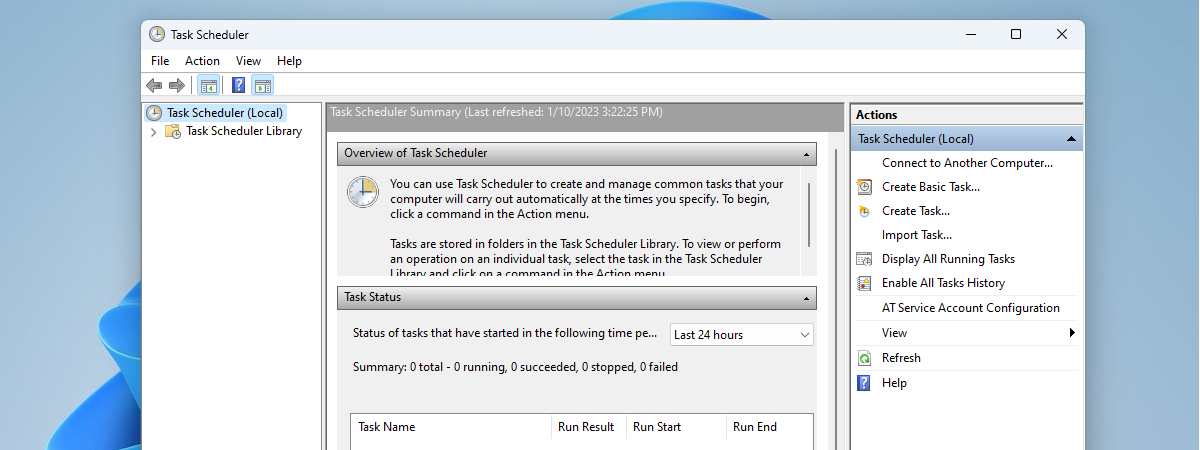
If you landed on this web page, you probably already know how to work with Task Scheduler to create scheduled tasks. Now it may be that you are asking yourself and the internet search engines about a way to rename a task that is already created and scheduled in Task Scheduler. While it may seem a trivial action to some, things are not as

11 ways to start Disk Cleanup, in Windows (all versions)

If you have limited storage space on your Windows 10 PC or device, or if you gather lots of data on it, you might stumble upon issues caused by not having enough free space. In such situations, the first thing you should do is clean the storage of unnecessary files such as temporary files, thumbnails or files that you deleted but are still found in your Recycle Bin. Fortunately, to
tutorial 7 things you can do with the Disk Management tool, in Windows

7 things you can do with the Disk Management tool, in Windows

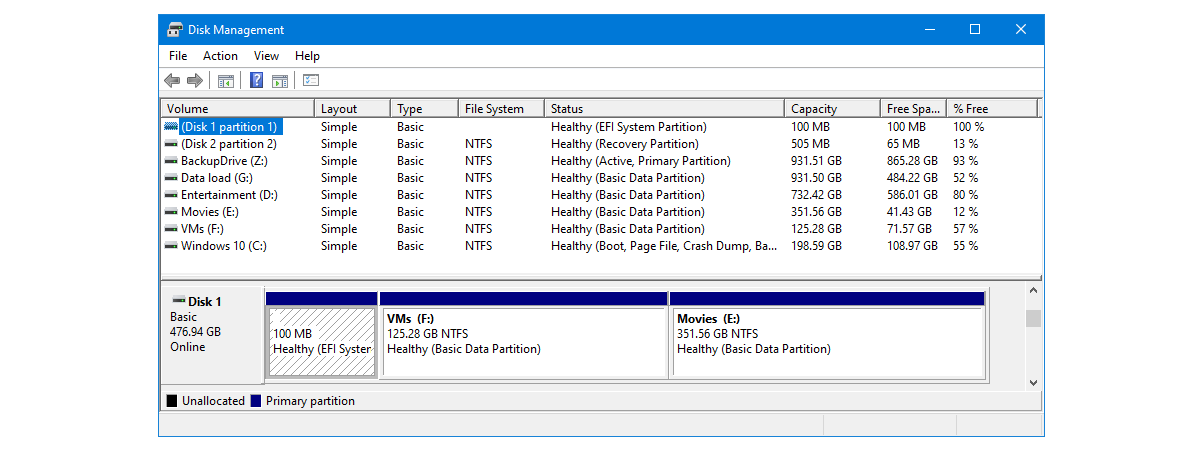
Modern versions of Windows come with a handy disk management utility that allows you to create, resize and delete drive partitions on the fly, without having to boot into a particular disk utility or purchase additional software. The Windows built-in tool we are talking about is called Disk Management, and it is quite easy to use. If you want to make some changes related

9 things you can do with System Configuration, in Windows

Do you know how excellent the System Configuration (msconfig.exe) tool from Windows is? Although it is a small and somewhat hidden tool, it allows you to change quite a few things about the way Windows works. Among other things, the System Configuration tool lets you configure how Windows starts, change the boot procedure, select startup services, and programs, and also start a series of useful administrative programs. If you want
tutorial How to create basic tasks with Task Scheduler, in 5 steps

How to create basic tasks with Task Scheduler, in 5 steps

With the help of the Task Scheduler, you can create all kinds of automated tasks to be run by Windows. For example, you can schedule some apps to run at specific time intervals or display a message on your desktop when something happens. Unfortunately, not many people know about this tool, as Windows does not advertise it as much as it deserves. To help

8 ways to start System Configuration in Windows (all versions)

The System Configuration tool is also known by its msconfig.exe executable file. This app is useful to people who want to manage the Windows startup and the boot options, as well as troubleshoot stability and performance issues. You can do all that from this handy little tool, but before that, you first have to open it. In this article, we show you eight ways to start System Configuration (msconfig.exe) in

stretchly: Schedule regular breaks & implement the Pomodoro Technique

Regularly sitting in front of your computer for long hours means that you increase the risk of developing health problems like visual fatigue, back pain, discopathy, and more. To reduce the health risks, it is a great idea to take regular breaks. The medical advice says that you should take a 5-10 minutes break away from your computer each hour. In some countries, this is also a legal requirement. But

Digital Citizen Awards: The most popular antivirus product of the year 2018

This year we asked our readers again to cast a vote for their favorite antivirus product. The nominees from which you could choose were the best security products we reviewed in the last couple of months. Alphabetically, your choices were: Bitdefender Total Security, BullGuard Premium Protection, ESET Smart Security Premium, F-Secure Total, G Data Total Security, and Kaspersky Total Security. The voting has ended, and it is time to reveal

Digital Citizen Awards: The best antivirus product of the year 2018

One of the most asked questions on Google regarding security is: "What is the best antivirus?". It is a legitimate question as most people are not security experts and need recommendations to identify the best antivirus product for their computers and devices. The time has come for us to name the best antivirus product of the year, based on our experience in testing the many commercial antivirus products for Windows

Digital Citizen Awards: The best free antivirus product of the year 2018

Many users look for free antivirus software. Unfortunately, this niche of products is dominated by products which do things that are not in the interest of their users. For example, some try to change your browser's homepage to a page that is monetized by your antivirus provider. Others, bundle crapware or dodgy tools that compromise your privacy. However, there are a few antivirus products that do not do that and

Comparison: Which is the best antivirus for Windows devices, in 2018?

Antivirus products and security solutions in general, come in various forms, shapes, and sizes, and most of them include more than a few distinct protection layers. The number and variety of security solutions that are sold to Windows users is quite large, and it is difficult to classify them. We checked the best security products that are found on the market for Windows users, we reviewed them one by one,
tutorial Fix problem: Google Chrome uses a lot of processor (CPU) when I visit a website

Fix problem: Google Chrome uses a lot of processor (CPU) when I visit a website

A new trend on the internet is that of using websites to mine cryptocurrencies without the knowledge of their visitors. As a result, the visitor's web browser gets slow, and the web browsing experience becomes incredibly frustrating. If you use Google Chrome and your computer's processor usage goes up a lot, when visiting a specific website, then you must read this article. We explain

9 important criteria to use when choosing your antivirus software

Are you searching for the best antivirus or the best security solution for your Windows computer or device? There are so many options on the market that you may not know which to choose. You know that you need an antivirus, but you do not know which criteria it should meet. All security companies market their products as being the best, having the greatest antivirus or firewall, being complete products

Should you buy an Antivirus, an Internet Security suite or a Total Security suite?

Back in the 1990's, antivirus software was all you needed to get adequate protection for your Windows computer. However, times have changed and so have the cyber threats that we face. We do not have to fight only against old-school viruses, but also against rootkits, spyware, ransomware, adware, network attacks, phishing attempts and so on and so forth. The magnitude of the malware that lurks on the internet is mindblowing,

Top 5 annoying practices of antivirus vendors

Do you remember the good old days when security vendors used to sell what you asked for? When you wanted to buy antivirus or a security suite, the vendor would sell you precisely that: an antivirus or a security suite. However, times have changed, and many companies do not do that anymore. Instead, they charge for the product you buy, but they also make money off you by bundling all

What are libraries in Windows, and how to use them for organizing your files

Libraries are one of the most misunderstood and, at the same time, the most useful features in Windows. They can help users organize their files and folders efficiently. By using libraries, you can build a system so that you can always find what you want in seconds. Not only that, but you can also sort, tag or edit files and folders with just a few clicks (or taps). In this

Security for everyone - Review Kaspersky Free Antivirus

The market for free antivirus solutions includes many choices, but not many of them genuinely offer what they promise. Kaspersky is a newcomer on this market, and since last year, they have offered their antivirus engine for free, to anyone who wants to use it. It is distributed under the name of Kaspersky Free Antivirus, and you can download and start using right away, without having to pay anything. We