




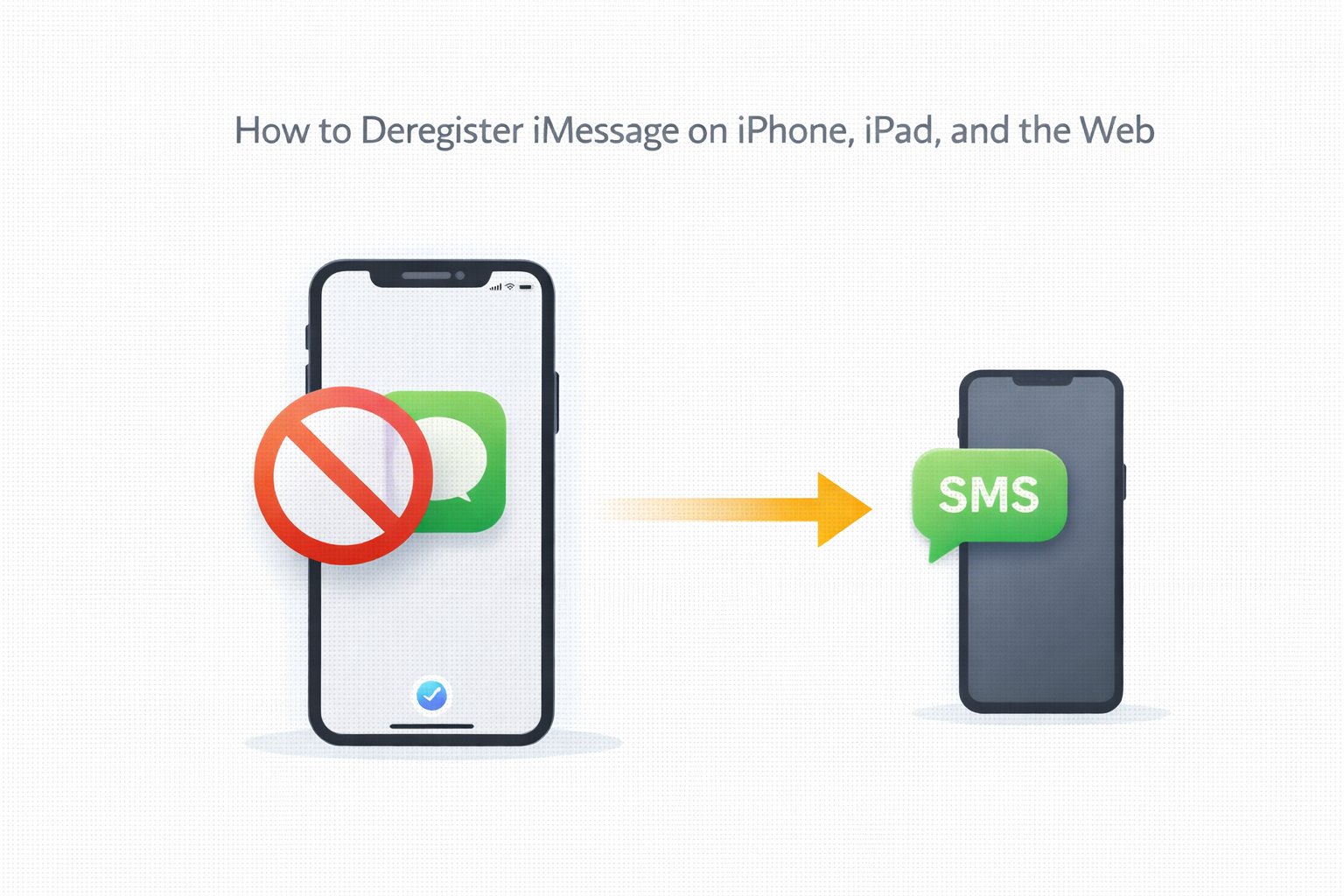
iMessage automatically sends messages over the internet between Apple devices, but that is not always ideal. In some situations, you may need to force your iPhone to send a regular text message using SMS instead of iMessage.
This can happen when internet access is unreliable, when messaging non-Apple users, or when an iMessage fails to deliver. The methods below still work on current versions of iOS and let you control how messages are sent.
Manually Send A Message As SMS From Messages App
The fastest way to send a text message instead of iMessage is directly from the conversation thread. This method works even if iMessage is enabled on your iPhone.
- Open the Messages app and select the conversation

- Type your message and tap the blue send arrow.

- Immediately tap and hold the message bubble.
- Select Send As Text Message.

The message switches from iMessage to SMS and sends through your cellular network.
Automatically Send SMS When iMessage Is Unavailable
iMessage requires an active internet connection. When that connection fails, your iPhone can automatically fall back to SMS if the correct setting is enabled.
- Open the Settings app.
- Tap Messages.
- Toggle on Send As SMS.
With this option enabled, your iPhone attempts to send messages as text messages when iMessage cannot connect.
Turn Off iMessage To Force All Messages As SMS
If you prefer to send all messages as regular text messages, you can disable iMessage entirely. This forces every outgoing message to use SMS or MMS.
- Open Settings.
- Tap Messages.
- Toggle off iMessage.
Once disabled, the Messages app no longer uses iMessage until you turn it back on.
When Sending SMS Instead Of iMessage Makes Sense
Sending a text message instead of iMessage improves reliability in several common situations. SMS does not depend on Wi-Fi or mobile data and works across all phone types.
This approach also avoids delivery issues when messaging Android users, ensures important messages go through, and prevents failed iMessage sends during network outages.
Troubleshooting Common Problems
If your iPhone will not send SMS messages, check that you are sending to a phone number and not an email address. SMS only works with cellular numbers.
Make sure you have cellular signal, Airplane Mode is off, and your carrier plan supports text messaging. Restarting your iPhone can also refresh network connections.
Tips
- Enable Send As SMS to avoid failed deliveries.
- Use SMS when internet connectivity is unstable.
- Turn off iMessage temporarily when switching phones.
- Verify recipient contact details include a phone number.
- Re-enable iMessage once issues are resolved.
FAQ
Can I turn off iMessage for one contact only?
No. iOS does not allow disabling iMessage for a single contact, but you can manually send SMS messages when needed.
Does iMessage automatically switch to SMS?
Yes, if Send As SMS is enabled and iMessage is unavailable, your iPhone attempts to send a text message.
Why does iMessage work but SMS does not?
SMS requires a cellular connection. Check your signal strength, carrier status, and messaging plan.
Summary
- Use long-press to send SMS manually.
- Enable automatic SMS fallback.
- Disable iMessage to force text messages.
- Confirm network and contact details.
Conclusion
While iMessage offers rich features, SMS remains essential when reliability matters. Knowing how to send a text message instead of iMessage on your iPhone ensures your messages go through in any situation.


Discussion (0)
Be the first to comment.