



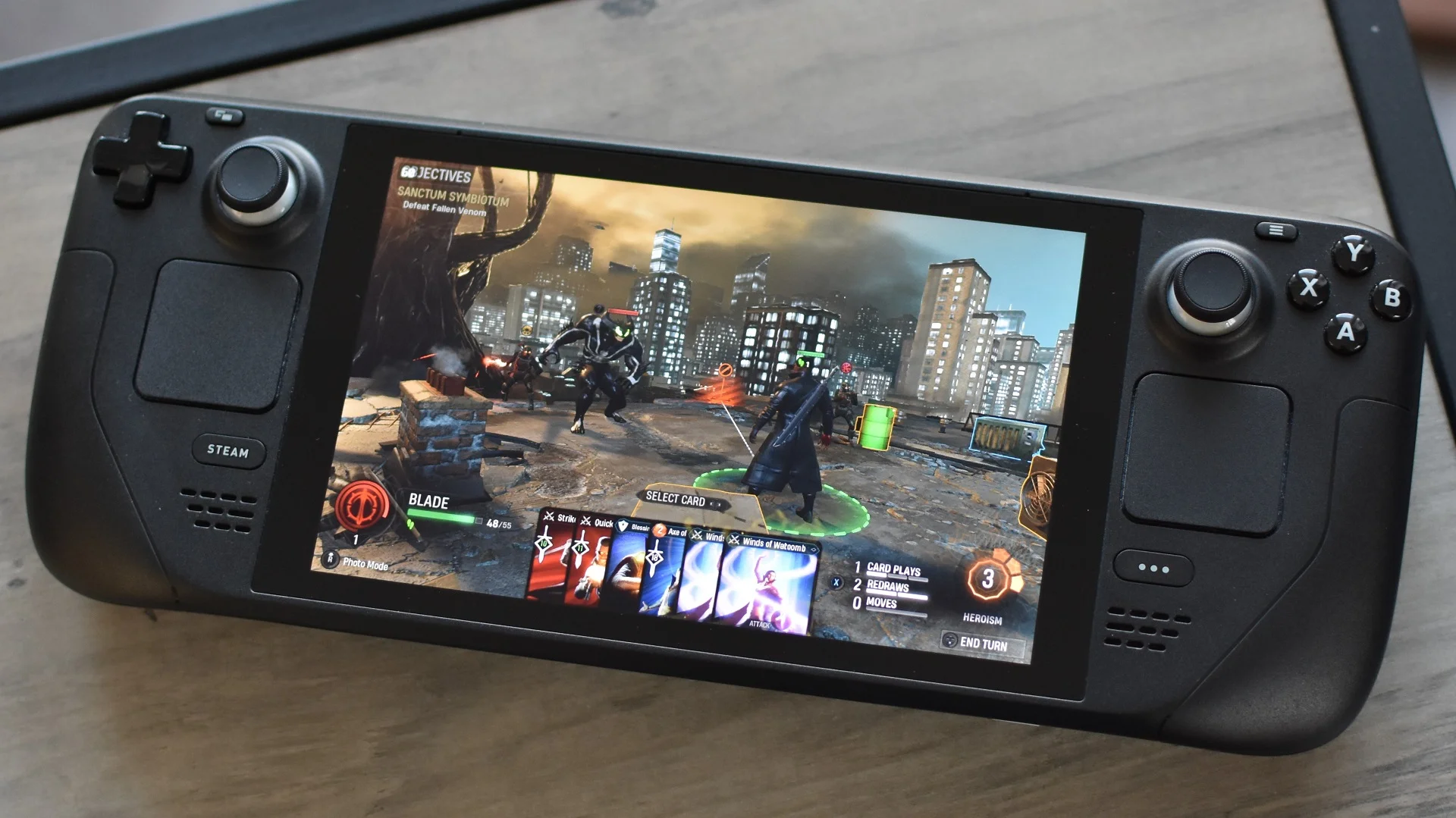
Valve has released a new Steam Deck client update that addresses several problems affecting local network game transfers, Desktop Mode startup, and the account login process.
The update includes additional fixes for cases where local network transfers would fail to begin. It also stops the Desktop Mode account chooser from appearing without being requested and prevents an unnecessary login dialog from opening after automatic account login has already started.
Steam Deck owners can install the update through the System section of the handheld’s settings menu.
Local network game transfers should start more reliably
Local network game transfers allow Steam to copy installed game files between devices connected to the same network. This can be faster than downloading an entire game again from the internet, particularly when moving large titles between a desktop PC and a Steam Deck.
The latest client update fixes more situations that could prevent these transfers from starting.
| Update area | Change |
|---|---|
| Local network transfers | Fixes additional cases where transfers would not begin |
| Desktop Mode startup | Stops the user chooser from appearing unexpectedly |
| Automatic login | Prevents a duplicate login dialog at startup |
| Installation method | Available through Steam Deck System settings |
The changelog does not explain which specific transfer conditions were affected. However, the wording suggests that an earlier fix did not cover every possible failure case.
This update should make the feature more dependable for players who regularly install the same games across multiple systems.
Local transfers can reduce download times
Steam’s local network transfer feature searches for compatible game files on another Steam device connected to the same network.
When the required files are available, the Steam Deck can copy them locally instead of retrieving all data from Valve’s servers. Internet access may still be required for verification, updates, or missing files.
| Transfer method | Main benefit |
|---|---|
| Internet download | Works without another local Steam device |
| Local network transfer | Can be faster and reduce internet usage |
| MicroSD card movement | Useful for storage changes on one device |
| External storage | Can help with manual file management |
The performance of local transfers depends on the home network, the source device, storage speed, and whether both systems are available during the process.
A wired desktop connected to a fast router may transfer files more quickly than downloading them again over a slower internet connection.
Desktop Mode user chooser no longer appears unexpectedly
The update also corrects a problem in Desktop Mode where the user chooser could appear during startup even when it had not been requested.
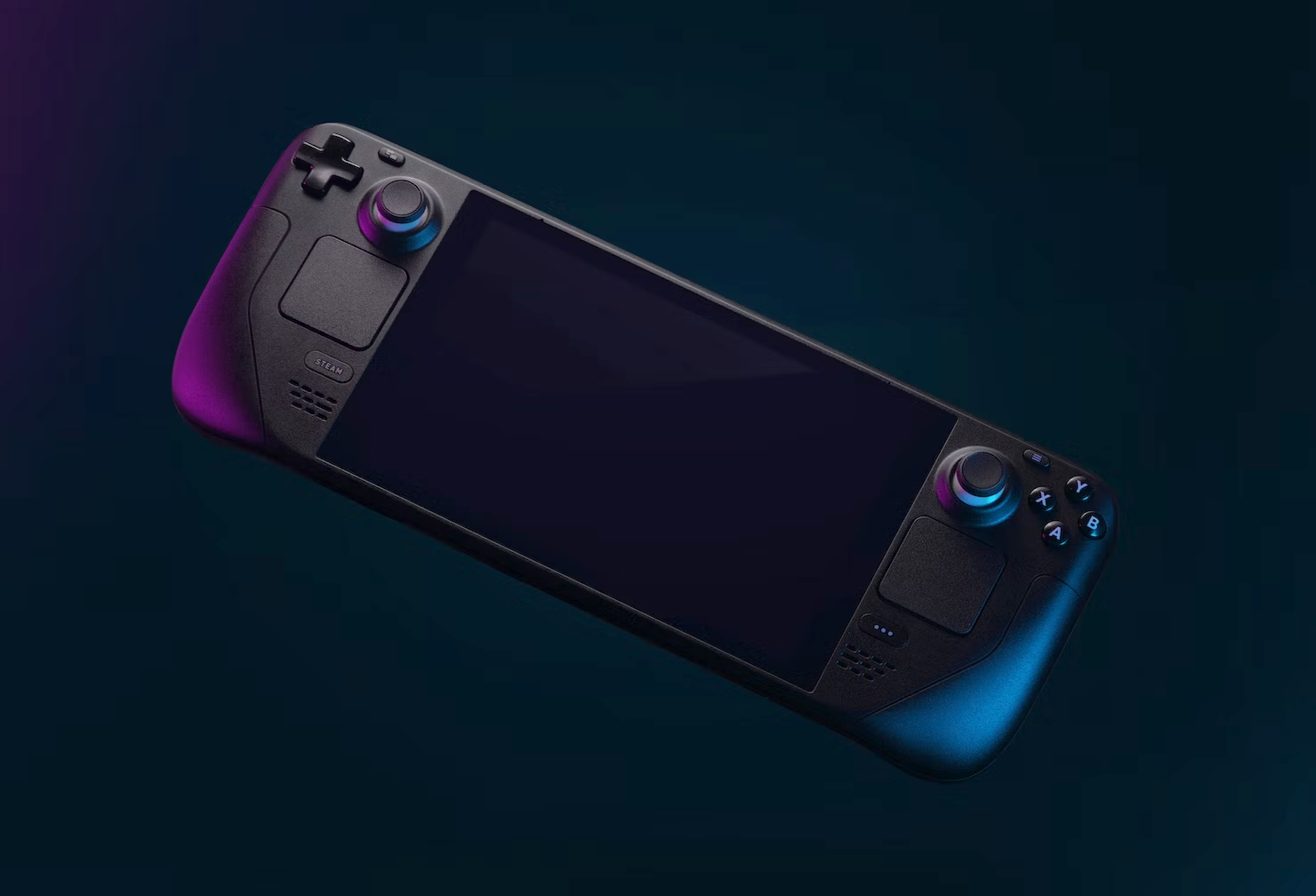
This screen is intended to let you select an account when multiple users are configured. It should not interrupt startup when the device is already set to enter a specific account or session.
The fix should create a smoother transition into Desktop Mode, particularly for people who use only one account and do not need to choose between profiles.
Unexpected account prompts can also be inconvenient when the Steam Deck is connected to a television, dock, keyboard, or mouse and is being used like a small desktop computer.
Automatic login receives a related fix
Valve added another change to the release after its initial publication.
The client should no longer show a login dialog at startup when automatic account login has already begun. Previously, the additional dialog could appear while Steam was already processing the saved account, creating a confusing or unnecessary prompt.
| Startup issue | Expected behaviour after update |
|---|---|
| Automatic login begins | Steam continues without another login dialog |
| User chooser not requested | Desktop Mode opens without showing it |
| Multiple accounts selected manually | Account choice remains available when needed |
| Local transfer requested | Transfer should start in more situations |
This is a small interface correction, but it reduces duplicate prompts and helps startup feel more consistent.
How to install the Steam Deck client update
The update can be installed directly from Gaming Mode.
Open the Steam menu, enter Settings, and select System. Check for available software updates and follow the on screen instructions to install the latest client release.
It is sensible to connect the Steam Deck to power before installing system or client updates. You should also allow the device to restart if required and avoid forcing it to shut down while the installation is in progress.
The update is mainly focused on reliability rather than new features. Steam Deck owners who use local network transfers should see the most practical benefit, while the startup fixes remove two unnecessary account prompts from Desktop Mode and automatic login.

Discussion (0)
Be the first to comment.