



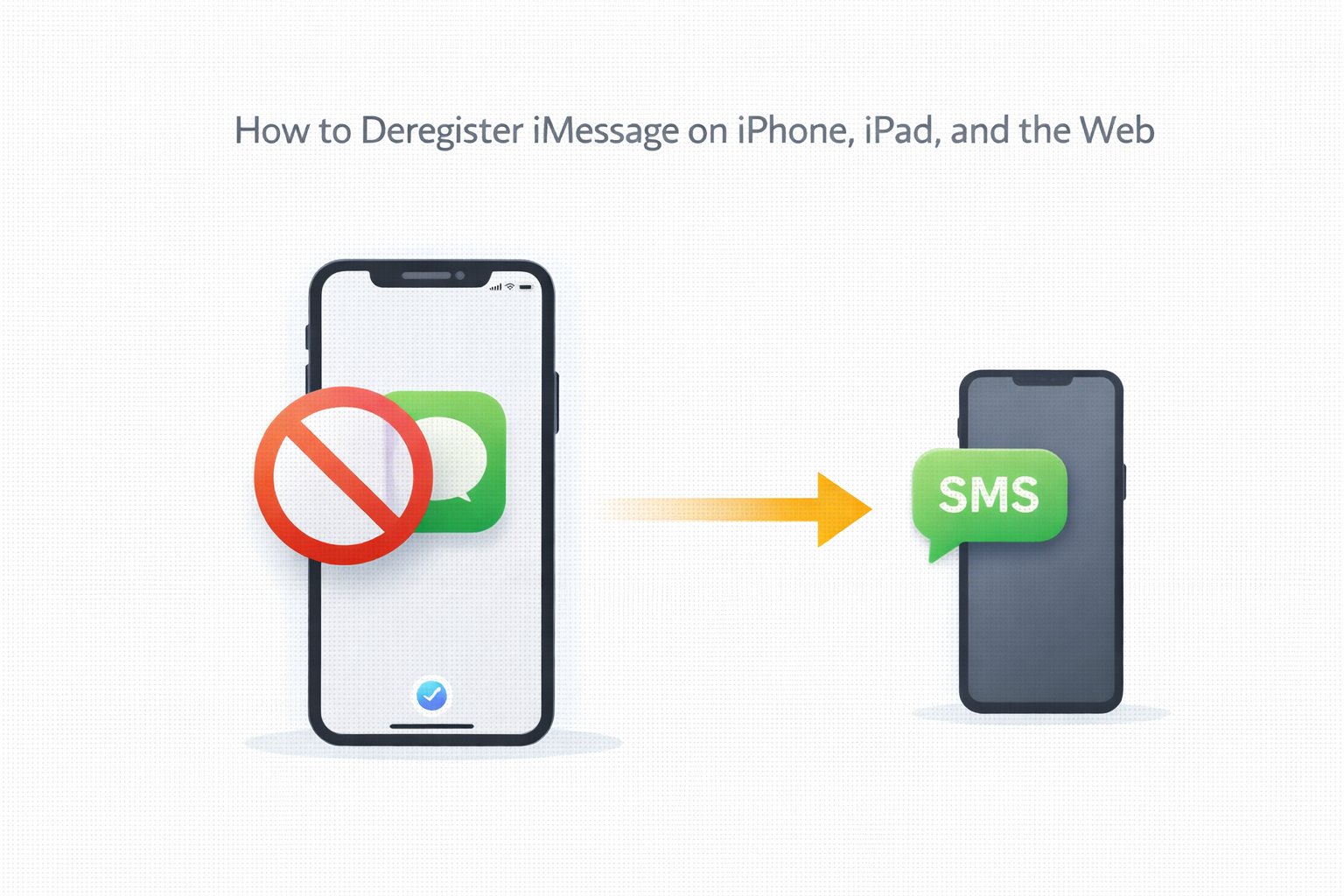
If you switch from an iPhone to another phone and forget to turn off iMessage, text messages from other iPhone users may never reach you. Apple’s servers continue routing messages through iMessage instead of SMS, which causes missed texts.
Deregistering iMessage removes your phone number from Apple’s messaging system so messages deliver normally. The steps depend on whether you still have access to your iPhone or iPad.
How To Turn Off iMessage If You Still Have Your iPhone Or iPad
If your Apple device is still available, this is the fastest and most reliable way to deregister iMessage. It immediately removes your number from Apple’s servers.
- Insert your active SIM card or enable your eSIM.
- Open Settings.
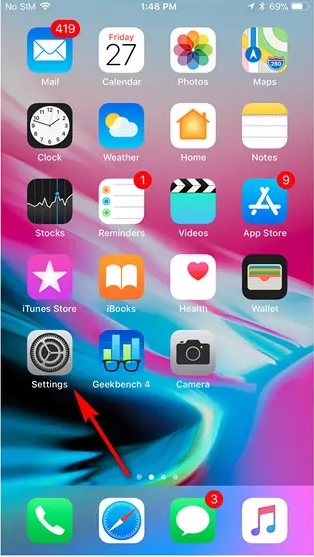
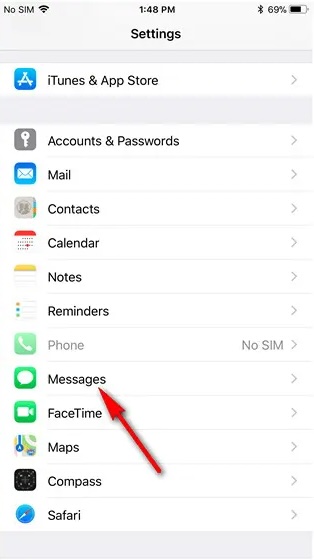
- Tap Apps and select Messages.
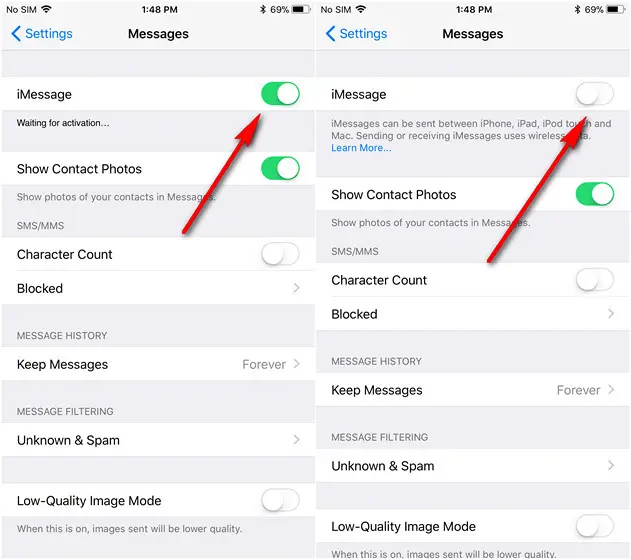
- Turn off iMessage.
- Go back to Settings and open FaceTime.
- Turn off FaceTime.
Once both features are disabled, your number is no longer linked to iMessage.
How To Deregister iMessage Without An iPhone
If you sold, lost, or no longer have your iPhone, Apple provides an official online tool to deregister iMessage remotely.
- Open Apple’s iMessage deregistration page.
- Select your country code.
- Enter your phone number.
- Complete the security check and tap Send Code.
- Enter the verification code sent to your phone.
- Tap Submit to confirm.
Apple confirms once your number is removed. Future messages will arrive as standard SMS.
How To Sign Out Of Your Apple ID To Fully Disable iMessage
If you plan to give away or sell your Apple device, signing out of your Apple ID ensures iMessage and FaceTime are completely disabled.
- Open Settings.
- Tap your Apple ID name.
- Scroll down and select Sign Out.
- Enter your Apple ID password to confirm.
This step prevents any lingering message routing issues.
Troubleshooting Common Problems
If texts still do not arrive after deregistering iMessage, give Apple’s servers several hours to update. Restart your phone and ask a friend with an iPhone to send a new message.
If messages still appear blue on their device, repeat the deregistration process or verify your number is no longer listed under iMessage settings.
Tips
- Always turn off iMessage before removing your SIM card.
- Deregister FaceTime along with iMessage to avoid delivery issues.
- Wait up to 24 hours for Apple’s servers to fully update.
- Test message delivery from both iPhone and Android users.
FAQ
Will I lose my old messages if I deregister iMessage?
No. Existing messages remain on your device. Deregistration only affects future message delivery.
How can I confirm iMessage is disabled?
Messages sent to you should appear green instead of blue.
Can I turn iMessage back on later?
Yes. Sign in with your Apple ID and enable iMessage again in Settings.
Does deregistering iMessage affect iCloud?
No. It only removes your phone number from Apple’s messaging system.
Summary
- Deregistering iMessage prevents missed texts after switching phones.
- You can disable iMessage directly or use Apple’s online tool.
- Turning off FaceTime avoids additional delivery issues.
- Message routing usually normalizes within several hours.
Conclusion
Deregistering iMessage is a simple but essential step when leaving the iPhone ecosystem. It ensures your phone number receives messages normally and prevents silent delivery failures. Completing this process takes only a few minutes and saves long-term frustration.


Discussion (0)
Be the first to comment.