



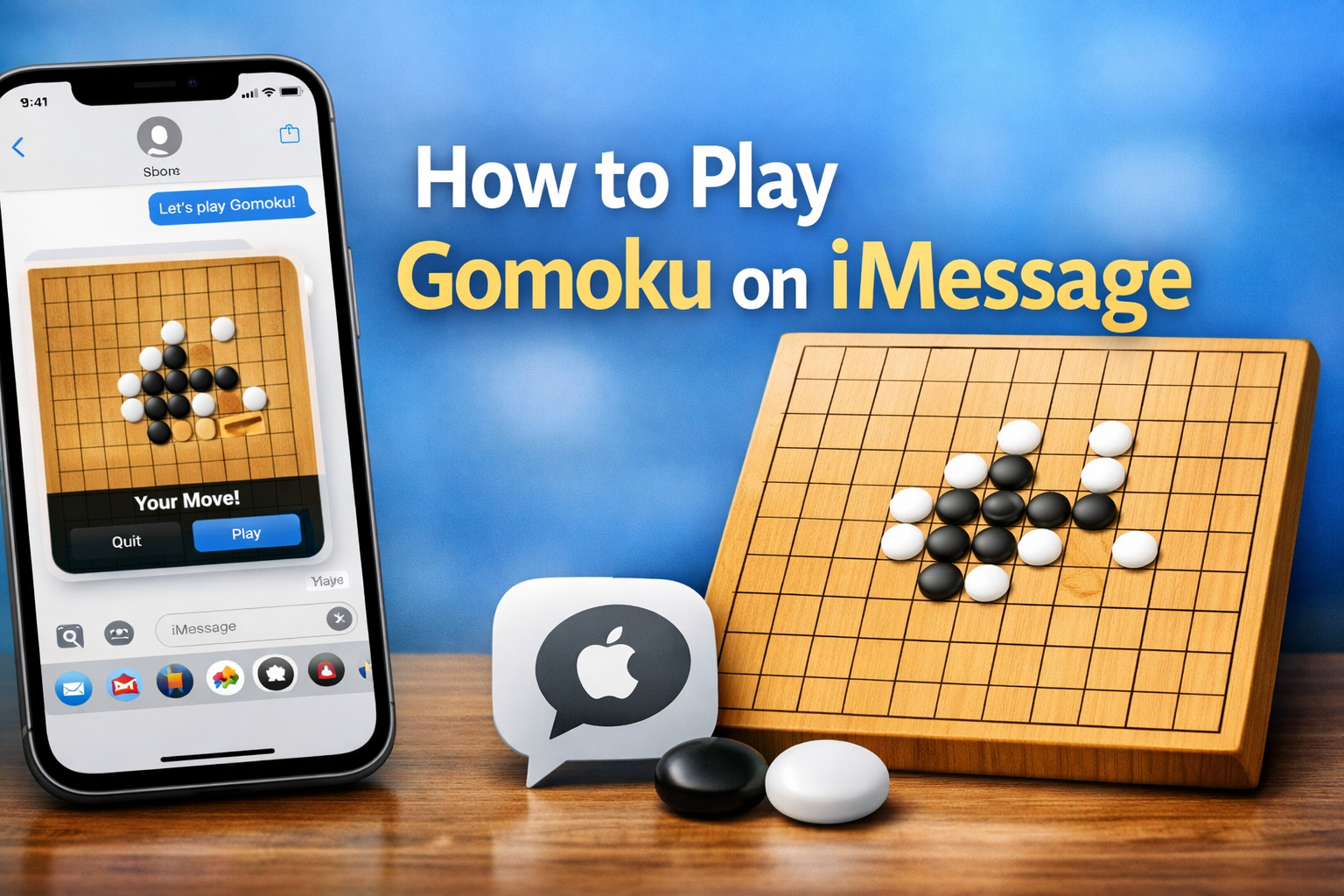
You can play Gomoku directly inside the iMessage app on your iPhone or iPad. The game works as a turn-based board game where you and a contact take turns placing pieces until one player connects five in a row.
This guide shows how to install Gomoku, start a match, understand the rules, and fix common issues.
Table of contents
What Gomoku on iMessage is
Gomoku is a classic strategy game where players aim to place five stones in a straight line. The iMessage version runs inside Messages, so you play without leaving a chat.
How Gomoku works in iMessage chats
Each move sends as an iMessage bubble. You can play in real time or reply later, and the game stays attached to the conversation.
Requirements before you start
You need a compatible device and working iMessage setup before the game appears.
Supported devices and iOS versions
Gomoku works on iPhones and iPads running a recent iOS or iPadOS version. Older systems may hide iMessage apps or block downloads.
Internet and iMessage settings
Turn on iMessage and sign in with your Apple ID. A stable internet connection keeps turns syncing correctly.
How to install Gomoku in iMessage
You install Gomoku from inside the Messages app, not the regular App Store.
Downloading Gomoku from the iMessage App Store
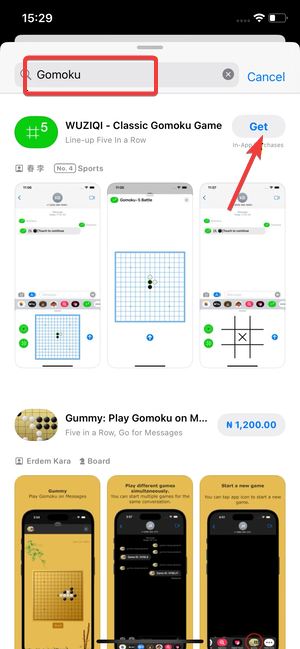
Open Messages, enter any conversation, tap the + icon and select Store. Next, search for Gomoku, then tap Get.
Enabling Gomoku in the Messages app
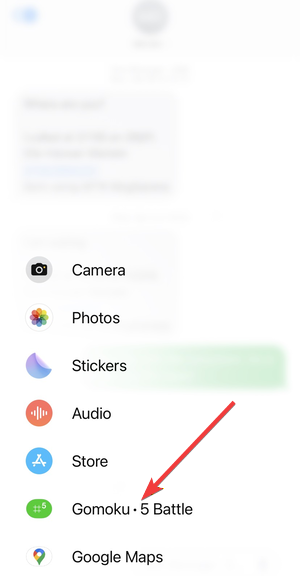
Swipe through the app drawer under the message field and add Gomoku to your favorites if it does not appear.
How to start a Gomoku game on iMessage
Starting a match only takes a few taps once the app is installed.
Starting a new match in a conversation
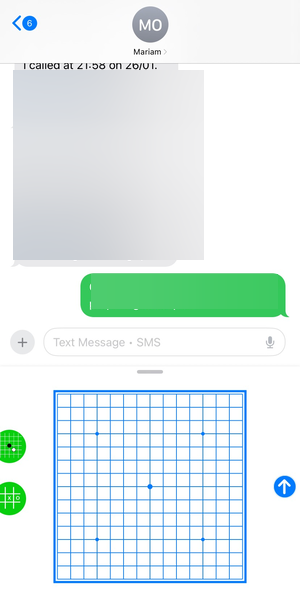
Open a chat, tap the Gomoku icon, and send the game board. The recipient makes the next move.
Taking turns and continuing a game
Tap the game bubble to resume play. Each move sends automatically when you place a stone.
Gomoku rules explained quickly
The iMessage version follows standard Gomoku rules with minor interface limits.
Board size and piece placement
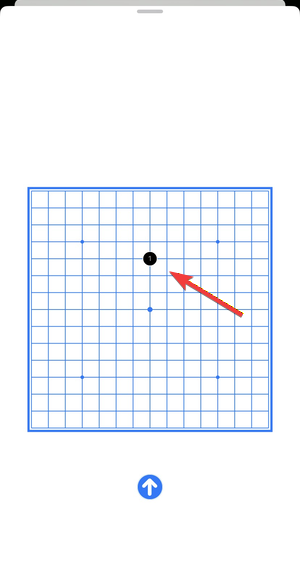
Players place one stone per turn on an empty intersection of the grid. Black always moves first.
Win conditions and common restrictions
You win by placing five stones in a continuous line horizontally, vertically, or diagonally. The game ends immediately after a winning move.
Tips for winning Gomoku on iMessage
Simple strategy helps, even in casual iMessage matches.
Opening moves and positioning
Start near the center to create more winning paths. Avoid corner openings unless you plan a quick trap.
Blocking and reading opponent moves
Always watch for open lines of four. Block early to prevent forced losses.
Troubleshooting Gomoku on iMessage
- Gomoku not showing in iMessage apps: Open the iMessage App Store, reinstall Gomoku, then restart the Messages app.
- Game not syncing or loading: Check your internet connection, close Messages completely, and reopen the conversation.
FAQs about playing Gomoku on iMessage
Can you play Gomoku on iMessage for free?
Yes. You can download and play Gomoku on iMessage for free, though some versions may include optional in-app purchases.
Can you play Gomoku on iMessage with Android users?
No. iMessage games only work between Apple devices, so both players need an iPhone or iPad with iMessage enabled.
Does Gomoku work in group chats on iMessage?
Most Gomoku iMessage apps only support one-on-one conversations. Group chats usually do not allow turn-based gameplay.
Can you play multiple Gomoku games at the same time?
Yes. You can play separate Gomoku matches in different iMessage conversations without affecting other games.
Summary
- Open Messages and install Gomoku from the iMessage App Store.
- Enable the app in the Messages app drawer.
- Start a match by sending the game board in a chat.
- Take turns asynchronously until one player gets five in a row.
Gomoku on iMessage offers a simple way to play a classic strategy game without installing a full app. Once you set it up, you can start matches instantly and play at your own pace inside any conversation.


Discussion (0)
Be the first to comment.