




If you want to download iPhone 16 wallpapers in 4K, quality and resolution matter more than ever. Many wallpapers labeled “4K” are compressed, poorly cropped, or not designed for the iPhone 16’s display proportions.
This guide focuses on true 4K iPhone 16 wallpapers that preserve smooth gradients, sharp edges, and correct scaling across all models. Every wallpaper listed below follows Apple-style design principles and works without quality loss when applied correctly.
Table of contents
What makes iPhone 16 wallpapers different
iPhone 16 wallpapers lean on deep gradients, soft transitions, and centered lighting effects. Apple designs them to look clean behind widgets and the Dynamic Island.
Most official-style options keep detail away from edges, so your screen won’t crop the “interesting” part. That design choice helps the wallpaper look right across multiple iPhone sizes.
Official iPhone 16 wallpapers in true 4K
The wallpapers below follow iPhone 16 stock wallpaper styling and suit 4K downloads. You get clean gradients and sharp edges without heavy compression artifacts.
For best results, save the file as-is and apply it without extra edits. Cropping and re-saving often adds banding, especially in dark gradients.
1) Blue horizon gradient (4K)
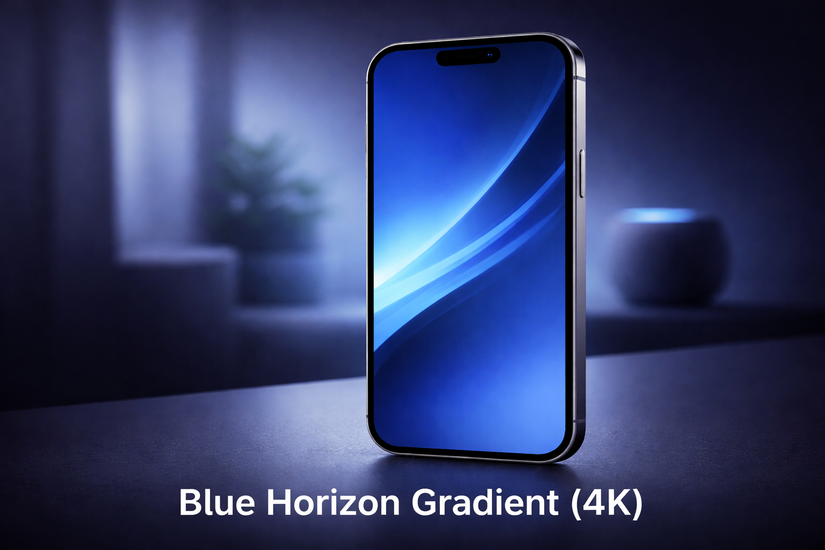
This wallpaper uses a blue-to-indigo gradient that fits the iPhone 16 look. A true 4K file keeps transitions smooth and avoids visible banding.
Use it when you want a clean lock screen with high readability. The centered blend also helps the wallpaper survive cropping on Pro and non-Pro screens.
2) Midnight black wave (4K)
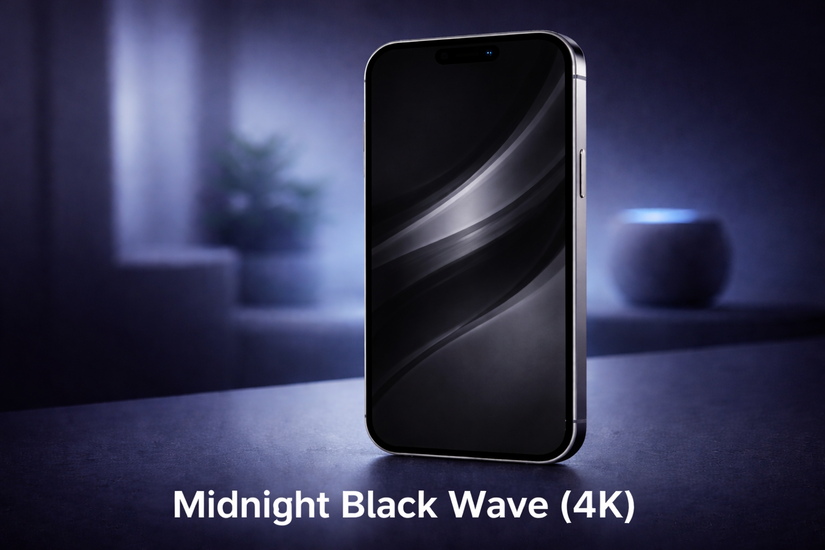
This wallpaper blends near-black tones with a subtle wave texture. 4K detail keeps shadow separation intact instead of turning it into a flat black slab.
Pick it if you want a dark wallpaper that looks premium and stays easy on the eyes. OLED screens also benefit because the darker pixels draw less power.
3) Titanium silver abstract (4K)
This wallpaper mirrors the titanium aesthetic with a silver-gray abstract finish. In 4K, the fine texture looks crisp instead of grainy.
It works well behind icons because it stays neutral and low-contrast. You also get fewer visual clashes with colorful widgets and app badges.
4) Aurora purple flow (4K)
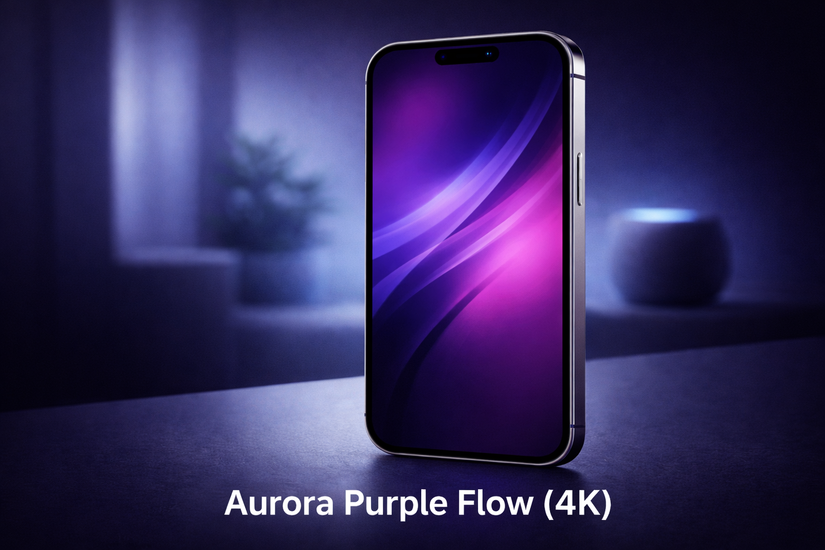
This wallpaper mixes violet and deep blue gradients with a soft “flow” shape. A 4K download keeps the color transitions clean and avoids posterization.
Use it if you want a colorful wallpaper that still reads well under icons. The design keeps the brightest tones away from the center, so your clock stays legible.
5) Solar gold light (4K)
This wallpaper uses warm amber and gold tones with a gentle glow. 4K resolution preserves highlight detail and prevents blocky compression in bright areas.
It fits light mode setups and looks great in bright rooms. You also get a clean background for widgets without harsh edges.
6) Graphite shadow layers (4K)

This wallpaper stacks dark gray layers with a minimal, modern layout. A 4K file keeps layer boundaries sharp and avoids muddy gradients.
Choose it for a minimal home screen with fewer distractions. It also pairs well with monochrome widget themes and dark icons.
7) Ocean teal depth (4K)
This wallpaper blends teal and cyan into a deep, smooth gradient. 4K quality keeps the color depth rich instead of washed out.
It suits both lock screen and home screen layouts because it stays balanced. The gradient also helps icons stand out without looking harsh.
8) Crimson motion abstract (4K)
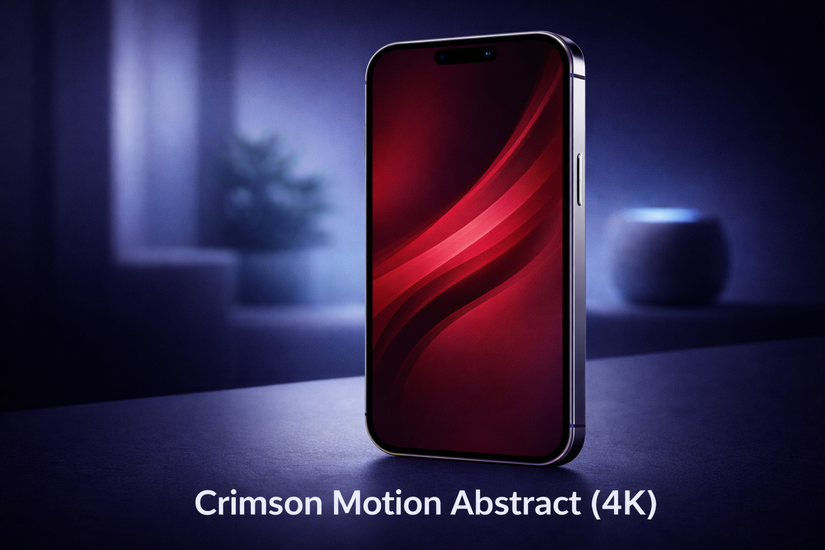
This wallpaper uses deep red tones with gentle curved motion lines. A 4K download keeps curves smooth and avoids jagged edges.
Use it when you want a bold look without losing readability. Darker reds also help reduce glare compared to bright, saturated red wallpapers.
How to set iPhone 16 wallpapers without quality loss
To change your iPhone wallpaper, you need to go to Settings so iOS keeps the original file quality. You also want to avoid edits that re-save the image at a lower quality.
- Open Settings and tap Wallpaper.
- Tap Add New Wallpaper, then tap Photos.
- Select your 4K wallpaper file, then tap Add.
- Tap Set as Wallpaper Pair, or tap Customize Home Screen to set a different Home wallpaper.
- Turn off Perspective Zoom if you see extra cropping.
Tips for getting the best visual results
- Match the wallpaper’s aspect ratio to your iPhone model to reduce cropping.
- Use darker wallpapers on OLED screens to cut glare and save some battery.
- Keep the lock screen clean so the wallpaper’s gradients look smoother.
FAQs
Can I use iPhone 16 wallpapers on older iPhones? Yes, but iOS may crop the image to fit your screen. You can often fix it by turning off Perspective Zoom.
Are these wallpapers official Apple files? They follow the iPhone 16 stock wallpaper style and target 4K downloads. Apple can ship different variants across iOS versions and devices.
Do these wallpapers work with StandBy mode? Yes, iOS will display them fine in StandBy layouts. You get the best results when the file stays lossless, and you avoid re-saving it.
Will iOS compress my wallpaper? iOS can reduce quality if you edit and re-export the image. Set the wallpaper directly and avoid third-party “compressor” apps.
Summary
- Pick a true 4K iPhone 16 wallpaper with clean gradients and centered detail.
- Set the wallpaper from Settings to keep image quality intact.
- Turn off Perspective Zoom if iOS crops the wallpaper too much.
- Use dark wallpapers on OLED screens for a cleaner look and less glare.
If you want the cleanest “download iPhone 16 wallpapers 4K” result, stick to files that keep smooth gradients and match your screen’s aspect ratio. Start with a dark option for OLED, then swap to a brighter gradient for daytime use.



Discussion (0)
Be the first to comment.