




Dynamic Island changes how wallpapers look on modern iPhones, and not every 4K image works well with the cutout. The right 4K Dynamic Island wallpapers for iPhone hide distractions, keep icons readable, and make the top area feel intentional.
This guide focuses on true 4K designs built specifically around the Dynamic Island so your Lock Screen and Home Screen look clean on every compatible Pro model.
Table of contents
What makes a wallpaper Dynamic Island-optimized
A Dynamic Island-optimized wallpaper treats the pill cutout as part of the composition. It uses negative space, contrast, and framing so the island blends in or becomes a design feature.
Difference between regular iPhone wallpapers and Dynamic Island designs
Regular wallpapers often place important detail at the top, so the cutout covers it. Dynamic Island designs keep key elements lower or wrap visuals around the island to avoid awkward overlap.
Compatible iPhone models for Dynamic Island wallpapers
Dynamic Island wallpapers look best on iPhones that actually have the Dynamic Island. Use them on iPhone 14 Pro and newer Dynamic Island models for correct alignment and cleaner framing.
iPhone 14 Pro and iPhone 14 Pro Max
These models introduced Dynamic Island, so most “island-aware” wallpapers target their proportions. You will get the cleanest look when the design leaves space around the cutout.
iPhone 15 Pro models and iPhone 16 Pro models
Newer Pro models benefit most from true 4K files because the display highlights compression artifacts. Pick designs with simple top framing so iOS cropping does not ruin the effect.
Download 4K Dynamic Island wallpapers
These 4K Dynamic Island wallpapers use cutout-aware framing, so the top area looks intentional. Save each image to Photos, then set it as your wallpaper with zoom disabled for the best fit.
1) Retro gaming controller
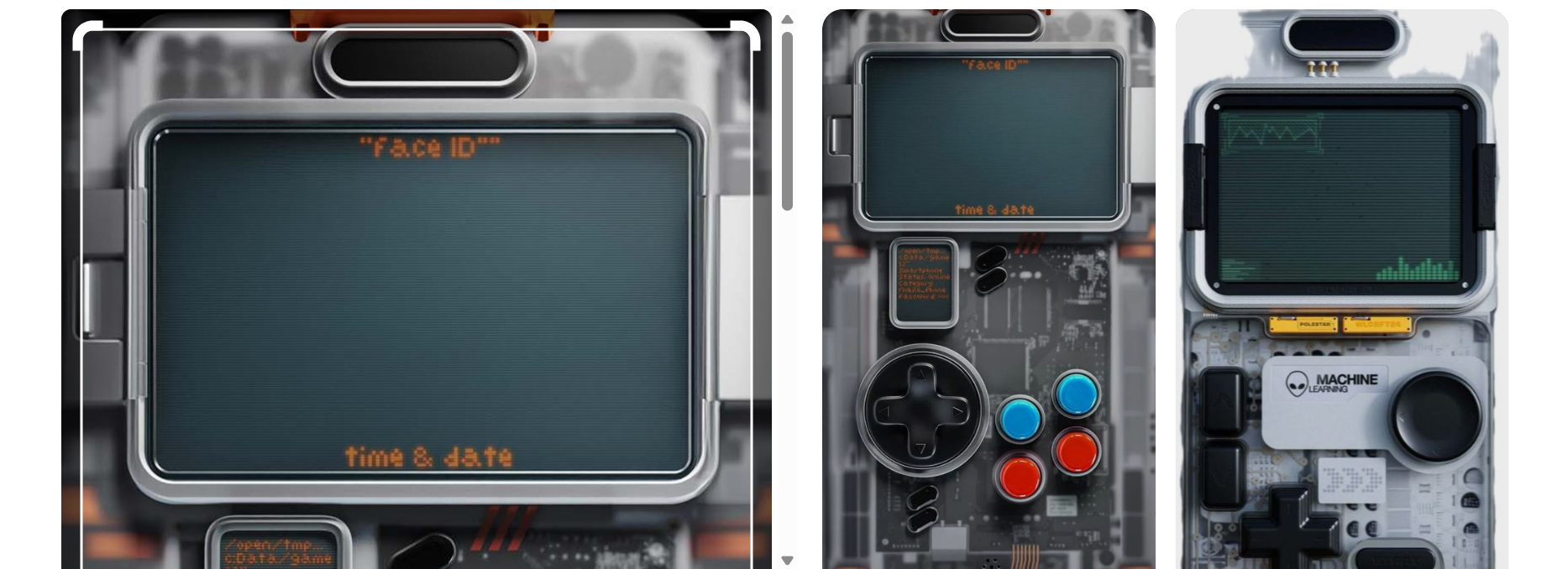
This 4K Dynamic Island wallpaper turns the top cutout into a “status bar” area on a retro controller design. The darker top band helps the island disappear while keeping icons readable.
Use this wallpaper on the Lock Screen if you like notification-heavy setups. Disable perspective zoom so the controller edges stay crisp and aligned around the Dynamic Island.
2) Crayon Shin-chan

This 4K Dynamic Island wallpaper places a playful character near the cutout, so the island feels like part of the expression. Bright colors make it pop without hiding app icons.
Keep widgets minimal for a cleaner look near the top. If iOS crops too aggressively, reposition the image slightly lower before you tap Add.
3) Midnight visitor UFO beam
This 4K Dynamic Island wallpaper uses a dark sky with a beam that starts near the cutout. The island blends into the black space while the beam draws your eye downward.
Choose this if you want a dramatic Lock Screen that still looks clean. Turn off blur effects so the beam keeps sharp edges around the Dynamic Island.
4) Spider-Man minimalist
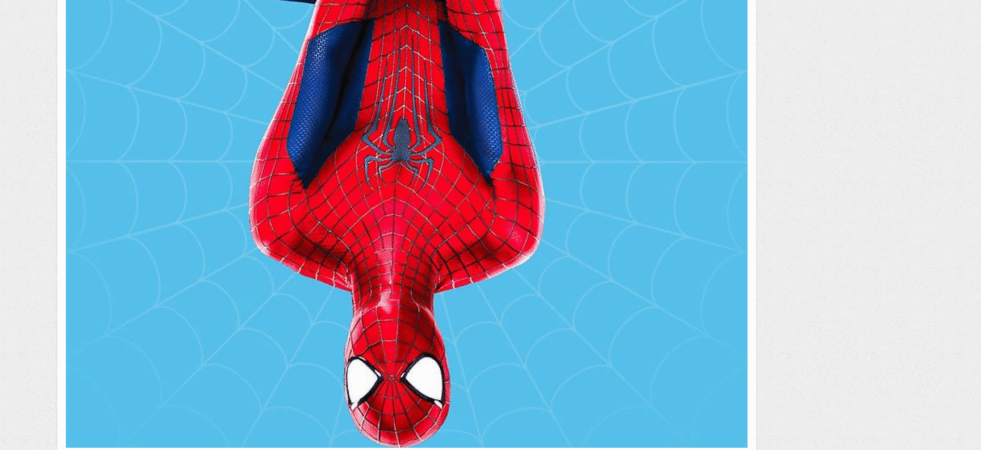
This 4K Dynamic Island wallpaper frames the cutout with a simple hero silhouette and bold background. The design keeps the top area uncluttered while staying high-contrast.
Use it on the Home Screen if you prefer easy icon visibility. Keep your top row of widgets off so the Dynamic Island framing stays obvious.
5) Astronaut swing in space
This 4K Dynamic Island wallpaper uses deep blacks and a floating astronaut, with the top area acting like a natural anchor point. The island blends into the space background for an “invisible cutout” look.
It looks best in Dark Mode on OLED screens. Set it as a wallpaper pair if you want a matching Home Screen color that stays calm and readable.
6) Cyberpunk girl neon
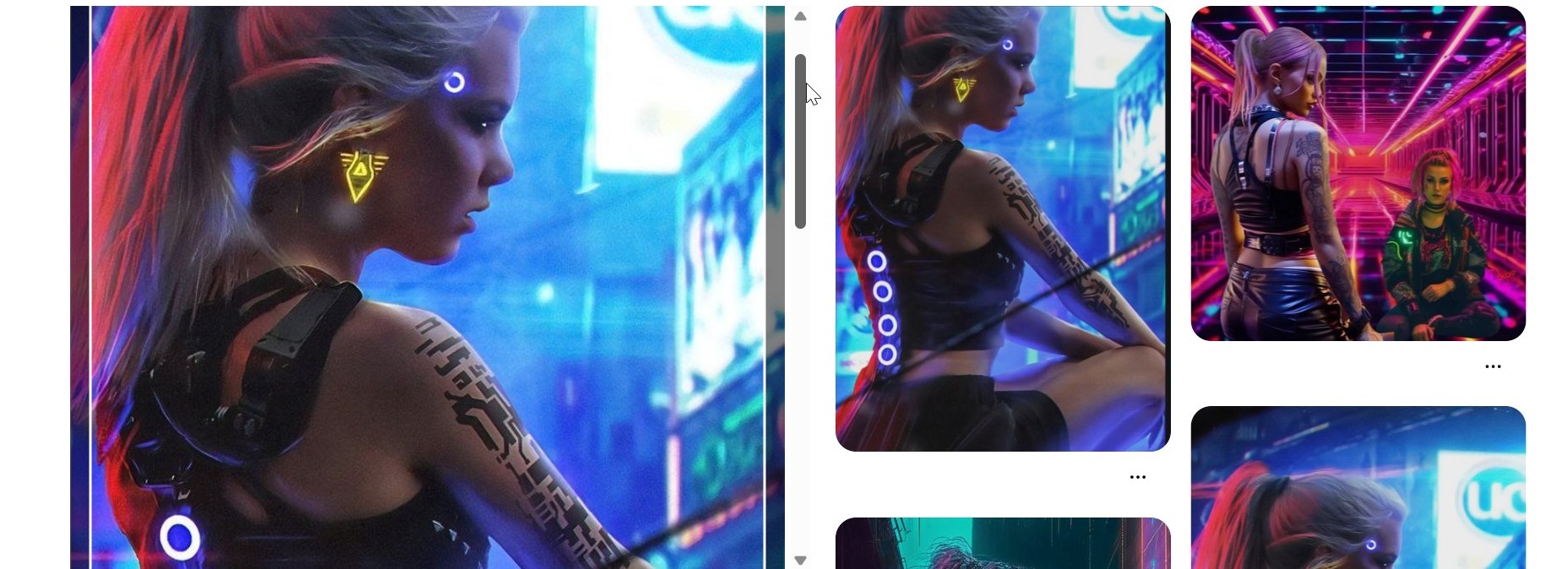
This 4K Dynamic Island wallpaper uses neon highlights and darker top framing to reduce cutout distraction. The island sits inside a moody gradient, so it feels intentional instead of random.
Place icons in lower rows to avoid clutter near the face area. If the wallpaper looks too busy, remove extra widgets and keep only a single clock style on the Lock Screen.
7) Red and black chevrons
This 4K Dynamic Island wallpaper uses bold chevrons that point toward the cutout, so the top becomes part of the layout. The black region helps the Dynamic Island fade in naturally.
It works well for users who like a strong, sporty look. Disable zoom so the chevrons do not warp and drift away from the Dynamic Island.
8) Iron Man action
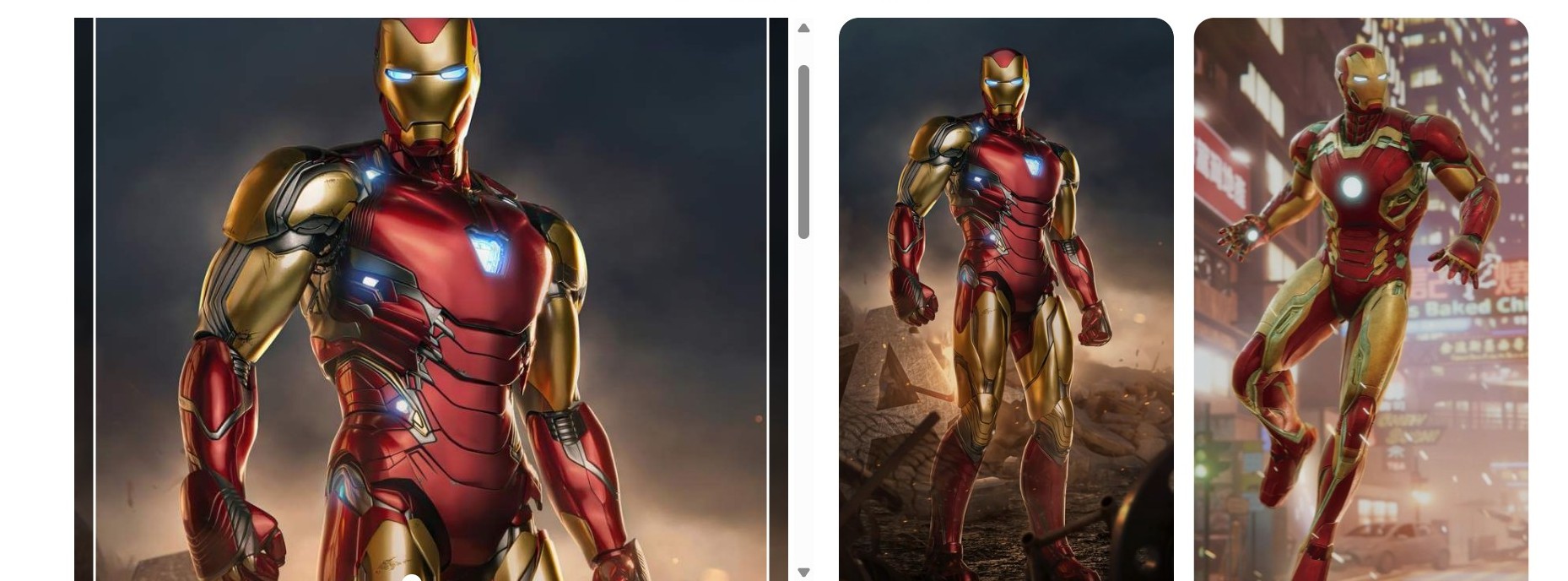
This 4K Dynamic Island wallpaper positions the hero so the cutout sits inside a darker top area. The color palette stays bold, but the composition keeps the island from covering important detail.
Use it when you want a high-energy wallpaper that still reads clean at a glance. If you see cropping, zoom out slightly before you confirm the wallpaper.
How to set a 4K Dynamic Island wallpaper on iPhone
An easy option to change your iPhone wallpaper is via the Photos app if you downloaded a single file. You can also set it from Files first if you downloaded a ZIP, then save the image to Photos.
Set wallpaper from Photos
- Open Photos and select the 4K Dynamic Island wallpaper.
- Tap the Share button, then tap Use as Wallpaper (if you see it) or copy/save as needed.
- Adjust the position so the top framing aligns with the Dynamic Island.
- Turn off Perspective Zoom (or any zoom/blur toggle you see on the preview screen).
- Tap Add, then choose Set as Wallpaper Pair or set Lock Screen only.
Set wallpaper from Files or ZIP downloads
- Open Files and locate the ZIP or image file you downloaded.
- Tap the ZIP to extract it, then open the wallpaper image.
- Tap Share, then tap Save Image to put it in Photos.
- Go to Settings > Wallpaper > Add New Wallpaper.
- Select Photos, pick the wallpaper, align it to the Dynamic Island, then tap Add.
Tips to get the best visual results
- Turn off perspective zoom so the Dynamic Island framing stays aligned.
- Use true 4K files to avoid blur, banding, and jagged gradients.
- Keep the top area clean by limiting widgets near the Dynamic Island.
- Preview Lock Screen notifications to confirm the design still looks intentional.
FAQs
Do Dynamic Island wallpapers affect battery life? Dark wallpapers can help on OLED screens because black pixels draw less power than bright pixels.
Can I use these wallpapers on non-Pro iPhones? You can use them, but you will not get the Dynamic Island effect because the cutout does not exist on those models.
Will these wallpapers break after iOS updates? Your wallpapers stay in Photos, so you can reapply them anytime. If iOS changes cropping behavior, you may need to reposition the image.
Summary
- Pick a true 4K Dynamic Island wallpaper with clean top framing.
- Set it in Settings > Wallpaper and align it to the cutout.
- Turn off zoom/blur options so the design stays sharp and consistent.
- Use Dark Mode pairs when you want the Dynamic Island to disappear more.
If you want the cleanest look, start with dark, minimal designs and keep the top area widget-free. After you align it once, save that wallpaper set so you can swap back quickly.

Discussion (0)
Be the first to comment.