



WhatsApp profile pictures, often called display pictures or DPs, are visible by default but intentionally difficult to save. WhatsApp blocks screenshots and direct downloads on mobile to protect user privacy.
That limitation does not mean saving a WhatsApp profile picture is impossible. At the time of writing, several reliable methods still work across Android, iPhone, and desktop platforms.
Important Privacy Reminder Before You Start
WhatsApp restricts saving profile photos to reduce misuse. Saving a profile picture for personal reference is generally allowed, but reusing or distributing it without consent can create legal and ethical issues.
If possible, ask for permission before saving or sharing someone’s WhatsApp DP.
Save A WhatsApp Group Profile Picture
WhatsApp allows screenshots of group profile pictures, even when individual profile photos are restricted. This makes group icons the easiest place to start.
- Open WhatsApp on your phone
- Tap the group chat and open the group info screen
- Select the group profile picture to view it full screen
- Take a screenshot using your device shortcut
- Crop the image in your gallery to keep only the picture
Use Another Device To Take A Photo
Using a second phone, tablet, or camera remains the most basic workaround. This method works on both Android and iPhone without triggering screenshot restrictions.
- Open the WhatsApp profile picture on your primary device
- Use another device to take a clear photo of the screen
- Adjust lighting and angle to improve image quality
Check WhatsApp Profile Photos Folder On Android
Some Android devices temporarily store viewed profile pictures locally. This does not always work, but it is worth checking.
- Open your file manager app
- Search for a folder named WhatsApp Profile Photos
- Browse images to see if the profile picture appears
This method depends on device model, Android version, and storage permissions.
Save Profile Pictures Using WhatsApp PC App
The WhatsApp desktop app for Windows and Mac does not block screenshots. This makes it one of the most reliable methods.
- Install WhatsApp on your Windows PC or Mac
- Sign in using QR code pairing
- Open the contact’s profile picture
- Use system screenshot shortcuts to capture the image
- Crop and save the picture locally
Use WhatsApp Web In A Browser
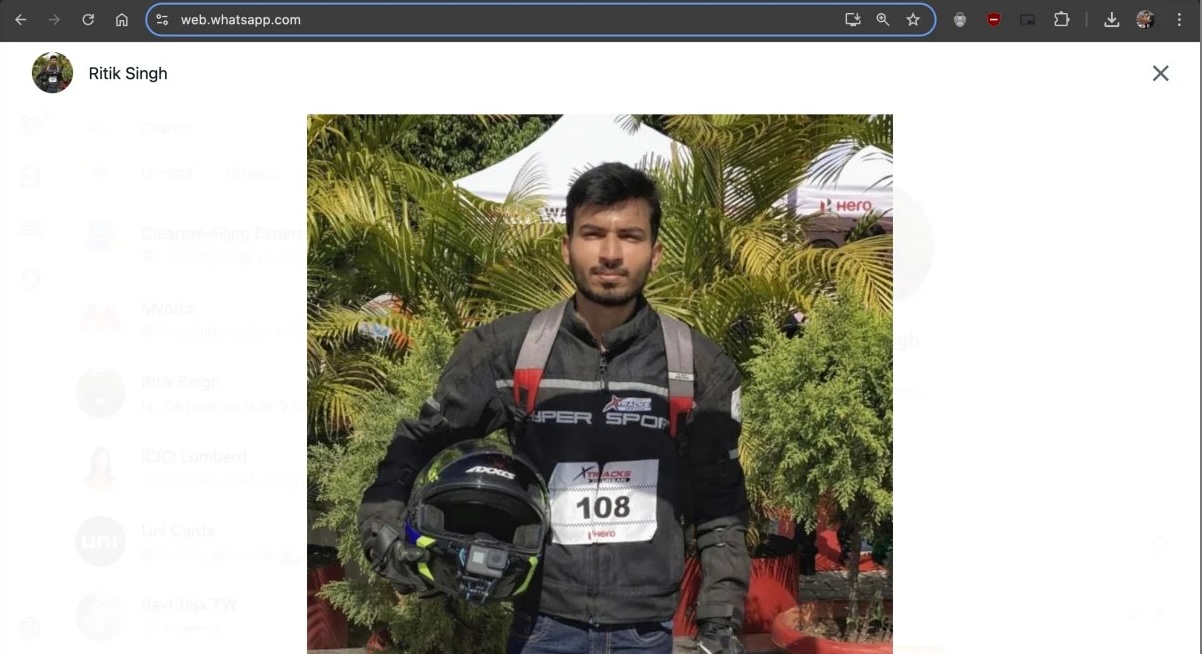
WhatsApp Web works similarly to the desktop app and also allows screenshots of your WhatsApp contact profile picture without restrictions.
- Open WhatsApp Web in a desktop browser
- Link your account using the QR code.
- Open your chat with the contact.
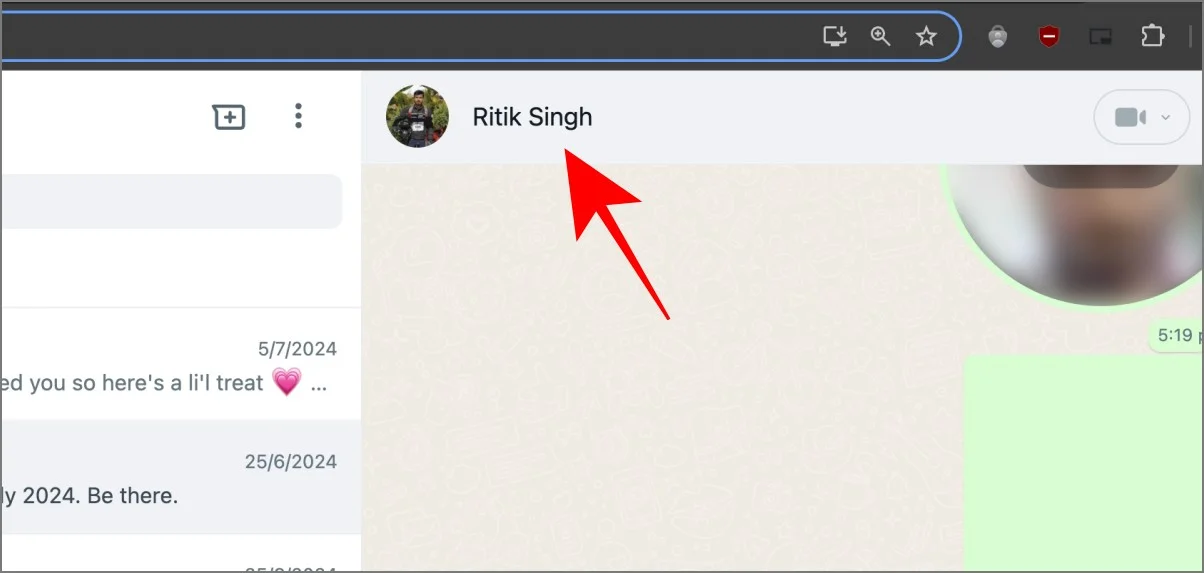
- Open the contact’s profile picture.
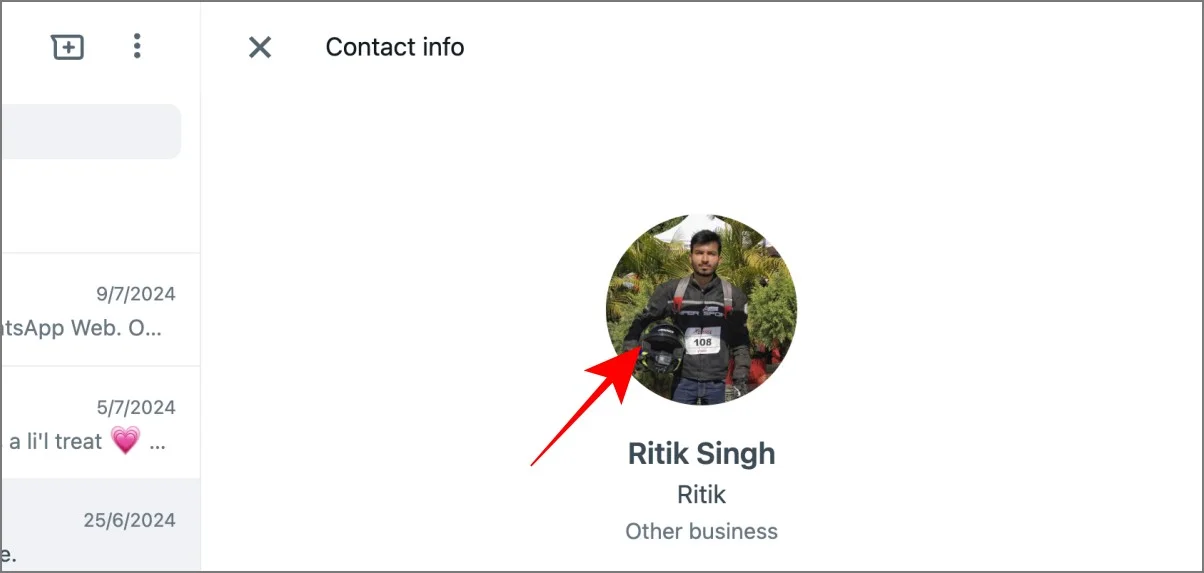
- Take a screenshot and crop the image
Online Tools To Download WhatsApp Profile Pictures
Some online tools claim to download WhatsApp profile pictures using phone numbers. These only work if the profile photo is publicly visible.
- Confirm the profile picture is visible without saving the contact
- Enter the phone number into the tool
- Download the image if available
Use this method cautiously, as it involves sharing phone numbers with third-party services.
Troubleshooting Common Problems
If a method does not work, the profile picture may be restricted to contacts only. WhatsApp privacy settings can prevent saving entirely.
Desktop screenshots may fail if the image is blurred or not fully loaded. Zoom in and reopen the profile picture before capturing.
Tips
- Desktop methods usually offer the best image quality
- Group profile pictures have fewer restrictions
- Avoid third-party tools unless absolutely necessary
- Respect privacy settings and user consent
FAQ
Can WhatsApp notify someone if I save their profile picture? No, WhatsApp does not send notifications for screenshots or photos taken with another device.
Why can’t I screenshot a WhatsApp profile picture on my phone? WhatsApp blocks screenshots on mobile to protect privacy.
Does WhatsApp Web allow saving profile pictures? WhatsApp Web allows screenshots on desktop systems.
Can I save profile pictures on iPhone? Yes, but only using indirect methods like another device or desktop platforms.
Summary
- WhatsApp blocks direct profile picture downloads on mobile
- Group icons and desktop platforms remain accessible
- Android file folders may store cached images
- Online tools work only for public profiles
Conclusion
WhatsApp profile picture restrictions focus on privacy, not prevention. With the right approach, saving a WhatsApp DP remains possible without alerting the other person.
Desktop methods provide the safest balance between quality and reliability. Always use saved images responsibly and respect user consent.

Discussion (0)
Be the first to comment.