WhatsApp is more popular than ever, so there's no wonder people want to access it on all possible devices. Ever wondered how to use WhatsApp on PC instead of your Android smartphone? There are two ways to access the app from your computer or device, either from your browser or by using the WhatsApp Desktop client. Read this tutorial to learn how to use WhatsApp directly from your Windows 10 computer:
First things first: What you need to know about using WhatsApp on PC
Closing in on two billion monthly active users, WhatsApp is more popular than ever. While the app helps us stay connected, it also takes up a lot of time from our day, cultivating the Pavlovian conditioning of checking our smartphones whenever we get a new message. Luckily, you can now use WhatsApp on your PC, which can be a time-saver, especially if you spend hours in front of a computer.
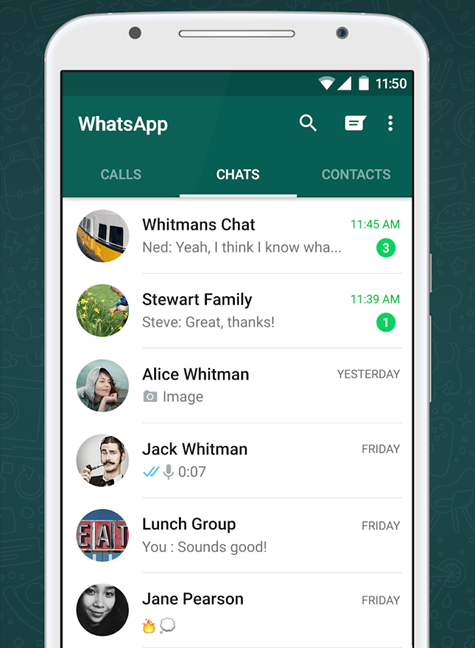
The official WhatsApp app for Android
Both WhatsApp Web and WhatsApp Desktop use your smartphone to route messages, so the mobile version needs to be active in order for them to work. That means your smartphone needs to have WhatsApp installed and plenty of battery. It also requires a stable internet connection, either on WiFi or with a good data plan to avoid extra charges, because all messages sent and received are synced on the devices connected to your account.
One thing to keep in mind is that, although both versions are excellent, they can't fully replace the mobile version, which still offers important extra features, like audio and video calls.
TIP: You can use WhatsApp Web and WhatsApp Desktop to log in on multiple devices. However, only one instance of the app can be used at one time, on top of the classic mobile version.
How to use WhatsApp Web from your browser
If you spend a lot of time browsing the internet, having WhatsApp open in your browser can save you tons of time. WhatsApp Web is the official web-based client for the app and the easiest way to use WhatsApp on PC. You can use it with the five most popular browsers out there: Google Chrome, Mozilla Firefox, Opera, Safari, and Microsoft Edge. Open your browser - in our case, Google Chrome - and access WhatsApp Web.
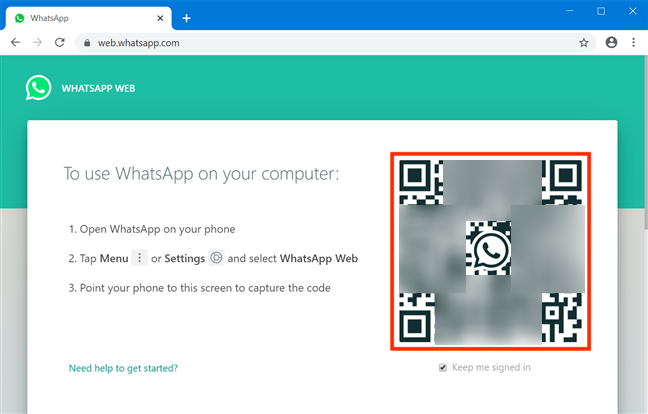
WhatsApp Web displays a QR code
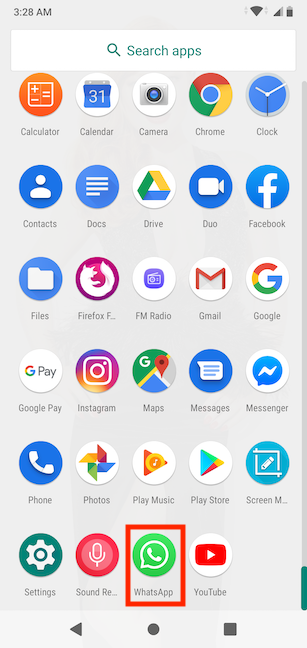
The page displays a QR code. To pair WhatsApp Web with your Android smartphone, you need to scan the code. Start by opening WhatsApp on your smartphone. A surefire way to access it is from the All apps screen.
Tap on WhatsApp to open it
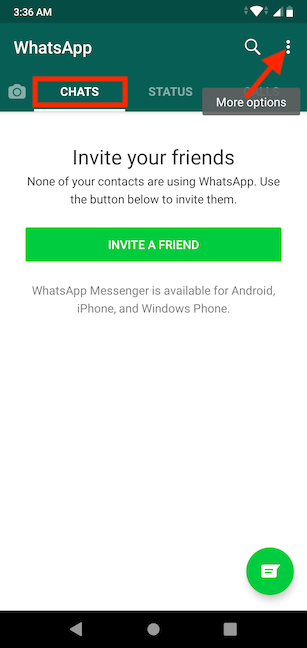
In the Chats section, tap the More options button from the upper right corner. Its icon looks like three vertical dots.
Tap on More options
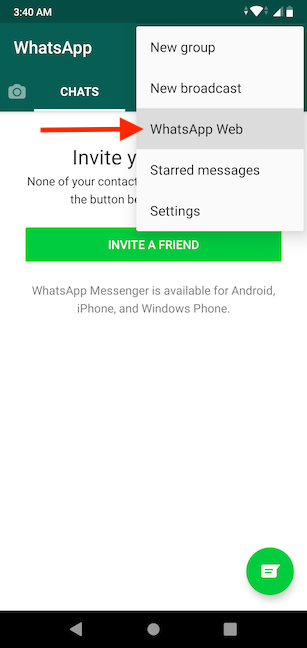
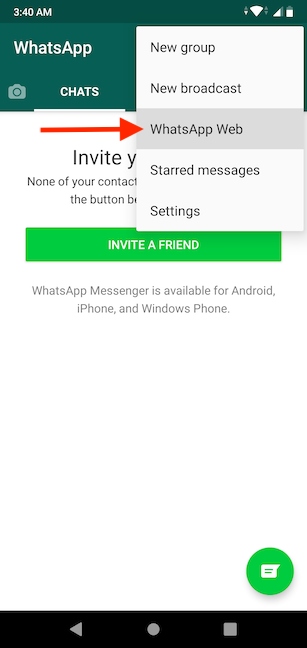
Tap on WhatsApp Web in the menu that opens.
Select WhatsApp Web from the menu
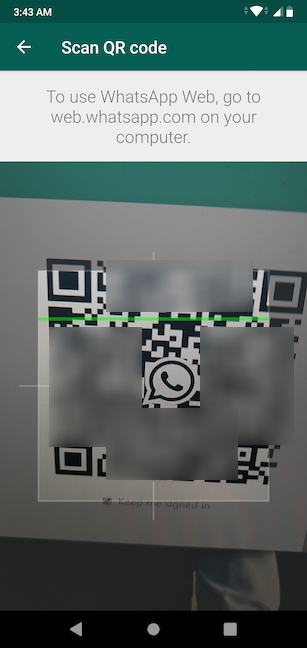
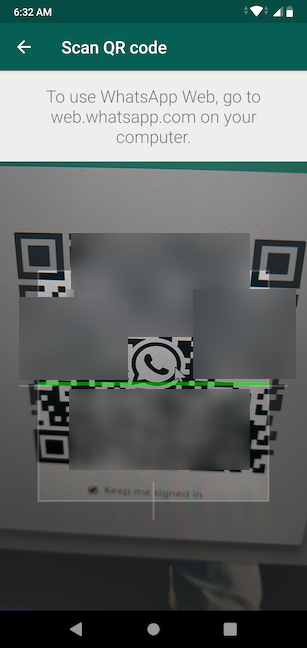
Your Android smartphone displays a screen similar to camera mode, with a highlighted rectangular section.
Point it at your computer monitor and scan the QR code by framing it inside the rectangular section.
Scan the QR code
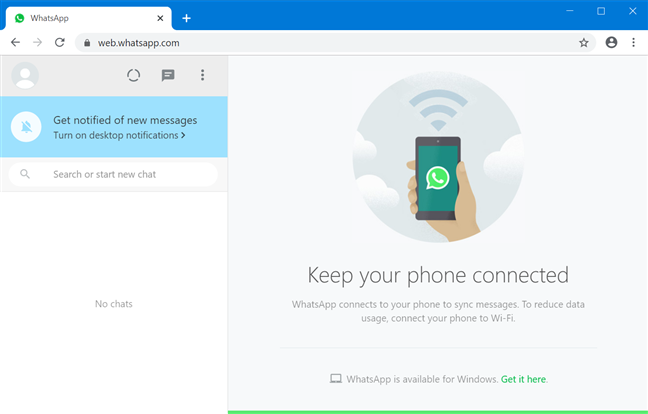
WhatsApp loads immediately in the web client you opened in your browser, and you can now use it to send and receive messages.
Use WhatsApp from your browser
How to use the WhatsApp Desktop app on Windows 10
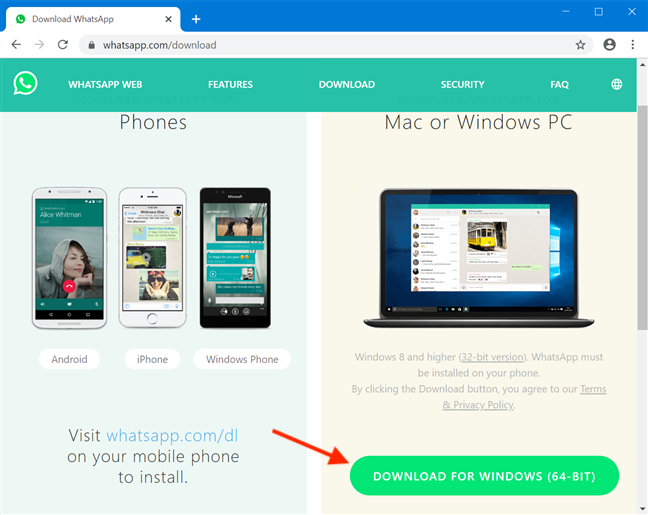
You can also use WhatsApp on your PC through its official standalone Windows 10 desktop client: WhatsApp Desktop. Access the WhatsApp Download page, which automatically detects your operating system and suggests the compatible version. Download and install WhatsApp Desktop on your Windows 10 computer or device.
It's easy to get WhatsApp Desktop from its official download page
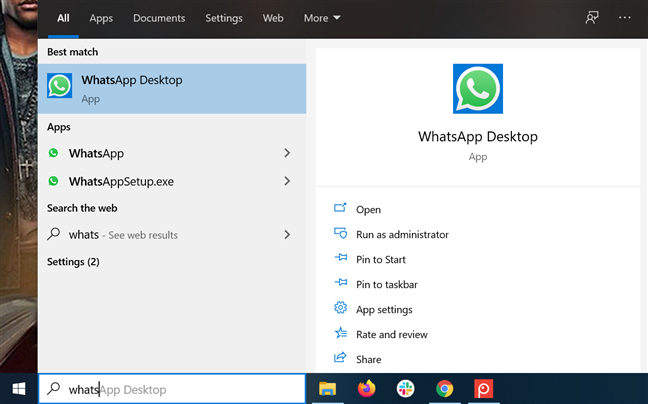
You can also get WhatsApp Desktop from the Microsoft Store. Once the app is installed, search for "whatsapp" in your taskbar's search field and click or tap on WhatsApp Desktop or on WhatsApp.
Access the app from your taskbar's search field
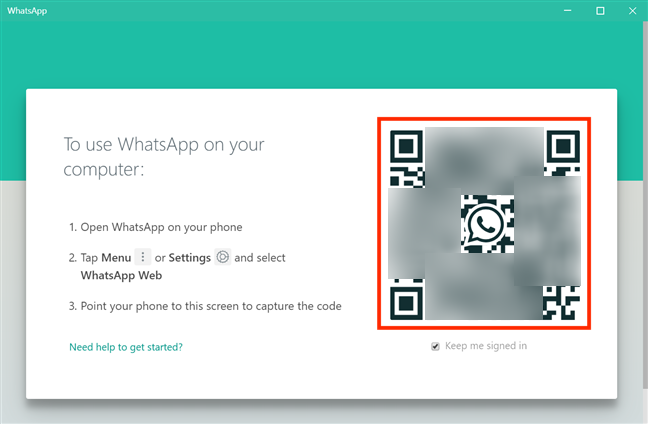
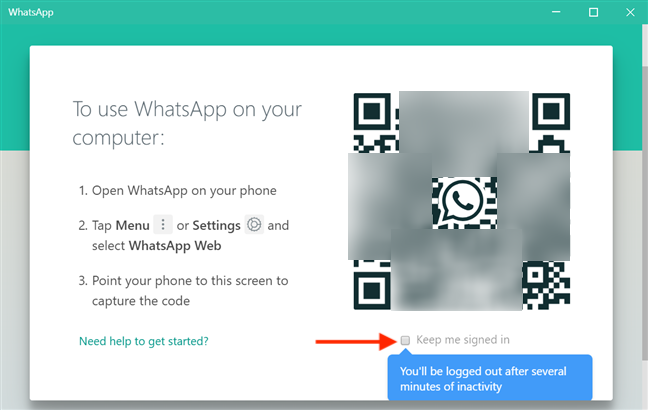
The program is basically a downloadable version of WhatsApp Web, so connecting to your account is similar. The app launches, displaying a screen with a QR code.
When you open the app, you see a QR code
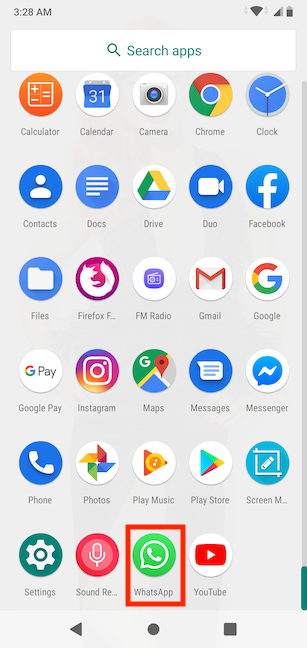
On your Android smartphone, open WhatsApp from the All apps screen.
Access WhatsApp on your smartphone
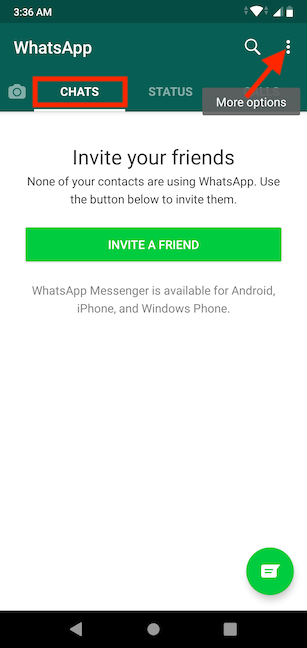
Make sure that you are in the Chats section, and then tap on the More options button, which looks like three vertical dots, from the upper right corner.
Access More options in WhatsApp for Android
This reveals a menu. Tap on WhatsApp Web.
Access WhatsApp Web
Your Android smartphone shows a screen similar to camera mode, and you need to use it to scan the QR code. Point your smartphone at your monitor, and use the highlighted rectangular section in the middle of the screen to frame the QR code.
Frame the QR code to scan it
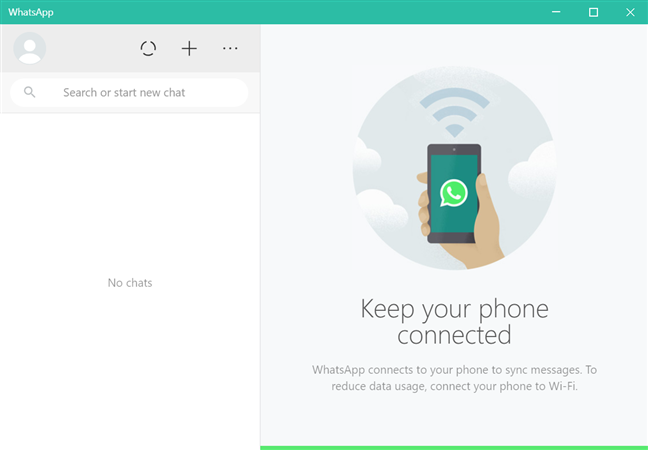
The WhatsApp Desktop app connects to your account. It now syncs your messages between devices, and you can use it to communicate.
Use WhatsApp Desktop for Windows 10
Bonus: Stop using WhatsApp on PC
If you're using multiple browsers and/or devices, you might want to access your WhatsApp account on all of them. By default, the option to remember your account is enabled in both the web and the desktop WhatsApp clients.
If you plan to use WhatsApp shortly on a PC, disable the "Keep me signed in" option, which is displayed under the QR code.
Uncheck Keep me signed in before scanning the QR code
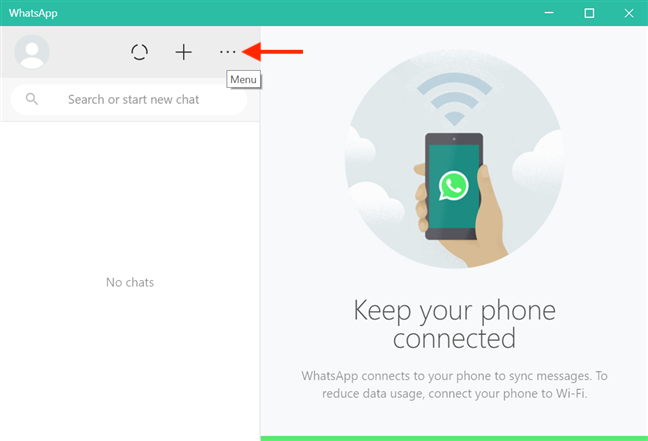
If you forgot to uncheck that section, you can logout from WhatsApp Web and WhatsApp Desktop by using the Menu button shown by both clients. It looks like three horizontal dots.
Tap the Menu icon
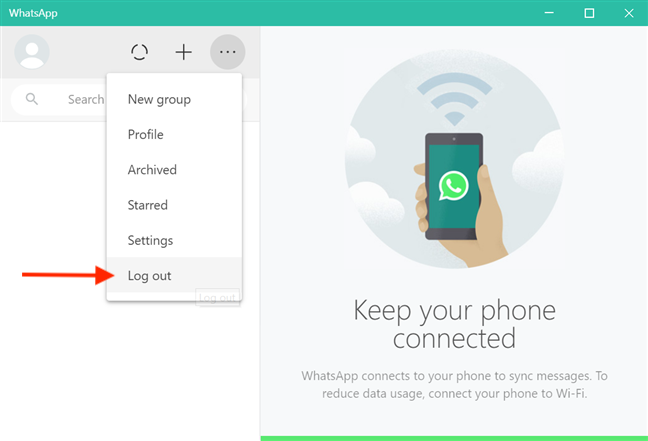
Click or tap on Log out, and that browser or app no longer remembers your WhatsApp account.
Choose Log out to disconnect your WhatsApp account
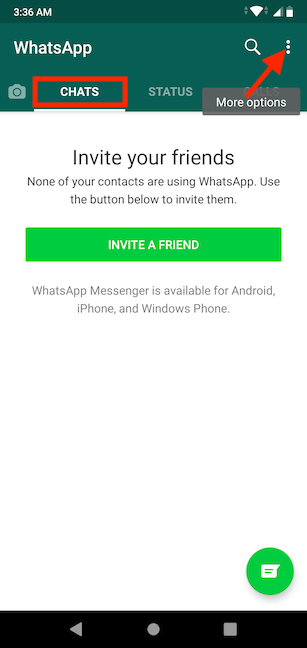
But what if you used a public computer and you realize you forgot to log out of your WhatsApp account. The thought alone of someone else seeing your messages kinda fills you with dread, doesn't it? Don't worry, WhatsApp has you covered, and it gives you the option to logout from clients and devices directly from your mobile app. Open WhatsApp on your Android smartphone, go to the Chats tab, and tap the More options button from the upper right corner.
Tap on More options in WhatsApp for Android
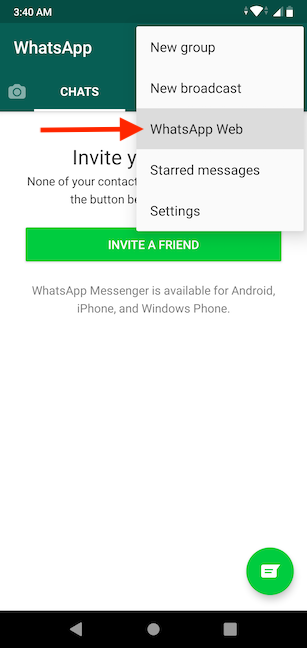
Access WhatsApp Web from the menu that opens.
Tap on WhatsApp Web
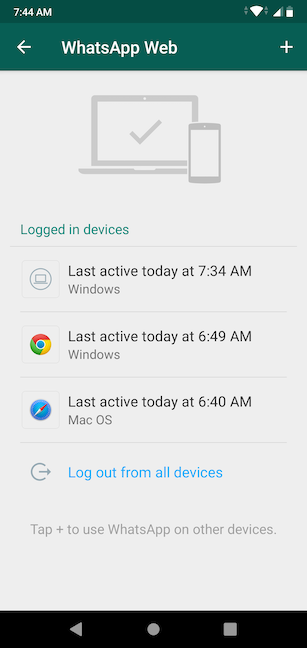
If your account is still logged on any devices or browsers, they are shown in a list, with several details to help you identify them. Tap on an entry to log out from that device.
Tap on the entry you want to remove from the list
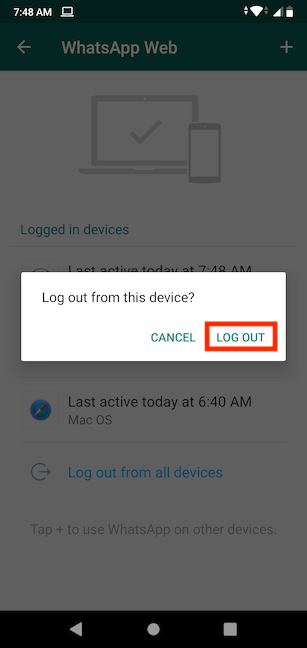
Tap on Log out to confirm. The entry disappears from the list, and you are instantly logged out from that device.
Confirm your choice to disconnect your account from that device
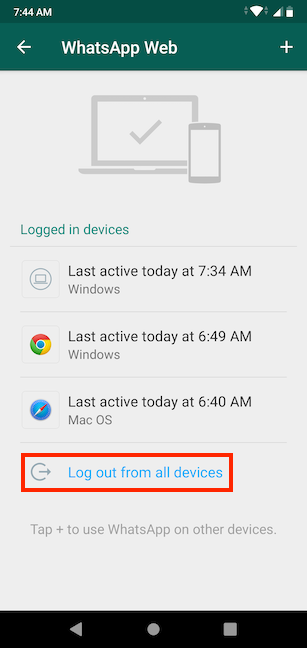
Tap on the "Log out from all devices" option at the bottom to instantly disconnect WhatsApp on all clients and only keep it active on your Android smartphone.
Log out of your WhatsApp account on all devices but your smartphone
Which Whatsapp client do you plan to use?
Not only is it distracting to take out your Android smartphone for every alert, but, for some of us, it is infinitely faster to write messages on a physical keyboard instead of a touchscreen. After learning that we can use WhatsApp on our PC, it became a constant addition to our desktop web browser. What about you? Do you plan to use WhatsApp in the browser or the desktop client? Leave a comment with your opinion below.















Discussion (2)
Yes I intend to use Whattsap on my Desktop now that you have shown me,Many thanks
You are welcome. Do not hesitate to subscribe to our newsletter, for more useful tutorials.