Adding a new contact on WhatsApp is not something you often do, since all the contacts saved on your Android smartphone are automatically available in the popular chat app. However, there are times when you want to use WhatsApp to reach out to someone whose contact is not in your smartphone. This tutorial illustrates how to add a contact on WhatsApp four different ways:
NOTE: This guide applies to Android 10, and it was created on a Nokia 5.3 smartphone. If you do not know your Android version, read How to check the Android version on your smartphone or tablet. The procedures are similar on all Android-powered devices, although you might come across some small differences, depending on your device's manufacturer.
1. How to add a contact to WhatsApp and start a chat on Android
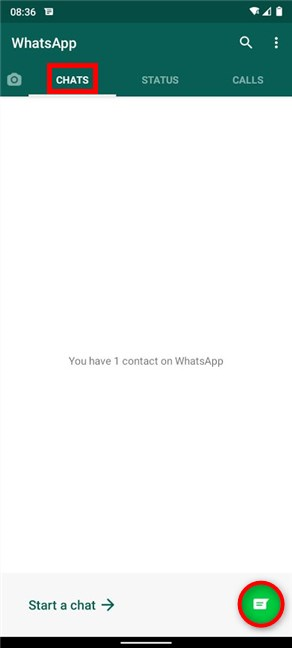
If you want to reach out to someone on WhatsApp, and their number is not on your smartphone, you can either add their contact on your Android or use WhatsApp to both add and message them. First, open WhatsApp on your smartphone. To add someone and chat with them, in the Chats tab, tap on the round "New chat" button in the lower-right corner.
Starting a chat on WhatsApp
On the Select contact screen, tap on New contact.
Choose New contact
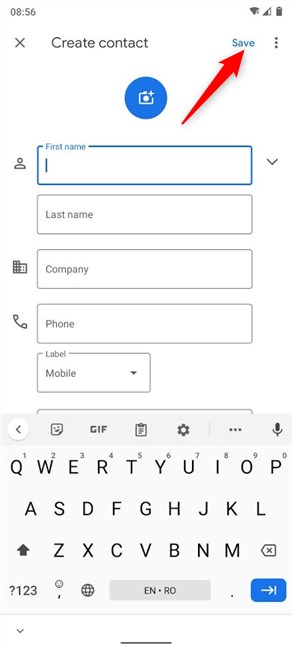
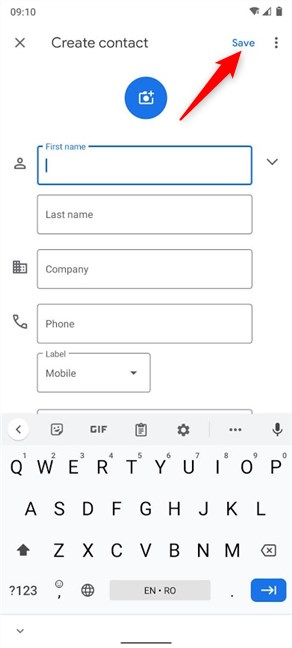
Next, you are taken to the Create contact screen. Insert the details for your contact, and press Save in the upper-right corner.
Save your contact's details
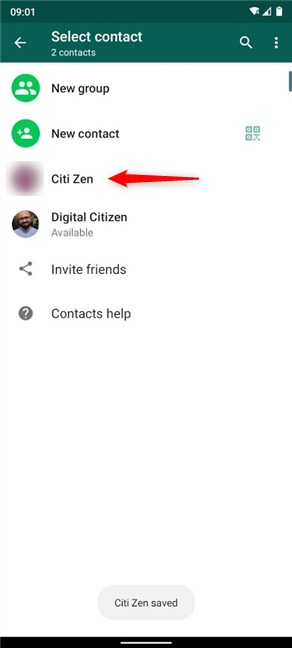
A brief message at the bottom of the screen lets you know that the contact is saved.
If the contact you added is using WhatsApp, their name is added to the list. Tap on it to start a chat with that person.
Start chatting to the new contact
2. How to add someone and call them on WhatsApp for Android
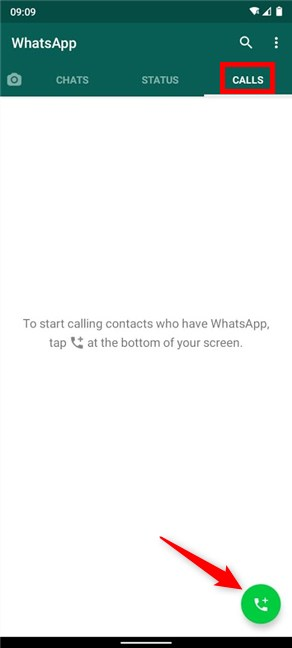
To add a contact and get in touch with that person via voice or video call, open WhatsApp, access the Calls tab, and tap on the round New call button.
Press New call
On the next screen, tap on New contact.
Choose to call a New contact
On the Create contact screen, insert the phone number and other basic info about the person you're adding, and then tap Save in the upper-right corner.
Add details about your new contact and Save
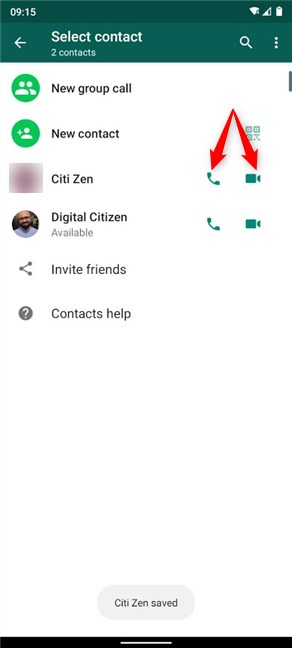
The contact is saved, as you can see at the bottom. If the contact you added is using WhatsApp, you can now call them by voice or video by pressing the corresponding button next to your new contact.
Your contact is saved, and you can get in touch
3. How to add a contact to WhatsApp from your chats
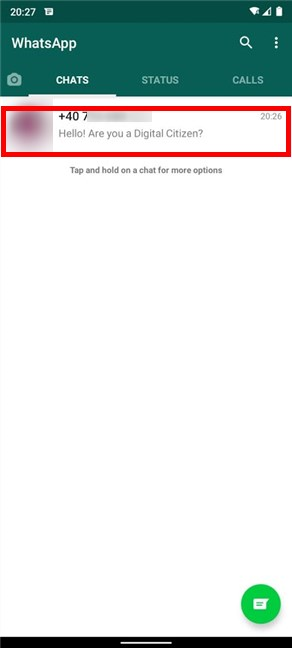
If you exchanged messages with someone, and their number is not in your Contacts, there are a few ways to add it. First, open WhatsApp and access Chats. Then, touch-and-hold the chat with the number you want to add.
Touch-and-hold on a chat to start adding the associated number
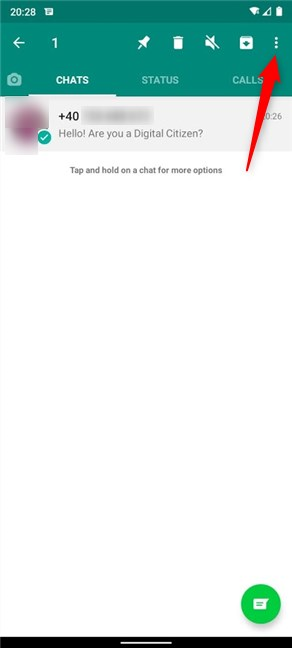
This selects the chat, revealing more options at the top of the screen. Tap on the More button, whose icon looks like three vertical dots.
Select the chat and access More
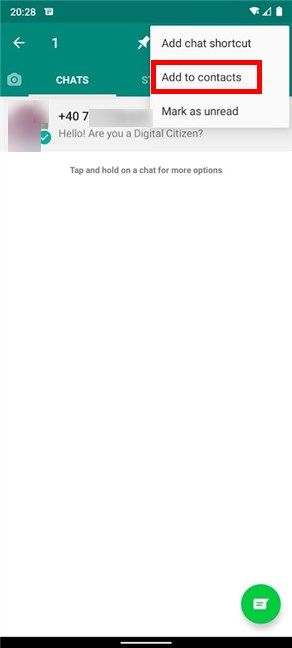
From the menu that appears, tap on "Add to contacts."
Add the number of the selected entry to your contacts
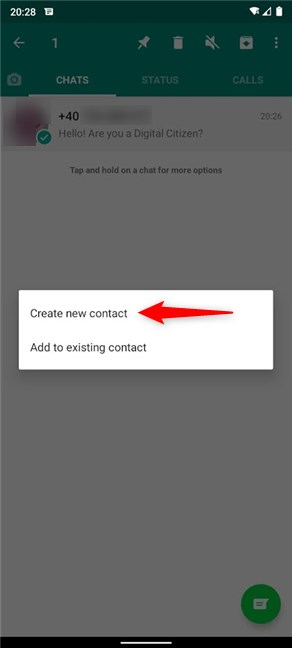
Next, you get a pop-up screen with two options.
Choose to "Create new contact."
Tap on Create new contact
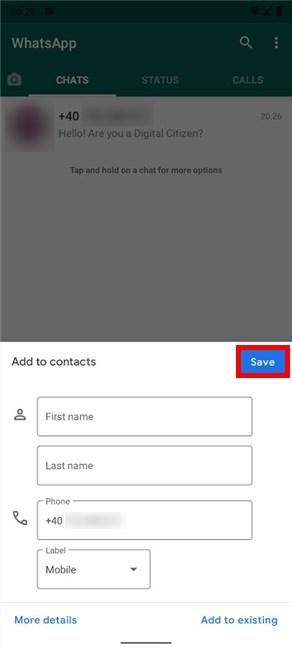
Insert additional info for the new contact and press Save.
Add data and Save your new contact
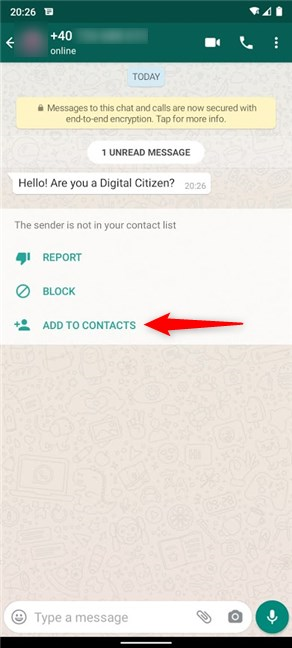
Alternatively, you can also tap on a WhatsApp chat with an unknown number to access it, and then add it to your Contacts from there. WhatsApp gives you the option to "Add to contacts" in the chat window. Tap on it to start adding the number.
Tap on Add to contacts
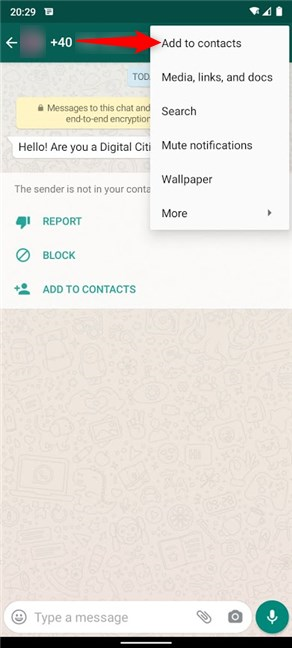
You can also tap on the More button, that looks like three vertical dots, from the top-right corner, and then tap on "Add to contacts."
Select Add to contacts
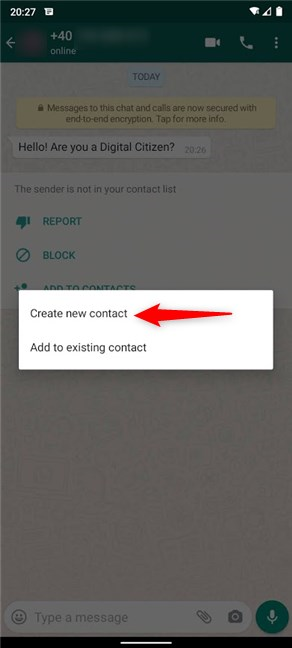
No matter which "Add to contacts" option you used, tap on "Create new contact" in the pop-up displayed.
Choose to Create new contact
On the "Add to contacts" screen, insert the details you want to add, and then press Save.
Save your contact
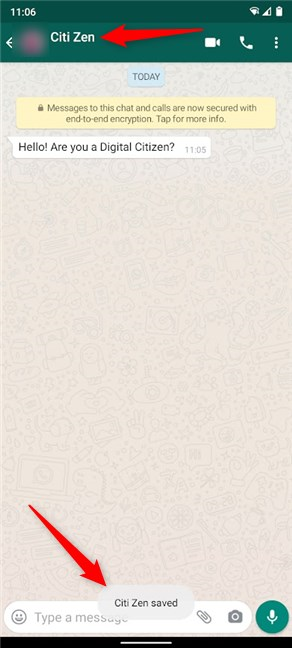
The contact is saved, as reflected by both the brief notification at the bottom and the new name assigned to it.
Whatsapp saves your contact
4. How to add a contact from your WhatsApp Calls
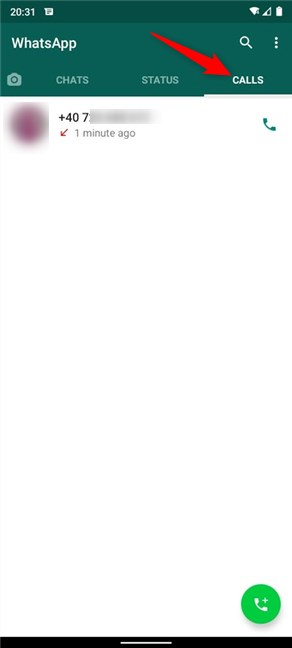
You can also use your call history from WhatsApp to add a contact. First, open the app on your Android and access the Calls tab. Then, tap on the unknown number you want to add to contacts.
Go to Calls and tap on the unknown number
This opens a detailed entry, named Call info. Tap on the More menu from the upper-right corner.
Access More
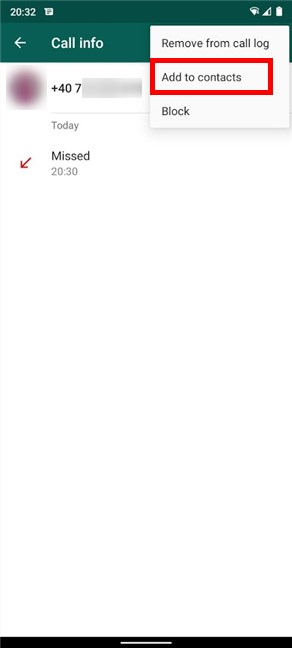
From the dropdown menu, tap on the "Add to contacts" option.
Tap on Add to contacts
A pop-up asks you what you want to do. Tap on New to create a contact.
Choose to create a New contact
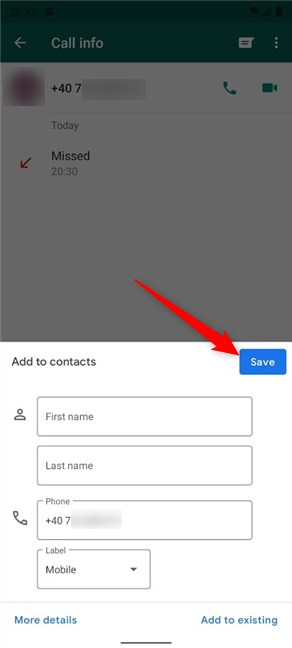
On the next screen, insert all the details for your contact, and then press Save.
Add details and Save the new contact
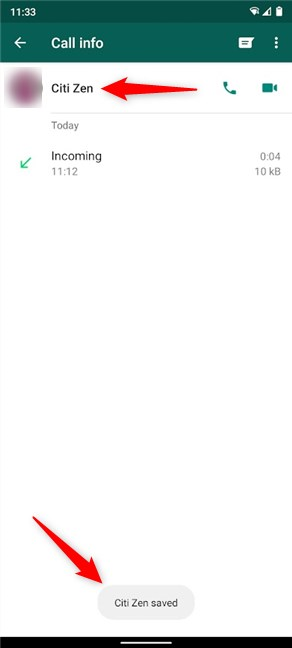
The contact is saved, as you can see both at the top and the bottom of your screen.
Your new contact is saved
Did you successfully add your contact on WhatsApp?
We use WhatsApp every day on our smartphones and even have a Digital Citizen channel to share news between us. However, I find it easier to stay connected on WhatsApp from the PC. Unfortunately, since WhatsApp contacts are so closely tied to those on your Android, you can not add someone from Whatsapp Desktop or WhatsApp Web. What about you? How do you use WhatsApp? Did you manage to add the new contact? Let us know in the comments.












Discussion (0)
Comments are closed.