




Want to know how to make an NFT as your Twitter profile picture now that the platform is called X? You can still show off your favorite NFT art, but you no longer get the old hexagon badge or on-chain verification. Instead, you treat the NFT image like any other profile photo and upload it from your phone or computer.
This guide walks you through preparing your NFT artwork, saving a clean image from your wallet or marketplace, and setting it as your Twitter NFT profile picture on desktop and mobile. The steps work the same for most NFTs, whether you collect PFP projects, gaming assets, or 1-of-1 crypto art.
Prepare Your NFT Image For Twitter
Before you change your avatar, you need a good-looking image file of your NFT. A clear, square image keeps your Twitter NFT profile picture sharp in feeds and replies.
- Open the marketplace or wallet where you hold the NFT you want to use.
- View the NFT in full size so you see the highest-quality version of the artwork.
- Look for a download, export, or “view original” option and save the image as a PNG or JPG.
- If no download option exists, take a high-resolution screenshot that includes only the NFT art, not the site UI.
- Crop the image into a square and center the main subject so it fits well in Twitter’s circular frame.
- Save the final file with a clear name like my-nft-twitter-pfp.png so you can find it quickly later.
Once you save and crop the artwork, you are ready to turn that file into your new NFT avatar on Twitter.
Set Your NFT Profile Picture On Twitter Desktop
If you use Twitter on a Windows PC, Mac, or laptop browser, you can replace your current avatar with your NFT image in a few clicks. This method works for both free accounts and paid X Premium subscribers.
- Open your browser and sign in to Twitter (X) with the account that should use the NFT profile picture.
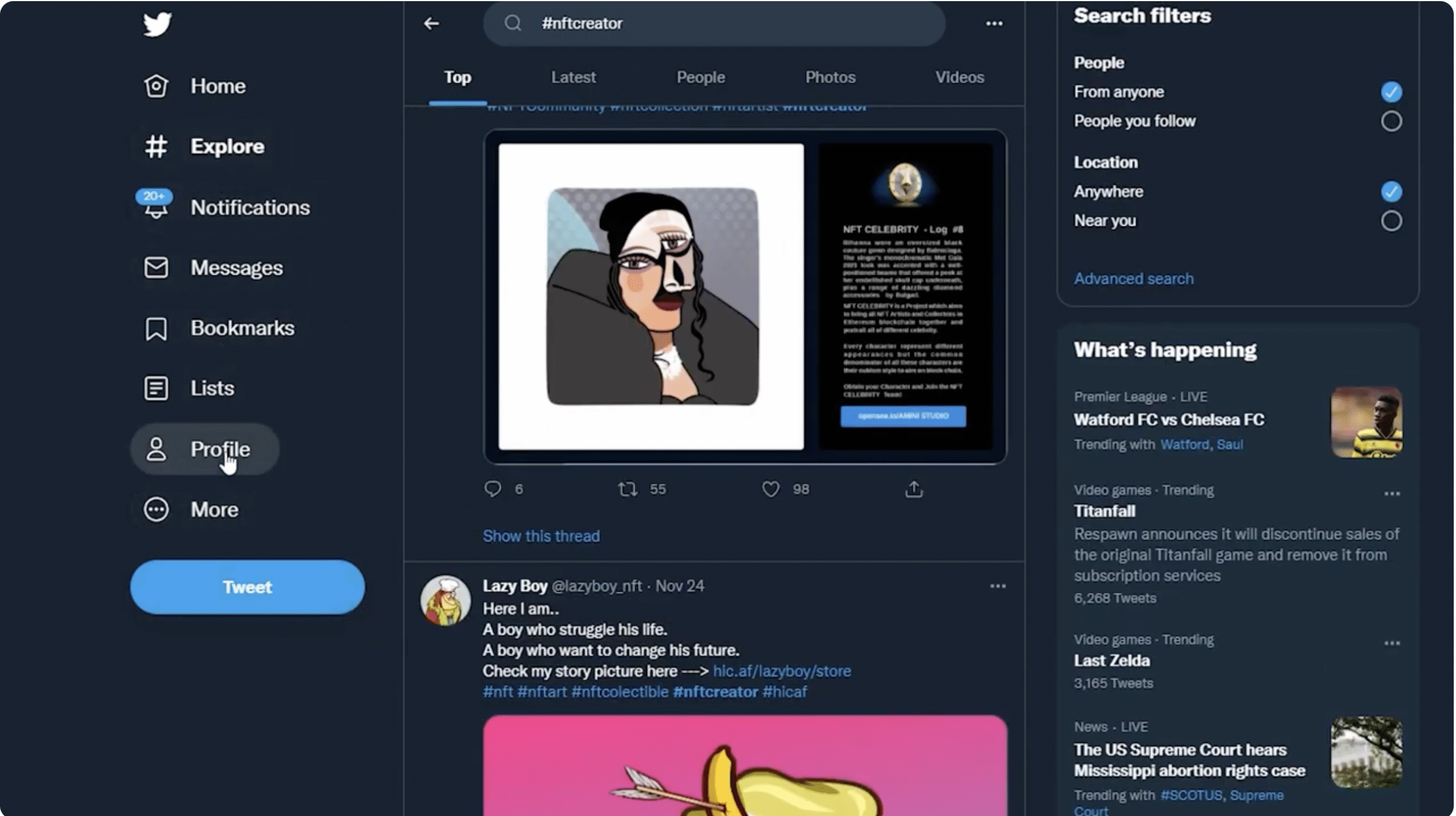
- Click your current avatar or profile name in the left sidebar to open your profile page.

- Select the Edit Profile button near the top of the screen.
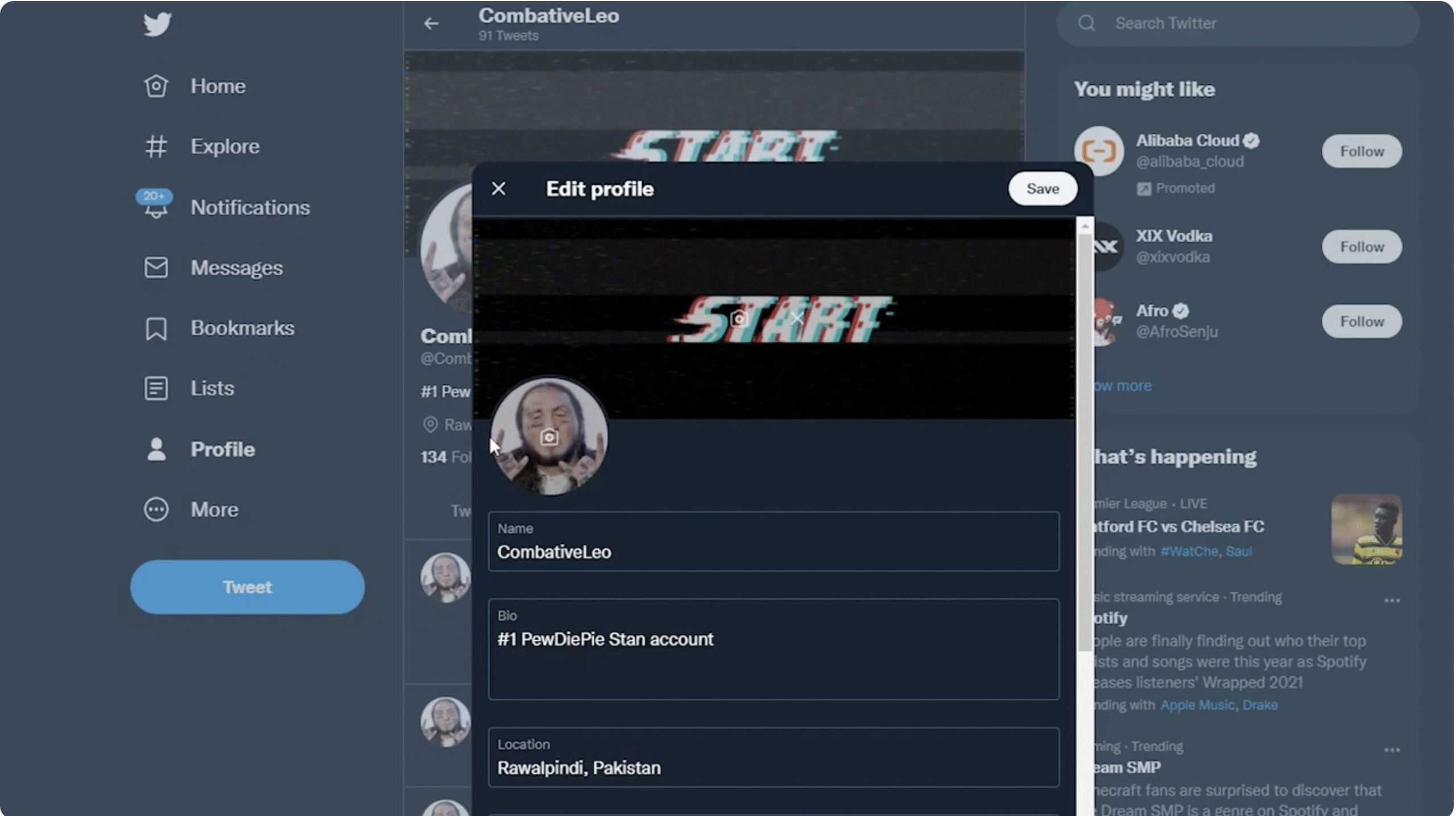
- Click your existing profile photo so the upload dialog appears.
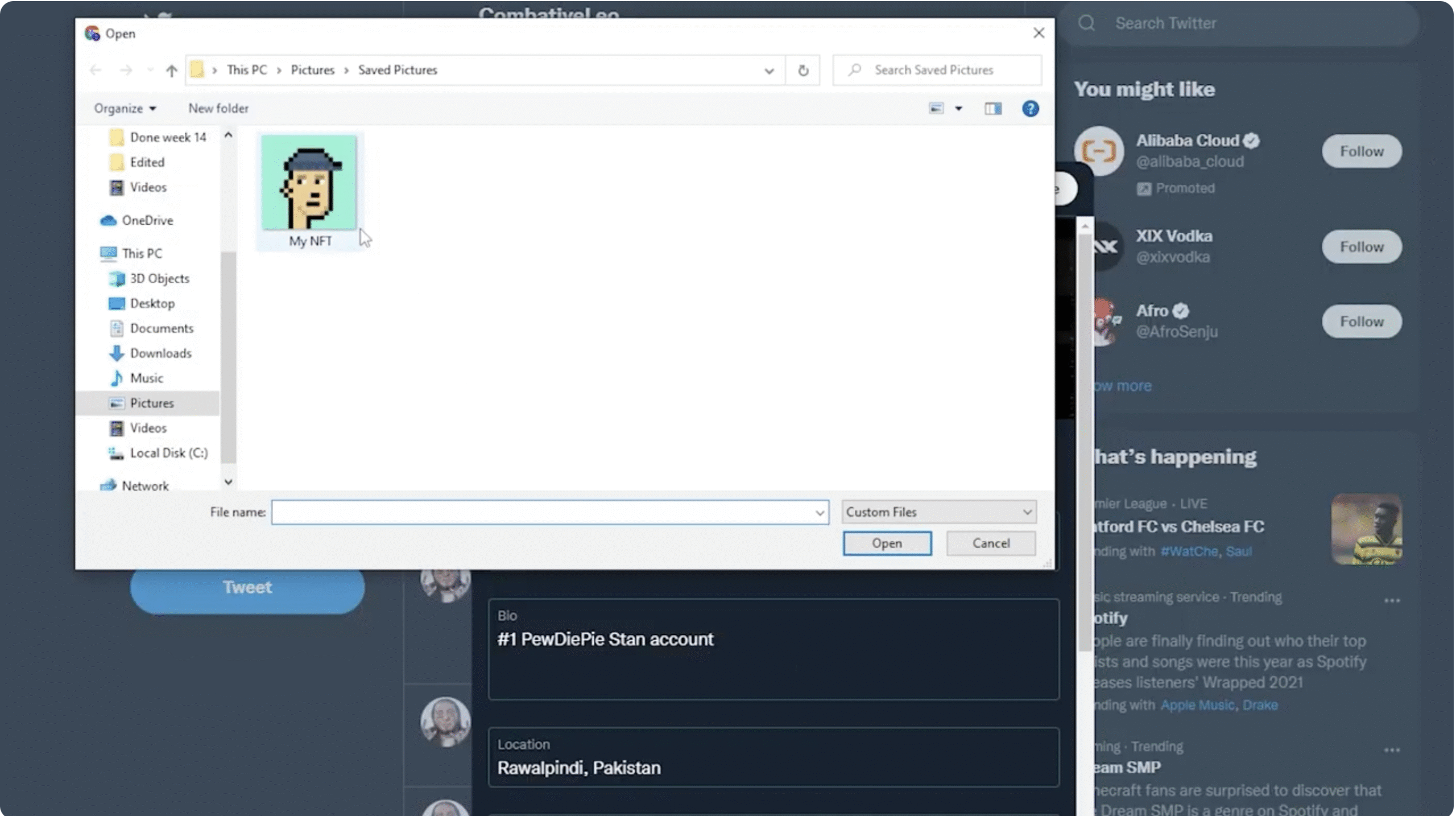
- Choose Upload Photo, then browse to the NFT image file you prepared earlier.
- Select the file, wait for the preview to load, and drag the crop box so the key part of the NFT sits in the center.
- Use the zoom slider if needed to keep important details inside the circular frame.
- Click Apply, then choose Save on the Edit Profile screen to confirm the new NFT Twitter profile picture.
Your timeline, replies, and DMs now show your NFT avatar just like any other profile photo, even though it no longer gets a special hexagon outline.
Set Your NFT Profile Picture On The Twitter Mobile App
You can also set an NFT profile photo directly from the Twitter app on iOS or Android. This helps if your NFT image already lives in your phone’s camera roll or cloud storage.
- Open the Twitter (X) app on your iPhone or Android phone and sign in if needed.
- Tap your profile picture or the profile icon in the top-left corner to open the side menu.
- Tap your display name or Profile to go to your main profile page.
- Choose the Edit Profile button under your header image.
- Tap your current profile photo to bring up the upload options.
- Select Upload Photo and pick the NFT image from your Photos, Gallery, or Files app.
- Adjust the crop so the most important part of your NFT artwork sits in the middle of the circle.
- Tap Apply, then tap Save to set the image as your NFT Twitter profile picture.
After a few seconds, your new NFT avatar should appear across the app, including in notifications and replies.
Keep Your NFT And Wallet Safe While You Customize
Even though Twitter no longer connects directly to your crypto wallet for NFT profile pictures, security still matters. You interact with marketplaces, wallets, and image files while you prepare your new avatar.
- Only download NFT images from the official marketplace or wallet where you bought or minted the token.
- Avoid connecting your wallet to random “free NFT PFP” sites or unknown tools that ask for permissions.
- Store your main wallet seed phrase offline and never type it into a website just to get a profile picture.
- Use a separate viewing wallet with no high-value NFTs if you only need to show art publicly.
- Log out of shared computers after saving your NFT image so nobody can access your accounts.
Treat your NFT as a digital collectible first and a Twitter avatar second, and you lower the risk of losing valuable assets.
Troubleshooting Common Problems
Sometimes your NFT Twitter profile picture does not look the way you expect. These quick checks fix most issues.
- Profile picture looks blurry: Re-upload a higher-resolution version of your NFT and avoid heavy zooming during cropping.
- Wrong part of the NFT shows: Edit the image in a photo app, add more empty space around the art, and try the crop again.
- Circle cuts off important details: Move the main character or logo slightly toward the center before you save the file.
- No hexagon badge appears: That on-chain NFT feature has been removed, so the platform only supports standard circular avatars now.
- Avatar does not update everywhere: Close and reopen the app, refresh your browser, or sign out and back in to force a cache refresh.
Tips
- Pick bold, high-contrast NFT artwork so your Twitter NFT profile picture stays readable at small sizes.
- Test your avatar in dark mode and light mode to make sure it stands out in both themes.
- Keep a backup of your NFT image file in cloud storage so you can restore the avatar quickly if you switch devices.
- Rotate between a few favorite NFT avatars to keep your profile fresh while still staying on brand.
- Use the same NFT avatar across platforms when possible so friends recognize you instantly.
FAQ
Can I Still Get The Hexagon NFT Profile Picture On Twitter?
No. The official NFT hexagon badge and wallet connection are no longer available at the time of writing. You can still upload NFT art as a normal circular avatar, but it will not show any on-chain verification.
Do I Need A Crypto Wallet To Use An NFT As My Profile Picture?
You need a wallet to own the NFT, but Twitter only sees the final image file. Once you save the artwork as PNG or JPG, you can upload it like any other profile photo, even if you later move the NFT to cold storage.
Can Someone Copy My NFT Twitter Profile Picture?
Yes. Anyone can screenshot or save your avatar image. The NFT itself still lives on the blockchain and proves ownership, but Twitter does not check or display that ownership today.
What Image Size Works Best For An NFT Twitter Avatar?
A square image of at least 400 by 400 pixels usually looks sharp. Larger files also work, but you should keep the subject centered so the circular crop does not cut off important details.
Can I Use A GIF Or Animated NFT As My Profile Picture?
Twitter may not always keep animation for profile images. To avoid issues, export a still frame of your animated NFT and use that as your profile picture.
Summary
- You can still make an NFT your Twitter profile picture, but only as a regular circular avatar.
- Save a high-quality, square image of your NFT from your wallet or marketplace.
- Upload the image through the Edit Profile screen on Twitter desktop or mobile.
- Adjust the crop so your NFT avatar stays centered and readable at small sizes.
- Protect your wallets and avoid shady tools while you prepare and share your NFT artwork.
Conclusion
Twitter’s original NFT feature with hexagon profile pictures and wallet connection may be gone, but you can still highlight your favorite collectibles by using NFT artwork as your avatar. All you need to do is save a clean version of the image, upload it through the Edit Profile screen, and fine-tune the crop so the art looks great in a circle.
By combining simple image prep with good security habits, you keep control of your NFTs while building a recognizable NFT Twitter profile picture that matches your on-chain identity. Even without automatic verification, your avatar still tells the story of the communities, artists, and projects you care about.


Discussion (0)
Be the first to comment.