




TikTok started as a mobile-first app, but you can now use it comfortably on a computer as well. If you know how to download a TikTok on PC, you can watch videos on a bigger screen, edit clips with desktop tools, and post content without reaching for your phone every time.
On Windows, you have three main options: using TikTok in your browser, installing the TikTok app from the Microsoft Store, or running the Android TikTok app in an emulator. TikTok’s web experience works in any modern browser, while the Microsoft Store app acts as a Progressive Web App for Windows 10 and Windows 11.
This guide walks you through each method step by step, explains the pros and cons, and shows how to use TikTok on a desktop safely without sketchy downloads.
Can You Download TikTok On A PC?
Yes, you can download TikTok on a PC and use it on Windows 10 or Windows 11. The easiest option is to access TikTok from a browser at its official website, where you can log in, scroll your For You feed, and upload videos from your desktop.
Windows users also get an official TikTok app in the Microsoft Store. This app behaves like a web-based TikTok client optimized for the desktop and lets you browse, message, and upload videos directly from your PC.
If you specifically want the full Android TikTok app on a PC, you can still use a trusted Android emulator. This approach makes sense if you rely on mobile-only effects or features and still want a desktop workflow.
Method 1: Use TikTok In Your Browser (Fastest Option)
If you just want to watch or upload TikTok videos on a computer, start with the web version. This works on Windows, macOS, and Linux, and you do not need to install anything extra.
Open TikTok In Your Browser
To use TikTok on PC without installing an app:
- Open a modern browser like Microsoft Edge, Google Chrome, Firefox, or Opera on your PC.
- Type the official TikTok address and press Enter, or use a search engine like Google to find it.
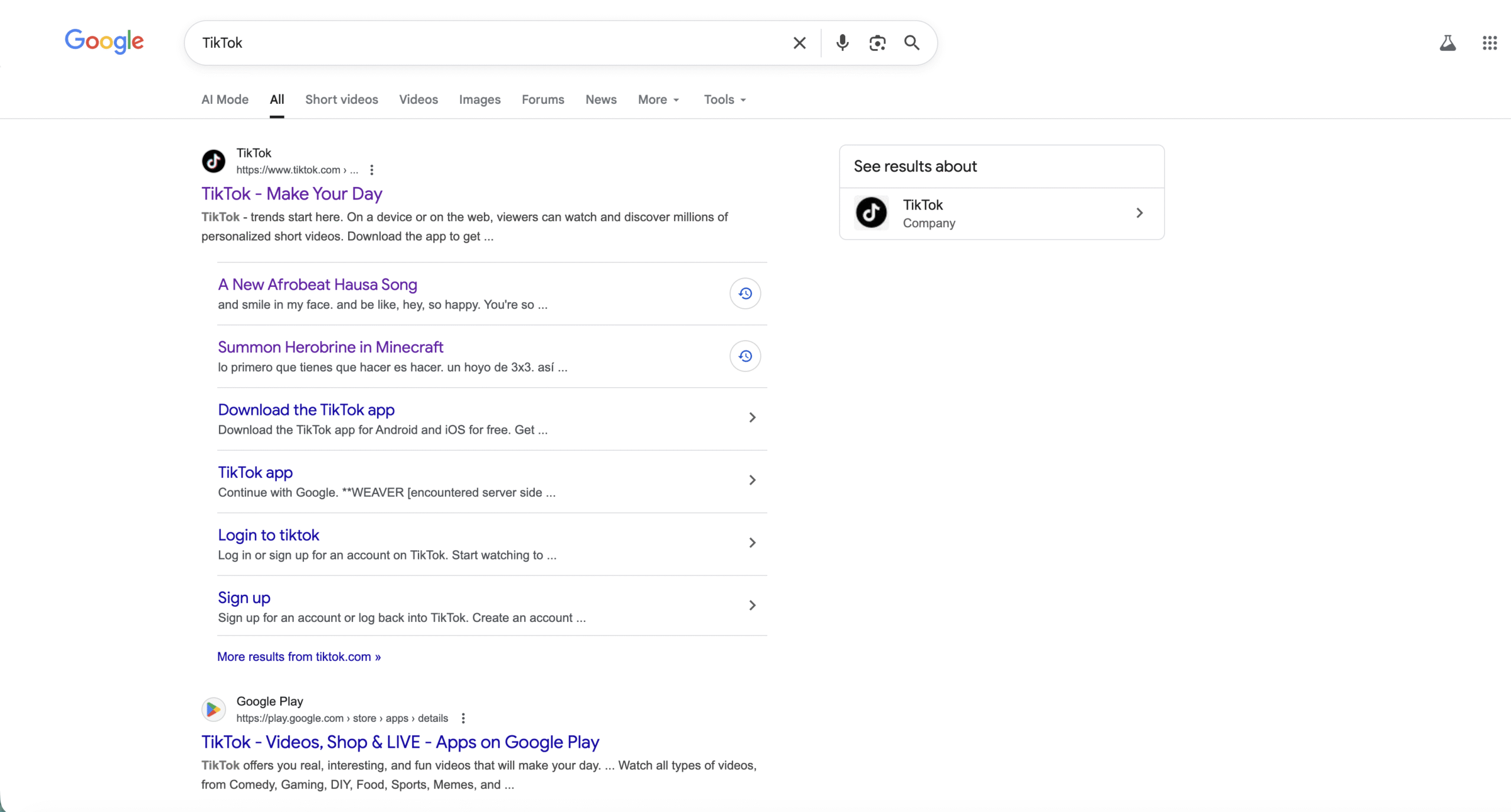
- Click the Log In button in the top right corner.

- Sign in with the same account you use on your phone, using email, username, or another supported option.
- After login, use the left sidebar to switch between For You, Following, Inbox, and Profile.
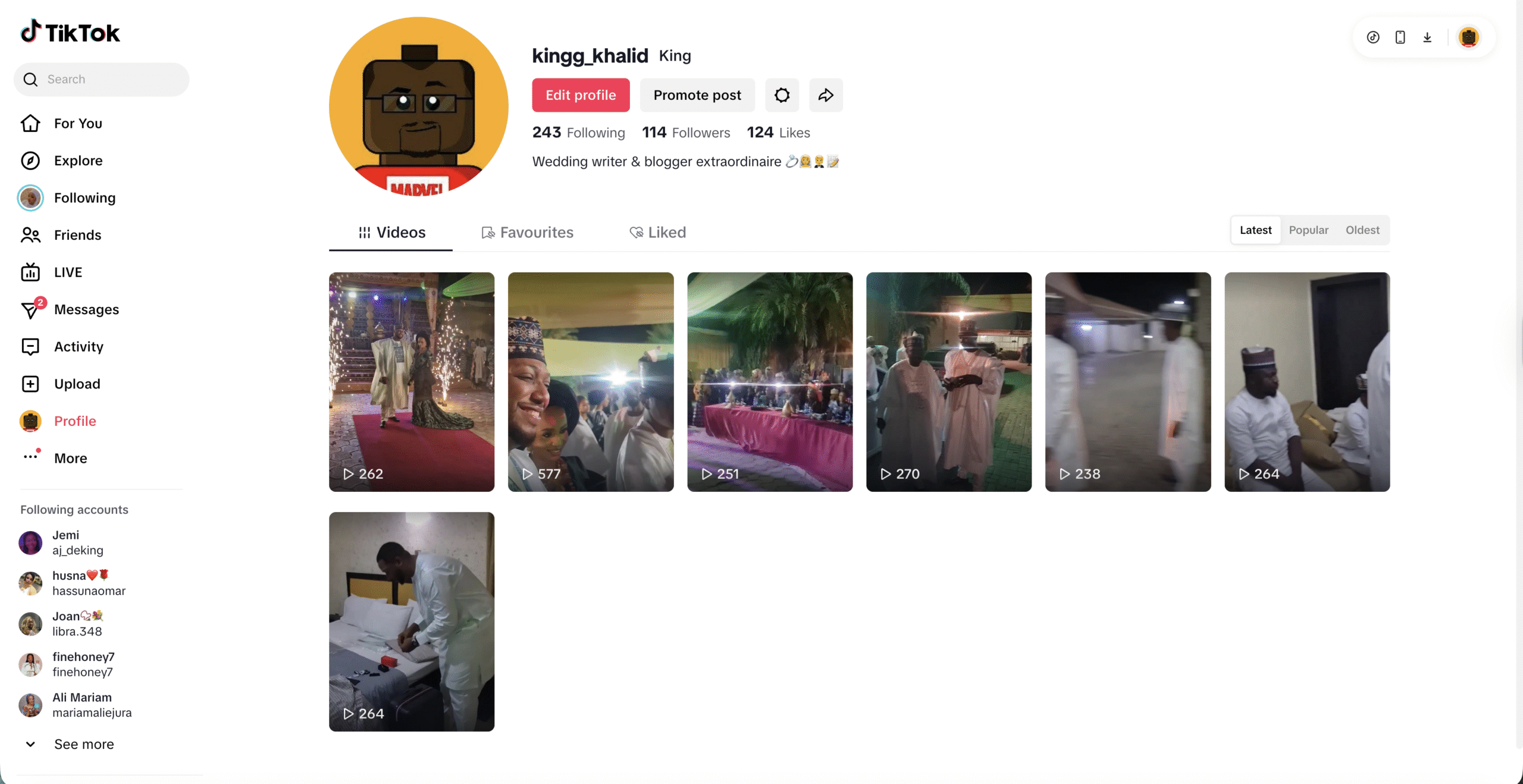
This browser method suits anyone who wants to learn how to download a TikTok on PC in the simplest possible way, because you do not actually install anything on Windows.
Save TikTok As A Desktop Shortcut
If you want TikTok to behave more like a desktop app, turn the site into a shortcut or Progressive Web App (PWA) using Edge or Chrome.
- Open TikTok in Microsoft Edge or Google Chrome.
- Click the browser menu button (three dots in the top right corner).
- Select the option that says Apps, Install This Site As An App, or Save And Launch TikTok, depending on your browser.
- Confirm and choose whether to pin TikTok to the Start menu or taskbar.
- Launch TikTok from the shortcut whenever you want a “desktop” TikTok experience.
This approach gives you a TikTok icon on Windows without installing extra software and still keeps everything up to date automatically through the browser.
Method 2: Install TikTok From The Microsoft Store
If you prefer an app instead of a browser tab, install TikTok from the Microsoft Store on Windows 10 or Windows 11. The app works like a Progressive Web App backed by TikTok’s website, but it integrates more tightly with Windows and stays up to date via the Store.
Download TikTok On Windows 10 Or Windows 11
To download TikTok on PC through the Microsoft Store:
- Click the Start button and open the Microsoft Store.
- Use the search bar at the top to search for TikTok.
- Select the official TikTok app from TikTok Pte. Ltd. and open its Store page.
- Click Get or Install and wait while Windows downloads TikTok to your PC.
- When the install finishes, click Open, or launch TikTok later from the Start menu or taskbar.
If you see multiple “TikTok for Windows” options on third-party sites, ignore them. Use only the Microsoft Store listing or the official TikTok website to avoid malware and fake installers.
Sign In And Use TikTok On Desktop
After you install TikTok on PC from the Store:
- Open the TikTok app from the Start menu or a pinned shortcut.
- Click Log In and use your existing TikTok credentials.
- Scroll vertically through your For You feed using your mouse wheel.
- Use the icons on the right side of each video to like, comment, share, or save to favorites.
- Click your profile picture in the top right to open your TikTok profile on Windows.
For most people, this method solves the “how to download TikTok on PC” problem in a familiar Windows way and keeps TikTok alongside your other Store apps.
Method 3: Run The Android TikTok App With An Emulator
If you want the full Android TikTok experience on your computer, including mobile-only filters or effects, use an Android emulator like BlueStacks, NoxPlayer, or similar tools. These emulators create a virtual Android phone inside Windows where you can install the TikTok app from Google Play.
This method takes more setup and uses more system resources, but it works well if you manage multiple accounts, need automated uploads, or prefer mobile editing controls on a bigger display.
Install An Emulator On Your PC
To prepare your PC for the Android TikTok app:
- Choose a reputable Android emulator such as BlueStacks, NoxPlayer, or another well-known option from its official website.
- Download the Windows installer and save it in your Downloads folder.
- Run the installer and follow the on-screen steps to complete setup.
- Launch the emulator from the Start menu when installation finishes.
- Sign in with a Google account inside the emulator so you can access the Google Play Store.
Download TikTok Inside The Emulator
Once the emulator runs an Android home screen, you can download the TikTok app itself:
- Open the Google Play Store inside the emulator.
- Use the search bar to look for TikTok.
- Select the official TikTok app by TikTok Pte. Ltd.
- Click Install and wait for the download to finish.
- Open TikTok from the emulator’s app list and log in with your account.
Now you can scroll your For You page, record videos through your PC’s webcam, and upload content using the same Android interface you know from your phone, just running on a Windows desktop.
How To Upload TikTok Videos From Your PC
After you figure out how to download a TikTok on PC, the next step usually involves posting content directly from Windows. Both the browser version and the Microsoft Store app let you upload clips from your computer.
Upload Videos From TikTok Web Or The Windows App
To upload a TikTok from your PC without a phone:
- Open TikTok in your browser or launch the TikTok Windows app.
- Log in to your account if you are not already signed in.
- Click the Upload or Plus icon (often in the top right or left sidebar).
- Select Upload and choose a video file from your PC (MP4 works best).
- Trim the clip, add captions, hashtags, and cover image as needed.
- Set privacy, comments, duet, and stitch options for the video.
- Click Post to publish the TikTok from your desktop.
This workflow feels natural if you already edit videos in desktop apps like Premiere, DaVinci Resolve, or CapCut for PC and then export the final clip directly to TikTok.
How To Save TikTok Videos On Your PC
Many people search for how to download a TikTok on PC because they want to save clips for offline viewing or to reference later. Always respect copyright and creator permissions when you save or reuse someone else’s content.
Use TikTok’s Built-In Save Options
Some TikTok creators allow direct downloads of their videos. When that option is available:
- Open TikTok in your browser or in the Windows app.
- Visit the specific video you want to save.
- Click the Share button.
- Look for a Download or Save Video option, if the creator enabled it.
- Save the video file to your preferred folder on the PC.
If you do not see any download option, assume the creator chose to block downloads. In that case, avoid using third-party downloaders that scrape the site, because they often violate TikTok’s terms of service and can expose you to malware.
TikTok On PC: Safety And Common Issues
When you learn how to download TikTok on PC, you also need to keep your Windows system safe. Fake desktop installers and “modded” apps that promise free boosts or extra features often hide malware that steals passwords or data.
Stay Safe When You Install TikTok
Use these habits when you install TikTok for Windows or any TikTok-related tool:
- Download TikTok only from the official website, the Microsoft Store, or trusted app stores.
- Avoid “cracked” or “no-ban” TikTok versions that come from forums or file-sharing sites.
- Keep Windows, your browser, and your antivirus fully updated.
- Never run PowerShell commands or unknown installers you saw in a random TikTok or comment section.
- Review TikTok permissions and log out on shared or public computers after every session.
Fix Basic TikTok Desktop Problems
If TikTok for desktop starts lagging, freezing, or refusing to load, try these quick fixes:
- Refresh the TikTok web page or close and reopen the Windows app.
- Clear your browser cache and cookies if the site feels slow or glitchy.
- Check your network connection and switch from Wi-Fi to Ethernet if possible.
- Update your browser or reinstall the TikTok Microsoft Store app.
- Disable heavy browser extensions that interfere with video playback.
Most problems with TikTok on PC come from browser issues, slow internet, or outdated apps rather than from TikTok itself.
FAQs About Downloading TikTok On PC
Is TikTok Free To Download On PC?
Yes. TikTok is free when you install it from the Microsoft Store or when you use it in a browser. You do not pay anything to download TikTok on Windows, although your internet provider may charge for data.
Do I Need An Emulator To Use TikTok On PC?
No. For most people, using the TikTok website or the TikTok Windows app is enough. You only need an emulator if you specifically want the Android app interface or certain mobile-only features.
Can I Post TikTok Videos From My PC?
Yes. The TikTok web version and the desktop app both let you upload videos from your computer. You can add captions, hashtags, and covers just like you do on your phone.
Does TikTok For Windows Work On Both Windows 10 And Windows 11?
Yes. The Microsoft Store TikTok app supports both Windows 10 and Windows 11, as long as your device meets the basic Store requirements and you sign in with a Microsoft account.
Is It Legal To Download TikTok Videos On PC?
It is usually fine to use TikTok’s built-in download option when the creator allows it. Avoid third-party downloaders that bypass TikTok’s rules or strip watermarks, especially if you plan to repost or edit someone else’s content.
Summary
When you know how to download a TikTok on PC, you do not have to stay glued to your phone just to enjoy short videos or upload content. The fastest option is to use TikTok in your browser, while the Microsoft Store app gives you a more desktop-style experience. For a full Android interface on Windows, you can still use a trusted emulator.
Pick the method that matches how you work, stick to official download sources, and you will get a smooth TikTok experience on Windows 10 or Windows 11 without putting your PC at risk.


Discussion (0)
Be the first to comment.