



Downloading TikTok videos on a computer is easy once you know the right method. Whether you want to save clips for offline viewing or back up your own creations, there are several safe ways to do it on Windows or macOS. In this guide, we will walk you through these methods in quick and easy steps.
1) Understanding how TikTok downloads work
TikTok allows users to download certain videos directly from the platform, but this depends on the creator’s privacy settings. If the option is unavailable, you’ll need a third-party tool or screen recorder to save the clip on your computer.
2) Use TikTok’s desktop download option
The easiest way to save a TikTok video is through the built-in download button. This works only when the creator allows it, and the saved file will include a TikTok watermark.
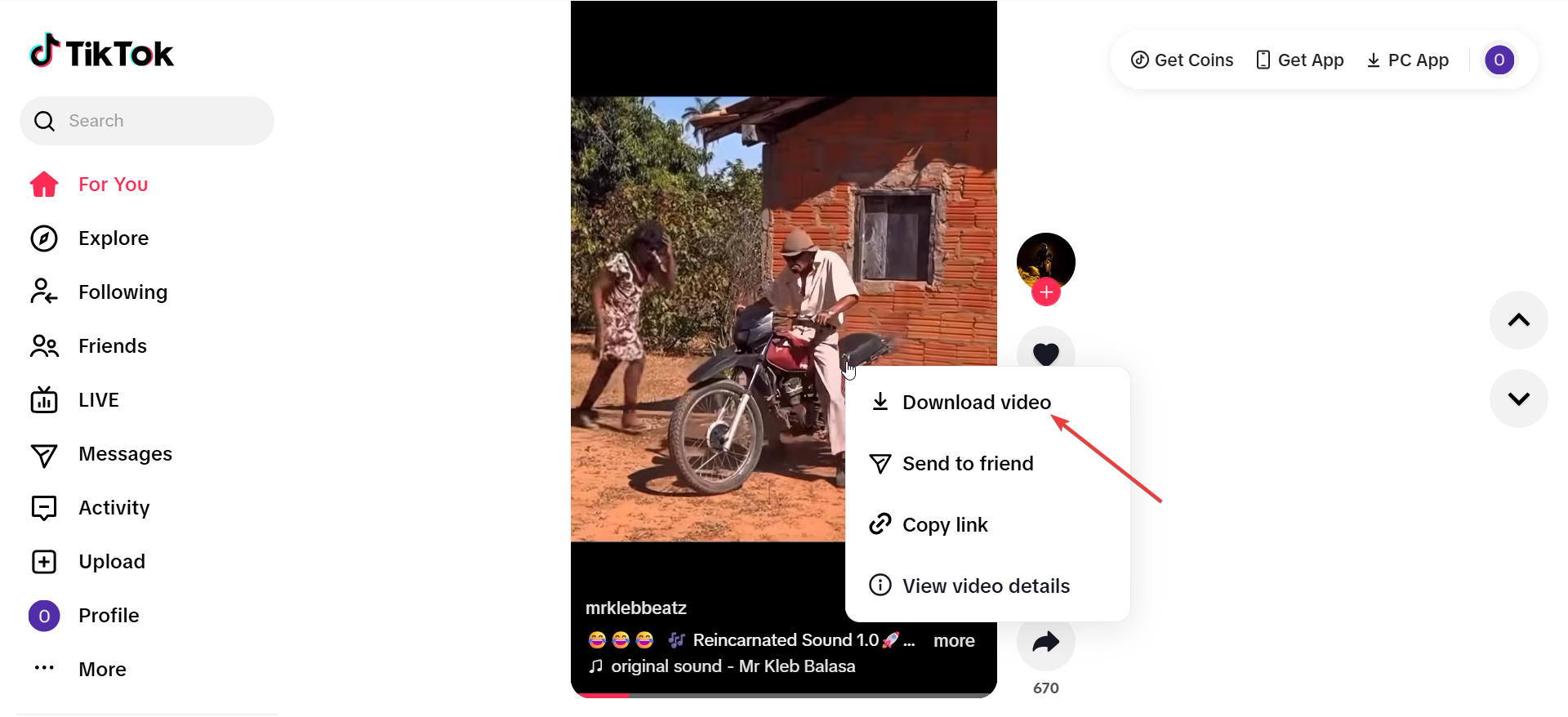
To use this option, open tiktok.com in your browser and sign in to your account. Next, play the video you want to save, right-click video and select Download video. Lastly, you will find the MP4 file in your browser’s default Downloads folder.
3) Use an online TikTok downloader
If the download button is missing, you can use a trusted online tool to grab the video. These sites let you paste the video link and save it as an MP4 file, often without a watermark.
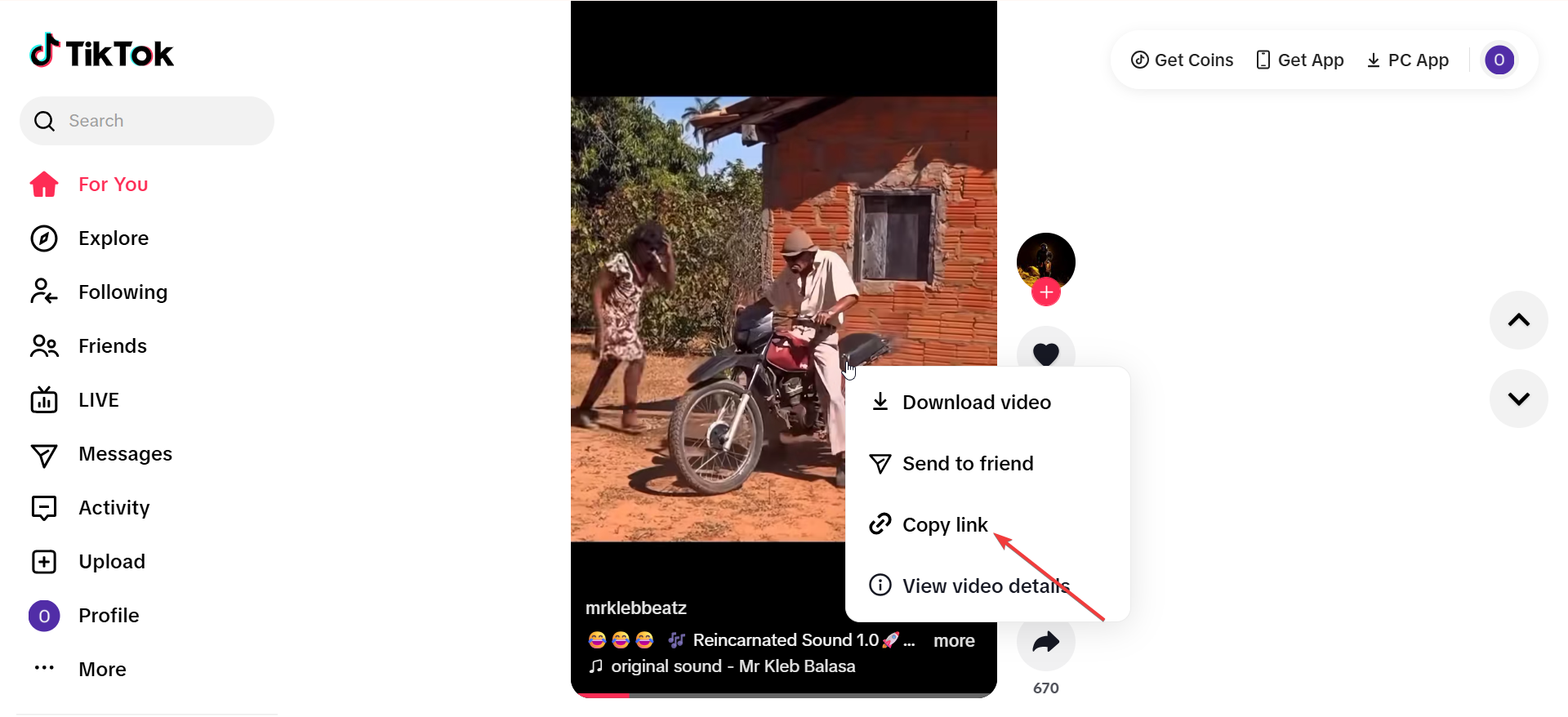
Just right-click the TikTok video and choose Copy link. Then, open a reliable downloader site in your browser, paste the link and click Download. Now, choose the desired video quality and wait for the file to save.
Always use safe tools that don’t ask for your TikTok login and avoid pop-ups that suggest installing unknown software.
4) Download using a browser extension
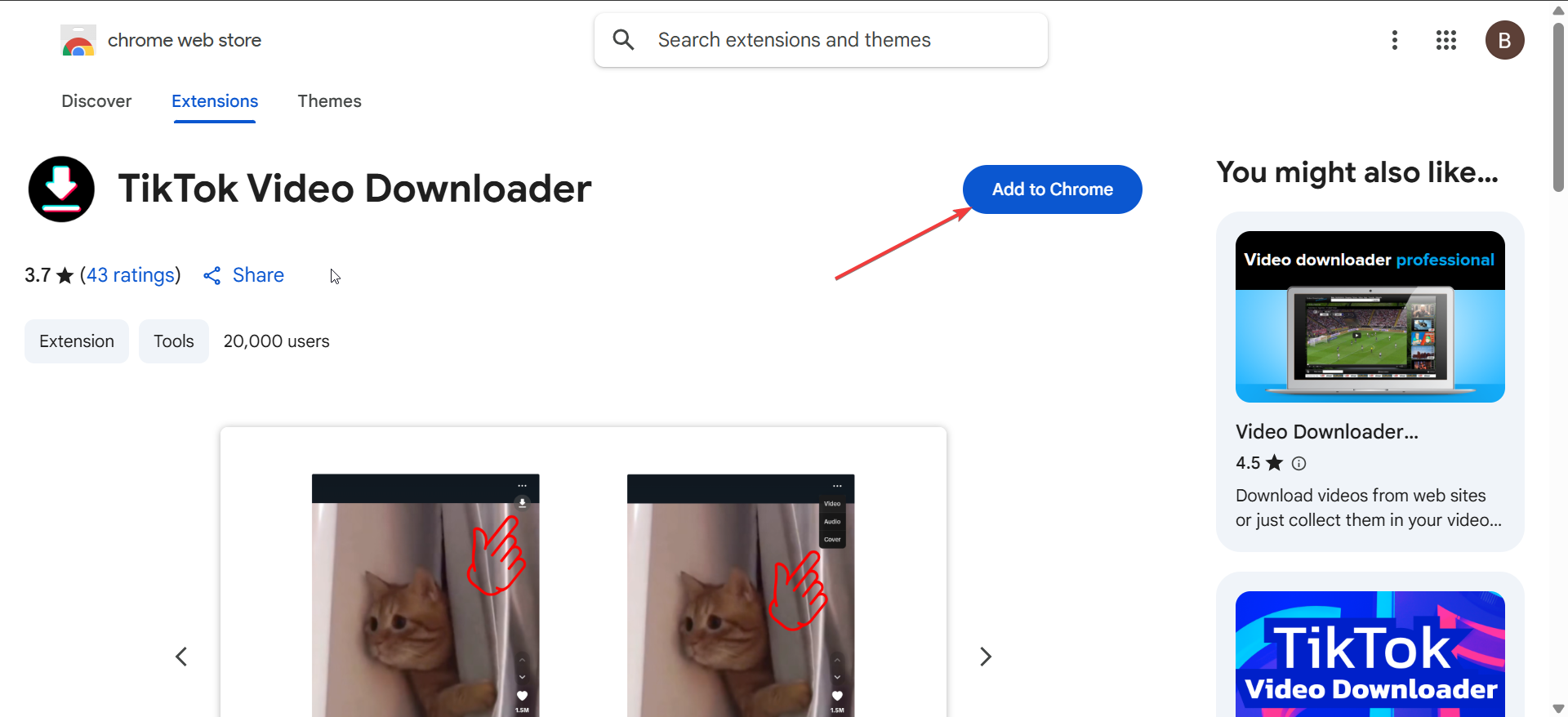
Open the Chrome Web Store and search for a verified TikTok downloader extension. Next, click Add to Chrome to install it. Now, visit tiktok.com and open any video. Lastly, click the new download icon added by the extension.
Extensions save time but can introduce privacy risks. Remove any add-on that requests unnecessary permissions or changes browser settings.
5) Record your screen on Windows or Mac
If the video can’t be downloaded, recording your screen works as a fallback option. It captures both video and audio for personal use.
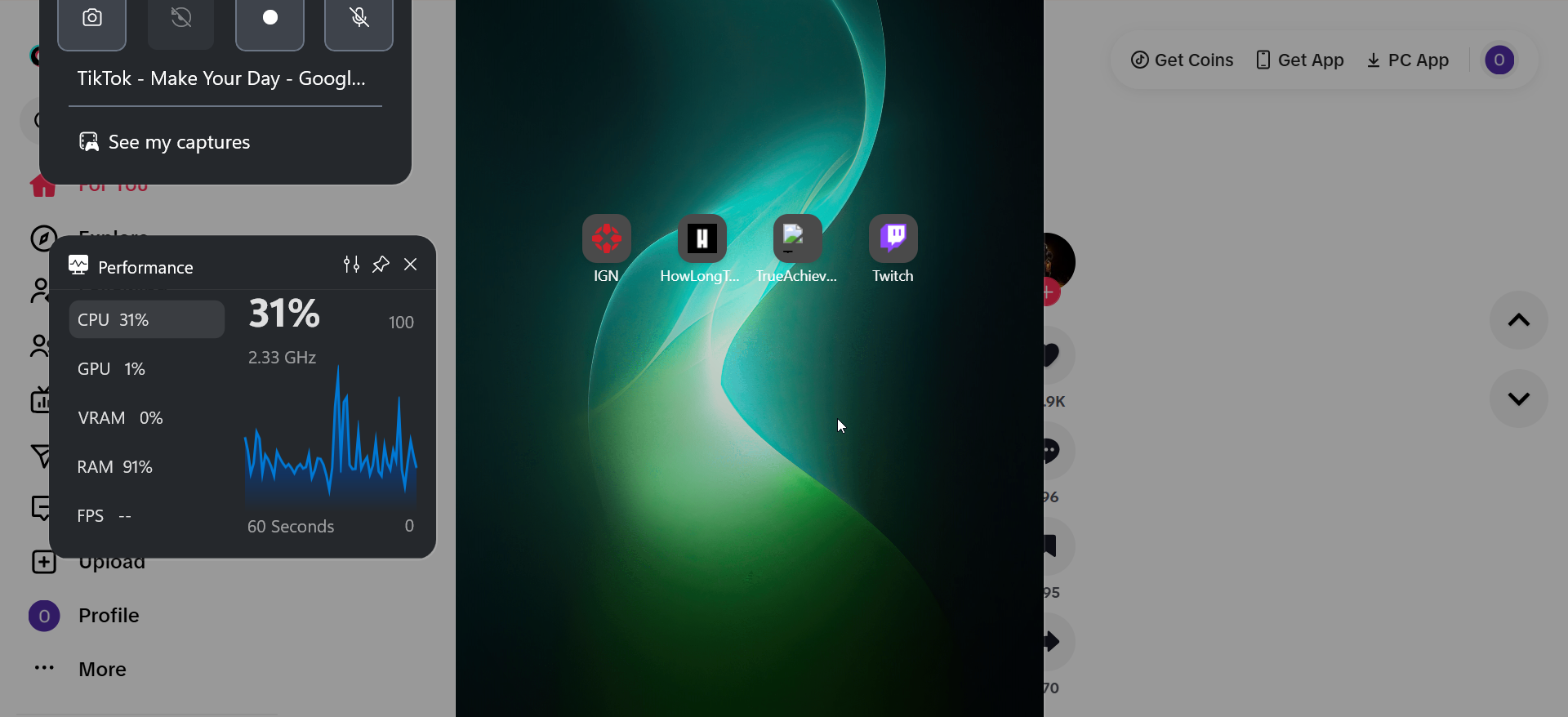
On Windows, press Win + G to open the Xbox Game Bar and start recording. If you are using a Macbook, press Shift + Command + 5 and select the recording area. Now, you can play the TikTok video and stop recording when finished.
6) Use dedicated PC apps for bulk downloads
For frequent downloads, desktop software such as 4K Tokkit or similar apps offer better speed and organization. They can download multiple videos at once, manage collections, and preserve HD quality.
You only need to download and install your preferred TikTok downloader app paste the video or profile link, choose resolution and output folder, and click Start to begin the batch download.
These programs are great for creators or marketers who need offline archives.
6) Save TikTok videos without watermark
Many third-party tools offer watermark-free downloads. Choose MP4 format for universal compatibility and adjust resolution settings for better quality playback on your PC.
After downloading, use free video editors to crop or trim the clip without affecting quality.
7) Troubleshooting common download issues
- Download button missing: The creator may have disabled saving. Try Method 2 or 3 instead.
- Corrupted file: Re-download or rename the file extension to .mp4.
- No audio: Use another downloader or screen recorder that captures sound.
- Slow downloads: Clear browser cache or switch to a wired connection.
Tips for downloading TikTok videos on PC
- Use Chrome or Edge for smoother downloads
- Save to a dedicated folder
- Always preview before saving
- Clear your cache after using third-party tools
- Check file size and format
FAQs
Can I download private TikTok videos? No, private videos can’t be downloaded unless you own the account or get permission from the creator.
Are online TikTok downloaders safe? Choose reputable tools with no logins or pop-ups. Avoid sites that force software downloads.
How do I remove a watermark? Use a downloader that offers a “no watermark” option or crop the video using a free editor.
Summary
- Use TikTok’s built-in download button if available.
- Try online downloader sites for videos without the save option.
- Install a browser extension for quick access.
- Record your screen when downloads are restricted.
- Consider desktop apps for bulk or high-quality downloads.
Conclusion
You can easily download TikTok videos on a PC using built-in tools, online platforms, or screen recorders. Choose the method that best fits your needs, keep your downloads organized, and always respect creator rights while saving or sharing content.



Discussion (0)
Be the first to comment.