




Instagram is built for mobile devices, but you can still enjoy it on your laptop. Whether you use Windows or Mac, there are several ways to install or access the app directly from your computer.
This guide explains how to download Instagram on a laptop for free and how to make it run smoothly on Windows 10/11 and Mac. You’ll learn how to install the app from the Microsoft Store, use the Instagram website, or emulate the mobile app for the whole experience.
Method 1: Download Instagram from the Microsoft Store (Windows 10/11)
The easiest way to get Instagram for laptop on Windows is through the official Microsoft Store. This version lets you browse your feed, send messages, upload photos, and manage your account directly from your desktop.
- Click the Start button and open the Microsoft Store.
- Use the search bar to type “Instagram.”
- Select the official app published by Instagram, Inc.
- Click Get or Install to begin downloading.
- Once installed, select Launch to open the app and sign in to your account.
This version is free and verified. It’s optimized for large screens and supports dark mode, keyboard shortcuts, and direct messaging. Updates are handled automatically through the Store, so you’ll always have the latest version.
Best for: Windows 10 and 11 users who want a native app and automatic updates.
Limitation: Requires access to the Microsoft Store. If your laptop blocks downloads, try one of the following methods.

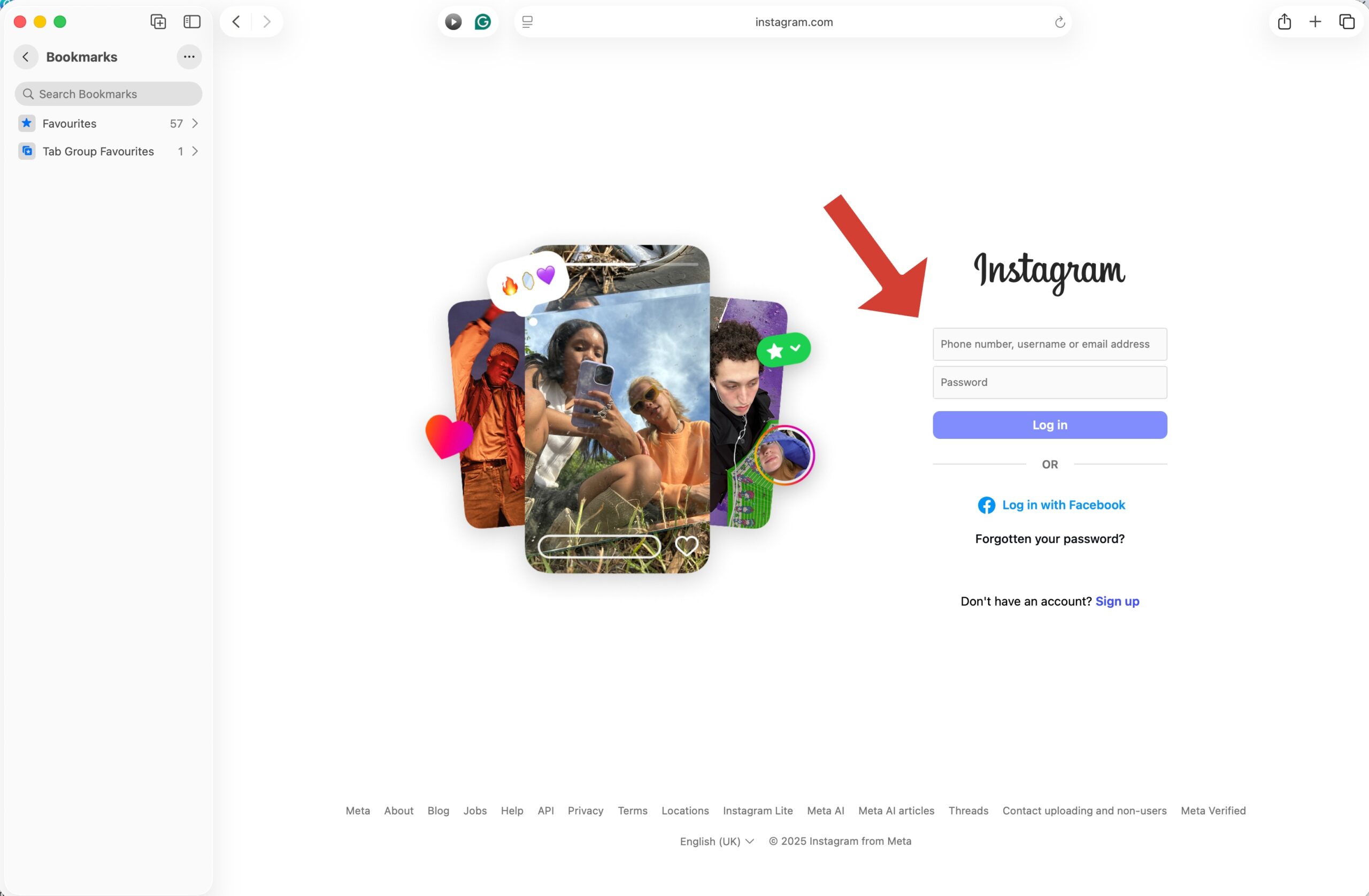
Method 2: Use Instagram on the Web (Windows and Mac)
If you prefer not to install anything, you can access Instagram directly from your browser. This method works on both Windows and macOS, and it’s completely free.
- Open a browser like Chrome, Edge, or Safari.
- Go to www.instagram.com.
- Log in with your Instagram username and password.
- Browse, like, comment, and message as you would on the app.
The web version includes most features you’d expect, like posting photos, viewing Stories, and sending DMs. You can even upload content directly from your computer.
Tip: Make Instagram Work Like an App on Your Laptop
If you want Instagram to behave like a standalone app, you can install it as a Progressive Web App (PWA) using Chrome or Edge:
- Go to instagram.com in Chrome or Edge.
- Click the three-dot menu in the upper-right corner.
- Choose Install this site as an app (in Edge) or Create shortcut… → Open as window (in Chrome).
- Name it “Instagram” and click Install or Create.
This creates an Instagram icon on your desktop or Start menu. It opens in its own window without tabs or distractions—just like a native desktop app.
Best for: Users who want Instagram on laptop without Microsoft Store.
Limitation: A few mobile features, such as advanced editing and Story stickers, are not yet available in browsers.
Method 3: Use an Android Emulator (Windows or Mac)
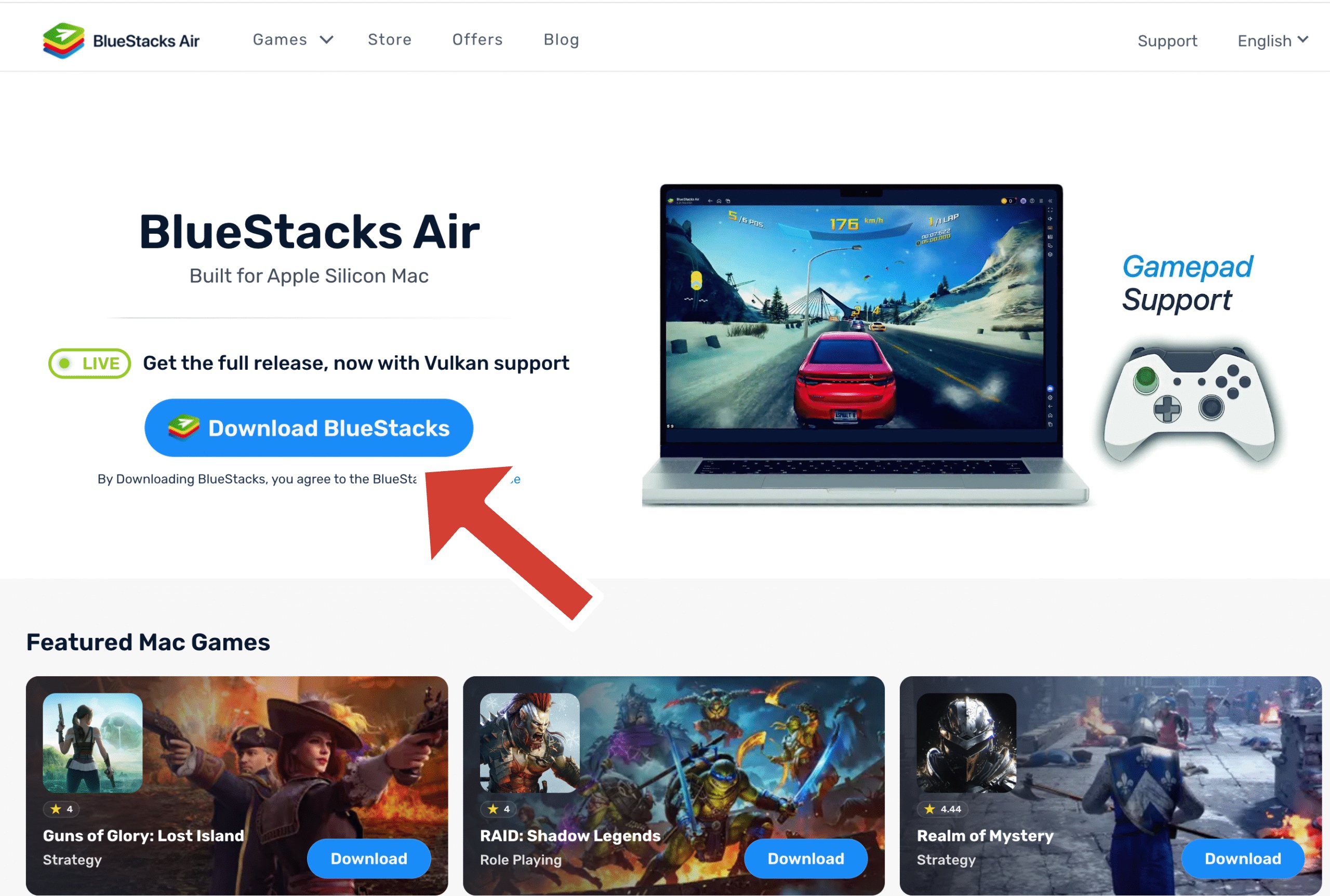
If you want the full mobile experience on a laptop, including camera effects, filters, and Reels editing, run Instagram through an Android emulator. This method lets you use the same app that’s available on your phone.
- Download an Android emulator, such as BlueStacks or NoxPlayer, from its official website.
- Install and open the emulator on your computer.
- In the emulator, open the Google Play Store and sign in with your Google account.
- Search for Instagram and click Install.
- Once installed, open Instagram, sign in, and start using it just like on a mobile phone.
This setup allows access to every Instagram tool, including posting Reels, uploading multi-photo posts, and using direct camera effects. You can also manage multiple accounts and upload content directly from local folders.
Best for: Content creators, social media managers, or users who want full mobile functionality.
Limitation: Emulators use more system resources. Make sure your laptop has enough RAM for smooth performance.
Which Method Should You Choose?
- Microsoft Store: The easiest way to get Instagram for laptop on Windows 10/11.
- Browser: Ideal for quick access without installations.
- Emulator: Best for users who want every mobile-only feature.
FAQ: Instagram on Laptops
Can I download the Instagram app on my laptop?
Yes. Windows 10 and 11 users can install it from the Microsoft Store. Mac users can use a browser or an Android emulator for similar access.
Is Instagram for laptop free?
Yes, all methods are free. The Microsoft Store app, web version, and emulators are free to use and install.
Can I upload posts from my laptop?
Yes. You can upload photos and videos through the Microsoft Store app or directly from instagram.com. Emulators also allow full uploading and editing features.
Does Instagram work on older laptops like Windows 7?
The Microsoft Store app only supports Windows 10 and 11. If you’re using Windows 7, the web version or emulator method is your best option.
Conclusion
Now you know exactly how to download Instagram on a laptop. Windows users can use the Microsoft Store for a native app, while Mac and older systems can use the browser or an emulator.
Whether you choose to install the official app or use Instagram’s web version, you’ll enjoy a larger screen, easier typing, and simpler file uploads. Pick the method that fits your setup, sign in, and start sharing your moments, no phone required.


Discussion (0)
Be the first to comment.