



If your custom stickers are missing in WhatsApp, the issue usually comes from a glitch, an outdated app version, a sticker pack that didn’t load correctly, or storage and sync problems. This guide walks you through quick fixes for iPhone, Android, and WhatsApp Web, with simple steps you can try in minutes.
How To Fix Custom Stickers Not Showing In WhatsApp
Start with the fastest checks first. Most sticker issues clear up after re-loading the sticker pack, updating WhatsApp, or refreshing your device connection.
Check Whether The Sticker Pack Still Shows In WhatsApp
- Open WhatsApp.
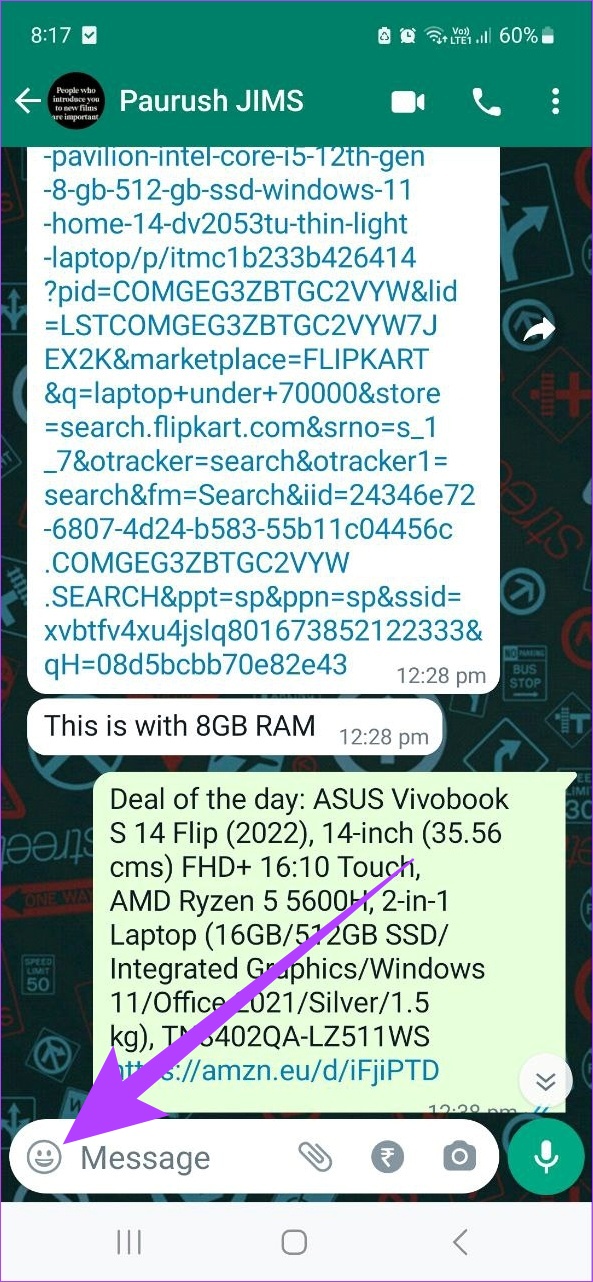
- Open any chat, then tap the Emoji icon.
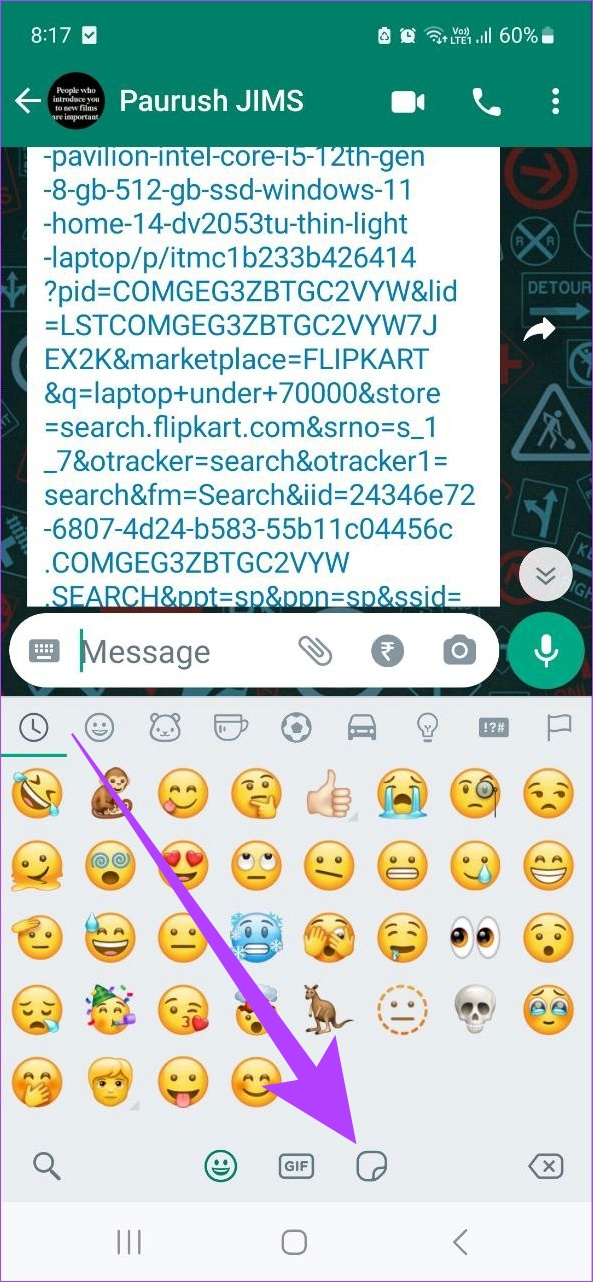
- Tap the Stickers icon.
- Tap the Plus (+) button to open the sticker picker.
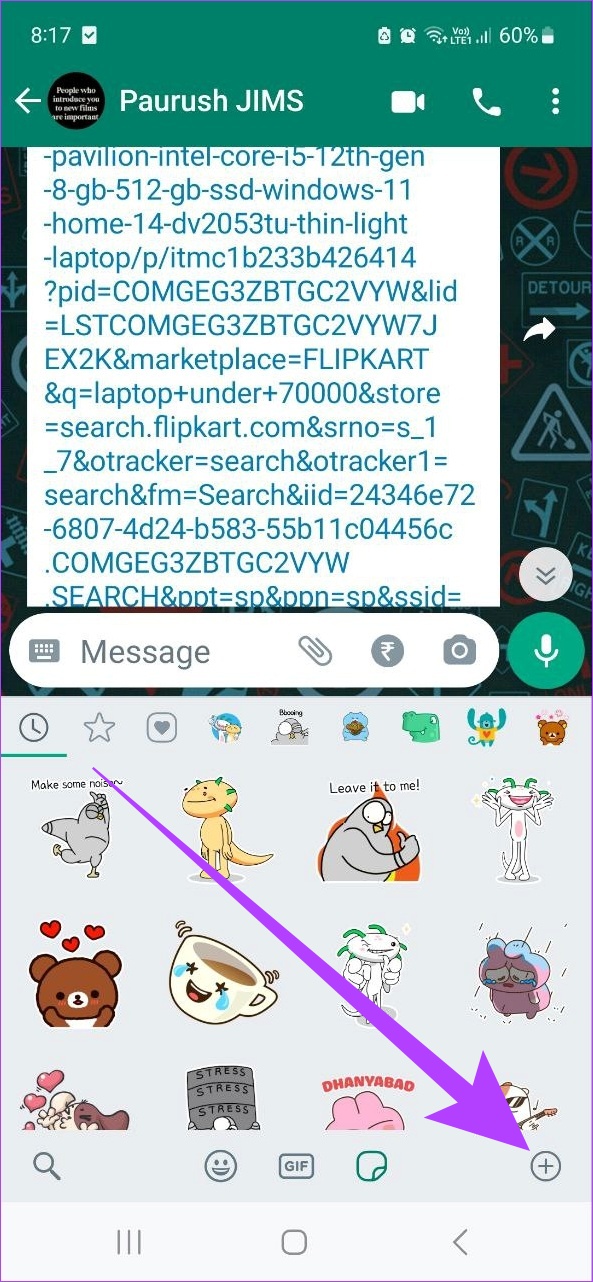
- Look for your custom pack under My Stickers or your installed packs.
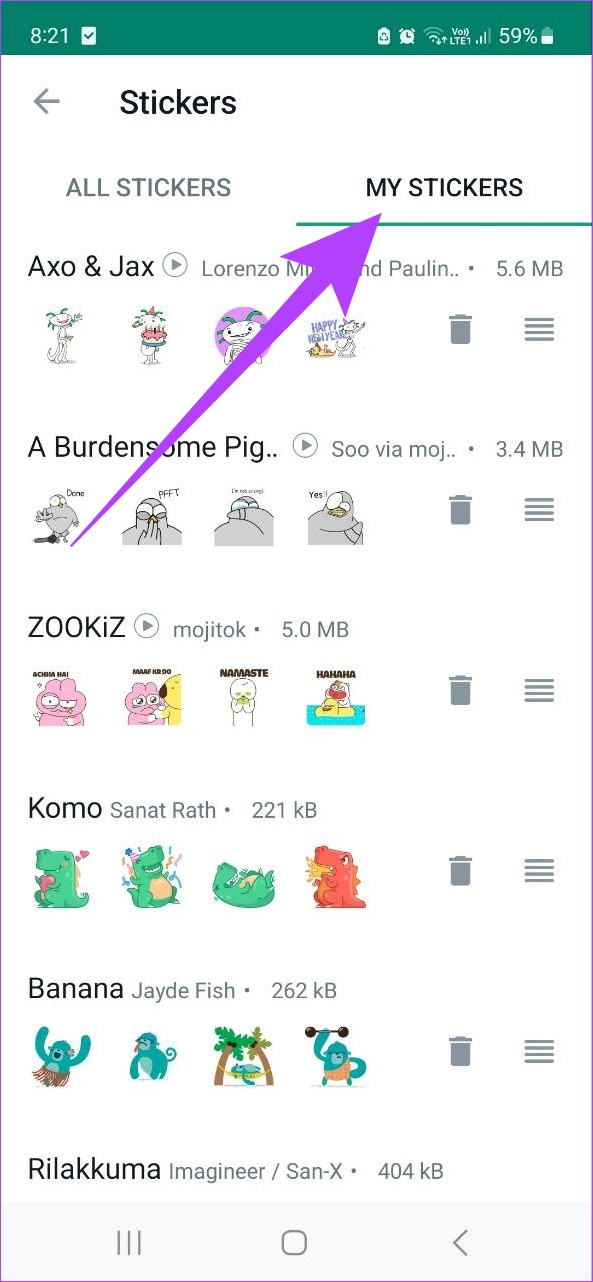
- If the pack is missing, re-add it from the sticker app or download it again.
Close WhatsApp Completely And Reopen It
- On iPhone, swipe up and pause, then swipe WhatsApp away.
- On Android, open the recent apps screen, then swipe WhatsApp away.
- Reopen WhatsApp and check the sticker tray again.
Restart Your Phone
- Restart your iPhone or Android phone.
- Open WhatsApp after reboot, then test stickers in a chat.
Update WhatsApp To The Latest Version
- On iPhone, open the App Store and update WhatsApp.
- On Android, open the Google Play Store and update WhatsApp.
- Open WhatsApp after the update and check if stickers load normally.
Check Your Internet Connection
- Switch between Wi-Fi and mobile data.
- Turn Airplane Mode on for 10 seconds, then turn it off.
- Open WhatsApp and test stickers again.
On Android, Clear WhatsApp Cache
Cache issues can block stickers from loading, especially after app updates or storage changes.
- Open Settings > Apps > WhatsApp.
- Tap Storage.
- Tap Clear Cache.
- Reopen WhatsApp and test sticker loading.
Check Permissions For Sticker Apps And WhatsApp
Third-party sticker apps often need storage or photo access to import sticker packs correctly.
- On Android, open Settings > Apps > your sticker app > Permissions.
- Allow Photos and videos or Files and media if you see it.
- Repeat for WhatsApp if permissions look restricted.
On iPhone, Check Storage And Background Settings
Low storage or aggressive background limits can disrupt sticker syncing and loading.
- Open Settings > General > iPhone Storage.
- Free up space if storage is nearly full.
- Open Settings > WhatsApp and make sure permissions you rely on are enabled.
Uninstall And Reinstall WhatsApp
Use this when sticker packs keep disappearing or WhatsApp refuses to load them. Back up first so you don’t lose chats.
- Open WhatsApp > Settings > Chats > Chat Backup.
- Run a backup to iCloud (iPhone) or Google Drive (Android).
- Delete WhatsApp from your phone.
- Reinstall WhatsApp from the App Store or Google Play Store.
- Restore your backup during setup, then re-add sticker packs if needed.
Relink WhatsApp Web If Stickers Are Missing There
WhatsApp Web depends on an active connection to your phone and may not always display every sticker pack the same way.
- On your computer, refresh the WhatsApp Web page.
- On your phone, open WhatsApp > Linked Devices.
- Log out of the computer session, then link it again.
- Test stickers by opening the sticker tray in a chat.
Troubleshooting Common Problems
My Sticker Pack Shows, But Stickers Are Blank Or Won’t Load
- Update WhatsApp, then force close and reopen it.
- Switch networks and test again.
- On Android, clear WhatsApp cache.
My Stickers Disappeared After I Restored Chats
- Confirm WhatsApp finished restoring media and data before testing stickers.
- Re-add third-party sticker packs from the sticker app.
- If the issue repeats, reinstall WhatsApp after completing a fresh backup.
I Can’t Add Third-Party Sticker Packs
- Update the sticker app and WhatsApp.
- Check sticker app permissions for photos or files.
- Try a different sticker pack to rule out a broken pack.
Tips
- Keep at least a few GB of free storage so WhatsApp can save sticker assets reliably.
- Update WhatsApp before troubleshooting deeper, since sticker bugs often get patched.
- Use trusted sticker apps only, since low-quality packs can break imports.
- After importing packs, close WhatsApp once and reopen it to refresh the sticker tray.
- Back up chats before reinstalling WhatsApp to avoid restore problems.
FAQ
Why are my custom stickers not showing in WhatsApp?
This usually happens due to an outdated app version, a sticker pack that failed to import, low storage, or a connection issue that blocks syncing.
Will clearing cache delete my WhatsApp chats?
No. Clearing cache on Android removes temporary files only. It does not remove your chats.
Why do stickers look different on WhatsApp Web?
WhatsApp Web relies on the linked device connection and may not always display every sticker pack identically, especially after changes on your phone.
Do I need a sticker app to use custom stickers?
Not always. WhatsApp supports stickers directly, but third-party sticker apps help you import custom packs.
Summary
- Check that your sticker pack still appears in the sticker picker.
- Force close WhatsApp, restart your phone, and update WhatsApp.
- On Android, clear WhatsApp cache and confirm permissions for sticker apps.
- Reinstall WhatsApp after a backup if stickers keep disappearing.
Conclusion
When custom stickers are not showing in WhatsApp, quick fixes like re-checking the pack, updating the app, and restarting the phone usually solve it. If the problem persists, clearing cache on Android or reinstalling WhatsApp after a backup typically restores missing sticker packs and stabilizes sticker loading.



Discussion (0)
Be the first to comment.