




Sending the wrong message on WhatsApp can cause instant regret. WhatsApp includes an unsend feature that lets you delete messages for everyone, but it works only within a short time window and has clear limits. Knowing how it works helps you act fast and avoid making mistakes worse.
This guide covers everything you need to about the unsend feature of WhatsApp and how to time it to perfection.
Table of contents
- What “unsend” means on WhatsApp
- How to unsend a WhatsApp message on Android
- How to unsend a WhatsApp message on iPhone
- How long you have to unsend a WhatsApp message
- What recipients see when you unsend a message
- Why “Delete for everyone” may not appear
- Unsend messages in group chats
- Can you unsend media, voice notes, or stickers
- Edit vs unsend on WhatsApp
- Tips to avoid sending messages by mistake
- FAQs
- Summary
What “unsend” means on WhatsApp
Unsend means removing a message so recipients no longer see its content. WhatsApp labels this option as Delete for everyone, and it replaces the message with a system notice.
Delete for everyone vs delete for me
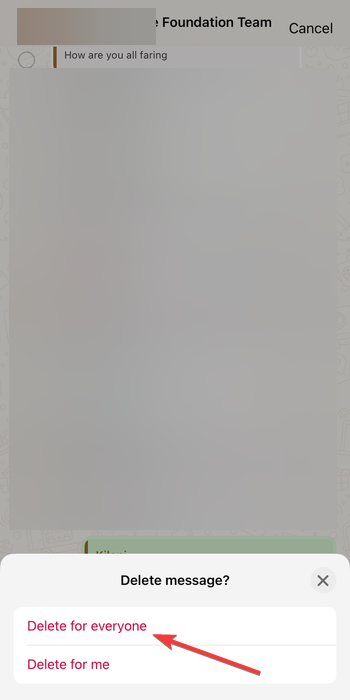
Delete for everyone removes the message from all chat participants. Delete for me only removes it from your device and does not affect others.
How to unsend a WhatsApp message on Android
Android users can unsend messages directly from the chat screen using long-press actions.
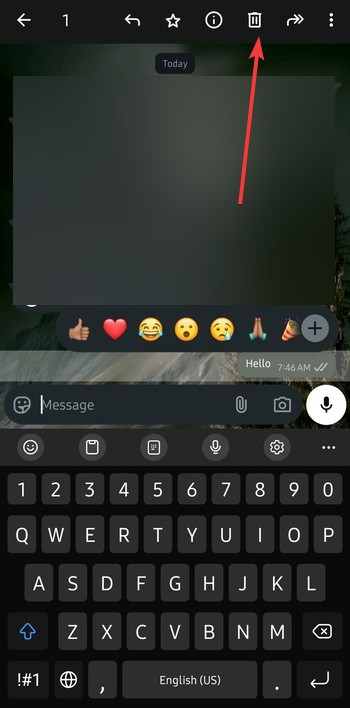
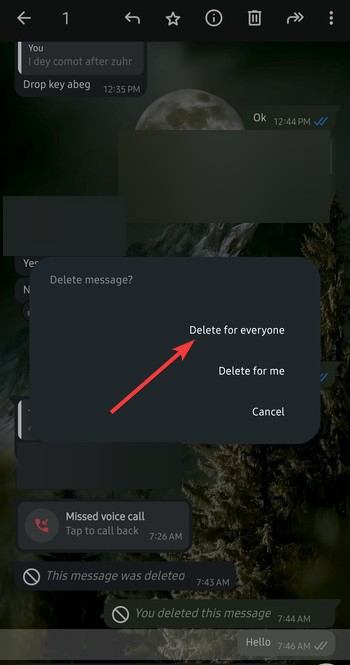
Steps to delete a message for everyone on Android
- Open the WhatsApp chat.
- Tap and hold the message you want to remove.
- Tap the trash icon at the top.

- Select Delete for everyone.

How to unsend a WhatsApp message on iPhone
The iPhone process uses similar gestures but slightly different menus.
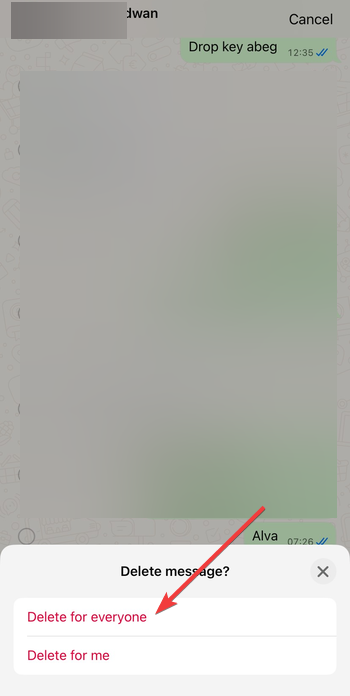
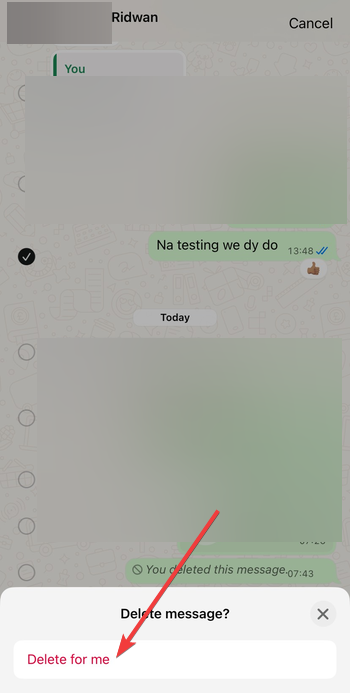
Steps to delete a message for everyone on iPhone
- Open the conversation in WhatsApp.
- Tap and hold the message.
- Tap Delete from the menu.
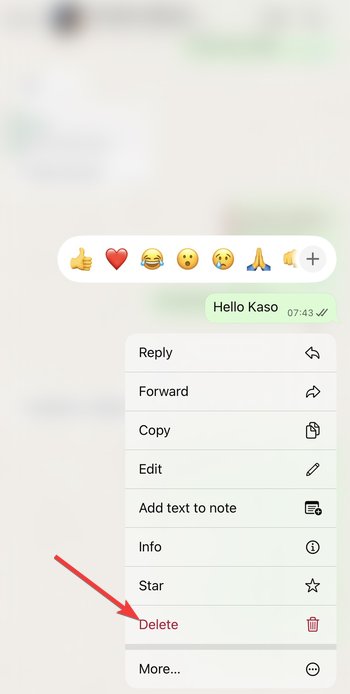

- Next, select any other message you want to delete and click the delete icon.
- Choose Delete for everyone.

How long you have to unsend a WhatsApp message
WhatsApp allows message deletion only within a limited time window after sending. Once that window passes, the unsend option disappears.
What happens after the time limit expires
After the limit ends, you can only use Delete for me. Recipients will continue seeing the original message.
What recipients see when you unsend a message
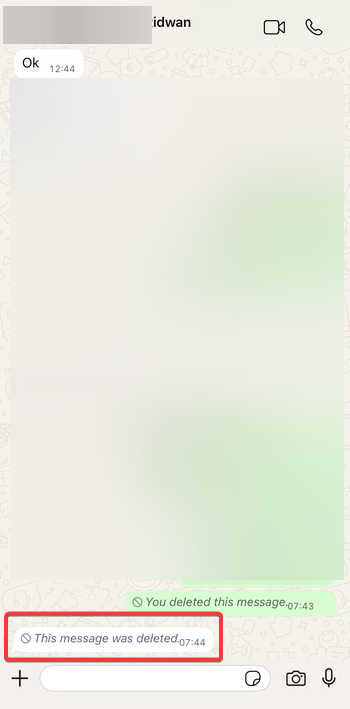
WhatsApp replaces the removed message with “This message was deleted.” The notice appears in both private and group chats.
Can someone still read the message
Recipients may still see message previews in notifications. Screenshots or saved content remain unaffected.
Why “Delete for everyone” may not appear
Sometimes WhatsApp hides the unsend option due to technical or timing issues.
Common reasons unsend does not work
The message may exceed the allowed time. Outdated app versions or offline recipients can also block deletion.
Unsend messages in group chats
WhatsApp supports unsending messages in groups, but rules still apply.
Group admin messages and large groups
Admins and regular members follow the same deletion limits. Group size does not change how unsending works.
Can you unsend media, voice notes, or stickers
WhatsApp allows unsending most message types, not just text.
Supported and unsupported message types
Photos, videos, voice notes, and stickers support deletion. Files already downloaded by recipients may still exist locally.
Edit vs unsend on WhatsApp
WhatsApp now lets users edit messages shortly after sending. Editing works better for minor mistakes.
When editing a message makes more sense
Edits keep the original message visible with an “edited” label. Unsend works best when you want full removal.
Tips to avoid sending messages by mistake
- Double-check recipients before tapping send.
- Pause before sending sensitive content.
- Disable lock-screen previews for privacy.
FAQs
Can you unsend messages in archived chats? Yes, archived chats follow the same deletion rules.
Does unsending work in WhatsApp Business? Yes, the feature works the same way.
Can recipients know who deleted the message? WhatsApp does not show who deleted it.
Summary
- WhatsApp lets you unsend messages using Delete for everyone.
- You must act within the allowed time window.
- Recipients may still see previews or saved content.
- Editing works better for small mistakes.
Unsending messages on WhatsApp helps limit mistakes, but it does not guarantee full removal. Act quickly, keep your app updated, and use editing when removal is unnecessary.

Discussion (0)
Be the first to comment.