




If you no longer want messages syncing to your computer, signing out of iMessage on Mac gives you more privacy and control. This guide explains how to sign out of iMessage on macOS, what changes after you do, and how to turn iMessage off without fully signing out.
Why You Might Want To Sign Out Of iMessage On Mac
Many users choose to sign out of iMessage on Mac to protect personal conversations or reduce distractions. The Messages app stays tightly linked to your Apple ID, so signing out helps limit access when your Mac changes hands.
- You are selling, giving away, or trading in your Mac
- You use a shared or work computer and want better privacy
- You want to stop iMessage notifications on macOS
- You plan to switch to a different Apple ID
- You are troubleshooting iMessage sync issues between devices
What Happens When You Sign Out Of iMessage On Mac
Signing out of iMessage on macOS changes how messages behave on that device, but it does not affect your other Apple devices.
- You stop receiving iMessages, SMS, and MMS on your Mac
- Message notifications no longer appear on macOS
- Your message history remains on the Mac until you delete it
- Messages continue to sync and arrive on iPhone or iPad
- You can sign back in at any time using your Apple ID
How To Sign Out Of iMessage On Mac
You can sign out of iMessage directly from the Messages app in just a few steps.
- Press Command + Space to open Spotlight Search
- Type Messages and open the app
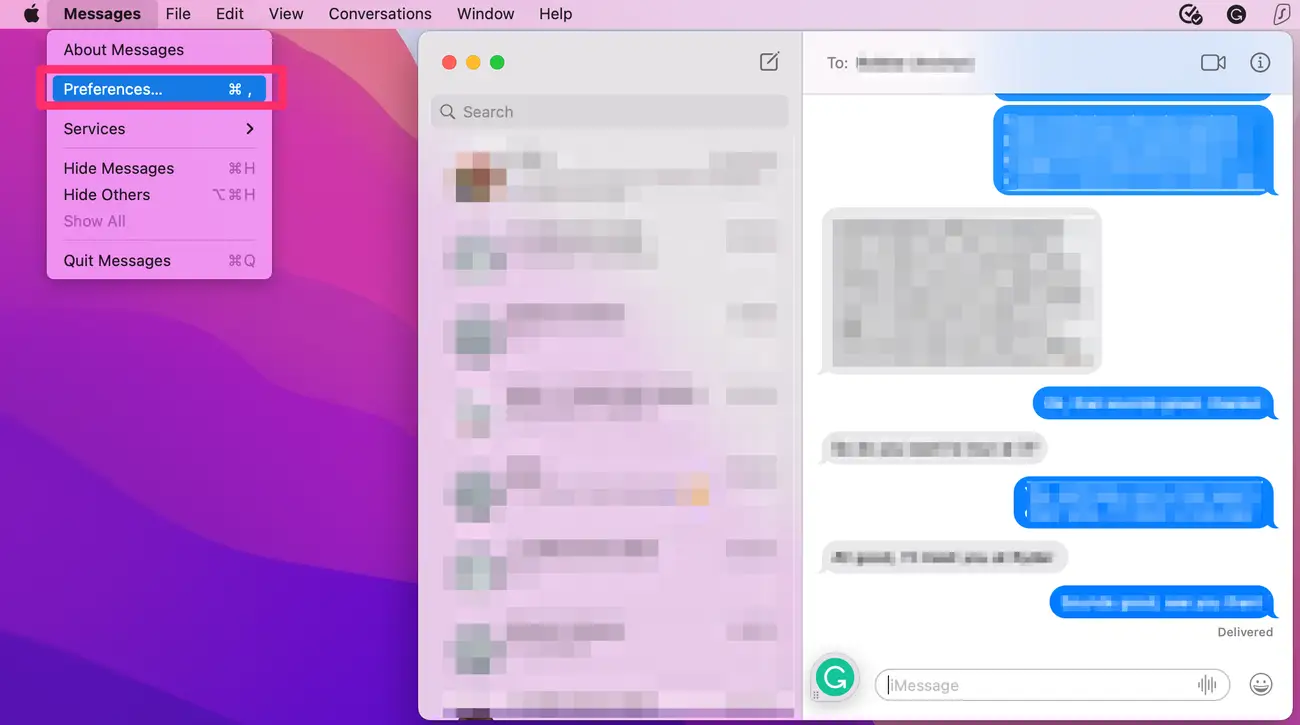
- Click Messages in the menu bar. Click Preferences.
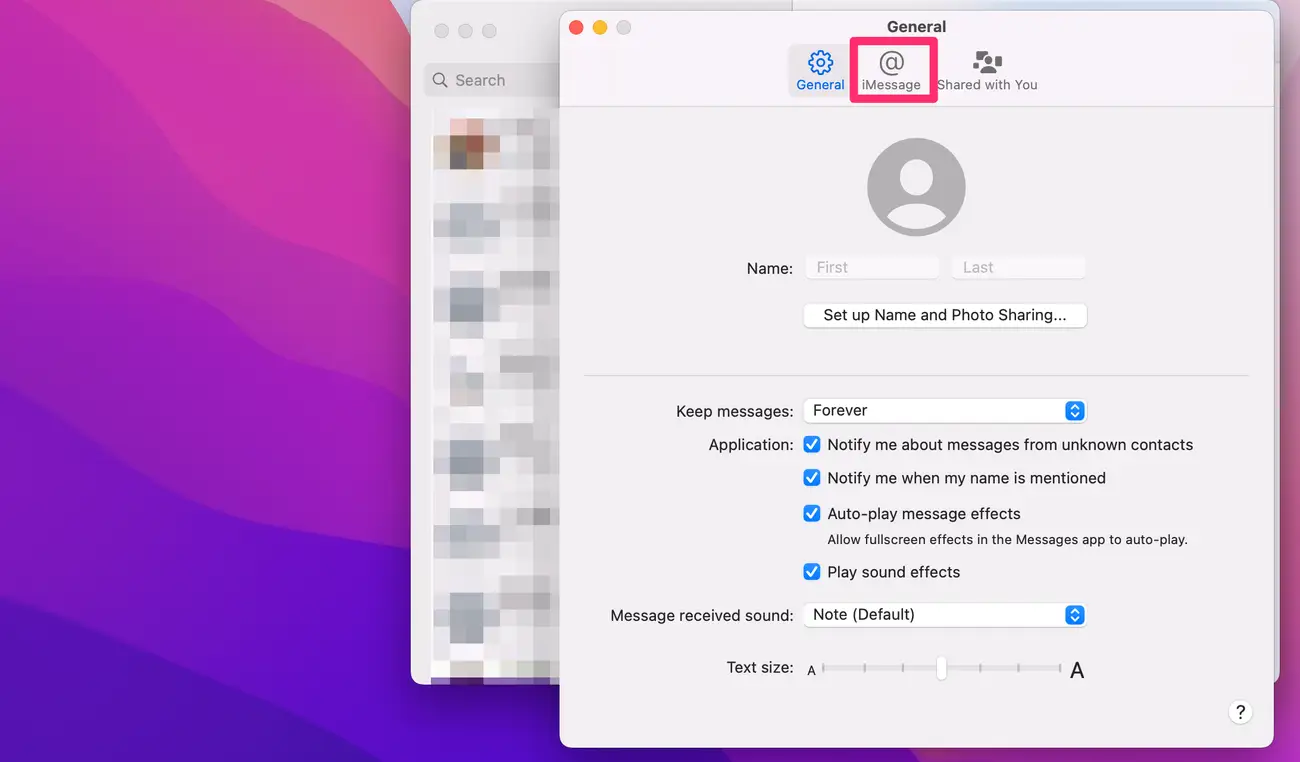
- Open the iMessage tab
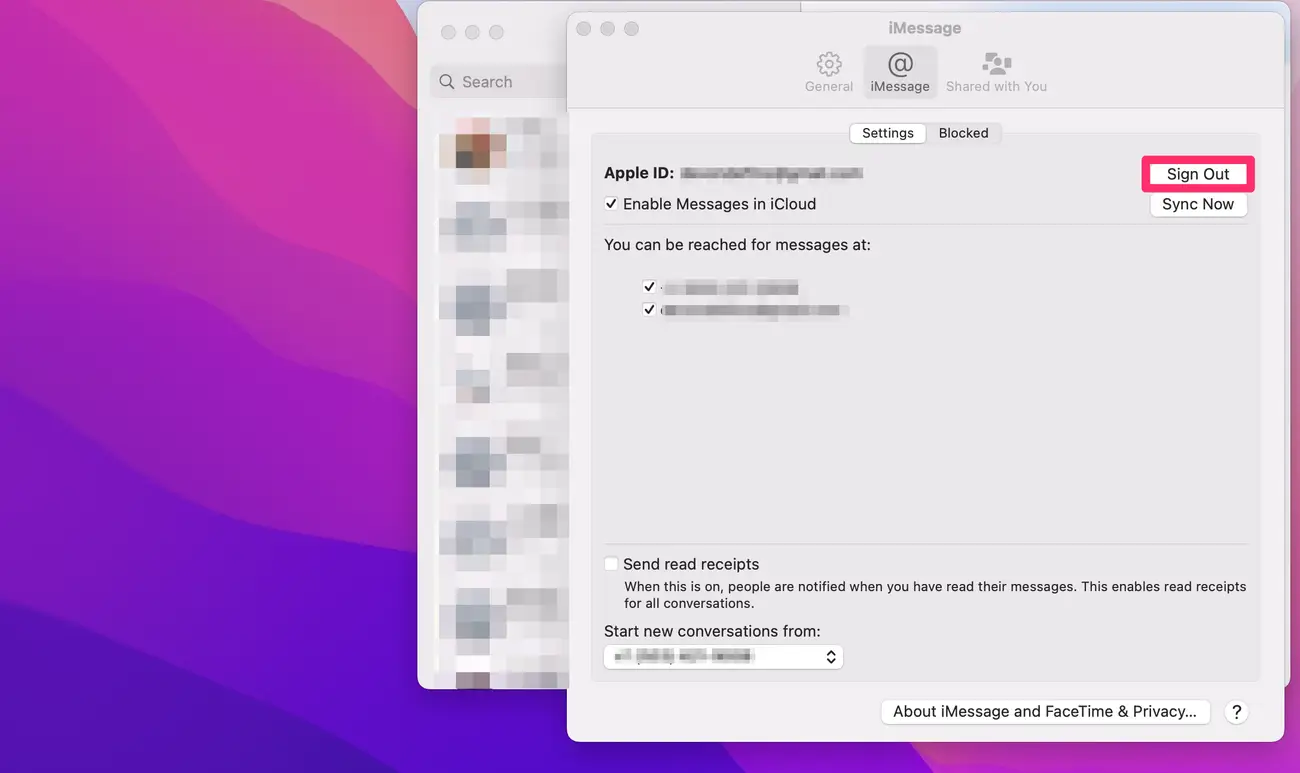
- Click Sign Out next to your Apple ID
- Confirm when prompted
How To Turn Off iMessage On Mac Without Signing Out
If you only want to pause message syncing, you can disable iMessage without logging out of your Apple ID.
- Open the Messages app
- Click Messages in the menu bar
- Select Settings
- Open the iMessage tab
- Uncheck Enable Messages In iCloud
This stops messages from syncing to your Mac while keeping your account signed in.
Troubleshooting Common Problems
If you cannot sign out of iMessage or the option appears grayed out, the issue usually relates to account syncing.
- Restart your Mac and try again
- Make sure you are signed into the correct Apple ID
- Check that macOS is fully updated
- Disable Screen Time restrictions if enabled
Tips
- Sign out before resetting or selling your Mac
- Delete message history manually if privacy is a concern
- Use Focus or Do Not Disturb for temporary notification control
- Keep your Apple ID password updated for security
FAQ
Can I sign out of iMessage on Mac without affecting my iPhone?
Yes. Signing out on Mac does not change iMessage settings on other devices.
Will signing out delete my messages?
No. Message history stays on the Mac until you remove it manually.
Can I sign back in later?
Yes. Open Messages and sign in again using your Apple ID.
Does this stop SMS forwarding from iPhone?
Yes. SMS and MMS forwarded from iPhone will no longer appear on Mac.
Summary
- Signing out of iMessage on Mac improves privacy and reduces distractions
- The Messages app stops syncing but keeps message history intact
- You can disable iMessage without signing out if needed
Conclusion
Signing out of iMessage on Mac is a quick way to protect your messages, manage notifications, or prepare a device for a new owner. You can always sign back in later, making this a safe and reversible change.


Discussion (0)
Be the first to comment.